I want to make another classification column required when a date is not entered
Answer
You can achieve this as follows.
- Set Range for the date column in the Date Column Filter Mode Selection
- On the "General" tab of Control by Status, make the classification column Input Required, and on the Conditions tab select "Not set" for the date column
- In the Editor, check Auto post back in the advanced settings of the date column
Overview
When you want to control "input required" by a condition, such as "I want to make Classification A required when Date A is not entered", you can achieve this with Control by Status and Auto post back. When you want the condition to be that a Date column is not entered, select "Not set" for the date column on the Conditions tab.
Operation Procedure
-
From Manage Table - the Filter tab, select "Date A" and click the "Advanced Settings" button. In the advanced settings dialog, set "Mode selection" to "Default".

-
On the Manage Table - Control by Status tab, register the control with the following content.
-
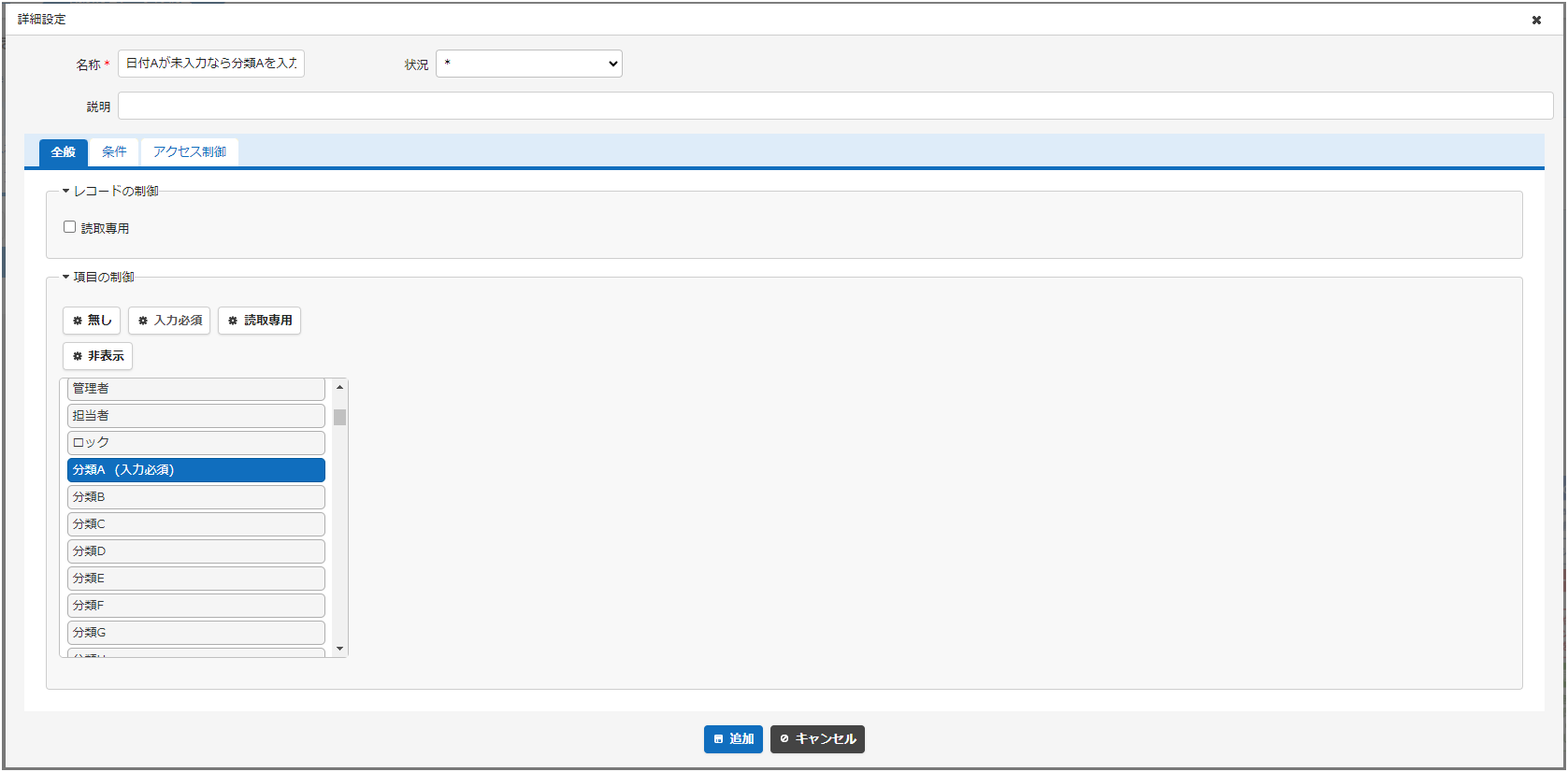
Open the General tab, select "Classification A" in "Column control", and click the Input Required button.
-
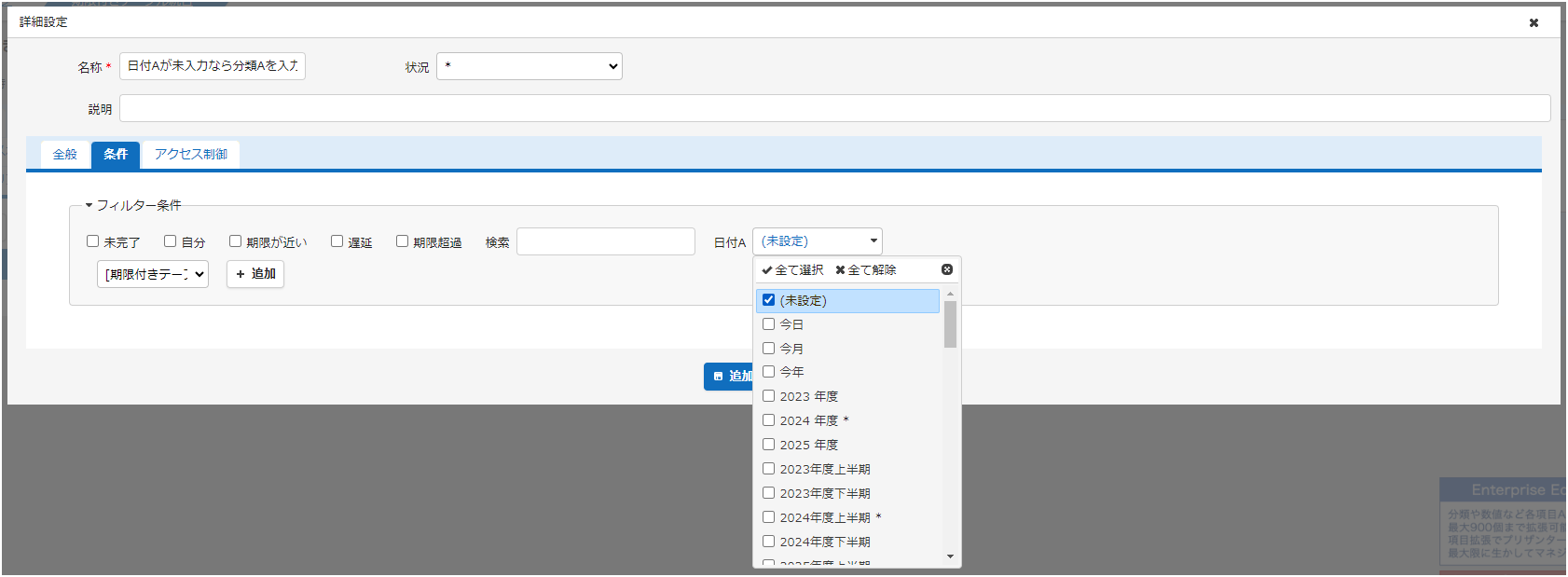
Open the Conditions tab, add Date A, and check "Not set" as the condition.
-
-
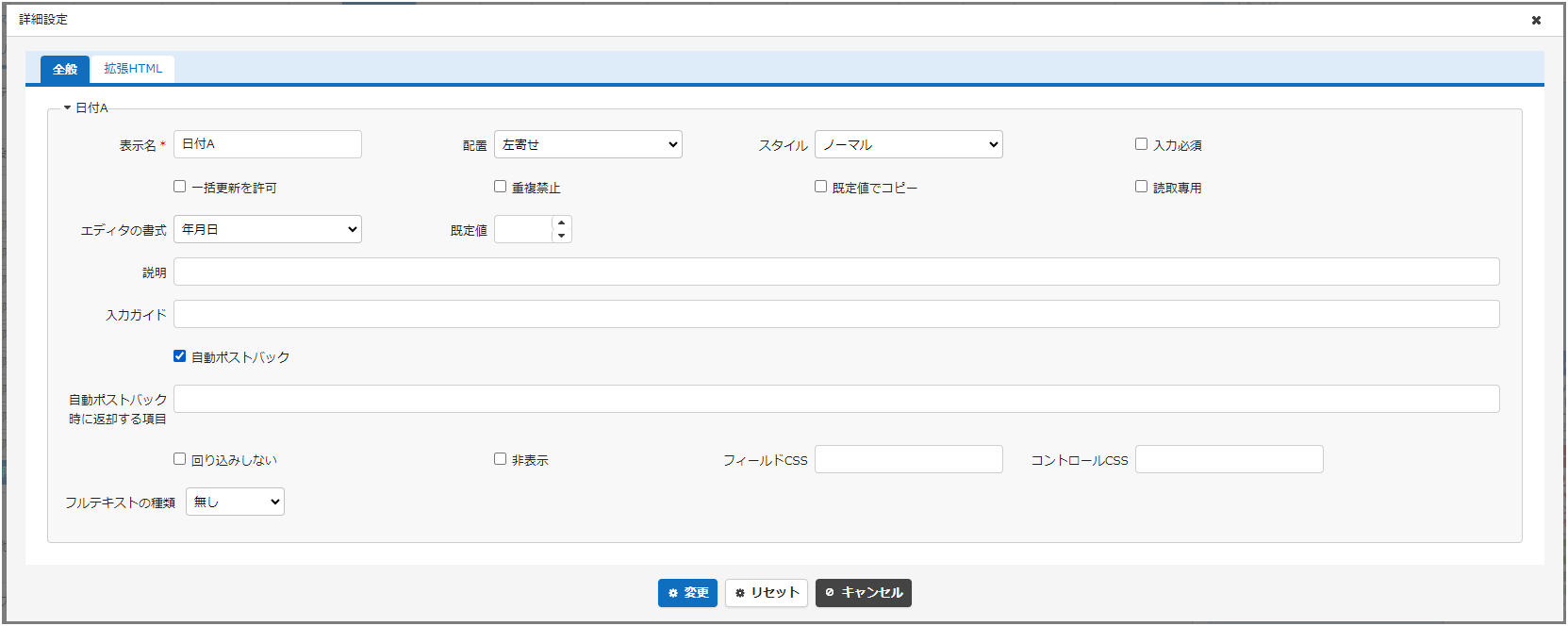
On the Manage Table - Editor tab, enable Classification A and Date A, and check Auto post back in the advanced settings of Date A.
Behaviour After the Settings
-
When Date A is not entered, Classification A is required

-
When you enter a value in Date A, the requirement on Classification A is released

Related Information
- Filter: Date Column Filter Mode Selection
- FAQ: How to set a Range for Numerical value or Date conditions in the Conditions tab of processes
- Advanced Operation: Process and Control by Status
- Column Advanced Settings: Input Required
- Table Function: Record Editor Screen
- Column Advanced Settings: Auto post back
- Date
- Manage Table
- Advanced Operation: Link