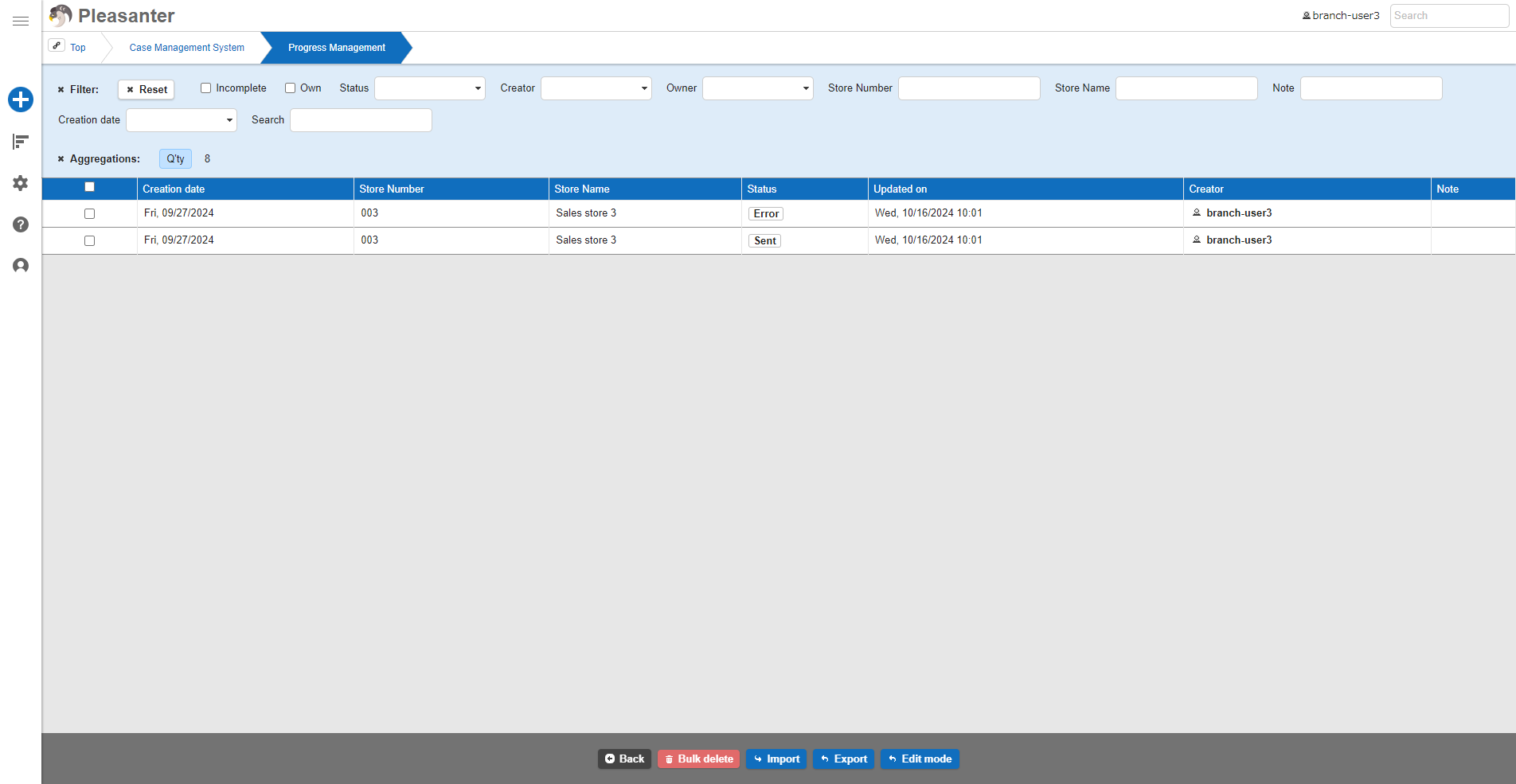
How can I sort the records displayed by department?
Answer
Use "OnSelectingWhere" in "Extended SQL".
Overview
Controls the records displayed on the record Screen Index by the department and group created in advance. On this page, users belonging to the head office (department) can view all registered records, and users belonging to other departments can only view records registered within the same group.
Preparations
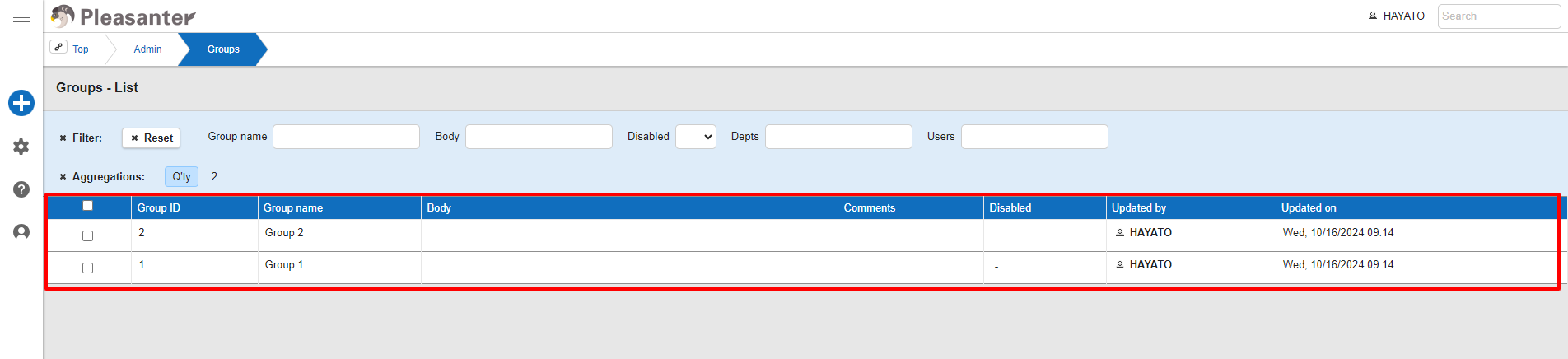
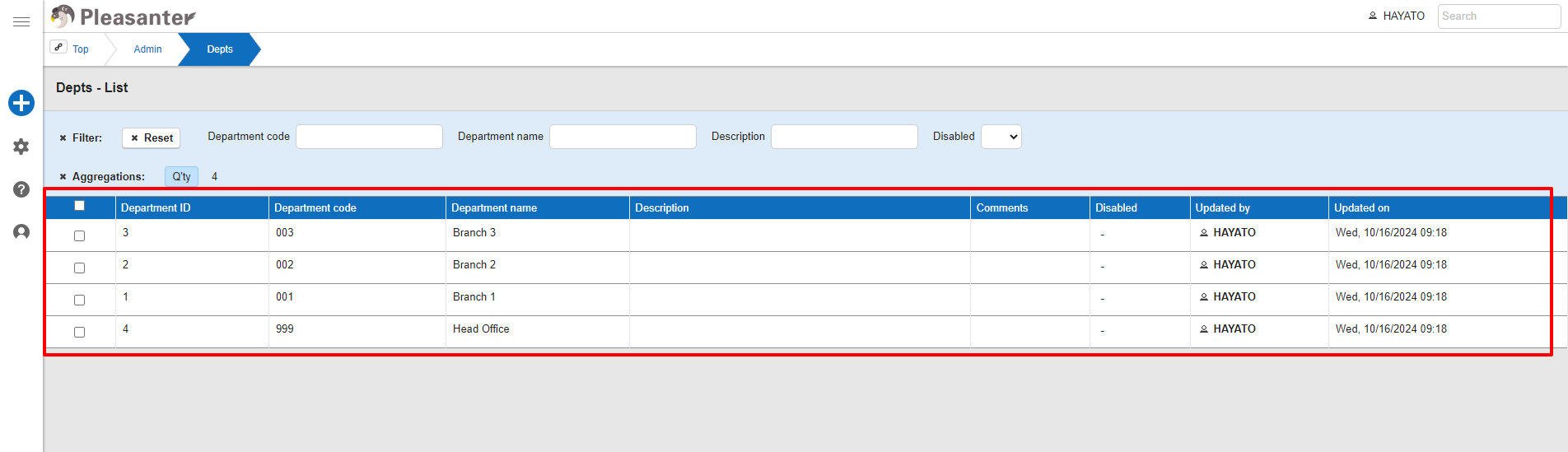
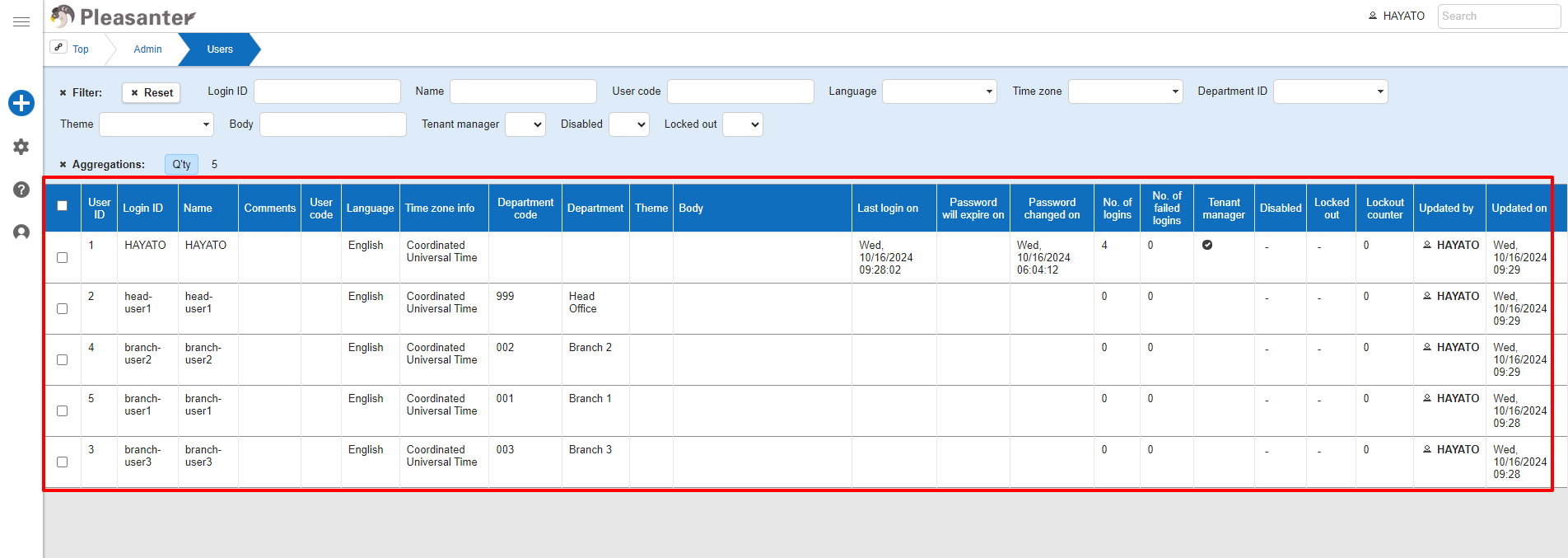
(1) After logging in as a system manager, refer to the table below and create user information including group and department information from "Manage" - "User Management", "Department Management", and "Group Management". Here, we will configure the department and group assuming users belong to the head office and users belong to each sales office. The configuration is shown in the table below.
| User | Department | Group |
|---|---|---|
| branch-user1 | Branch 1 | Group 1 |
| branch-user2 | Branch 2 | 〃 |
| branch-user3 | Branch 3 | Group 2 |
| head-user1 | Head Office | - |
(2) From "Manage" - "Manage Table" - "Editor", set Category B to an arbitrary name displayed (here, set it to "Branch No.", and for ease of understanding, set Category C to "Branch Name"), and enable each from the "Grid" tab.
(3) Create at least one record for each user.
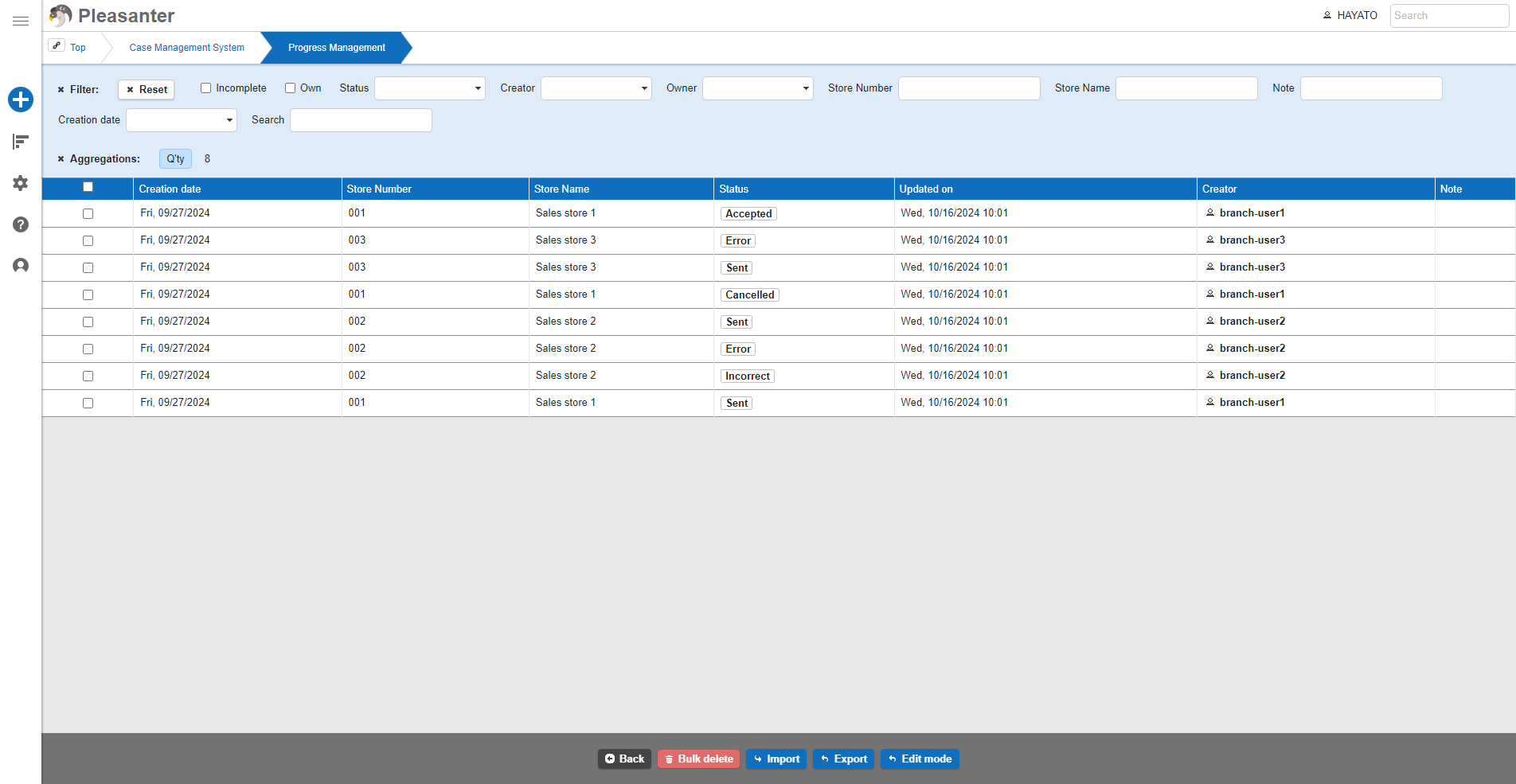
(4) Change the value of @_D in the sample code (Sql) below and the value of SiteIdList in the sample code (JSON) below to suit your environment.
In this example, the value of @_D is 29, and the value of SiteIdList is 843.
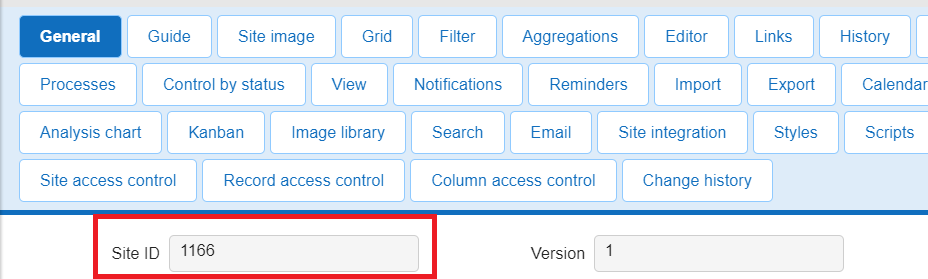
(5) Enter the sample code created in (3) and other columns in the Extensions table.
For more information on extended SQL, see here (/manual/extended-sql)
(6) Restart Pleasanter.
Sql
(
    @_U = 1 or @_D = 1 --System manager user ID or headquarters dept ID
    or [ClassB] in (
        select [Depts].[DeptCode]
        from [GroupMembers]
        left join [Depts]
        on Depts.DeptId = GroupMembers.DeptId
            and ([GroupMembers].[GroupId] in(
                select [GroupId]
                from [GroupMembers]
                where [DeptId] = @_D))
        where [Depts].[DeptCode] is not null)
)
JSON
Result
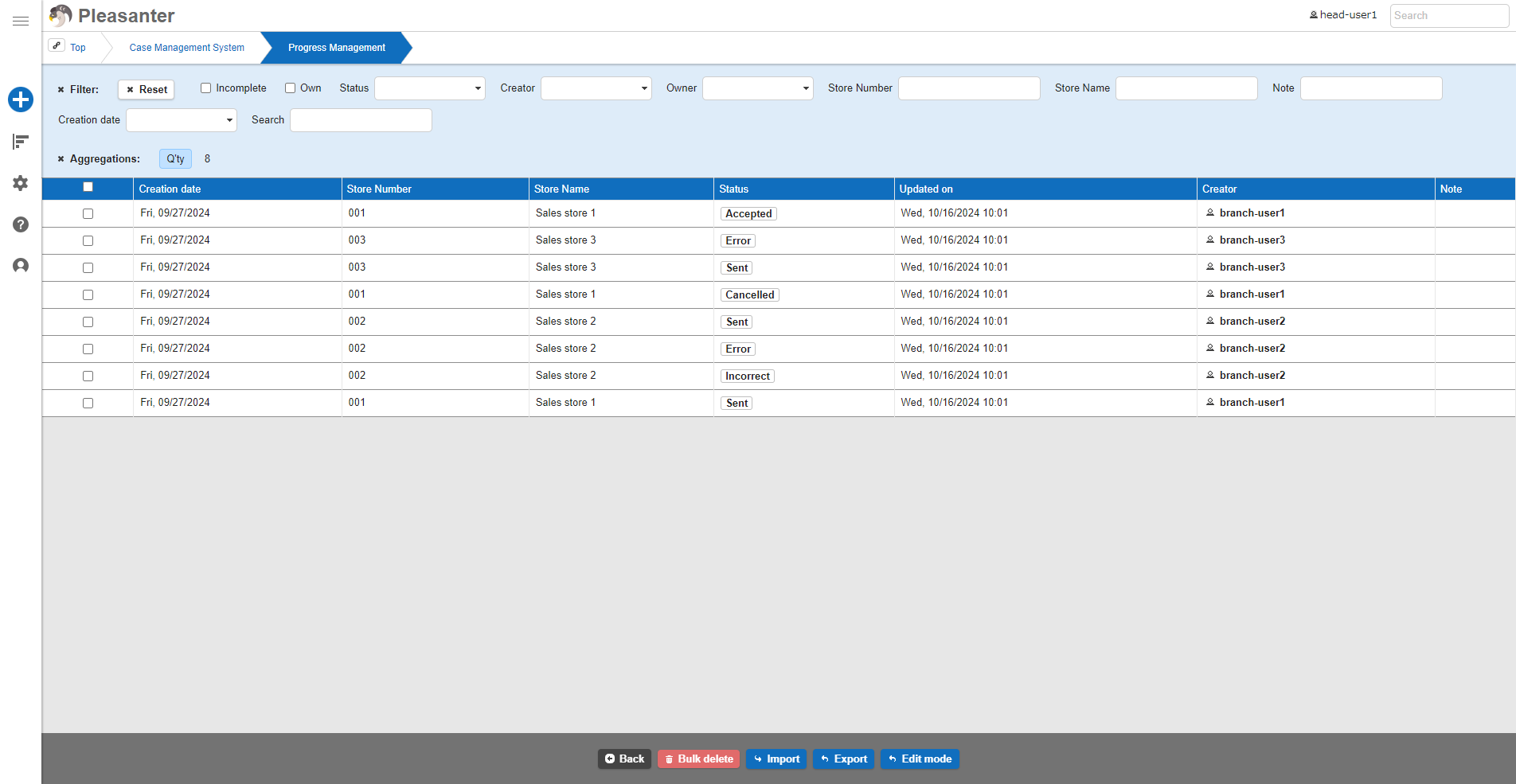
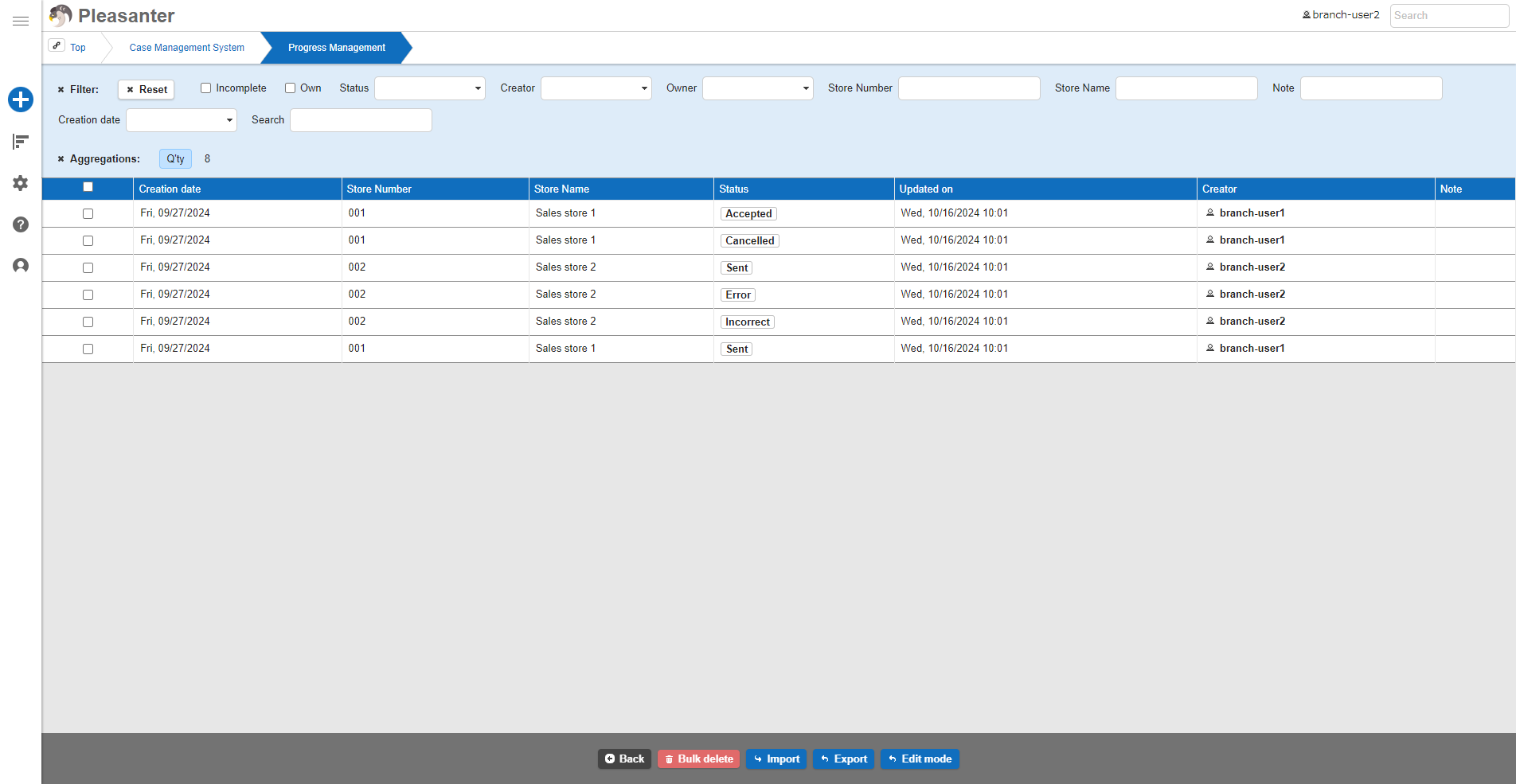
The records displayed (obtained) for each user will change depending on the group or department to which they belong, as shown below.
-
When logged in as a head office user
-
When logged in as a user belonging to sales office 2
-
When logged in as a user belonging to sales office 3