How to display columns from parent and child tables on the Screen Index
Answer
Set it in the "Manage Table" - "Index" tab.
Overview
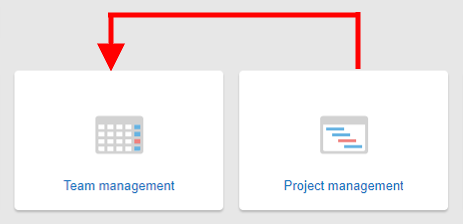
Tables linked using the table link function can display columns other than the title in each index view. Here, we will explain that Team Management (parent table) and Project Management (child table) are linked.
Configuration
- Create two recorded tables, Team Management and Project Management.
- Link Project Management (child table) to Team Management (parent table).
The team name will be the title of Team Management.

In Project Management, the title of Team Management (team name) is displayed as an option with the name displayed "Team in charge" as shown below.
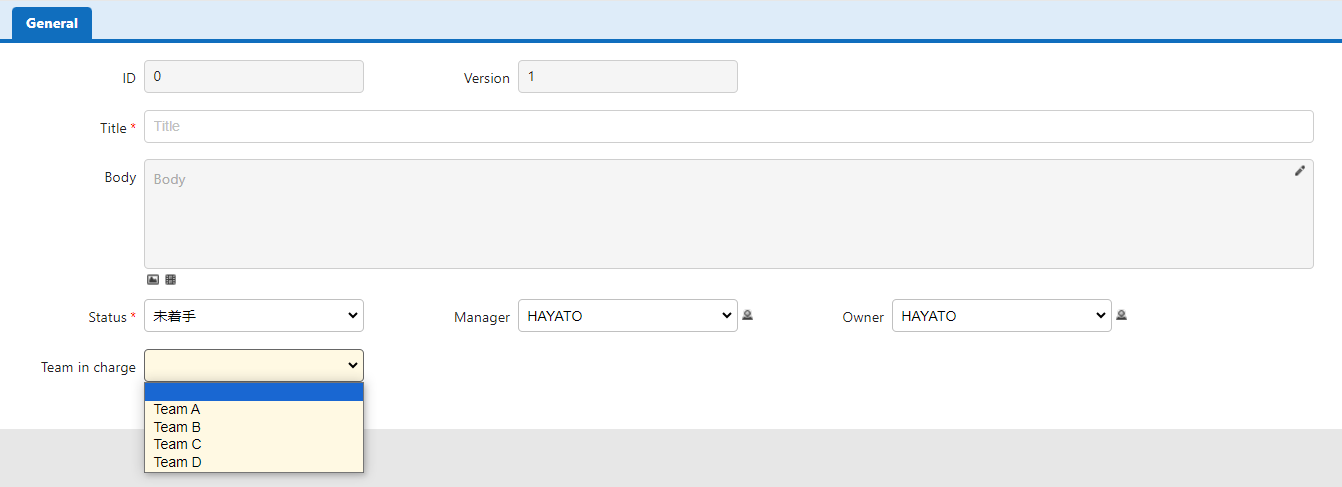
Usage Examples
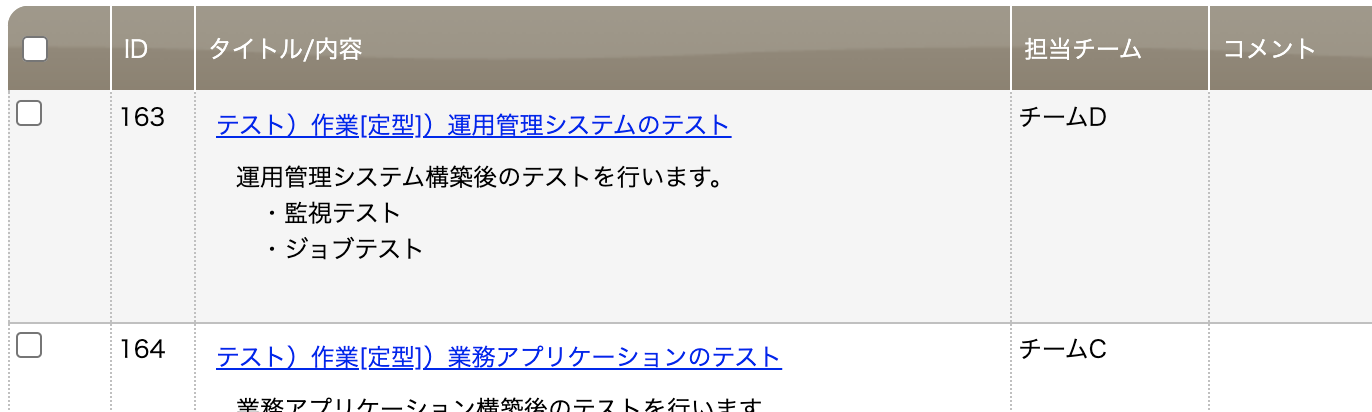
Normally, in Project Management, only the title (team name) of the parent table, Team Management, is displayed
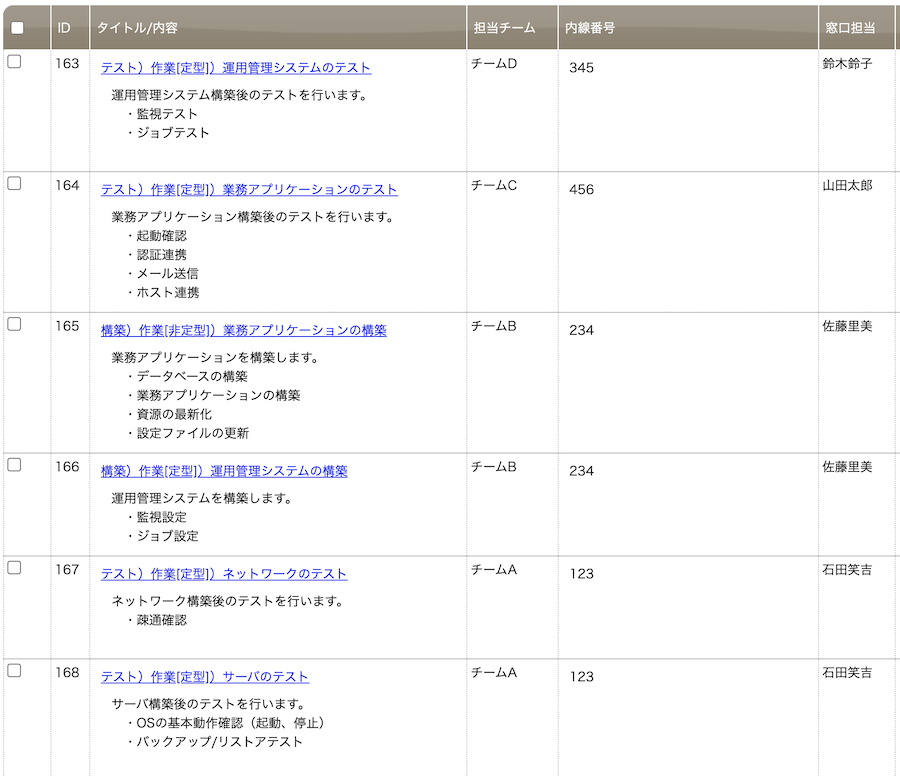
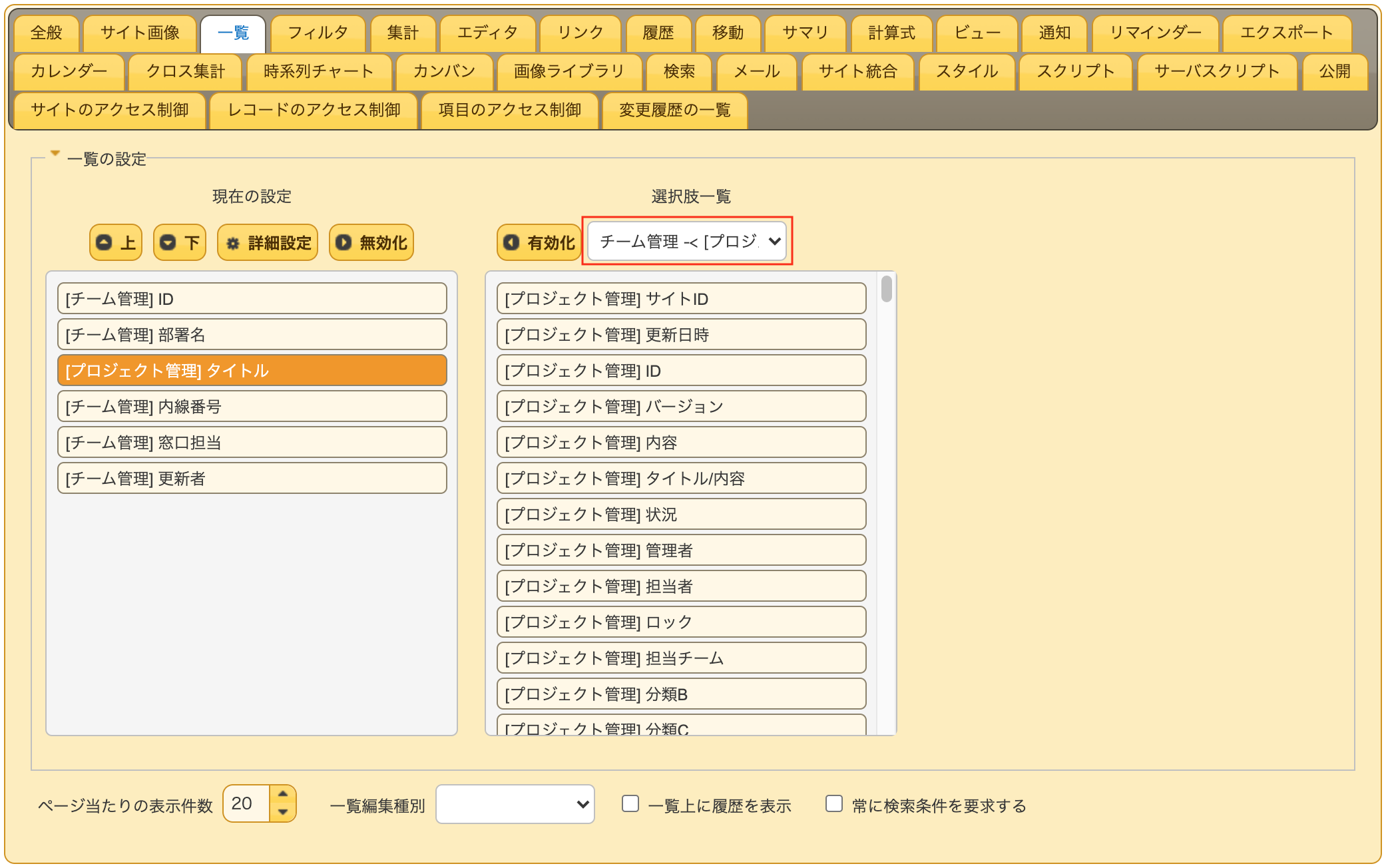
Open Project Management, open the Index tab from Manage Table, and open the drop-down list at the top of the selection column to display the linked table. Select Team Management and enable Contact Person and Extension Number.
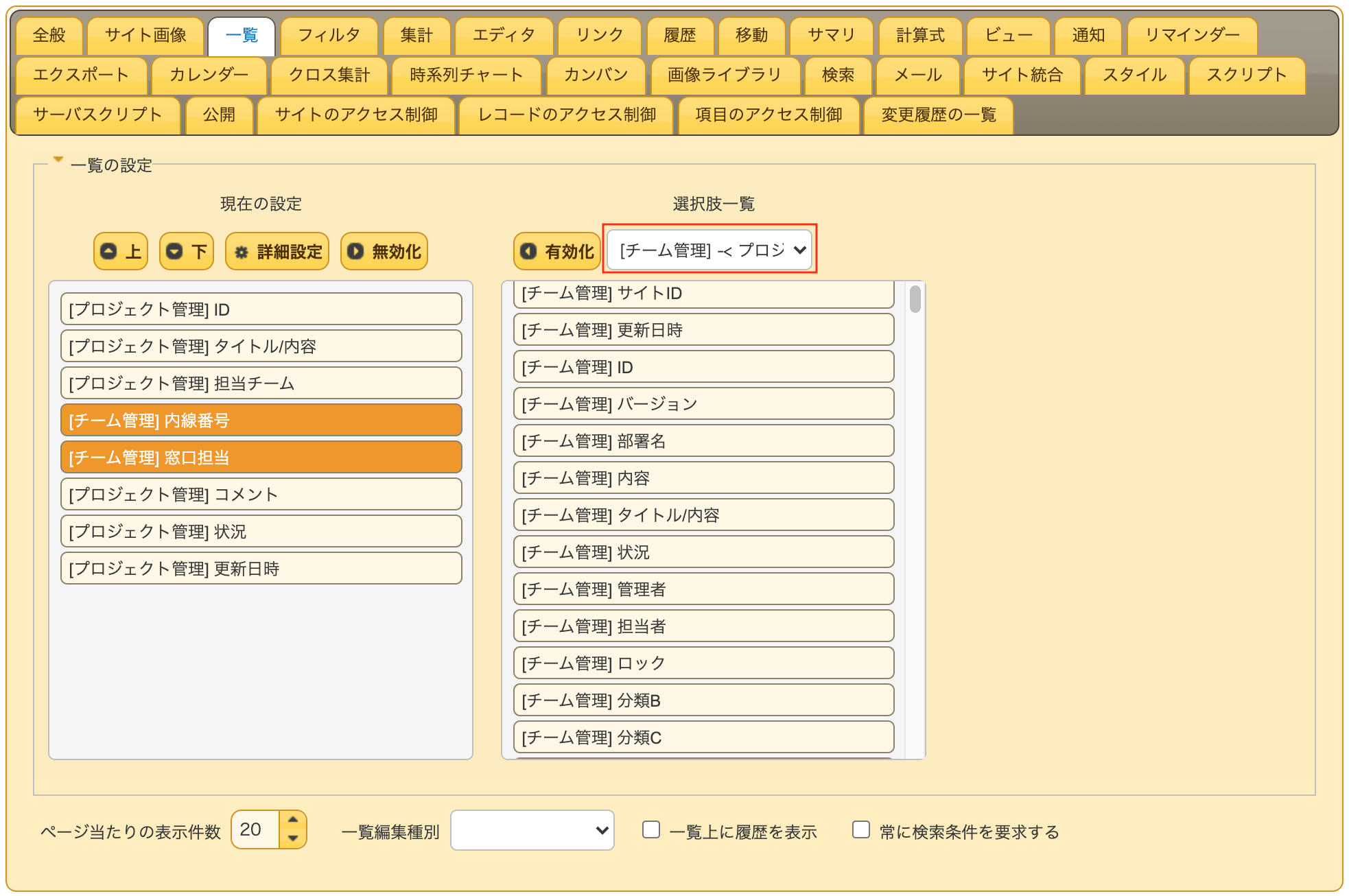
Click the refresh button to return to the Screen Index, and the Contact Person and Extension Number columns in Team Management will be displayed.
Next, in the same way, open the parent table Team Management, select the child table Project Management in the Index tab, and enable the title.
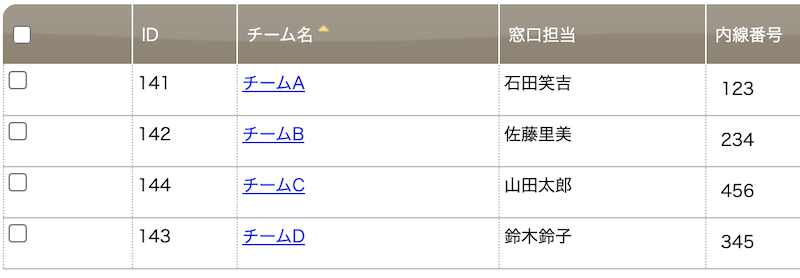
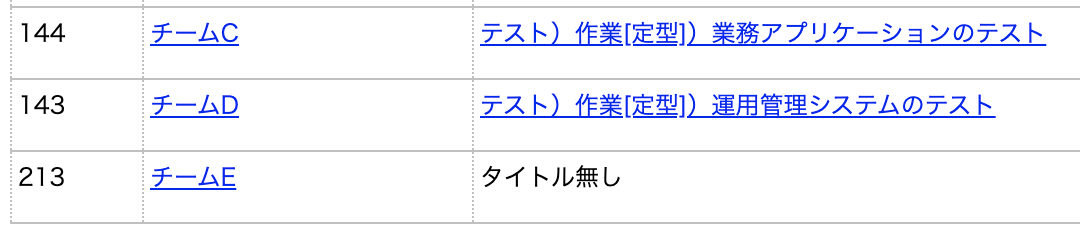
Team Management originally only had four records, but the display content will change by enabling the title of the child table Project Management.
Since the column of the child records linked to each Check Management record are displayed, the original Team Management records will be displayed duplicated.
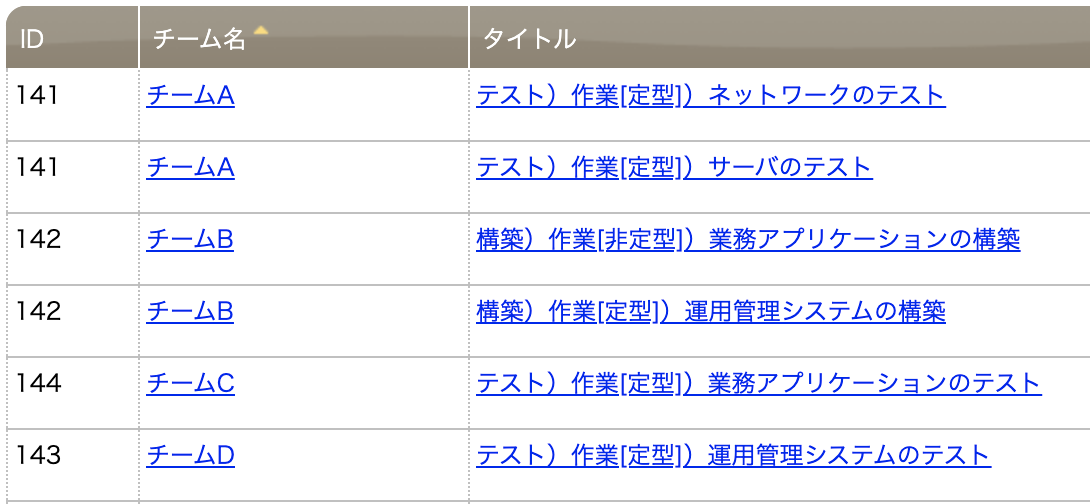
If there are no linked records, "No Title" is displayed.
Cautions
When displaying child table columns in the parent table list, the checkboxes to the left of each row are hidden to prevent unintentional deletion of records due to erroneous operations, so bulk update and bulk delete cannot be used.