I want to check the Pleasanter log
Answer
- Use "System Log Management".
- Execute SQL.
Overview
These are the steps to check and obtain Pleasanter's "System Log Management".
Cautions
- If you are directly manipulating the database to obtain logs, we strongly recommend that you obtain a "Backup" beforehand.
Operation Procedure (System Log Management Function)
Parameter Change
Since the System Log Management function can only be used by privileged users, edit the parameter settings.
- Open App_Data/Parameters/Security.json.
-
Specify the privileged user (login ID) in the "PrivilegedUsers" parameter and save it. Please refer to the following manual for how to specify parameters.
-
Restart Pleasanter.
Log Acquisition
- Log in to Pleasanter as a privileged user.
- Open the "Management" menu and click "System Log Management".
- Set the conditions in the filter and click the "Filter "button.
- Verify that records (logs) are displayed according to the set conditions.
- Click the "Export" button at the bottom of the screen.
Operation Procedure (SQL Server)
- Log in to the server where Pleasanter is installed.
- Start SSMS (SQL Server Management Studio).
- From "Object Explorer", expand "Databases" and select "Implem.Pleasanter".
- Right-click "Implem.Pleasanter" and click "New Query".
- Execute the following SQL to retrieve data from the "SysLogs Table".
To get the most recent 1000 items
To get logs for a specific period
- Click the top left of the results window to select all results.
- Right-click the above selection and click "Save Results As".
- Save the output results (CSV).
Operation Procedure (PostgreSQL)
① Log acquisition using PSQL
- Log in to the server where Pleasanter is installed.
- Switch to the postgres user.
- Execute the following psql command to get the data of the SysLogs Table.
To get the most recent 1000 records
psql -d "Implem.Pleasanter" -U postgres -c "select * from \"SysLogs\" order by \"CreatedTime\" desc limit 1000;" -A -F, > /web/syslogs.csv
To get logs for a specific period
psql -d "Implem.Pleasanter" -U postgres -c "select * from \"SysLogs\" where \"CreatedTime\" between '2022/02/08 00:00:00' and '2022/02/09 00:00:00' order by \"CreatedTime\" desc;" -A -F, > /web/syslogs.csv
1. Save the CSV output to /web/syslogs.csv.
② Log acquisition using pgAdmin
- Start pgAdmin.
- Connect to the Pleasanter database.
- In Object Explorer, right-click "Server name > Database > Implem.Pleasanter" and click "Query Tool".

- Execute the following SQL.
To get the most recent 1000 items
To get logs for a specific period
select * from "Implem.Pleasanter"."SysLogs" where "CreatedTime" between '2022/02/08 00:00:00' and '2022/02/09 00:00:00' order by "CreatedTime" desc limit 1000;
1. Click the red frame in the data output in the image below and save the output results (CSV).
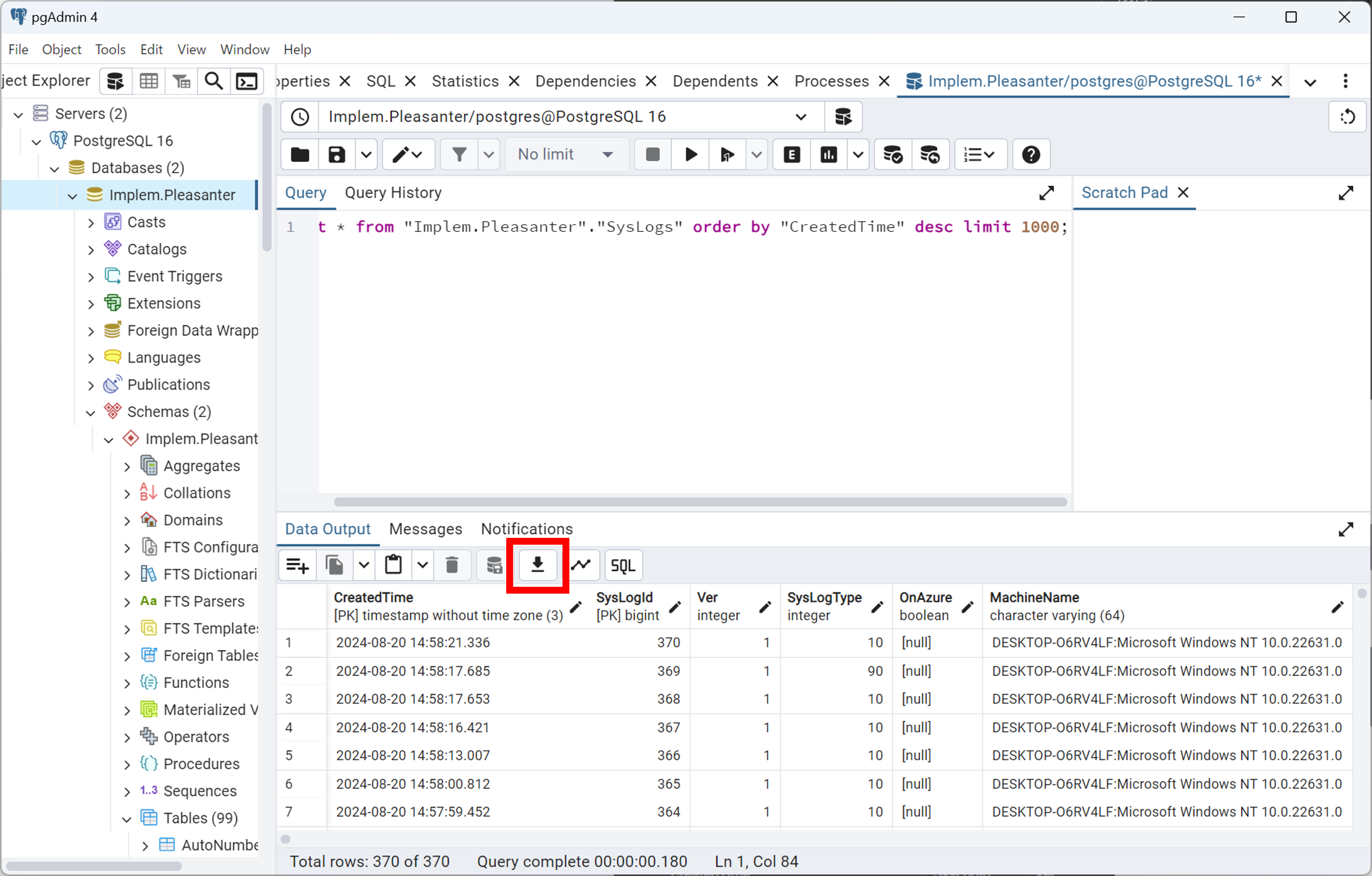
Log Contents
For the contents of the "SysLogs Table", please refer to FAQ: About the contents of the operation log (SysLogs table).