Using the process function to create workflows (approval processes) such as approval requests
Answer
Create an approval process using "Process" and "Control by Status".
Overview
This page shows you how to create an approval process that allows up to 3 application stages depending on the application amount and then finalizes the application in the accounting department.
Each flow can be sent back to the previous owner.
For information on how to set up process and control by status, see "Manage Table: Process" and "Manage Table: Control by Status" respectively.
You can check the settings and try out this sample in the "Approval Request" table in the "Examples of Request" folder on the Demo site.
Assumed Business Requirements
The number of approvals and the job titles and positions that can be approved (approval route) are determined according to the amount of the application at the time of application.
Only the superior of the department to which the applicant belongs can approve the application. If the application amount is 200,000 JPY or less, only the section manager can approve it, if it is over 200,000 JPY but not exceeding 1,000,000 JPY, the section manager and department manager can approve it, and if it is over 1,000,000 JPY, the section manager, department manager and executive can approve it.
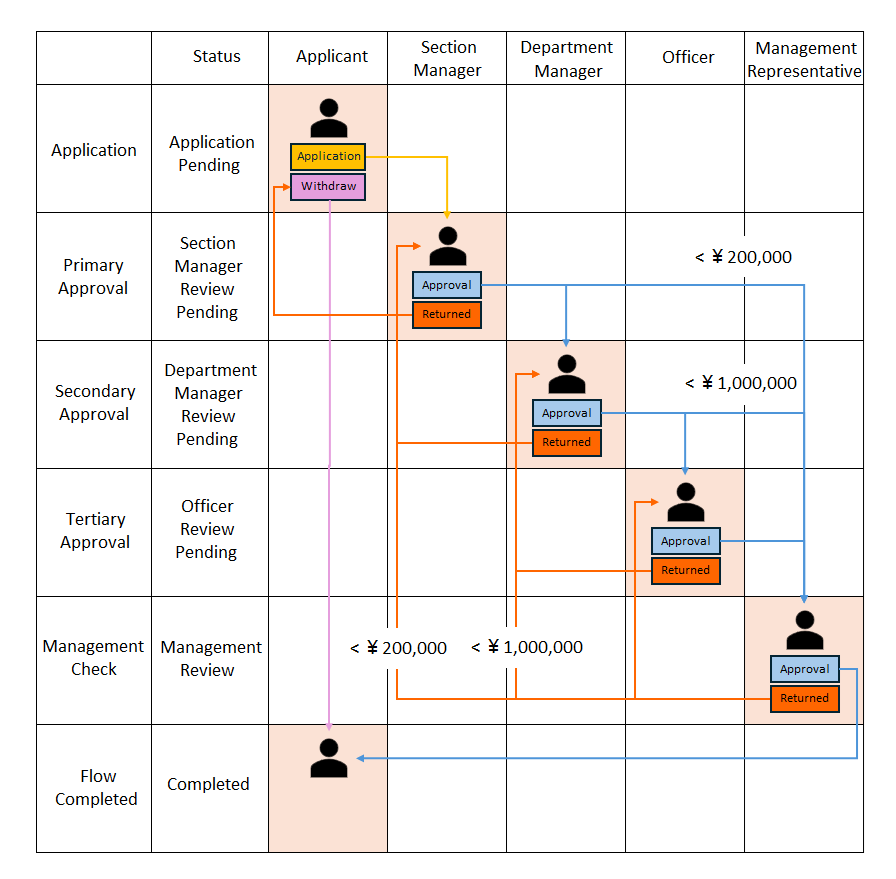
Records are circulated as follows.
- The applicant specifies the application amount and creates a record. If it is returned before application or to the applicant, it can be withdrawn, in which case it will be in a completed state.
- If the application amount is 200,000 JPY or less, the section manager decides whether to approve or return it and if approved, it is circulated to accounting.
- If the application amount is more than 200,000 JPY but less than 1,000,000 JPY, the manager will then decide whether to approve or reject the application and if approved, it will be sent to accounting.
- If the application amount is more than 1,000,000 JPY, the executive will finally decide whether to approve or reject the application and if approved, it will be sent to accounting.
- After it is sent to accounting, the payment process is recorded, and the process is completed and returned to the applicant. Accounting can also send it back.
System Processing
The approval stage is managed by the status column.
By making the columns that can be entered and the columns that are displayed differently for each approval stage, it is possible to display the necessary information to the owner of the work.
Departments and job titles are set using "Department" and "Group".
Prepare Data Column
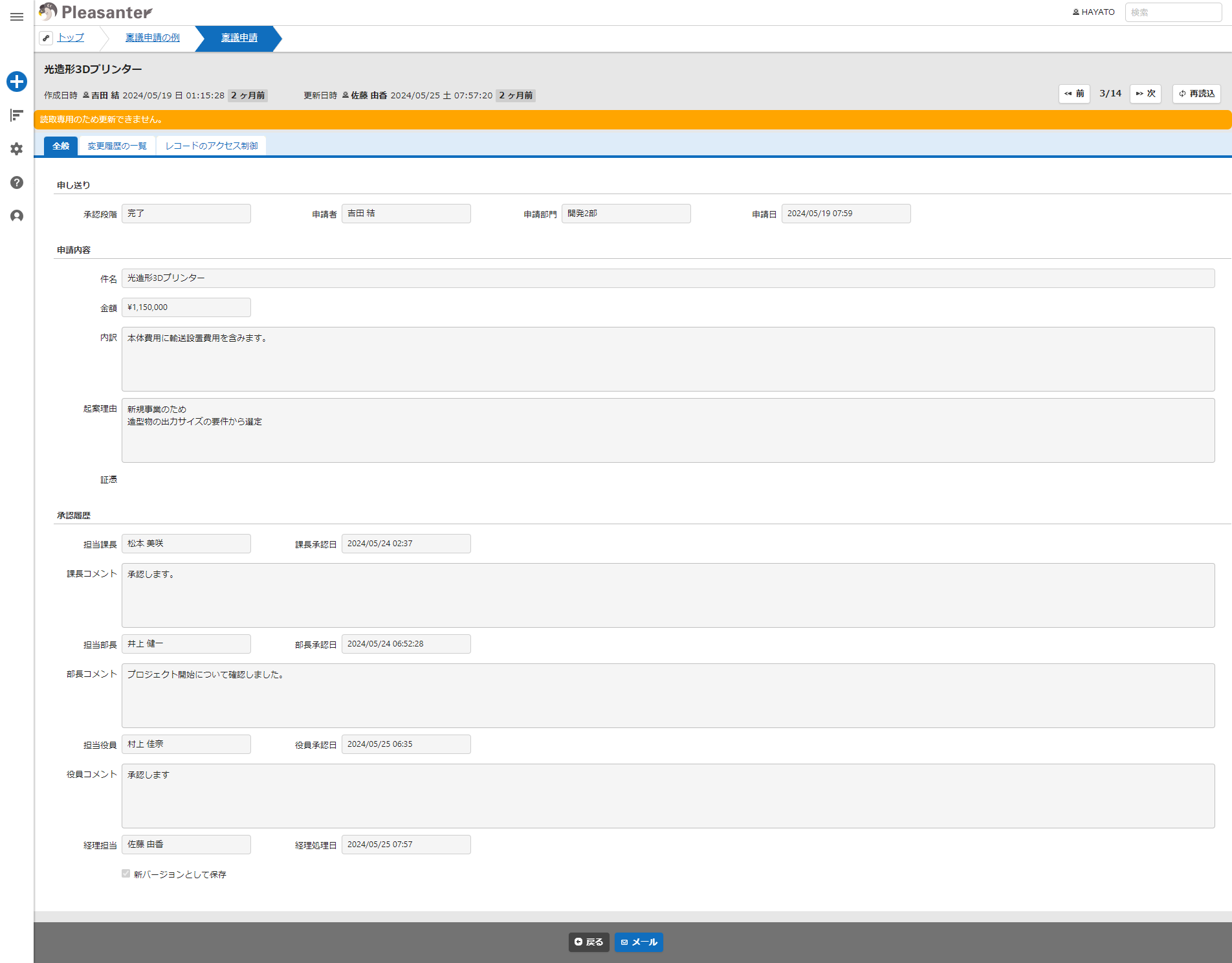
Set up the tables to be used in the workflow.
*See below for editor settings.
| Display name | Column name | Description |
|---|---|---|
| Subject | Title | Subject of the request |
| Details | Body | Details of the request |
| Approval stage | Status | View current status |
| Respondent | Manager | Current owner of the work in the workflow |
| Applicant | Owner | Applicant of the request |
| Application department | ClassA | Department to which the applicant belongs |
| Section manager in charge | ClassB | Section manager who approved or rejected |
| Department manager in charge | ClassC | Department manager who approved or rejected |
| Executive in charge | ClassD | Executive who approved or rejected |
| Originator | ClassE | Previous owner of the work |
| Accounting staff | ClassF | Accounting department staff who confirmed or rejected |
| Amount | NumA | Amount set at time of application |
| Application date | DateA | Date and time when the application was made |
| Department manager approval date | DateB | Date and time when the department manager approved or rejected |
| Department manager approval date | DateC | Date and time when the department manager approved or rejected |
| Executive approval date | DateD | Date and time when the executive approved or rejected |
| Accounting processing date | DateE | Date and time when the accounting department confirmed or sent back |
| Reason for proposal | DescriptionA | Comments on the application |
| Section manager's comments | DescriptionB | Comments when the section manager approves or sends back |
| Department manager's comments | DescriptionC | Comments when the department manager approves or sends back |
| Executive's comments | DescriptionD | Comments when the executive approves or sends back |
| Answer | DescriptionE | Comment field that must be entered when approving or sending back |
| Comments from forwarding | DescriptionH | Comments from previous worker |
| Evidence | AttachmentsA | Documents attached to the application |
Process Configuration
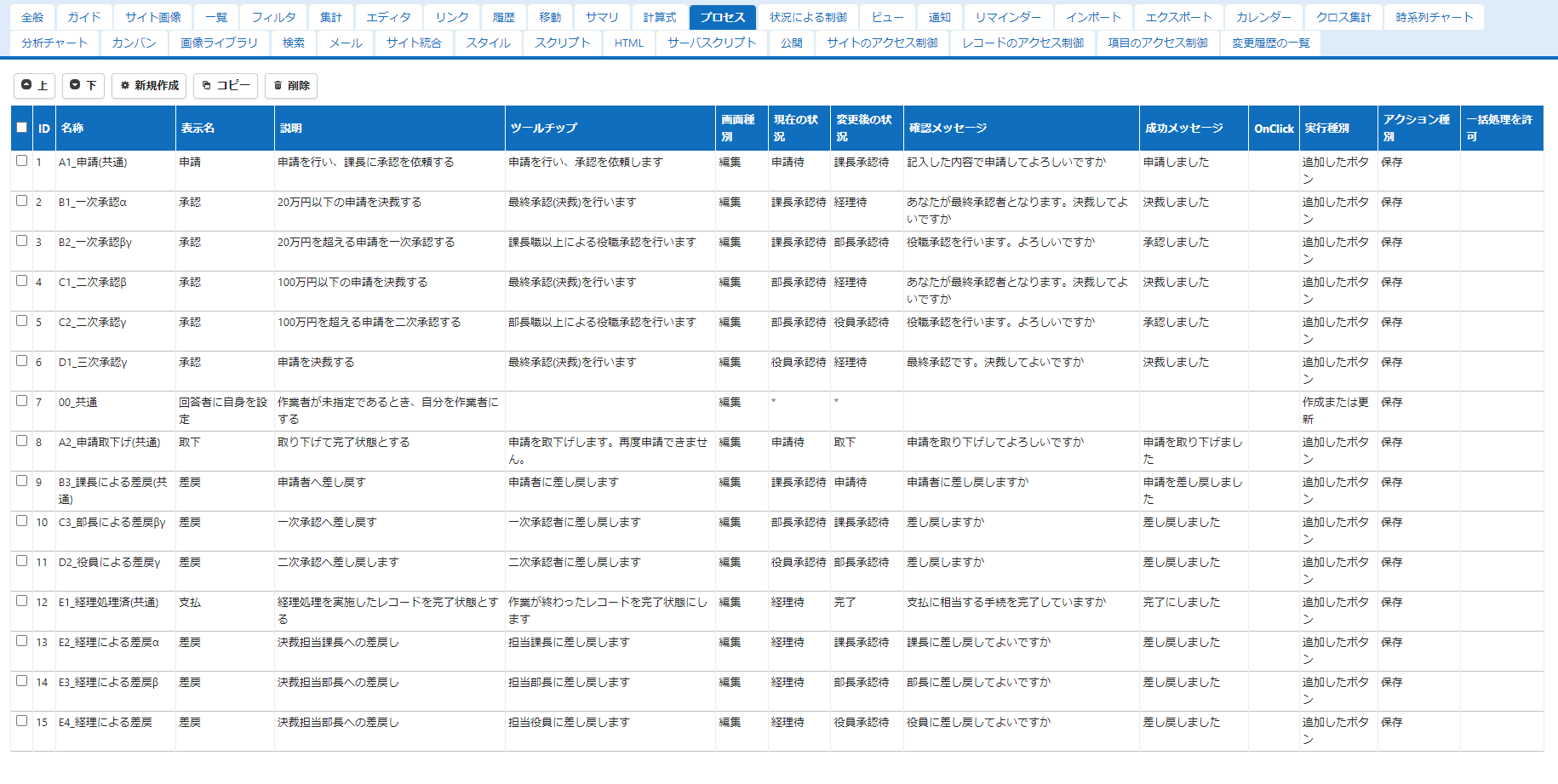
Set up the following "Process".
| No | Button name | Contents | Current status | Status after change | Access rights |
|---|---|---|---|---|---|
| 1 | Application | Submit an application and request approval from the manager | Waiting for application | Waiting for manager's approval | Not specified |
| 2 | Approve | Approve applications of 200,000 yen or less | Waiting for manager's approval | Waiting for accounting | Manager, department manager, executive |
| 3 | Approve | Approve applications of more than 200,000 yen in the first place | Waiting for manager's approval | Waiting for department manager's approval | Manager, department manager, executive |
| 4 | Approve | Approve applications of 1 million yen or less | Waiting for manager's approval | Waiting for accounting | Manager, Executive |
| 5 | Approve | Second approval of application exceeding 1 million yen | Waiting for manager's approval | Waiting for executive's approval | Manager, Executive |
| 6 | Approve | Decide on application | Waiting for executive's approval | Waiting for accounting | Executive |
| 7 | Set yourself as respondent | Set own as the assignee when no assignee is specified | * | * | Not specified |
| 8 | Withdraw | Withdraw and complete | Waiting for application | Withdraw | Applicant |
| 9 | Reject | Reject to applicant | Waiting for manager's approval | Waiting for application | Manager, Manager, Executive |
| 10 | Reject | Reject for first approval | Waiting for manager's approval | Waiting for manager's approval | Manager, Executive |
| 11 | Reject | Reject for second approval | Waiting for executive's approval | Waiting for manager's approval | Executive |
| 12 | Payment | Complete record for accounting processing | Waiting for accounting | Completed | Accounting department |
| 13 | Reject | Reject to manager for approval | Waiting for accounting | Waiting for manager's approval | Accounting department |
| 14 | Reject | Reject to manager for approval | Waiting for accounting | Waiting for manager's approval | Accounting department |
| 15 | Reject | Reject to manager for approval | Waiting for accounting | Waiting for executive approval | Accounting department |
Settings corresponding to the flow arrows are required.
No. 7 is a setting to select the user who is operating the answer column at the time of creation or update regardless of the situation.
In addition, in each process, the setting to transcribe the operation date and answer message of the operating user to the forwarding source comment is performed using the "Data change" function (see the "Data Change Tab" section of "Process".
Configuring Control by Status
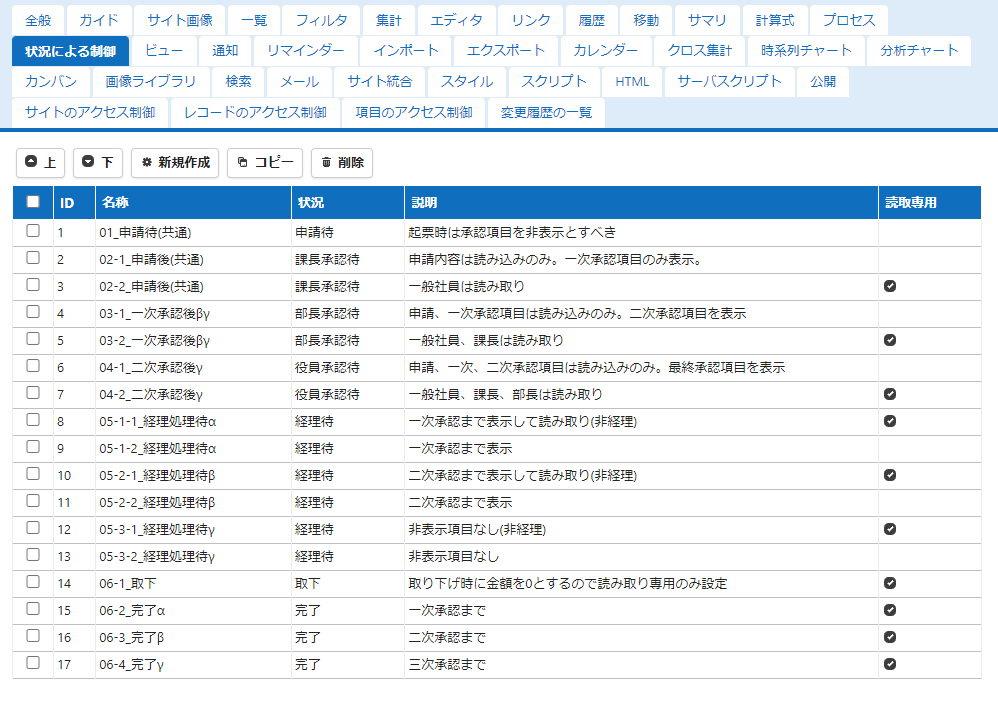
Configure the following "Control by Status" settings
| No | Status | Description |
|---|---|---|
| 1 | Waiting for application | Hide approval column when submitting |
| 2 | Waiting for manager's approval | Application contents are read-only. Display first approval column |
| 3 | Waiting for manager's approval | Read-only for general employees |
| 4 | Waiting for department manager's approval | Application and first approval column are read-only. Display second approval column |
| 5 | Waiting for department manager's approval | Read-only for general employees and department managers |
| 6 | Waiting for executive approval | Application, first and second approval column are read-only. Display final approval column |
| 7 | Waiting for executive approval | Read-only for general employees, department managers and department managers |
| 8 | Waiting for accounting | Display up to first approval and read-only. For non-accounting department |
| 9 | Waiting for accounting | Display up to first approval. For accounting department |
| 10 | Waiting for accounting | Display up to second approval and read-only. For non-accounting department |
| 11 | Waiting for accounting | Display up to second approval. For accounting department |
| 12 | Waiting for accounting | Display all columns and read-only. For non-accounting department |
| 13 | Waiting for accounting | Display all columns. For accounting department |
| 14 | Withdraw | Set as read-only for all users |
| 15 | Completed | Display column up to first approval |
| 16 | Completed | Display column up to second approval |
| 17 | Completed | Display column up to third approval |
Control who sees what in each situation.
These settings are made separately to separate users who can edit and users who can only view, depending on their access permission for each situation.
In this sample, the number of approvals and the column used vary depending on the amount, so at the accounting stage/completion stage, conditions are set based on the amount.
Supplementary Settings
Record access control
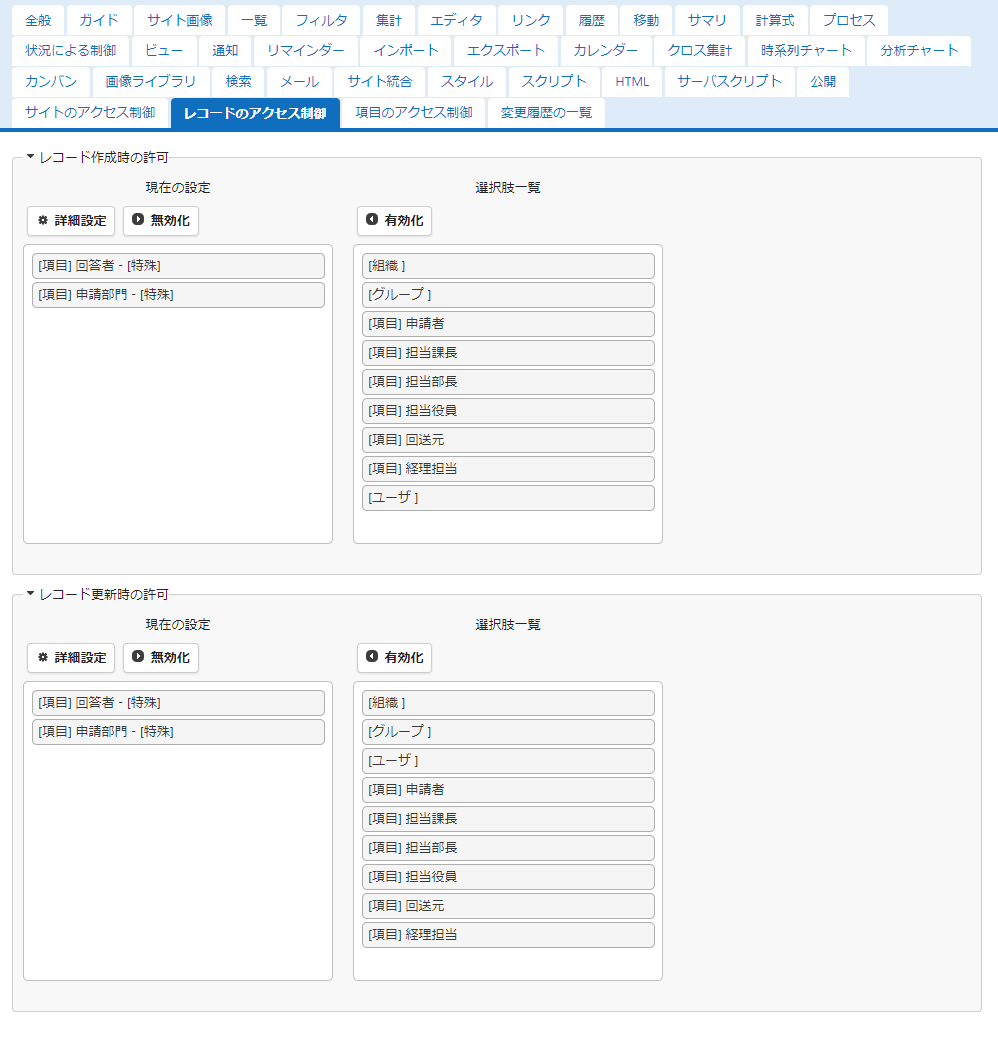
To control access based on the applicant department, access permissions are granted to the respondent and application department column when creating and updating records as part of access control.
By granting editing permissions to the application department, approval can be performed by anyone in the same department who holds the relevant position.
By setting the respondent's permissions, when a respondent is explicitly specified, the person is given the permissions, so it is possible to temporarily delegate responses.
Server script
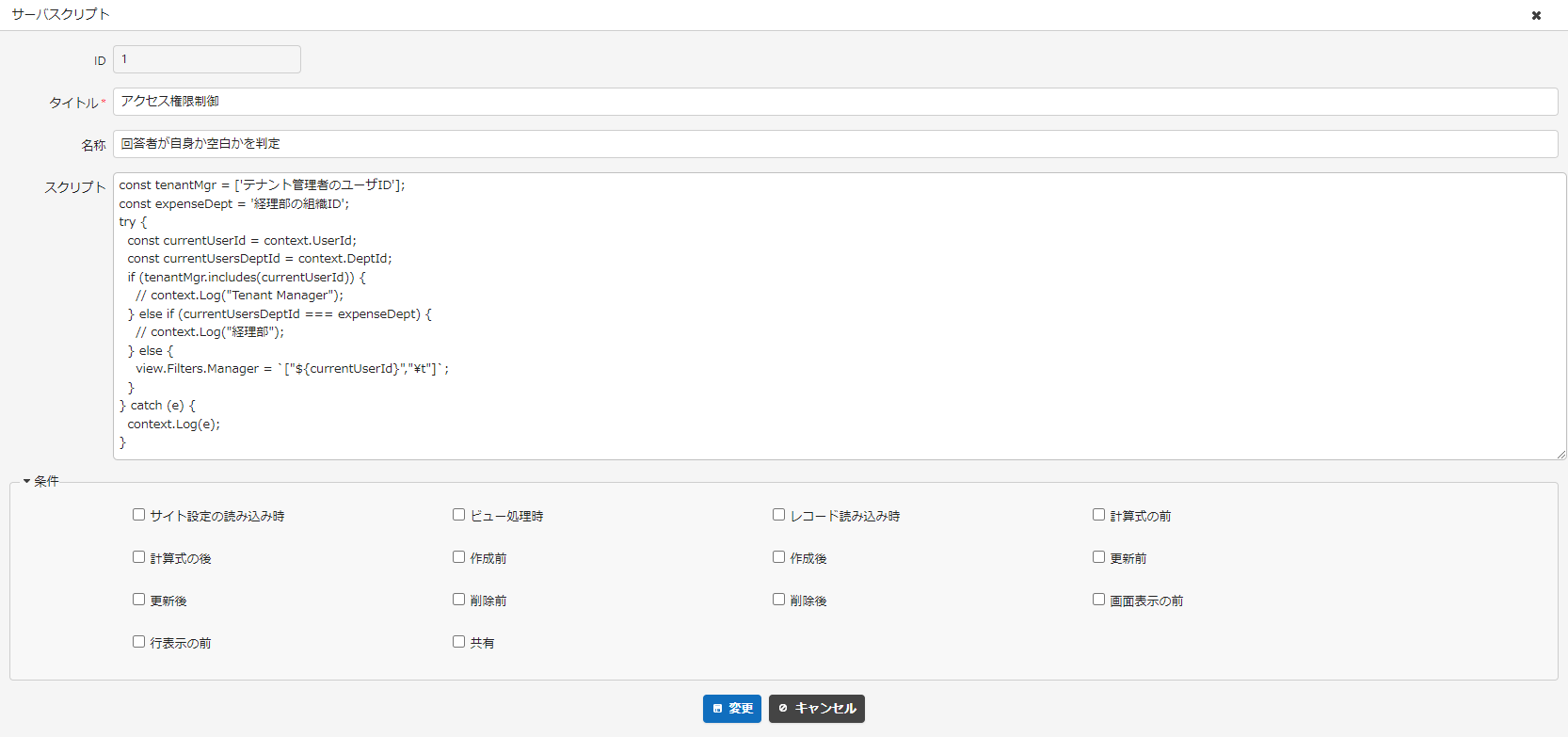
The settings that grant permissions to departments prevent superiors from updating when their subordinates have the ball.
For information on restricting permissions using server scripts, please also refer to the Developer Manual.
Development
The following functions can be added in an advanced way based on this sample. Please try making improvements to suit your actual operations.
- Notification to the approval requester
- In this sample, the next respondent is not required, so there is no setting to notify the individual who received the approval request. By selecting a required respondent, you can set it up so that the person who received the response request is notified, or the department of the application department is notified, so please consider the setting that suits your operation.
- Cross-situation withdrawal
- In this sample, the applicant can only withdraw when he or she is the respondent (before the application and when the return is received). To allow the applicant to withdraw from any situation, you can add a process that sets the current status to "*" and the changed status to "Withdrawn".