Implementing workflows (approval processes) such as approval requests using server scripts
Description
This uses a server script to implement the approval workflow (process management) function used in approval applications.
In the explanation on this page, approval is performed by a user who belongs to the decision-maker group of the department (dept) to which the applicant belongs, and the group ID for executive employees is 3, and for senior executive employees is 4. For approval applications over ¥1,000,000, the decision-maker is an executive, who belongs to dept ID: 2.
*The table that implements the workflow function described here is a published site package.
The following page explains how to download and use the data.
FAQ: Importing the site package for the example of the approval application workflow
Overview
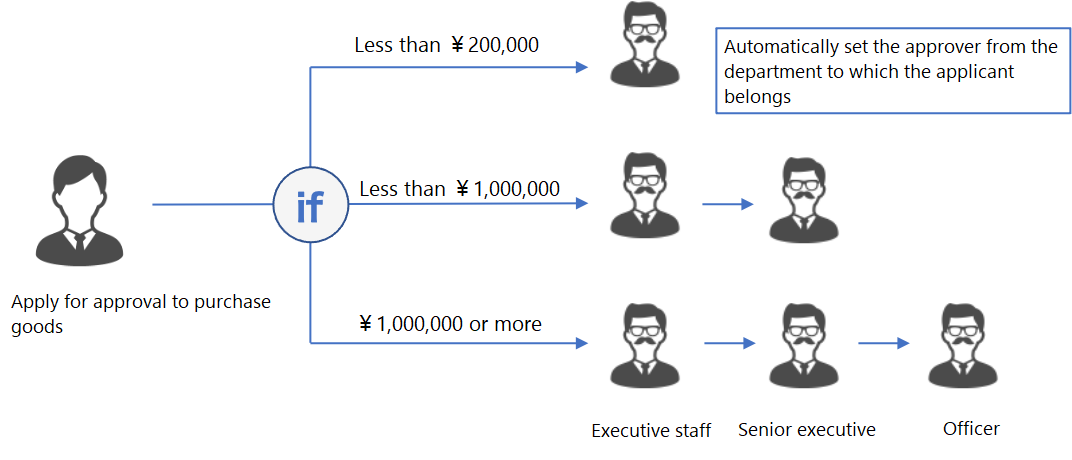
The approval route is automatically set according to the applicant's department and the application amount, and the approval process is managed.
If the application amount is less than ¥200,000, the decision-maker is only the executive employee of the department to which the applicant belongs. Suppose the amount is more than ¥200,000 but less than ¥1,000,000. In that case, an approval route is set that requires approval from senior executives in addition to executive employees, and if the amount is more than ¥1,000,000, additional approval from an executive is required.
When the request for approval is registered, the relevant approver is notified by email.
The processing flow is as follows.
1. The approval route is automatically set based on the applicant's department and application amount.
1. Email notification to the approver.
1. Process update upon approval (update to next approver).
1. Update approved requests as read-only.
Script Configuration
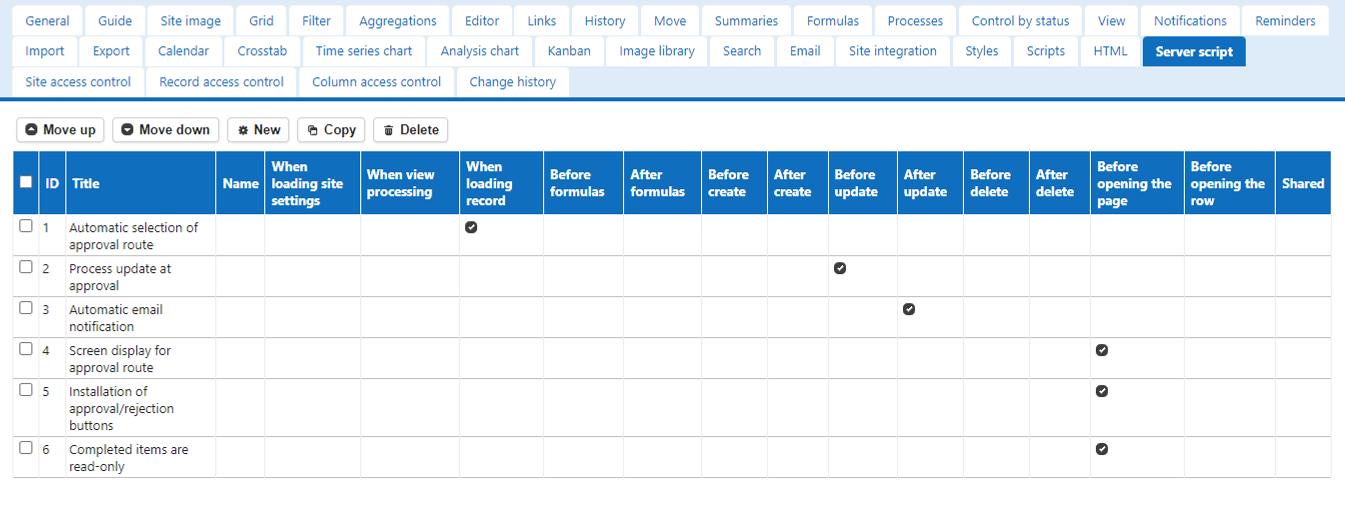
The implementation of the workflow function consists of the following six server scripts.
| Title | Condition |
|---|---|
| Automatic selection of approval route | When loading record |
| Process update at approval | Before update |
| Automatic email notification | After update |
| Screen display for approval route | Before opening the page |
| Installation of approval/rejection buttons | Before opening the page |
| Completed items are read-only | Before opening the page |
Automatic Selection of Approval Route
Condition: When loading record
Process flow
• Set the approval route based on the entered amount.
→model object
• Get the executive user of the department to which the applicant belongs from the group to which the executive employee belongs.
→groups object, GetMembers method
• If the route requires approval from the executive, get the executive user from the executive's department.
→depts object, GetMembers method
• The retrieved user ID is set in the class column of each approver.
→model object
• The status code at the time of final approval is stored in memory.
→context.UserData.FinCode property
try {
    context.Log('Automatically select approval route');
    if (model.NumA < 200000) {
        context.UserData.FinCode = 300;
        model.ClassB = manager(context.DeptId, 3).UserId;
    } else if (model.NumA < 1000000) {
        context.UserData.FinCode = 400;
        model.ClassB = manager(context.DeptId, 3).UserId;
        model.ClassC = manager(context.DeptId, 4).UserId;
    } else {
        context.UserData.FinCode = 900;
        model.ClassB = manager(context.DeptId, 3).UserId;
        model.ClassC = manager(context.DeptId, 4).UserId;
        model.ClassD = officer().UserId;
    }

    function manager(deptId, groupId) {
        let members = groups.Get(groupId).GetMembers();
        for (let member of members) {
            if (member.UserId > 0) {
                let user = users.Get(member.UserId);
                if (user.DeptId === context.DeptId) {
                    return user;
                }
            }
        }
    }

    function officer () {
        let users = depts.Get(2).GetMembers()
        for (let user of users) {
            return user;
        }
    }
} catch (e){
    context.Log(e.stack);
}
Process Update At Approval
Condition: Before update
Process flow
• Get the ID attribute of the button operated by the user and branch.
→context.ControlId property
• Sets the status code of the next process.
→model.Status property
• Sets the approver for the next process.
→model.Manager property
• Sets the date of approval.
→model.DateX property
• Returns the current location to the applicant when final approval has been given.
→Check final approval with context.UserData.FinCode
try {
    context.Log('Update process when approved');
    switch (context.ControlId) {
        case 'Approval':
            model.Status = 200;
            model.Manager = manager(model.ClassB);
            break;
        case 'ApprovalM1':
            model.Status = status(300);
            model.Manager = manager(model.ClassC);
            model.DateB = new Date();
            break;
        case 'ApprovalM2':
            model.Status = status(400);
            model.Manager = manager(model.ClassD);
            model.DateC = new Date();
            break;
        case 'ApprovalM3':
            model.Status = status(900);
            model.DateD = new Date();
            break;
    }
    if (model.Status === 900) {
        model.Manager = model.Owner;
    }

    function status(code) {
        if (context.UserData.FinCode === code) {
            return 900;
        } else {
            return code;
        }
    }

    function manager(userId) {
        var user = users.Get(userId);
        if (user) {
            return user.UserId;
        } else {
            return model.Manager;
        }
    }
} catch (e) {
    context.Log(e.stack);
}
Automatic Email Notification
Condition: After update
Process flow
• Create an object for notifications.
→Create notifications.New() method
• Specify the user ID of the current process and get the email address.
→notification.Address = ‘[User’ + user.UserId + ‘]’
• Set the message by branching the process for approval request, approval, and rejection.
→model.Status property
• Specify the title and body of the notification email to send.
→notification.Title、notification.Body、 notification.Send()
try {
    context.Log('Automatic email notification');
    let user = users.Get(model.Manager);
    let notification = notifications.New();
    if (user.UserId > 0) {
        notification.Address = '[User' + user.UserId + ']';
        switch (model.Status) {
            case 200:
            case 300:
            case 400:
                notification.Title = 'Approval request:' + model.Title;
                notification.Body = user.Name + 'Dear Mr./Mrs.: Your approval request for the above has been received.';
                notification.Send();
                break;
            case 900:
                notification.Title = 'Approved:' + model.Title;
                notification.Body = user.Name + 'Dear Mr./Mrs.: The above request has been approved.';
                notification.Send();
                break;
            case 920:
                notification.Title = 'Rejected:' + model.Title;
                notification.Body = user.Name + 'Dear User: The above application has been rejected.';
                notification.Send();
                break;
        }
    }
} catch (e){
    context.Log(e.stack);
}
Screen Display for Approval Route
Condition: Before opening the page
Processing flow
• Branches based on the status code at the time of final approval.
→context.UserData.FinCode property
• Hides the "Section" input field for approval levels that are not required for approval.
→siteSettings.Sections[n].Hide = true
try {
    context.Log('Display screen for approval route');
    switch (context.UserData.FinCode) {
        case 300:
            siteSettings.Sections[3].Hide = true;
            siteSettings.Sections[4].Hide = true;
            break;
        case 400:
            siteSettings.Sections[4].Hide = true;
            break;
        case 900:
            break;
        default:
            siteSettings.Sections[2].Hide = true;
            siteSettings.Sections[3].Hide = true;
            siteSettings.Sections[4].Hide = true;
    }
} catch (e){
    context.Log(e.stack);
}
Placement of Approval/Rejection Buttons
Condition: Before opening the page
Processing flow
• Branches in the current process.
→model.Status property
• Displays a button in the current approval level column.
→columns.ColumnName.ExtendedHtmlAfterField property
• Enter the button ID, Confirm, name displayed, and icon in the HTML.
try {
    context.Log('Install Approve/Reject buttons');
    if (model.Manager === context.UserId) {
        switch (model.Status) {
            case 100:
                if (context.Action !== 'new') {
                    columns.AttachmentsA.ExtendedHtmlAfterField = buttons('', 'Apply');
                }
                break;
            case 200:
                columns.DescriptionB.ExtendedHtmlAfterField = buttons('M1', 'Executive Approval');
                break;
            case 300:
                columns.DescriptionC.ExtendedHtmlAfterField = buttons('M2', 'Senior Executive Approval');
                break;
            case 400:
                columns.DescriptionD.ExtendedHtmlAfterField = buttons('M3', 'Executive Approval');
                break;
        }
    }

    function buttons(suffix, text) {
        let html = '<div class="approval-control"><button id="Approval' + suffix + '" class="button button-icon validate" type="button" onclick="if (!confirm(\'' + text + 'Are you sure you want to approve?\')) return false;$p.send($(this));" data-icon="ui-icon-circle-triangle-e" data-action="Update" data-method="put">' + text + '</button></div>';
        if (suffix !== '') {
            html += '<div class="approval-control"><button id="Veto' + suffix + '" class="button button-icon validate" type="button" onclick="if (!confirm(\'Are you sure you want to reject?\')) return false;$p.send($(this));" data-icon="ui-icon-circle-close" data-action="Update" data-method="put">Reject</button></div>';
        }
        return html;
    }
} catch (e){
    context.Log(e.stack);
}
Completed is Read-only
Condition: Before opening the page
Processing flow
• Check for completion in the current process.
→model.Status property
• If completed, set read-only to on.
→model.ReadOnly = true
try {
    context.Log('Completed is read-only');
    if (model.Status === 900) {
        model.ReadOnly = true;
    }
} catch (e) {
    context.Log(e.stack);
}
Cautions
This is a method used with the Server Script function. It cannot be used with the Script function.