Using the "Control by Status" function to change the state of a column, such as hiding it or making it read-only
Description
The "Control by Status" function is used to control columns in approval workflows used in applications for approvals. The explanation on this page is that the columns in the approval column are set to "Hide" after submission, "Input Required" after application, "Read Only" after approval/rejection, and read-only after reservation. Please refer to "Manage Table: Control by Status" for information on how to set control by status.
Overview
Create an approval workflow in combination with the "Process" function. The processing flow is as follows.
1. The applicant enters the title, proposal date, applicant, amount, and reason for the proposal to create a record (propose).
1. The applicant presses the apply button to update the record (apply).
1. The approver selects "Approve" or "Reject" from the approval category, enters the approval date and approver, and presses the approve/reject button to update the record (approve/reject).
1. If the approver puts the record on hold, press the hold button to update the record (hold).
*Please also refer to the following FAQ.
FAQ: Using the process function to create workflows (approval processes) such
Preparations
Set the table settings required for the "Control by Status" setting.
*See below for table settings.
Manage Table: Editor

| No | Column (name displayed) | Column to be used | Setting contents/explanation |
|---|---|---|---|
| 1 | DateA | DateA | Set "Input Required" in the editor settings. |
| 2 | Applicant | Owner | Set "Input Required" in the editor settings. |
| 3 | Status | Status | Set "Option List' to "Raise, Apply, Approve/Reject, Hold" in the editor settings, and set the default value to "Raise". Also set to "Read Only". *1 |
| 4 | Amount | NumA | In the editor settings, set "Format" to "Currency". Also, set "Numeric Value Filter Mode Selection" to "Range". |
| 5 | Reason For Drafting | Description A | Set "Input Required" in the editor settings. |
| 6 | Attached File | Attached File A | Set this as an optional input column (default setting). |
| 7 | Recognize Distinction | ClassA | In the editor settings, set "Option List" to "Approve, Reject". Also, in "Control by Status", set "Hide" after filing, "Option List" after application, and "Read only" after approval/rejection. |
| 8 | Recognition Date | DateB | In "Control by Status", set "Hide" after filing, "Input Required" after application, and "Read Only" after approval/rejection. |
| 9 | Recognized | ClassB | In the editor settings, set "Option List" to [[Users]]. In "Control by Status", after filing, it will be "Hide", after application, it will be "Input Required", and after approval/rejection, it will be "Read Only". |
*1 An example of the setting of the list of options is as follows.
100,New,N,status-new
200,Inprogress,I,status-inprogress
900,Closed,C,status-closed
910,Rejected,R,status-rejected
Setting Control by Status
Set the four "Control by Status" as follows.

| No | Column (name displayed) | After drafting | After applying | After approving/rejecting |
|---|---|---|---|---|
| 1 | Recognize Distinction | Hidden | Required | Read-only |
| 2 | Recognition Date | Hidden | Required | Read-only |
| 3 | Recognized | Hidden | Required | Read-only |
Flow of Approval Request
- Create an approval request (Status: Submit)
- The applicant performs the application process (Status: Submit → Apply)
- The approver performs the approval/rejection process (Status: Apply → Approve/Reject)
- The approver performs the pending process (Status: Apply → Approve)
When submitting (when creating a new document)
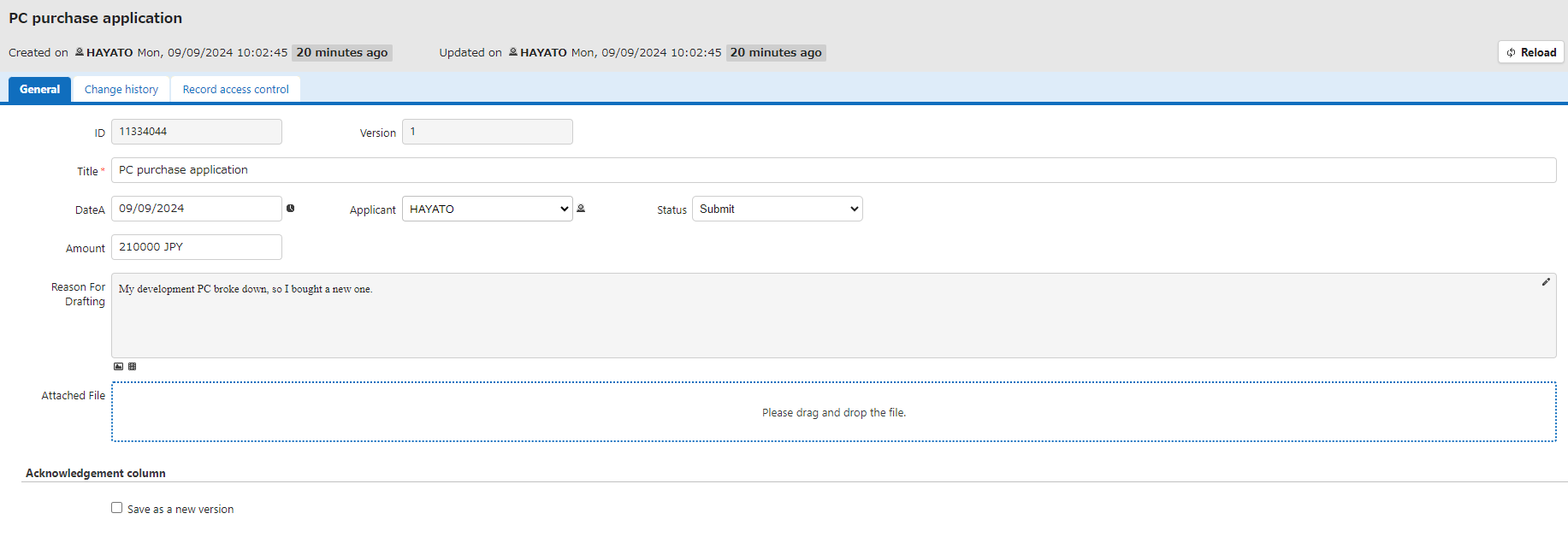
If the status is "Submit" in the "Control by Status" setting, each column in the approval column will be "Hide". By displaying only the column that require input, you can prevent incorrect input in the approval column.

After drafting (after creating a new document)
If the status is "Submit" in the "Control by Status" setting, each column in the approval column will be "Hide". By displaying only the column that require input, you can prevent incorrect input in the approval column.
After applying
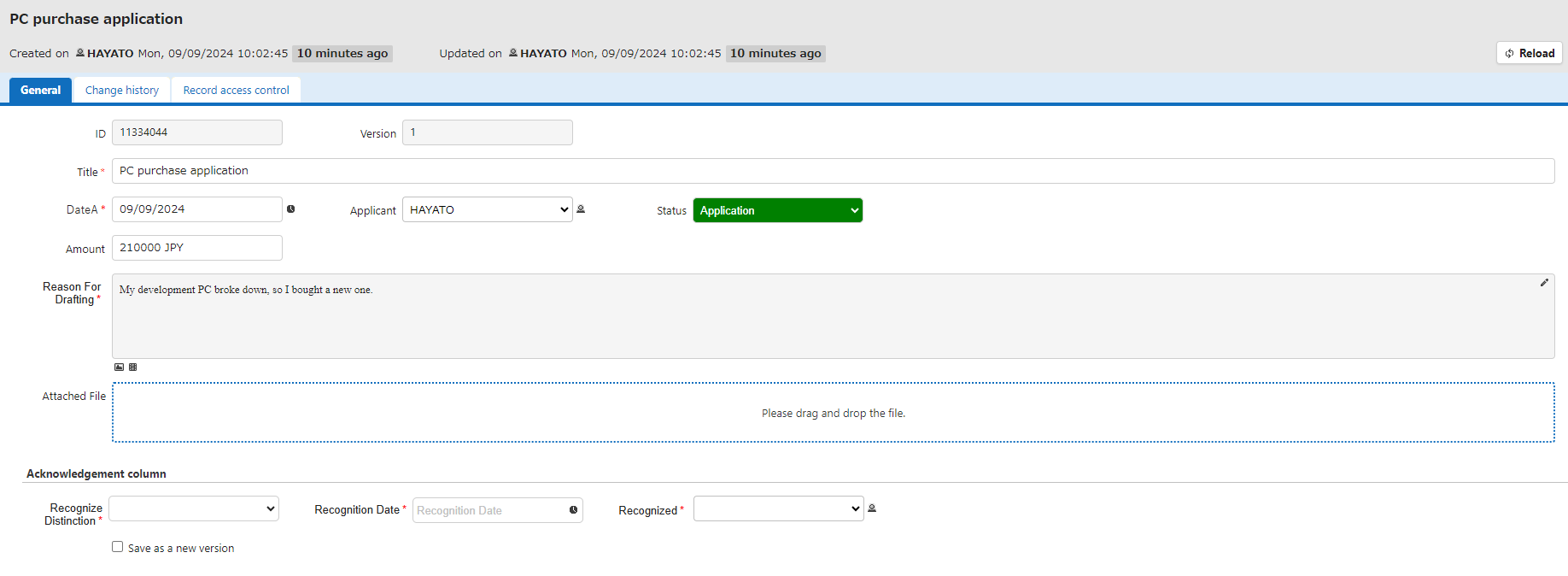
If the status is "Application" in the "Control by Status" setting, each column in the approval column will be "Input Required". This will prevent missing entries in the approval column.
After approving/rejecting
If the status is "Approved/Rejected" in the "Control by Status" setting, each column in the approval column will be "Read Only". This will prevent incorrect updates to the approval column.

After holding
If the status is "Pending" in the "Control by Status" settings, the record becomes read-only. You can prevent records from being updated after they are held.
