Tell me about the parameter settings when multi-factor authentication and passkey authentication are set at the same time
Answer
When you set multi-factor authentication and passkey authentication at the same time, set the parameter UserVerificationRequirement (added in version 1.5.3.0) of the configuration file Authentication.json (for details of the parameter, refer to Passkey Authentication). After you restart Pleasanter, the behaviour is as follows.
Overview
To set 2-step authentication (by TOTP or email) and passkey authentication at the same time, set the parameter "UserVerificationRequirement" of Authentication.json, which was added in Pleasanter 1.5.3.0.
A configuration example is as follows.
Authentication.json (excerpt of the passkey authentication settings)
{
    "PasskeyParameters": {
        "Enabled": true,
        "ServerName": "Pleasanter",
        "ServerDomain": "example.com",
        "Origins": [
            "https://example.com",
            "https://example.com:443"
        ],
        "UserVerificationRequirement": "Preferred"
    }
}
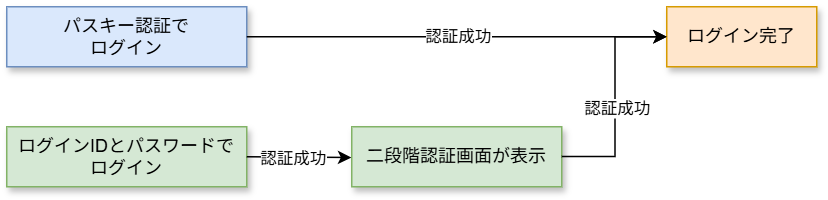
In an environment where both 2-step authentication and passkey authentication are enabled, the behaviour is as follows.
- When you use "Log in with a passkey", the 2-step authentication screen is not displayed.
- When you log in with a "Login ID" and a "Password", the 2-step authentication screen is displayed.
Prerequisites
- Use Pleasanter 1.5.3.0 or later.
- Each authentication method needs to be set correctly. For the setup steps of each authentication function, refer to its own manual.
| Function | Parameter File | Manual to Refer To |
|---|---|---|
| Passkey authentication | Authentication.json | Use Passkey Authentication |
| 2-step authentication by email | Security.json | Enable 2-step Authentication by Email |
| 2-step authentication by TOTP | Security.json | Enable 2-step authentication with TOTP |