Finding Pages
Overview
This page explains how to find the page you need in this manual.
Searching
-
Click the "Search" box at the top of the screen and enter the words you want to find.
-
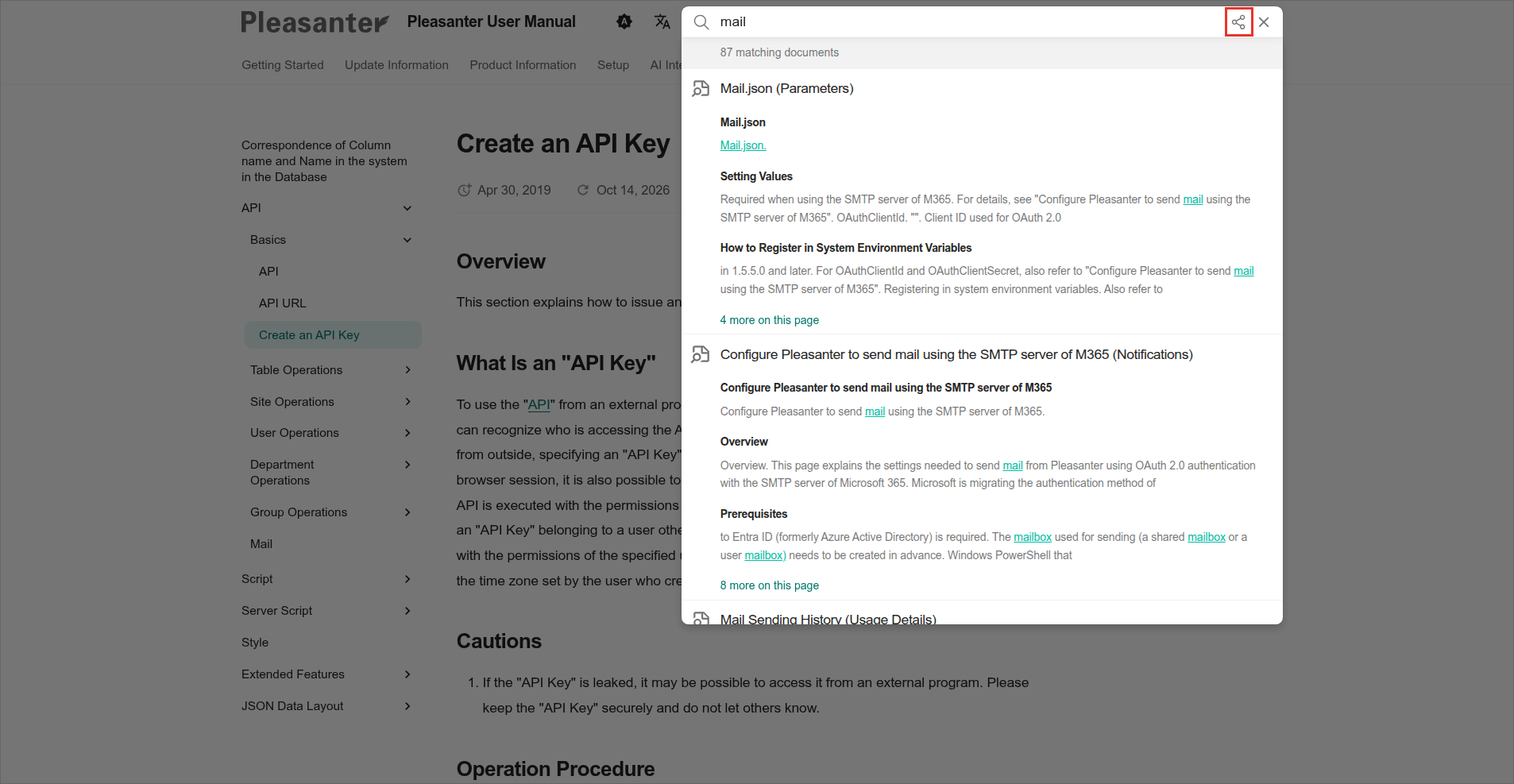
The search results are listed as you type. Click the page you want to open.
-
The page opens, and the words you searched for are highlighted.
- Press Enter in the search box to open the page that matches best.
- Click the "Share" button at the right of the search box (outlined in red in the figure above) to copy the URL of this page with your search words. Use it to show the same search results to someone else.
- To close the search, press Esc or click outside the search results.
Browsing from the Top Menu and the Left Menu
Select a category close to what you want in the top menu, and then select a page in the left menu. For where these are, see "Screen Layout".
To go to a level above the current page, click an item in the breadcrumbs above the content.
Seeing Recently Updated Pages
"What's New" on the top page shows the eight most recently updated pages. Update information articles are not included.
You can switch the layout with the icons at the upper right. The layout you select is kept the next time you open the top page.
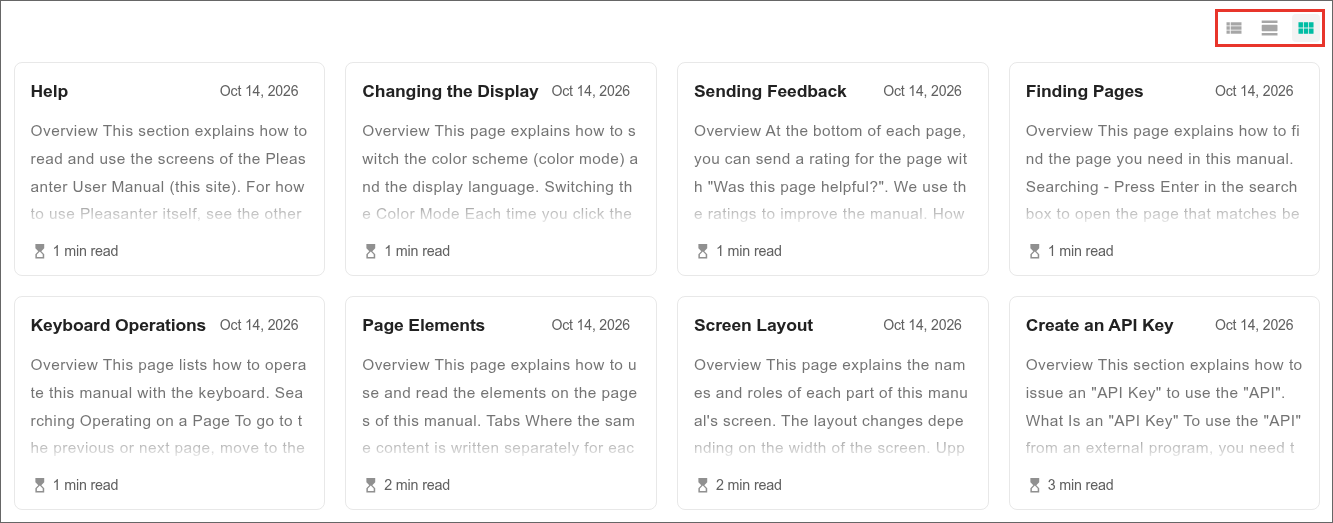
| Icon | Layout |
|---|---|
| Left | List: shows only the titles and the updated dates. |
| Center | Detail: shows the titles and the updated dates with the beginning of each page. |
| Right | Cards: shows the titles, the updated dates, the beginning of each page, and the reading time as cards. |