Page Elements
Overview
This page explains how to use and read the elements on the pages of this manual.
Tabs
Where the same content is written separately for each server environment or programming language, you switch between them with tabs. Click a tab label to show its content.

If there are too many tab labels to fit in the width, you can scroll the row of labels left and right.
Code
Configuration examples and programs are shown in a box.
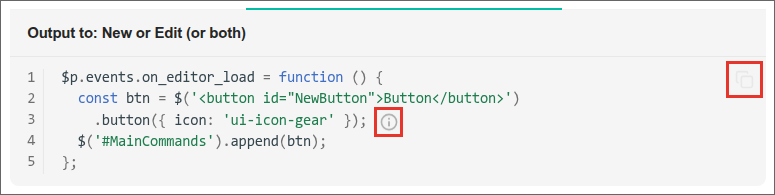
- Click the icon at the upper right of the box to copy the code in the box.
- Click a round icon in the code to show the explanation of that part.
Boxes for Cautions and Notes
Points that need special attention and supplementary notes are shown in colored boxes. A box with an arrow at the right of its title can be expanded and collapsed by clicking it.
Supported Version Badges
The versions in which a feature can be used are shown with badges, for example below a heading. For example, the "1.5.9.0" badge means the feature can be used in Pleasanter version 1.5.9.0 and later.

On some pages, the "Supported Versions" table at the end also lists the changes for each version.
Banners for Enterprise Edition Features
Pages that explain features available in Enterprise Edition show a banner image to indicate it. The image changes between light mode and dark mode.