Screen Layout
Overview
This page explains the names and roles of each part of this manual's screen. The layout changes depending on the width of the screen.
Upper Part of the Screen
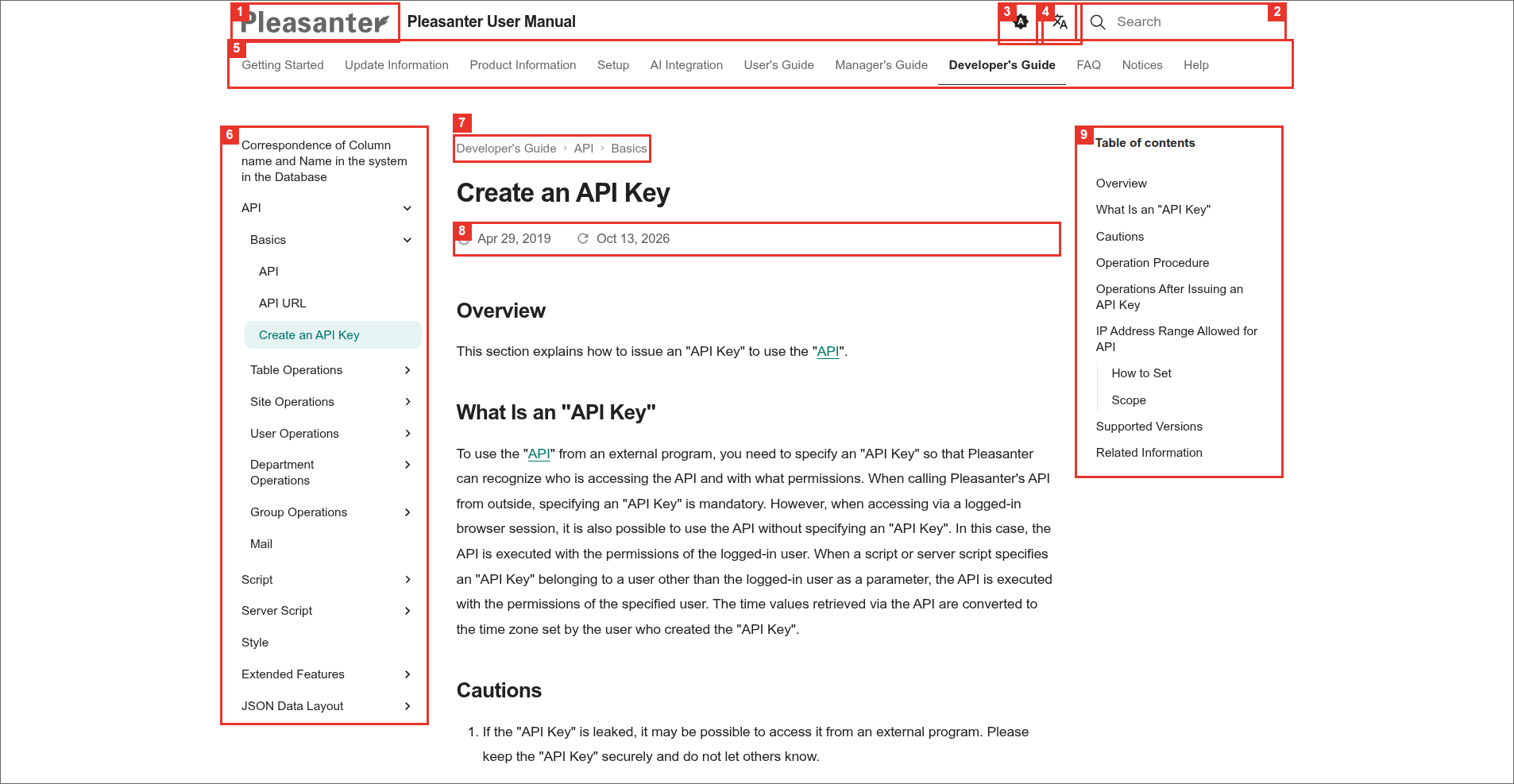
| No. | Name | Description |
|---|---|---|
| 1 | Site logo | Click it to go to the top page of this manual. |
| 2 | Search box | Search for pages across the whole manual. For details, see "Finding Pages". |
| 3 | Color mode | Switch the color scheme among automatic, light, and dark. For details, see "Changing the Display". |
| 4 | Language selector | Switch between Japanese and English. For details, see "Changing the Display". |
| 5 | Top menu | The list of categories in the manual. Click one to go to the first page of the category. |
| 6 | Left menu | The list of pages in the current category. Click the arrow at the right of an item to expand or collapse the level below it. |
| 7 | Breadcrumbs | Shows which level of which category the current page is in. Click an item to go to the first page of that level. |
| 8 | Created and updated dates | The date the page was created and the date it was last updated. |
| 9 | Table of contents | The list of headings on the page. Click one to jump to the heading. As you scroll, the heading you are reading is highlighted. |
Lower Part of the Screen
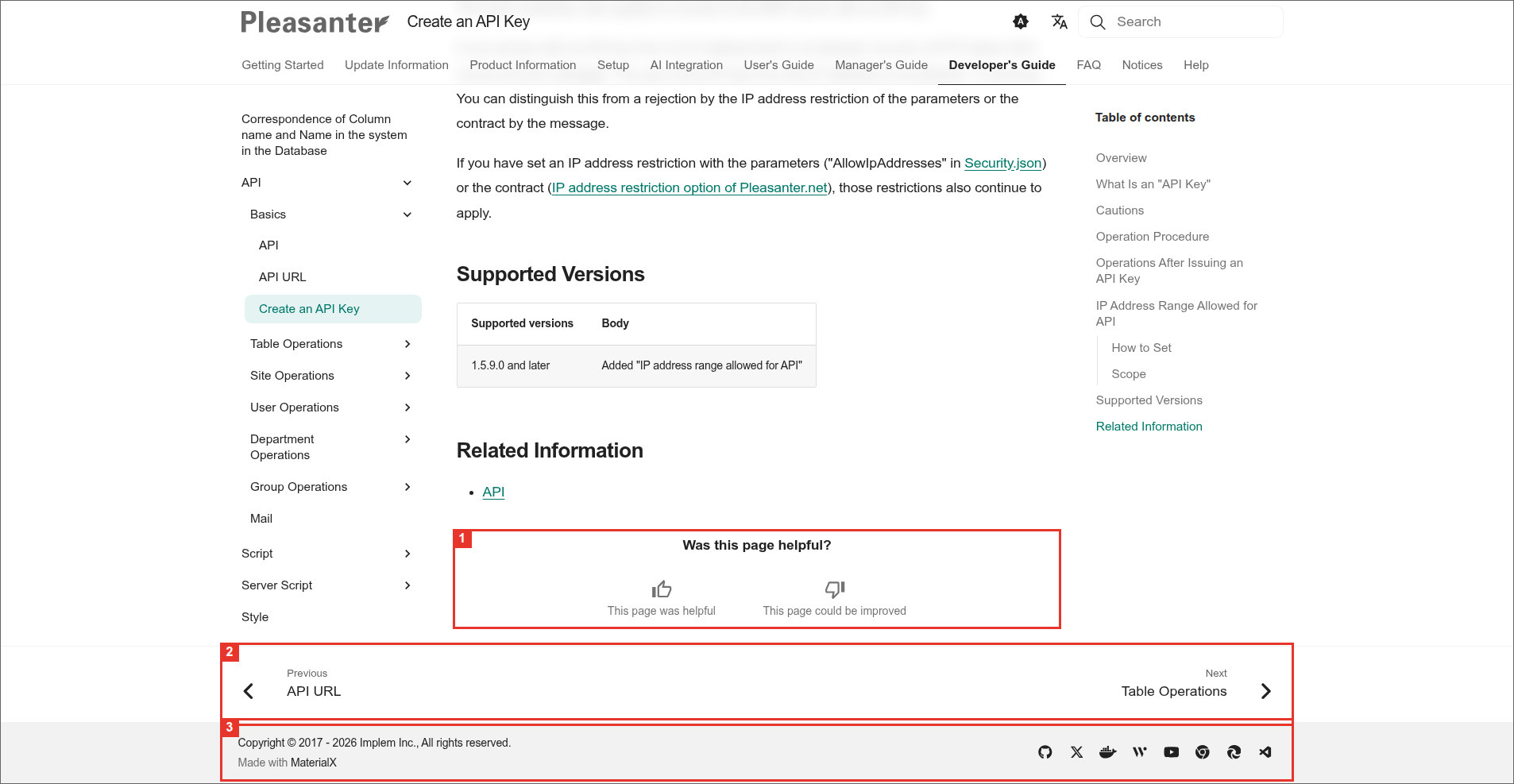
| No. | Name | Description |
|---|---|---|
| 1 | Was this page helpful? | Send a rating for the page. For details, see "Sending Feedback". |
| 2 | Previous and next pages | Go to the previous or next page in the order of the left menu. |
| 3 | Links to external sites | Go to the official accounts such as GitHub and YouTube, the extensions for browsers and Visual Studio Code, and the company's pages. |
After you scroll down a page and then scroll up a little, the "Back to top" button appears at the top of the screen. Click it to return to the top of the page.
On Narrow Screens
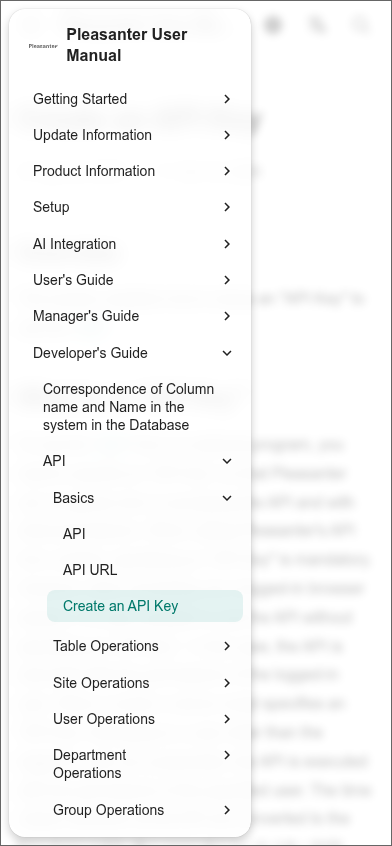
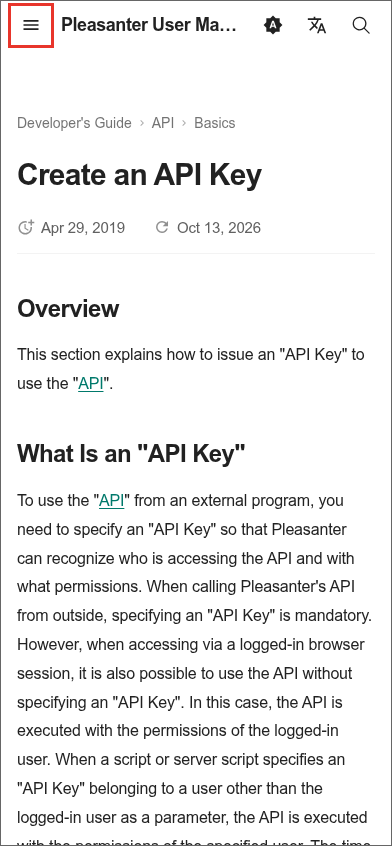
When the screen is narrow, such as on a smartphone, the top menu and the left menu are combined into the menu button (the three-line icon) at the upper left of the screen. On even narrower screens, the table of contents is not shown, and the search box becomes a magnifying glass icon.
-
Click the menu button at the upper left of the screen.
-
The menu appears. Click a category or a page to go to it.