Using Pleasanter MCP
Overview
What is Pleasanter MCP?
Pleasanter MCP is a Model Context Protocol (MCP) server feature integrated into Pleasanter.
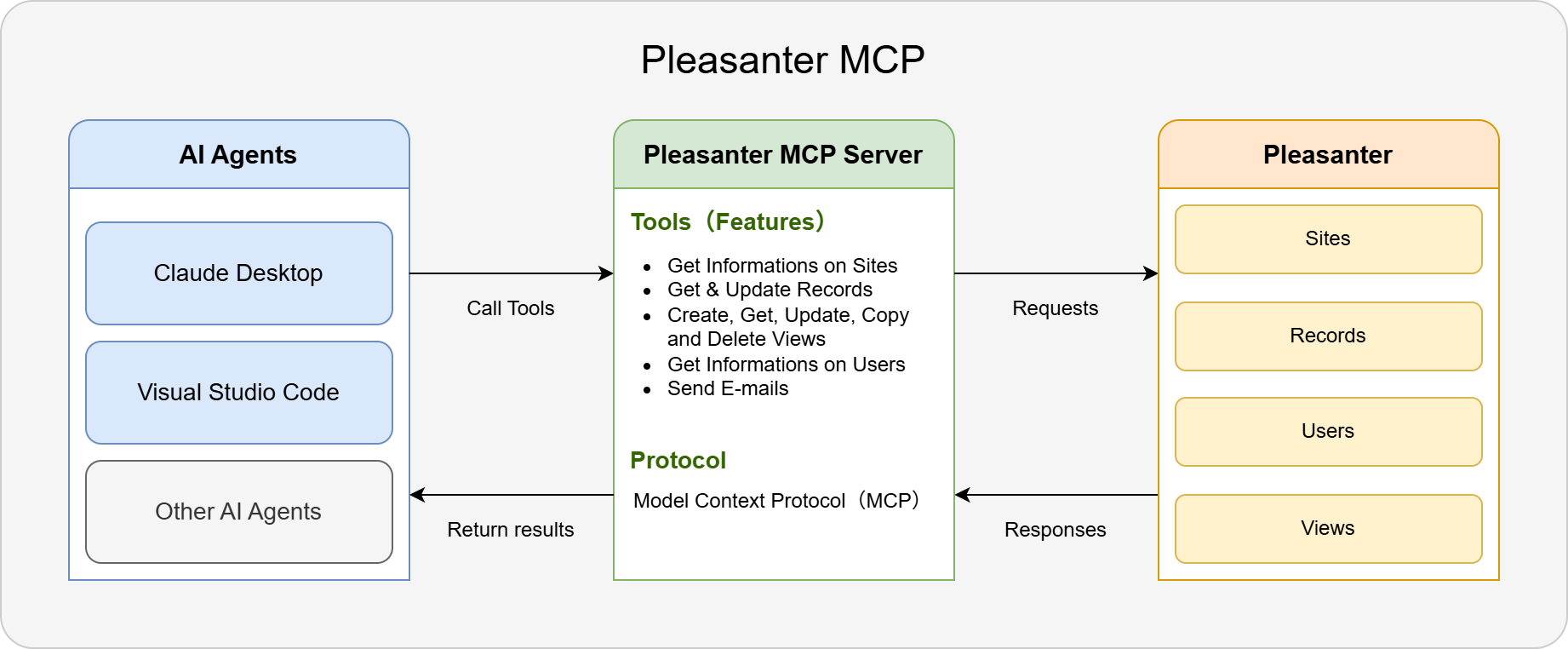
With Pleasanter MCP, users can leverage data within Pleasanter more smartly without needing to use Pleasanter's UI or API. For example, you can request complex tasks from AI agents or code editors using everyday language, just as you would when asking an in-house system engineer.
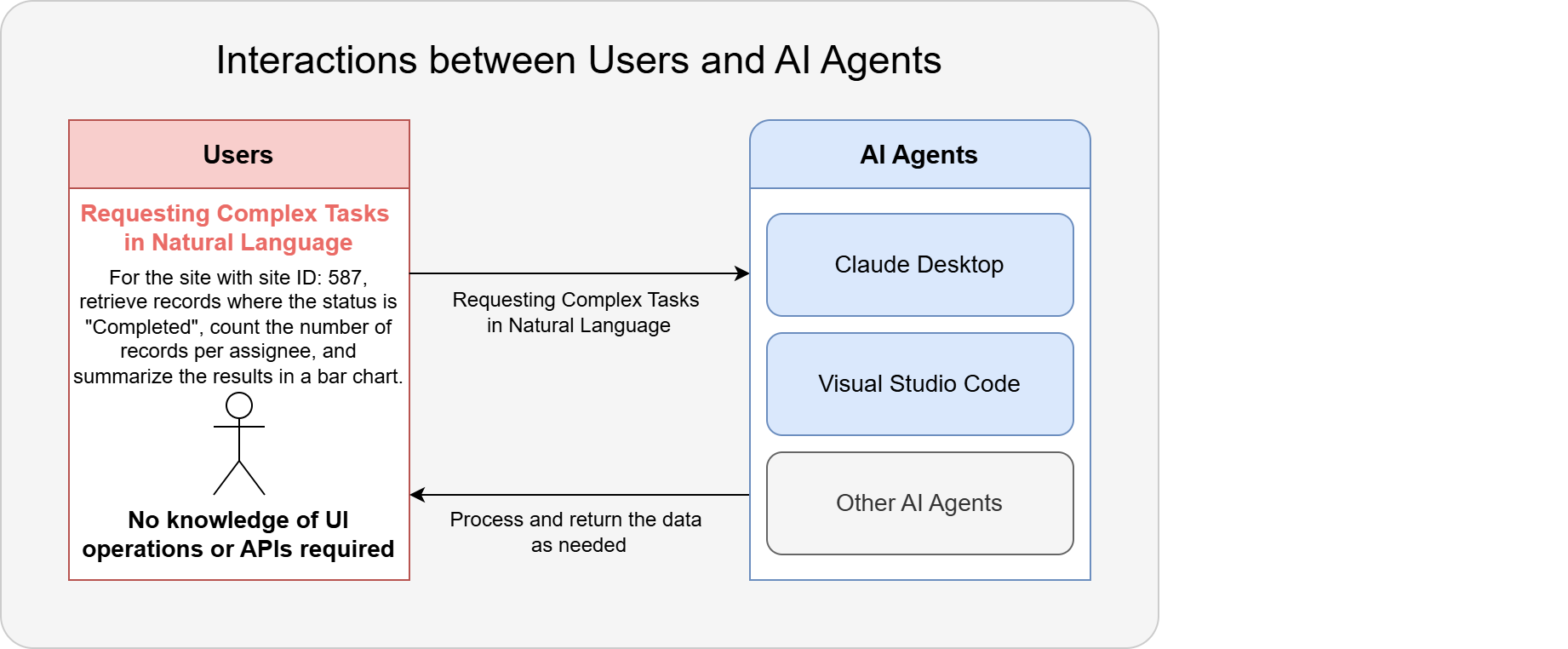
What you can do with Pleasanter MCP
As of the Pleasanter 1.5.2.0 release, Pleasanter MCP supports the following features:
- Retrieving site information
- Retrieving and updating information of existing records
- Creating, retrieving, updating, copying, and deleting views
- Retrieving user information
- Sending emails related to records
These features are provided through "tools," which are abstract concepts within Pleasanter MCP. Users do not need to be aware of the tools when using Pleasanter MCP, but what Pleasanter MCP can do is determined by the capabilities of those tools.
The tools available as of the Pleasanter 1.5.2.0 release are as follows:
| Category | Tool Name | Function |
|---|---|---|
| Record Operations | GetItems | Retrieve a list of records within a site |
| GetItem | Retrieve the details of a single record | |
| UpdateItem | Update a record ※ | |
| CreateUpdateItemJson | Generate JSON for updates (Japanese to code conversion) | |
| Site Information Retrieval | GetSiteIdByTitle | Search for a site ID by site name |
| GetSite | Retrieve site configuration information | |
| User Information Retrieval | GetUserIdByName | Search for a user ID by username |
| GetUsers | Retrieve a list of users | |
| View Operations | CreateViewJson | Create a View JSON for search conditions |
| AddView | Add a view to a site | |
| GetView | Retrieve view settings | |
| GetViewIdByViewName | Search for a view ID by view name | |
| UpdateView | Update a view | |
| CopyView | Copy a view | |
| DeleteView | Delete a view | |
| SendEmail | Send an email related to a record ※ |
Setting Up Pleasanter MCP
The user manual explains how to connect Pleasanter MCP with the AI agent Claude Desktop, as well as how to connect it with the code editor Visual Studio Code. For Claude Desktop, both the extension-based method and the more general configuration file-based method are covered. For details on each setup method, refer to the following pages:
- Using Pleasanter MCP with Claude Desktop (Extension)
- Using Pleasanter MCP with Claude Desktop (Configuration File)
- Using Pleasanter MCP with Visual Studio Code
Regardless of which option you choose, the following Pleasanter settings are required.
Pleasanter Settings
In Pleasanter, you need to edit the configuration file and issue an API key.
Enabling Pleasanter MCP
To use Pleasanter MCP, set the Enabled parameter in the configuration file "McpServer.json" to true and restart Pleasanter.
McpServer.json
For parameters other than Enabled, refer to the McpServer.json manual.
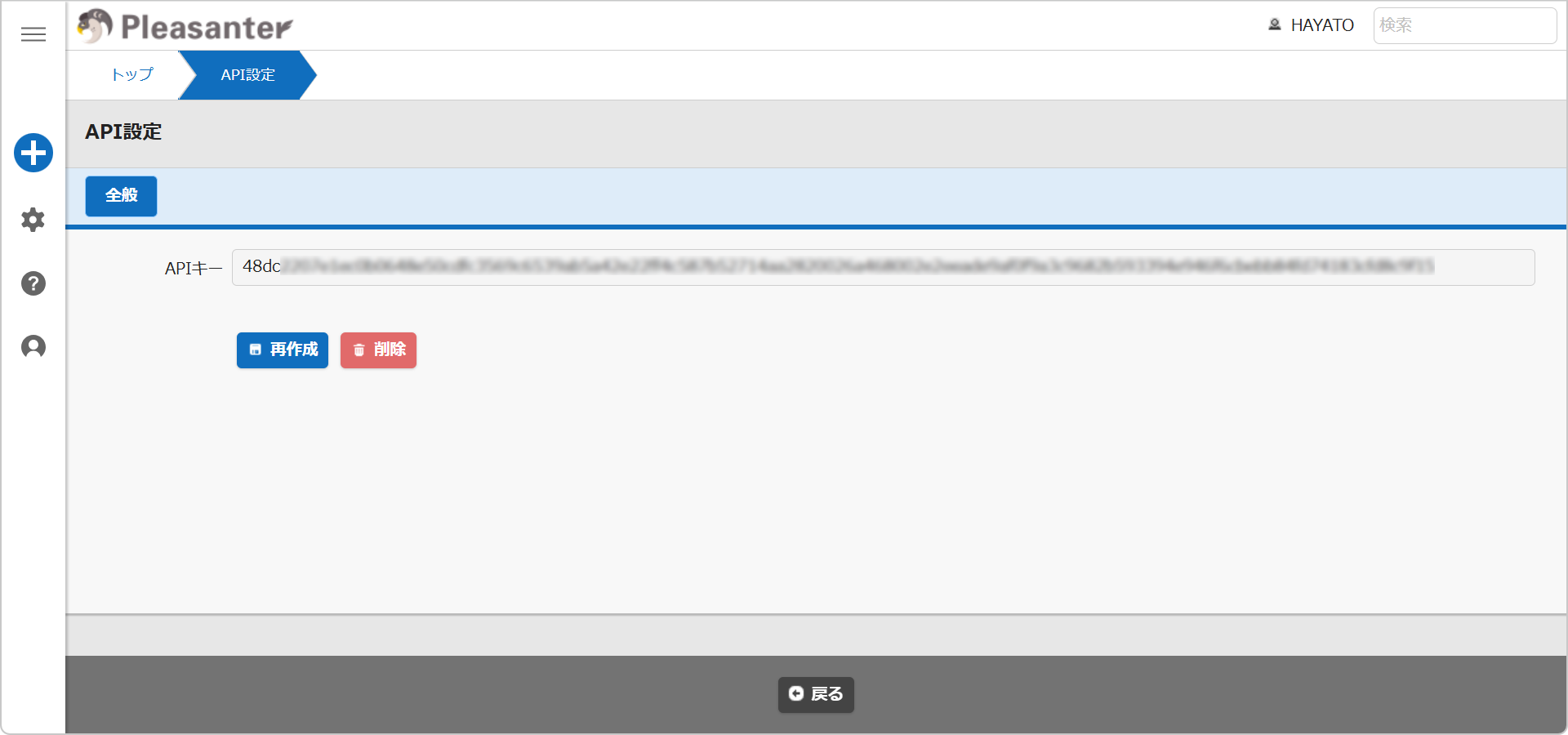
Issuing an API Key
Follow the steps below to issue an API key. If the API key is leaked, external programs will be able to access your data. Manage your API key strictly to ensure it is not disclosed to others.
- Log in to Pleasanter as the user who will use Pleasanter MCP.
- Select "User" from the navigation menu.
- Click "API Settings".
- Click the "Create" button.
- Note down the API key that is displayed.
Supported Versions
| Supported Version | Details |
|---|---|
| 1.5.2.0 and later | Feature added |