Create an API Key
Overview
This section explains how to issue an "API Key" to use the "API".
What Is an "API Key"
To use the "API" from an external program, you need to specify an "API Key" so that Pleasanter can recognize who is accessing the API and with what permissions. When calling Pleasanter's API from outside, specifying an "API Key" is mandatory. However, when accessing via a logged-in browser session, it is also possible to use the API without specifying an "API Key". In this case, the API is executed with the permissions of the logged-in user. When a script or server script specifies an "API Key" belonging to a user other than the logged-in user as a parameter, the API is executed with the permissions of the specified user. The time values retrieved via the API are converted to the time zone set by the user who created the "API Key".
Cautions
- If the "API Key" is leaked, it may be possible to access it from an external program. Please keep the "API Key" securely and do not let others know.
Operation Procedure
Log in to Pleasanter as the user who will issue the API key, and issue the API key by following the steps below.
-
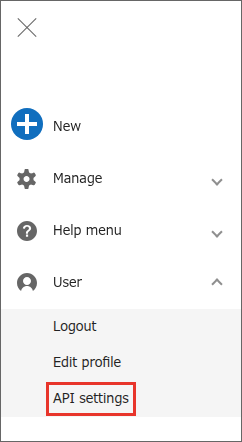
Click on "User" - "API settings" from the navigation menu.
-
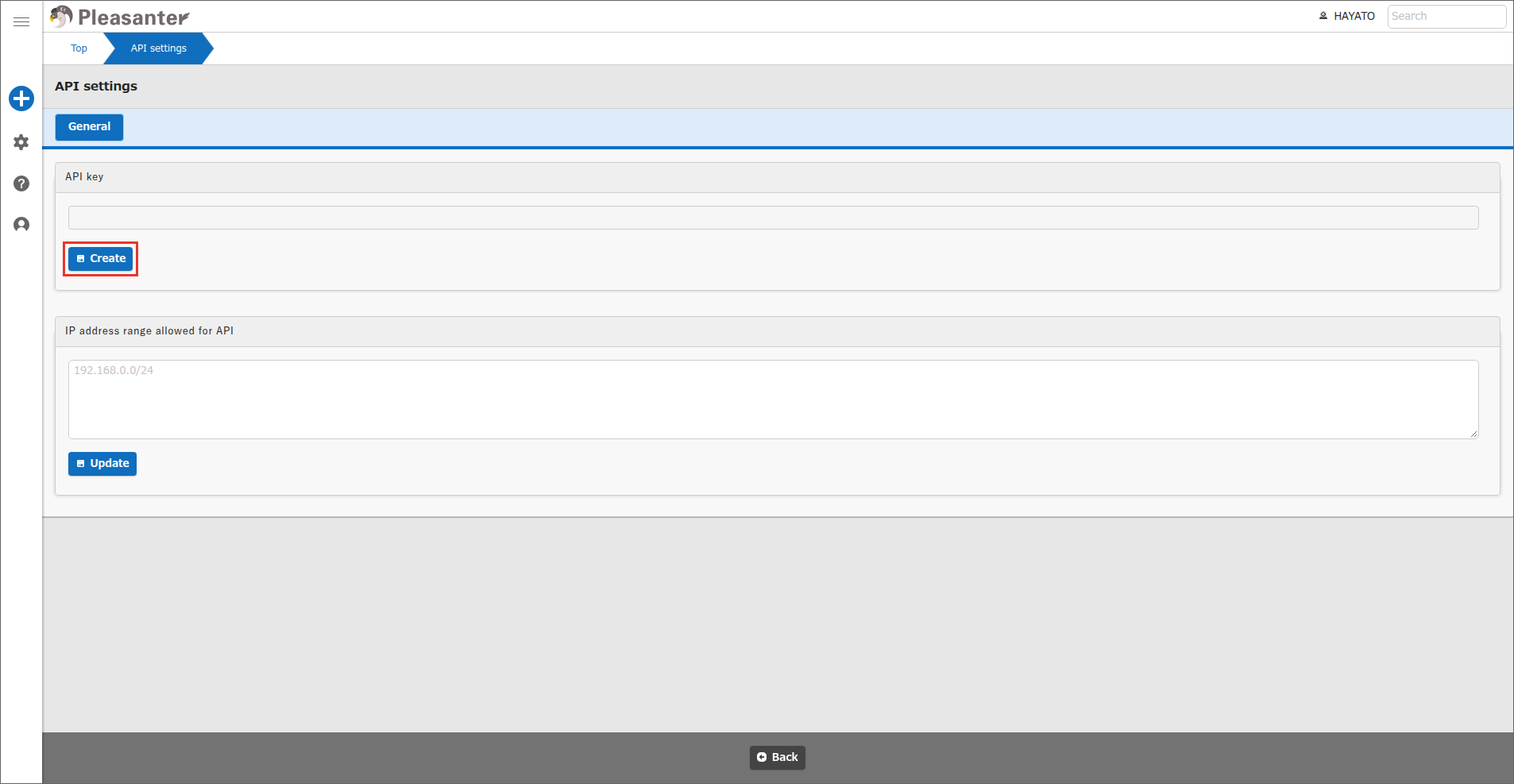
Click the "Create" button.
-
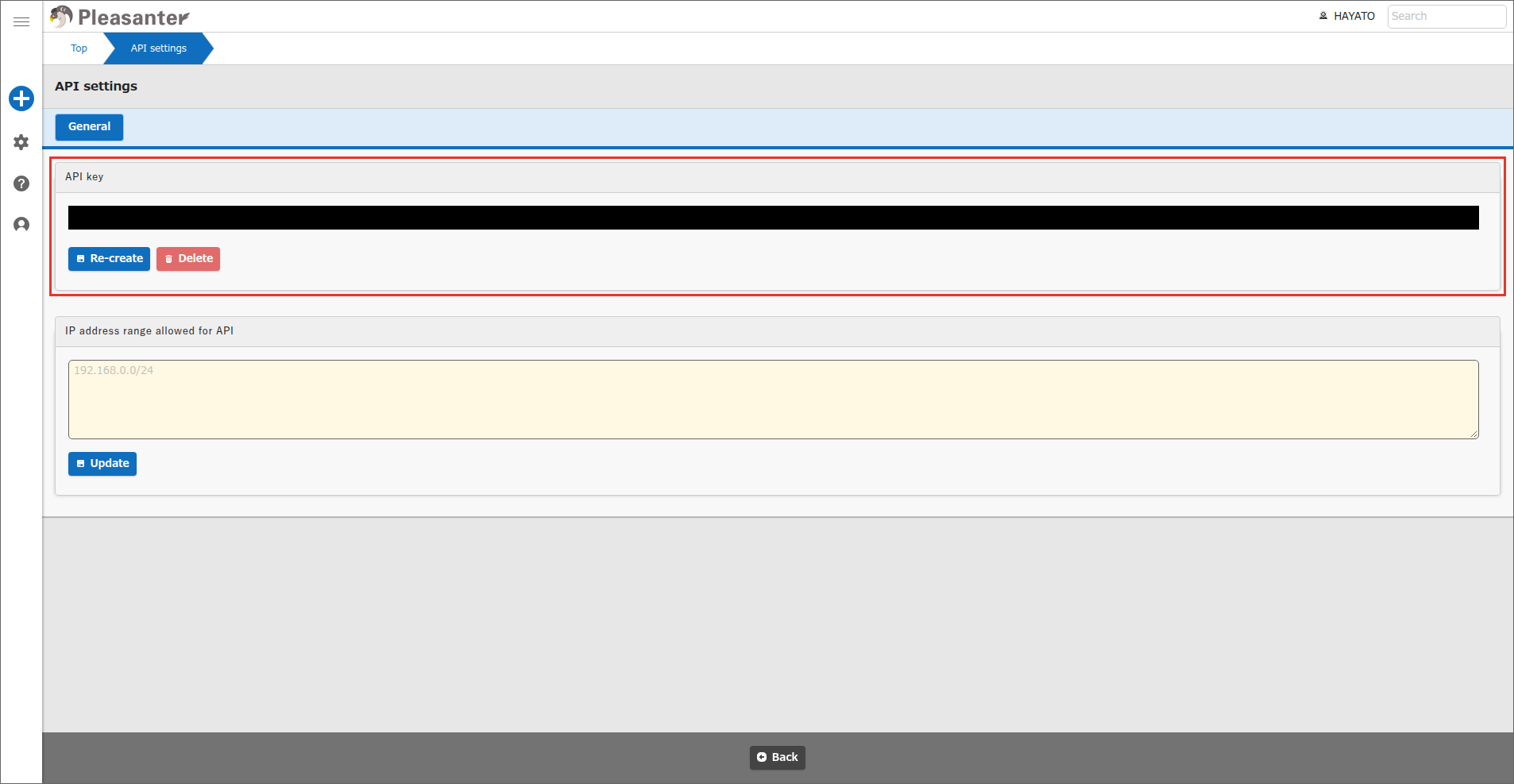
The string displayed in "API key" is your API key.
Operations After Issuing an API Key
| Button | Description |
|---|---|
| Re-create | Deletes the current API key and creates a new one. |
| Delete | Deletes the API key. |
IP Address Range Allowed for API
1.5.9.0
For each API key, you can restrict the source IP addresses from which the API key can be used. You can allow the API key to be used only from specific sources, such as your corporate network.
How to Set
-
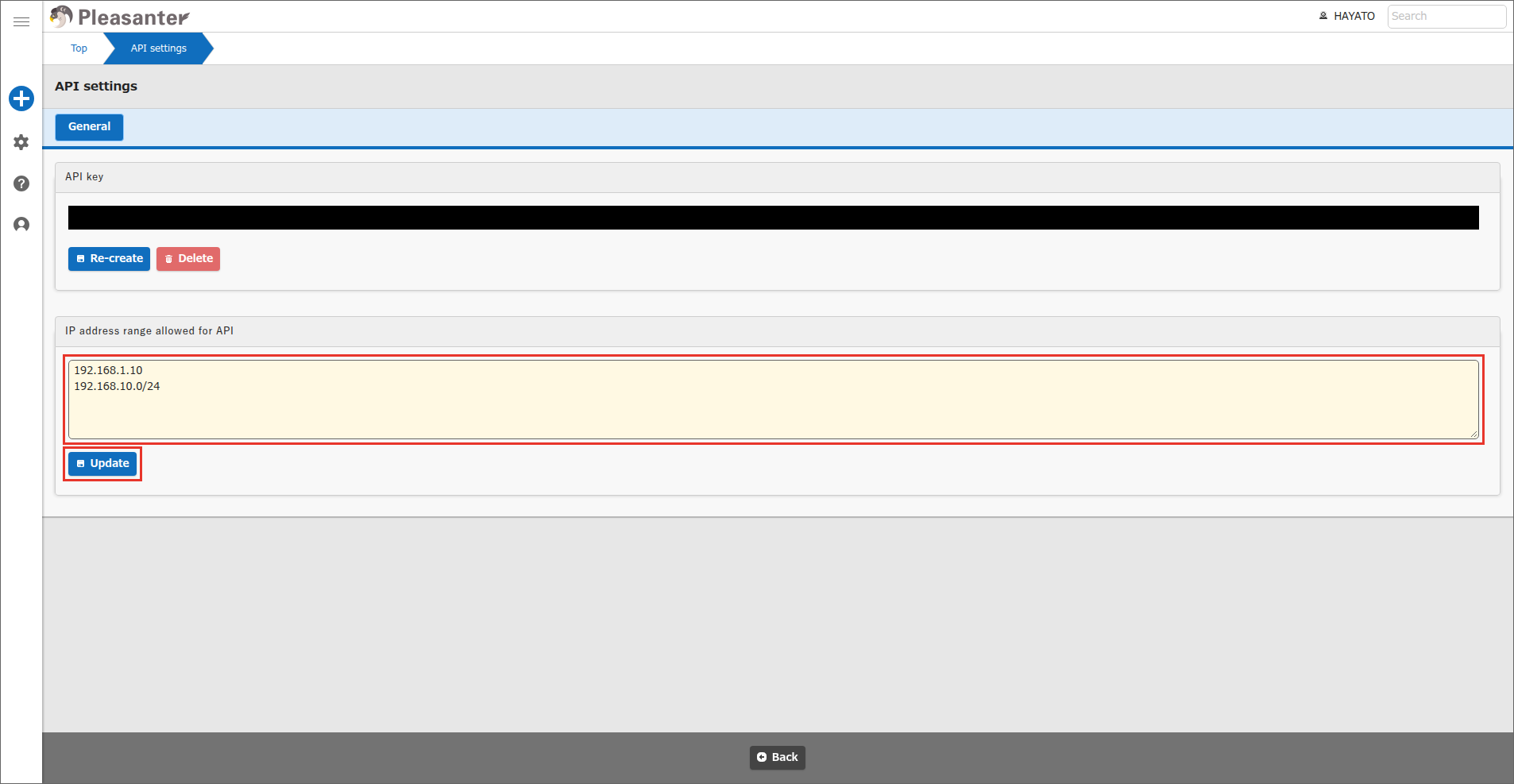
On the "API settings" screen, enter the IP addresses to allow in "IP address range allowed for API", one per line. You can also specify a range of IP addresses in CIDR notation.
-
Click the "Update" button.
If nothing is entered, no restriction by IP address is applied.
Only IPv4 addresses can be specified. If any line is in an invalid format, a message such as "The IP address range is not in a valid format. (192.168.1.300)" is displayed with the invalid values in parentheses, and the setting cannot be saved.
The IP address range you set is kept even if you recreate or delete the API key.
Scope
This setting applies to requests that specify an API key. It also applies to functions such as $p.apiGet when you specify ApiKey in the data argument. If you do not specify ApiKey, the call is executed with the permissions of the logged-in user, and this setting does not apply.
The same restriction also applies to access to the MCP server with an API key.
If you access with an API key from an IP address that is not allowed, an error (HTTP status 403) occurs and the message "The use of the API key from this IP address is not allowed." is returned. You can distinguish this from a rejection by the IP address restriction of the parameters or the contract by the message.
If you have set an IP address restriction with the parameters ("AllowIpAddresses" in Security.json) or the contract (IP address restriction option of Pleasanter.net), those restrictions also continue to apply.
Supported Versions
| Supported versions | Body |
|---|---|
| 1.5.9.0 and later | Added "IP address range allowed for API" |