$p.execProcess
Overview
This method executes the specified "Process".
Limitations
- This method can only be executed on the edit screen. It cannot be executed in "Bulk Processing" on the screen index.
Syntax
JavaScript
Description of Each Parameter
| Parameter name | Description |
|---|---|
| Button element | Specify the button that executes the process you want to execute with an HTML element |
Usage Examples
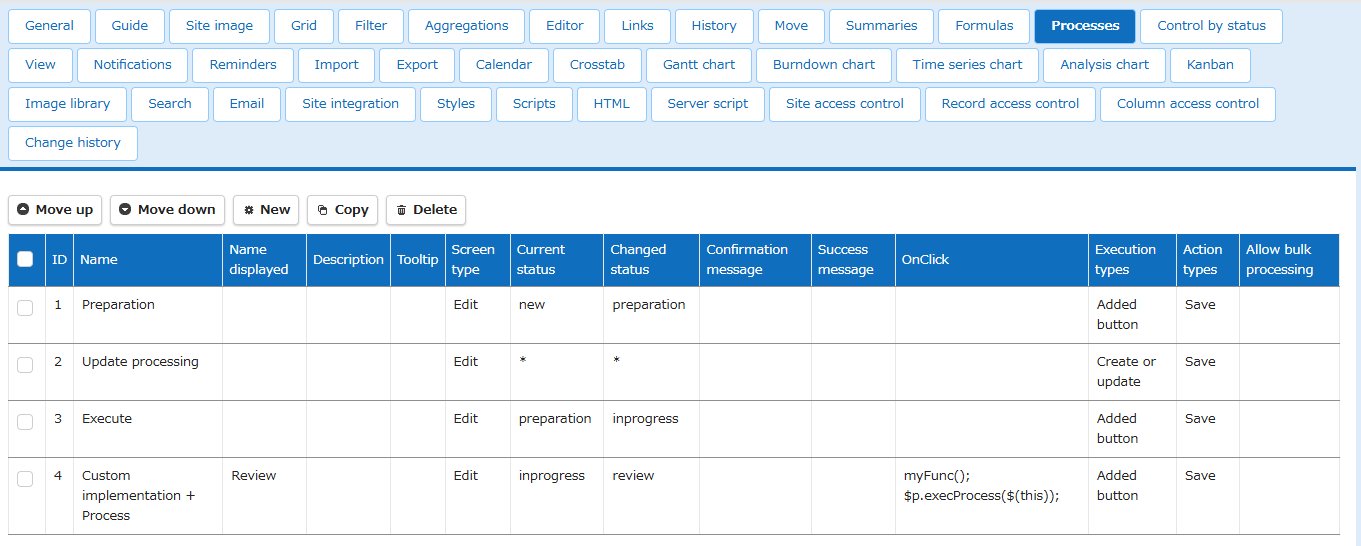
As an example, let's take the case where the process shown below is set.
-
Execution type is "Added button"
Specify the process button based on the ID of the process you want to execute.
##### JavaScript
-
Execution type is "Create or update"
If the screen type of the process you want to execute is "New", specify "#CreateCommand", if it is "Edit", specify "#UpdateCommand".
##### JavaScript
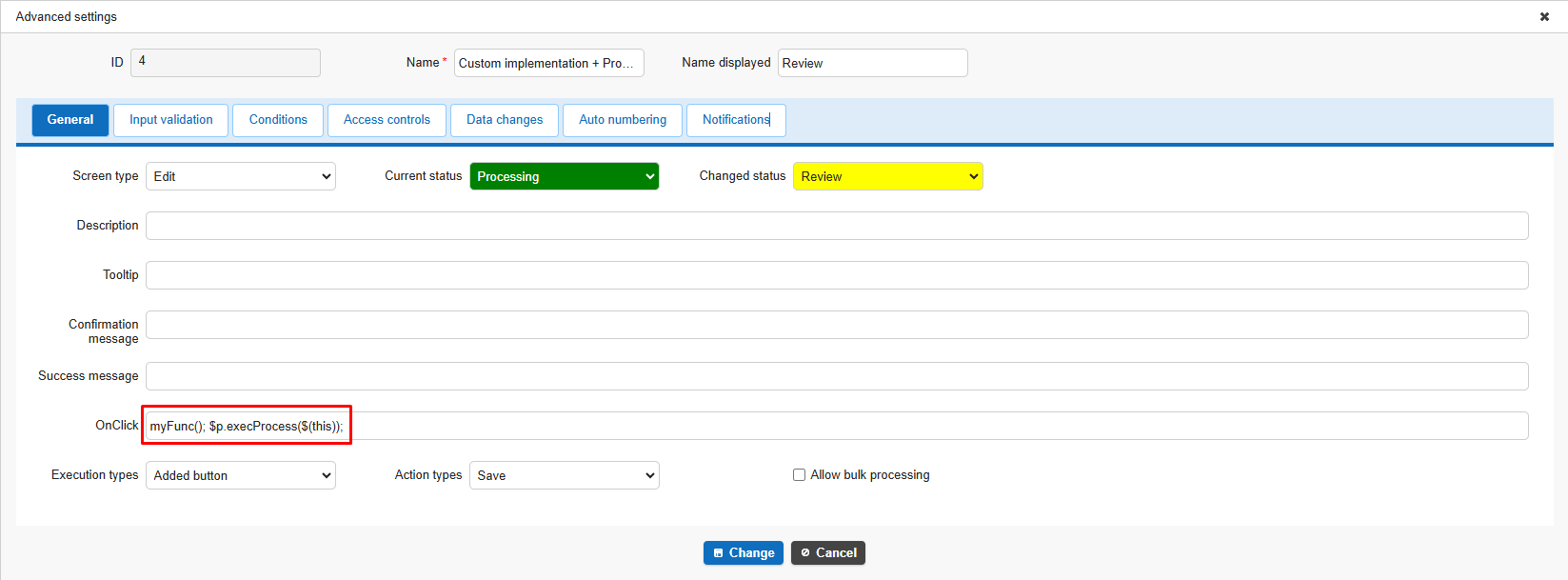
- Write directly in "OnClick" in the detailed process settings
Specify "$(this)".
The figure below is an example of executing a process after executing a custom script (myFunc function).
Process Execution Conditions
When using this method, the target button must exist on the HTML element. Therefore, in the following cases, even if the script is executed, the process will not be executed.
1. When a button that does not meet the "Condition" of the process is specified
2. When a process button element is specified for a process whose execution type is "Create or update" as in "$p.execProcess($('#Process_1'))"
3. When the corresponding button is set to "1: None" in the server script "elements.DisplayType" (2: Disabled, 3: Hidden, the process will be executed)