$ps.file
Overview
This is an object used in "Server Script" to manipulate files and directories within a web server. It allows file operations such as writing, reading, deleting, renaming, as well as creating, deleting, and renaming directories.
Cautions
- Performing file and directory operations with "Server Script" may increase server-side processing load. If the execution time of "Server Script" exceeds the specified processing timeout, the process will be stopped due to a timeout, resulting in an "Application error". You can adjust the timeout duration in the "ServerScriptTimeOut" property of "Script.json".
Limitations
- Access rights to files and directories depend on the OS of the web server. Pleasanter's access rights cannot be used.
- The following half-width characters can be used for section names, directory names, and file names:
Alphabets (A-Z, a-z)
Numbers (0-9)
Underscore (_)
Hyphen (-)
Dot (.) - For the base directory (ServerScriptFilePath in Script.json), neither root directory specifications (such as "C:\" or "D:\" on Windows, or "/" on Linux) nor relative paths can be used.
Prerequisites
- DisableServerScriptFile in "Script.json" must be set to false.
Properties
There are no properties.
Methods
| No | Name | Description |
|---|---|---|
| 1 | readAllText | Reads a text file. |
| 2 | writeAllText | Writes to a text file. |
| 3 | removeFile | Deletes a file. |
| 4 | moveFile | Renames or moves a file. |
| 5 | getFileList | Gets a list of file names in the specified directory. |
| 6 | getDirectoryList | Gets a list of directory names in the specified directory. |
| 7 | createDirectory | Creates a directory. |
| 8 | removeDirectory | Deletes a directory. |
| 9 | moveDirectory | Renames or moves a directory. |
| 10 | createSection | Creates a section. |
| 11 | removeSection | Deletes a section. |
| 12 | copyFile | Copies the specified file. |
| 13 | import | Imports the specified file. |
| 14 | export | Exports the specified file. |
What is a Section?
In the $ps.file object, files and directories are grouped and operated on by a unit called "Section" based on their purpose. On the web server, a directory with the section name is created directly under the base directory, and files and directories are structured within it. Subdirectories can also be set under a section.
The relationship between the base directory, section settings, and the layout on the web server is as shown below.
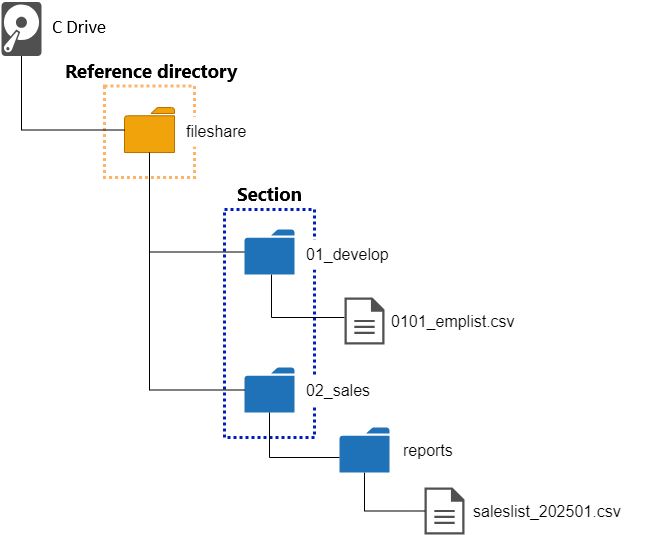
When the base directory is C:\fileshare, set this path to "ServerScriptFilePath" in "Script.json".
A section refers to a directory directly under the base directory, so 01_develop and 02_sales are sections in the diagram above.
The parameter settings are explained below, using reading files under a section as an example.
Example 1. Reading 0101_emplist.csv
On the web server, 0101_emplist.csv is C:\fileshare\01_develop\0101_emplist.csv, so the section is "01_develop" and the file name is "0101_emplist.csv".
Therefore, to read the file with "$ps.file.readAllText", specify it as follows.
JavaScript
Example 2. Reading saleslist_202501.csv
On the web server, saleslist_202501.csv is C:\fileshare\02_sales\reports\saleslist_202501.csv, so the section is "02_sales" and the file name, including the subdirectory, is "reports/saleslist_202501.csv".
Therefore, to read the file with "$ps.file.readAllText", specify it as follows.
JavaScript
const section = '02_sales';
const path = 'reports/saleslist_202501.csv';
$ps.file.readAllText(section, path);
Supported Versions
| Supported Versions | Body |
|---|---|
| 1.4.12.0 and later | Added function |
| 1.4.19.0 and later | Added the copyFile method |
Related Information
- Developer's Guide: Server Script
- Script.json
- Developer's Guide: Server Script: $ps.file.readAllText
- Developer's Guide: Server Script: $ps.file.writeAllText
- Developer's Guide: Server Script: $ps.file.removeFile
- Developer's Guide: Server Script: $ps.file.moveFile
- Developer's Guide: Server Script: $ps.file.getFileList
- Developer's Guide: Server Script: $ps.file.getDirectoryList
- Developer's Guide: Server Script: $ps.file.createDirectory
- Developer's Guide: Server Script: $ps.file.removeDirectory
- Developer's Guide: Server Script: $ps.file.moveDirectory
- Developer's Guide: Server Script: $ps.file.createSection
- Developer's Guide: Server Script: $ps.file.removeSection
- Developer's Guide: Server Script: $ps.file.copyFile
- Developer's Guide: Server Script: $ps.file.export
- Developer's Guide: Server Script: $ps.file.import