Control by Status
Overview
By using the "Control by Status" function, you can set read-only for each record according to the status, and set "Input Required", "Read Only", or "Hidden" for each column. You can also set "Condition" and "Access Control" that enable "Control by Status".
Limitations
- The "Hidden" setting of the "Control by Status" function hides the display in the UI, but the target column exists in HTML. If you want to hide the column from HTML as well, use "Column Access Control".
- The read-only and required input settings in the "Control by Status" feature are ignored when registering or updating data via "Import", "Bulk Update", or API.
- When "Read only" in "Record control" is turned on, records with the status specified in "Status" become read-only. Even if you change "Status" to that status on the edit screen, the record becomes read-only at the moment you change it. Therefore, when you click the "Update" button, the error "You do not have permission to perform this operation." is displayed and the record cannot be updated.
- Site management permissions are required to configure this feature.
Setting Procedure
-
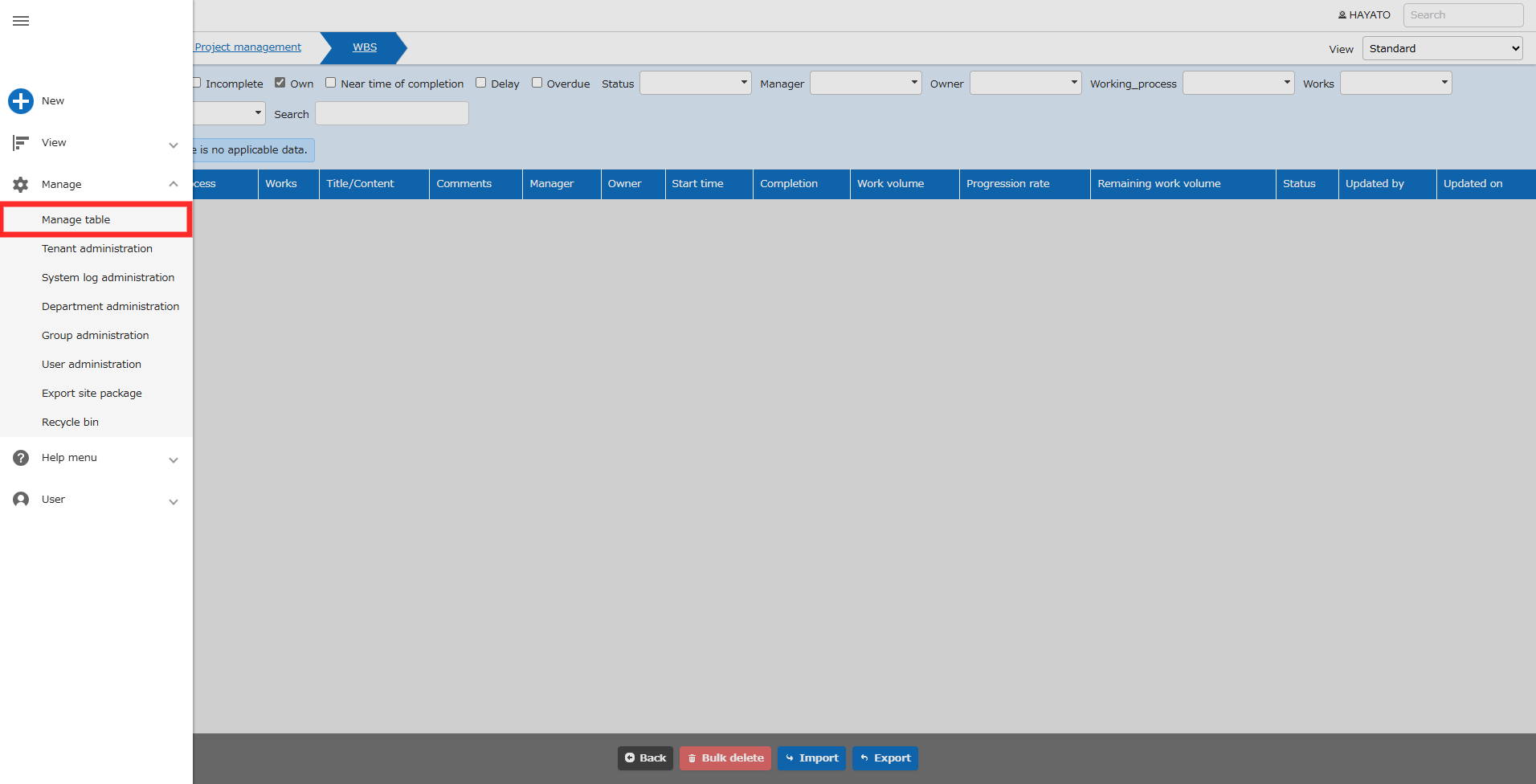
With the table in question open, click "Manage" - "Manage Table" from the navigation menu.
-
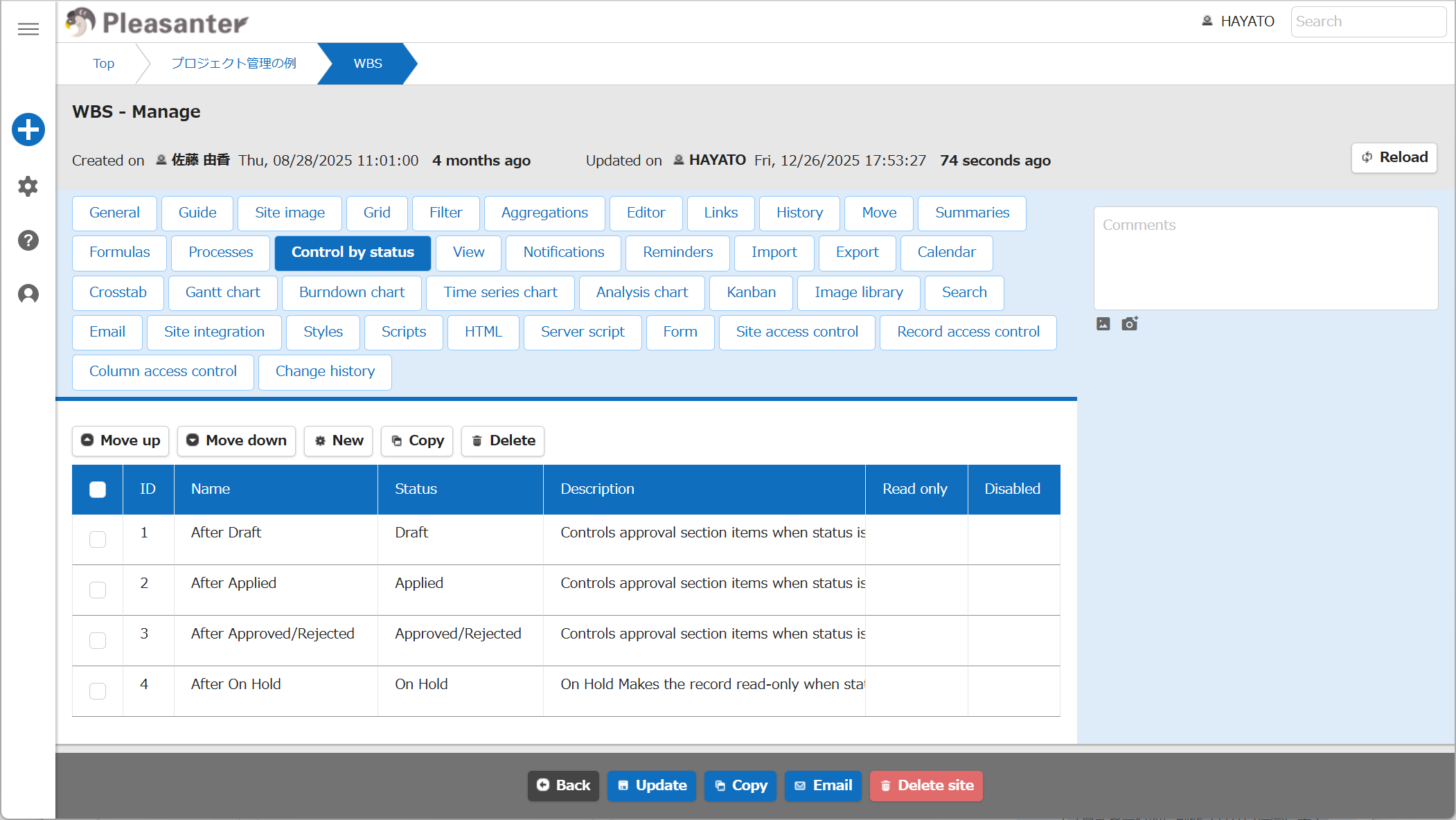
Click the "Control by Status" tab from Manage Table to open it.
Settings
Click the New button and set "Control by Status".
Common Settings - General Tab
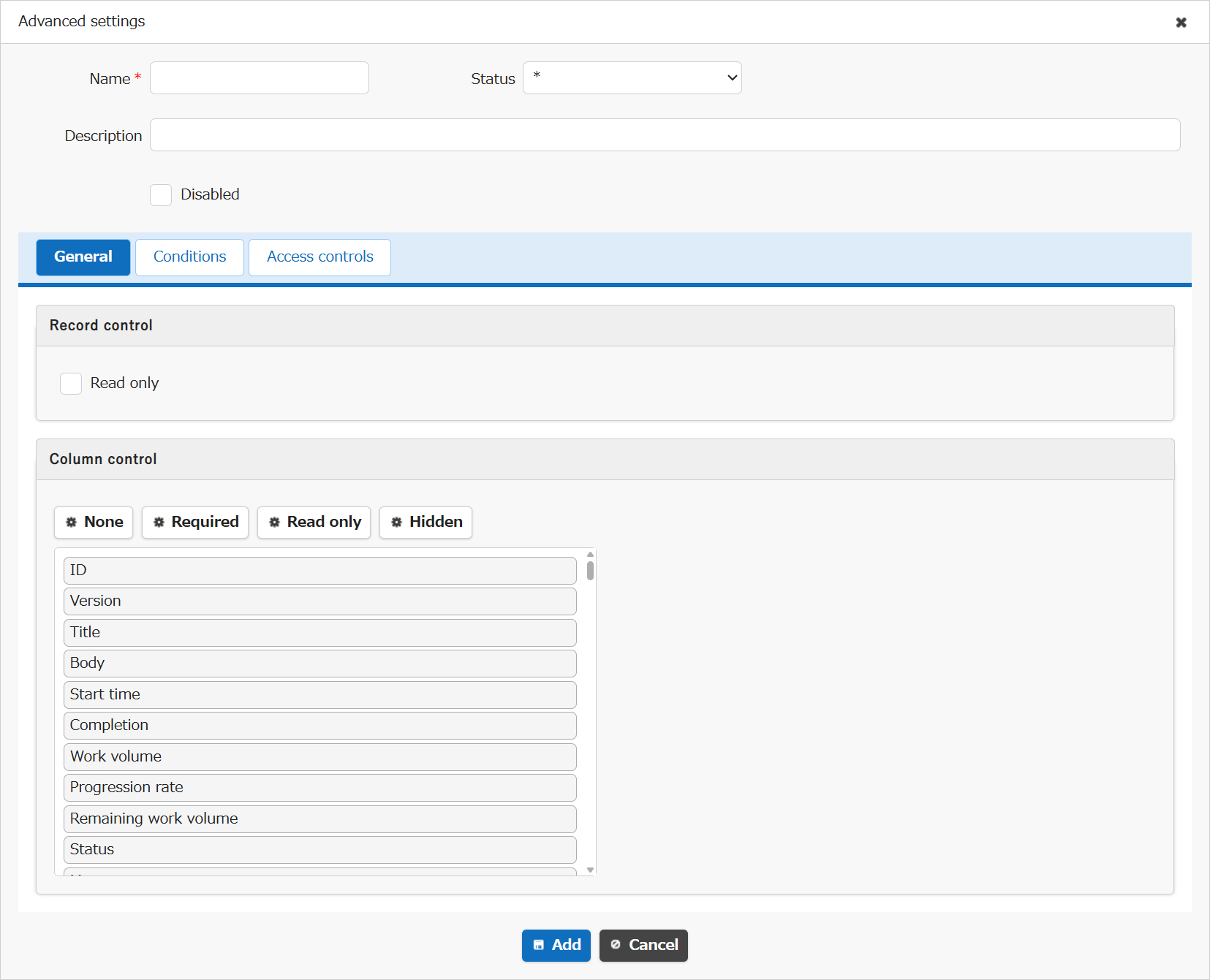
Common Settings
| Column Name | Description |
|---|---|
| Name | Set an arbitrary name. |
| Status | Set the status to be subject to "Control by Status". *1 |
| Description | Set an arbitrary description. |
| Disable | Disables the "Control by Status" feature. |
*1 The "Control by Status" setting will be enabled depending on the status. Also, specifying * will enable it for all statuses.
Record Control
Check to make the record read-only.
Column Control
Set each column as "Input Required", "Read Only" or "Hidden".
| Button | Description |
|---|---|
| None | Resets the "Input Required", "Read Only" or "Hidden" setting for the target column. |
| Required | If the status set in "Status" is met, the target column will be "Input Required". |
| Read-only | If the status set in "Status" is met, the target column will be "Read Only". |
| Hidden | If the status set in "Status" is met, the target column will be "Hidden". |
Condition Tab
Set the conditions to enable "Control by Status".
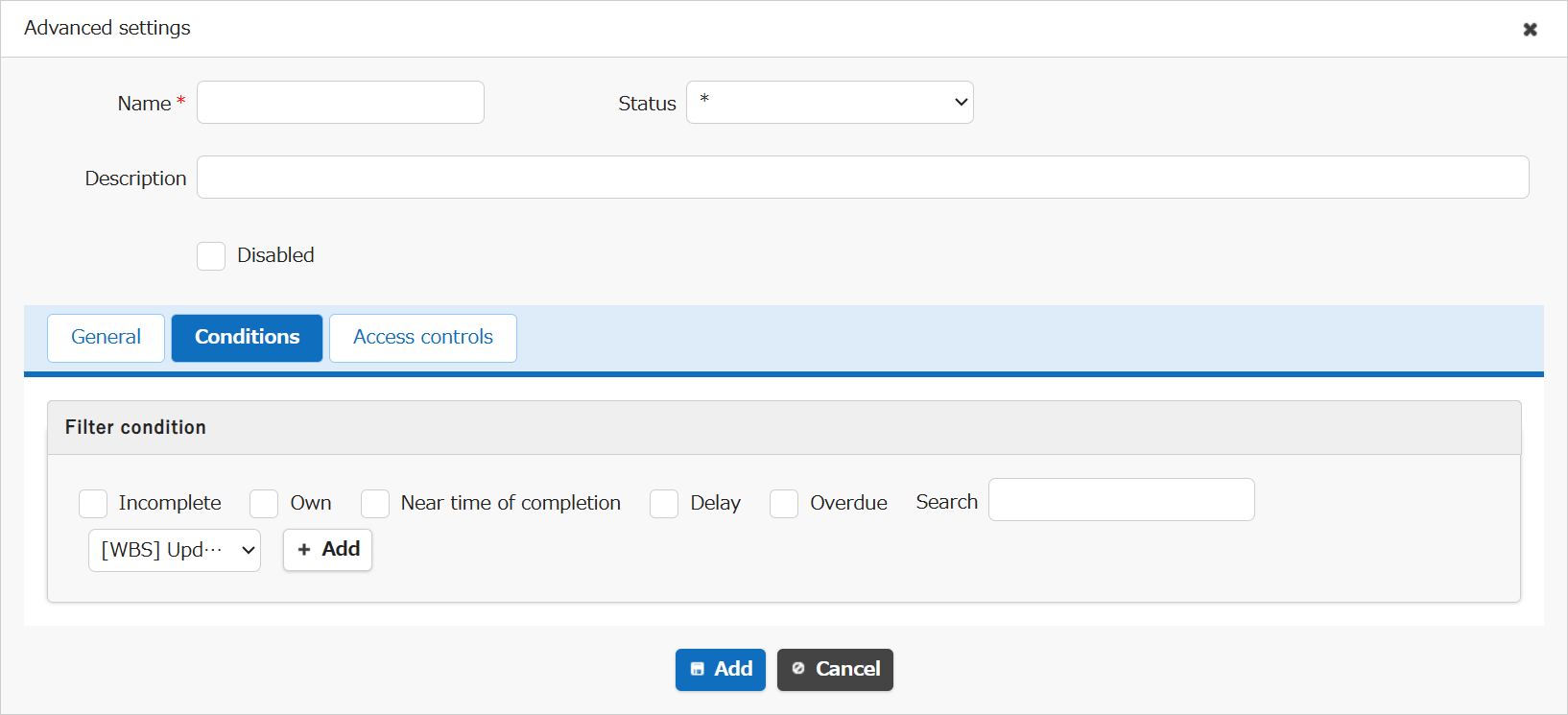
Select the target column from the column pull-down menu, add it and set the condition.
Access Control Tab
Set the "Department", "Group", and "User" for which you want to enable "Control by Status".
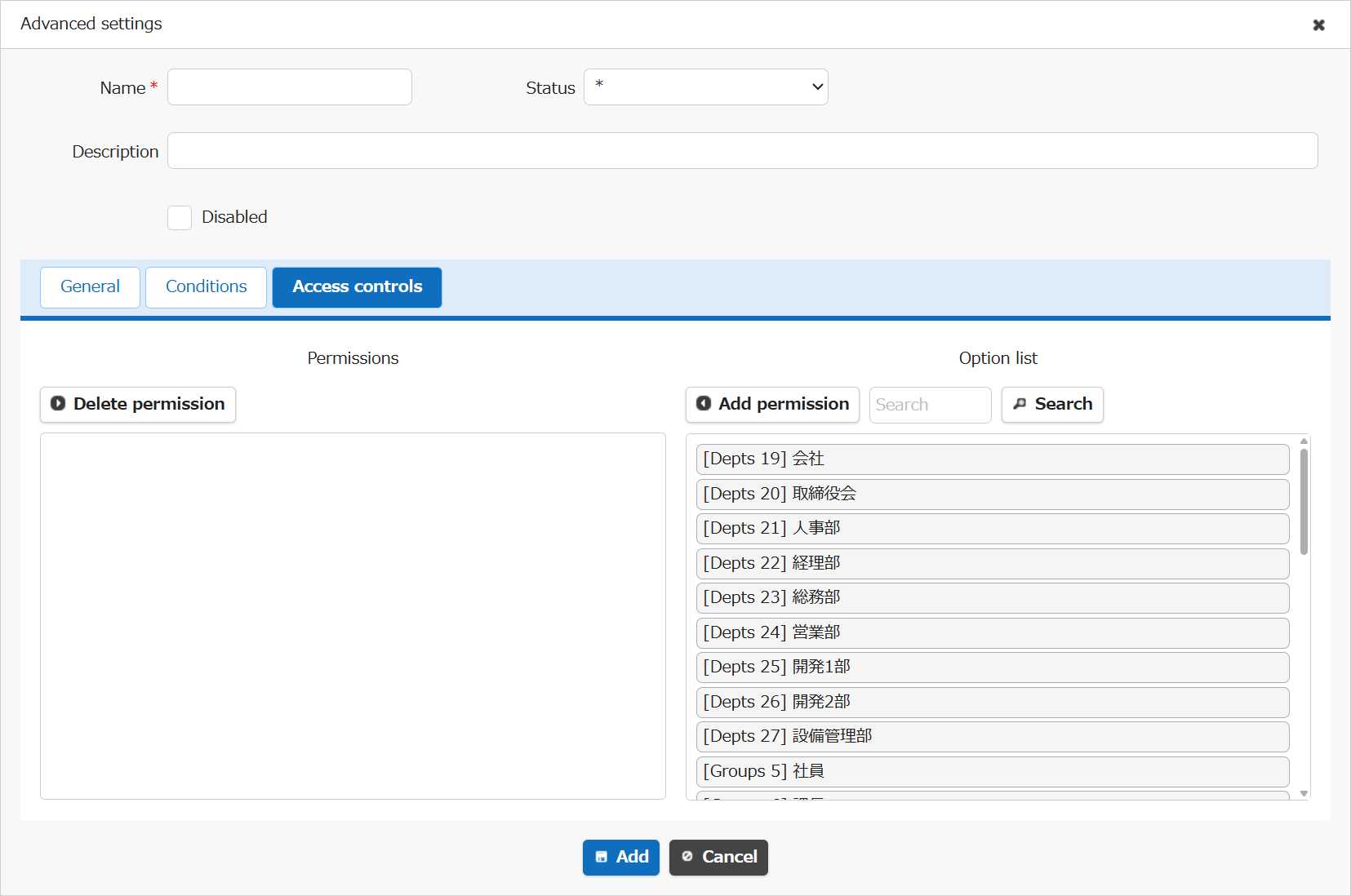
Select and add the target users/departments/groups from Option list.
Configuration Example
For examples of using "Control by Status", please refer to the following FAQ.
FAQ: Using control by status to change the status of column, such as hiding them or making them read-only
Supported Versions
| Supported Version | Description |
|---|---|
| 1.3.12.0 and later | Feature added |
| 1.3.13.0 and later | Support for *(All statuses) specification in status items |
| 1.5.0.0 and later | Added "Disabled" option |
Related Information
- FAQ: Using the "Control by Status" function to change the state of a column,
- Manage Table: Editor: Column Advanced Settings: Input Required
- Manage Table: Editor: Column Advanced Settings: Read-only
- Manage Table: Editor: Column Advanced Settings: Hidden
- FAQ: How to set a Range for Numerical value or Date conditions in the Conditions
- Site Access Control
- Column Access Control
- Manage Table
- Manage Table: Items: Status
- Department Management Function
- Group Management Function
- Manage Table: Editor: Column Advanced Settings: Option List: User