Allow Table Locking
Overview
Allow "Lock Table". To allow locking on a record-by-record basis, refer to "Allow Record Locking".
Prerequisites
- "Site Administration Permission" is required to configure settings.
Operation Procedure
- Open the target "Table".
- Click "Manage Table" from the "Manage" menu.
- Open the "Editor" tab.
- Check the "Allow Record Locking" checkbox at the bottom of the screen.
- Click the "Update" button at the bottom of the screen.
Operation Image
"Manage" menu when "Allow Record Locking" is not checked (when not allowed *Standard settings)
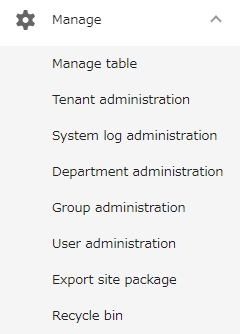
"Manage" menu when "Allow Record Locking" is checked (if allowed)

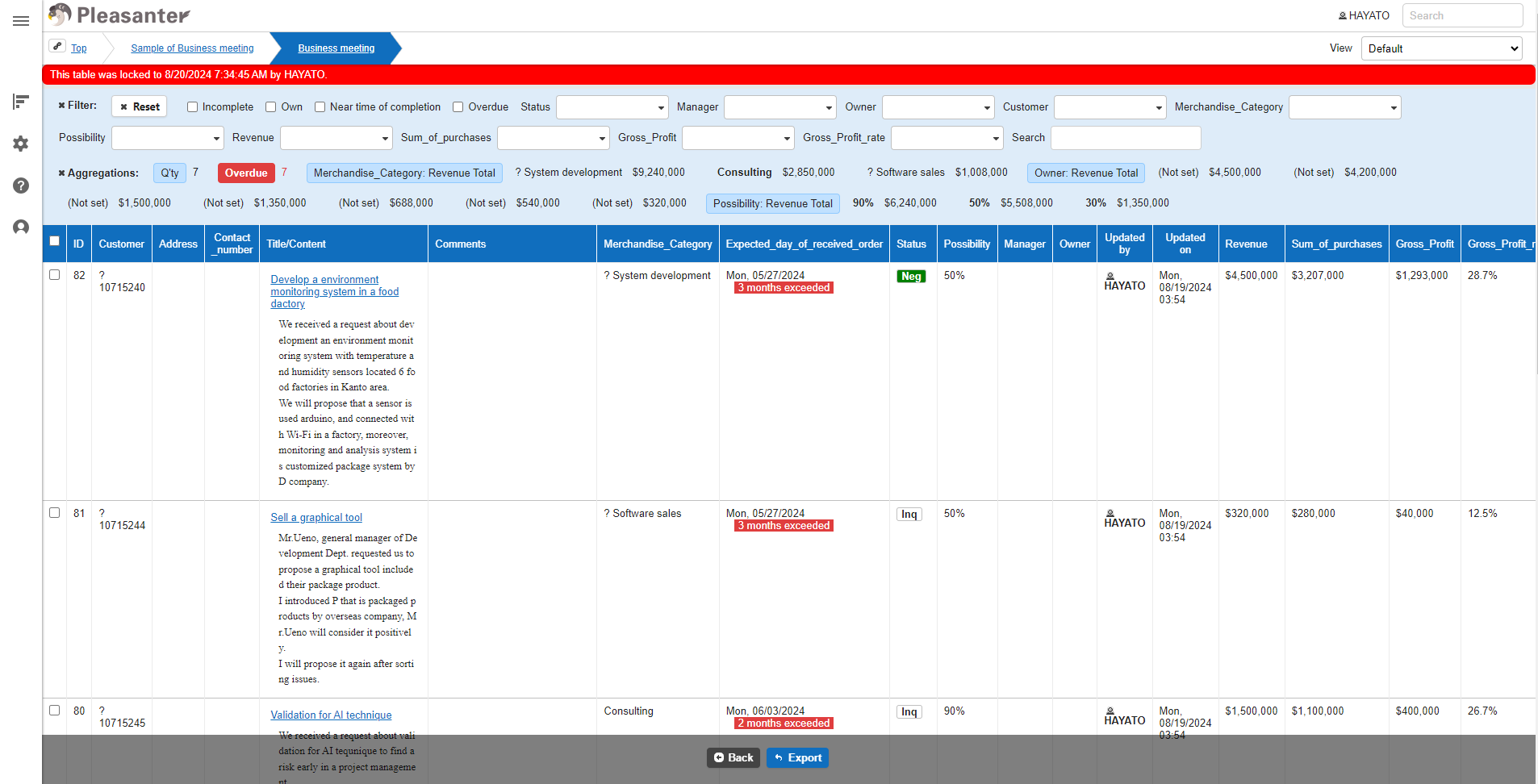
List screen when table is locked
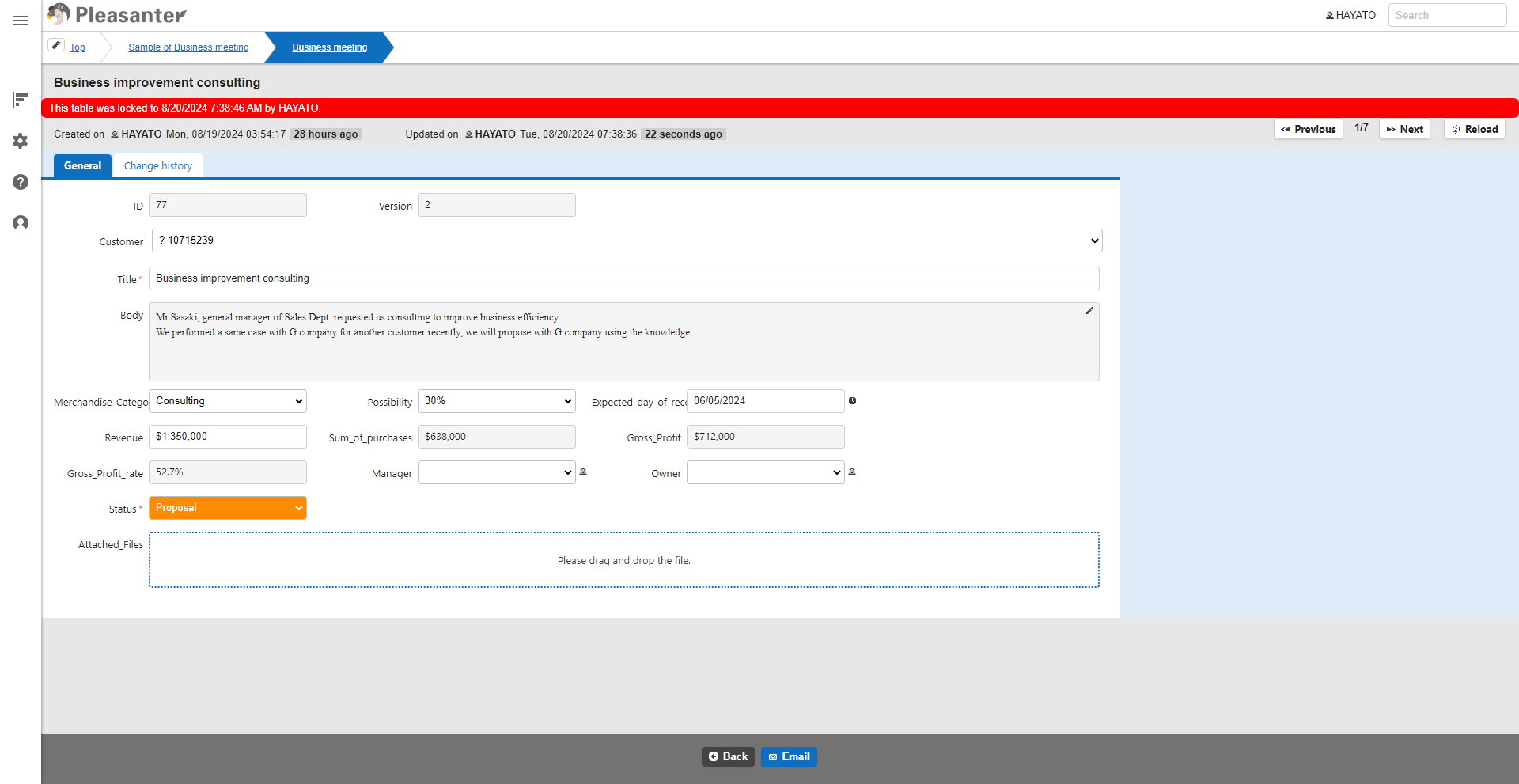
Edit screen when table is locked
The user who locked the table or a "Privileged User" must "Unlock Table" to release the lock.