Column Advanced Settings: Automatic Numbering
Overview
The automatic numbering function can be used for column that can handle strings (Title, Content, Classification, Description). It can be enabled by entering the numbering format in the format field in the "Automatic Numbering" tab of the advanced settings for each column .

Detailed Column
| Column name | Description | e.g. |
|---|---|---|
| Format | Specify the format for automatic numbering | [yyyyMMdd]-[Category A]-[NNNN] |
| Reset Type | Specify the type for resetting the automatic numbering count to zero | Select from year, month, day, or string |
| Default Value | Specify the starting value for automatic numbering | 1 |
| Step | Specify the interval for automatic numbering | 1 |
When the string is selected as the reset type, the serial number changes if the string part, other than the serial number, changes.
In the following format example, the yyyyMM[branch] portion will be grouped as a single string.
Format: yyyyMM[branch]-[NNN]
| Registration order | Serial number | Description |
|---|---|---|
| 1 | 202203Tokyo Branch-001 | Grouped by the string "202203TokyoBranch" and counted from 1 |
| 2 | 202203Tokyo Branch-002 | Same string, so the count is incremented |
| 3 | 202203Yokohama Branch-001 | Changed to Yokohama Branch, counted from 1 |
| 4 | 202203Tokyo Branch-003 | Returned to Tokyo Branch, counted from 3 |
| 5 | 202204Tokyo Branch-001 | Month changed, counted from 1 |
Usage Examples
The format is specified in the following format.
Format for Specifying Format
| Setting value | Description |
|---|---|
| [NNNN] | Automatically numbers with a fixed length of N digits (4 digits in this case). Displays "overflow" if the digits exceed the limit. |
| [n] | Automatically numbers with a variable length |
| [Category A] | If you specify a column name, the name displayed of the value entered in the column is set. |
| Parts enclosed in [] other than the above | Outputs the current date and time format. Supports the format used in the C# date type ToString function. |
| Parts not enclosed in [] | You can freely describe characters such as hyphens. |
Format Example
The "Branch" and "Department" below are class column.
| Format | Numbering result |
|---|---|
| [yyyyMMdd]-[branch]-[n] | 20220311-Yokohama branch-1 |
| [yyyyMM]-[branch]-[department]-[NNN] | 202203-Yokohama branch-Sales department-001 |
| [yy]-[branch]-[department]-[nnnn] | 22-Omiya branch-General affairs department-0001 |
| Yokohama branch) [yyMM]-[NNNN] | Yokohama branch) 2203-0001 |
Set Automatic Numbering for Category A in the Title Column
- Enable Category A and set "A" and "B" in the Option list.
- Uncheck the "Input Required" box for the Title Column.
- Check the "Read-only" box for the Title Column.
- Set the automatic numbering for the Title column as shown in the image below.

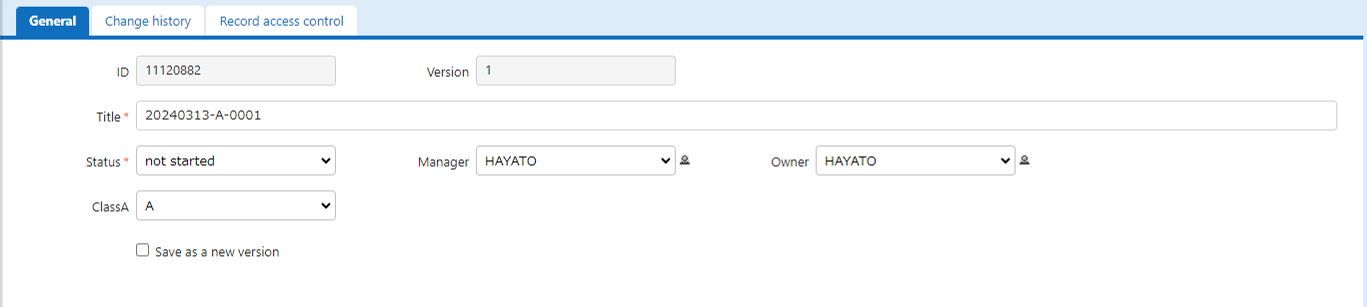
Select "A" for Category A and create a record. The first numbering will be performed as "A" in the Title Column where automatic numbering is set.
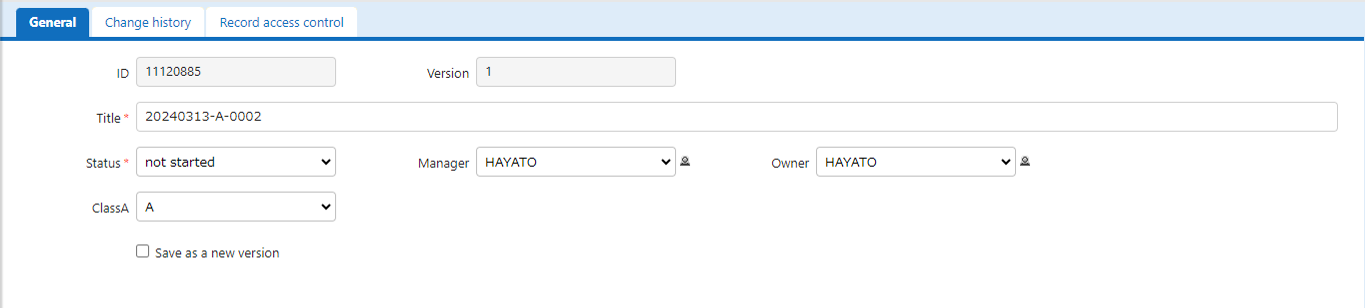
Select "A" for Category A and create a record. The second numbering will be performed as "A" in the Title Column where automatic numbering is set.
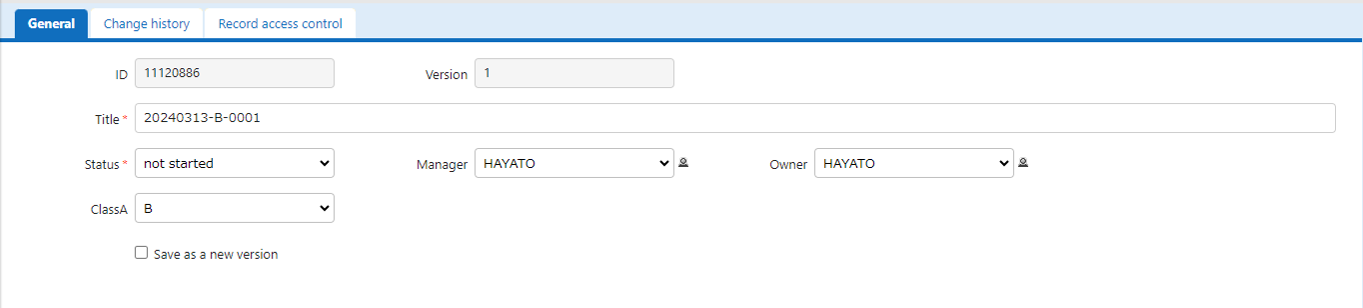
Select "B" in Category A and create a record. The first numbering will be performed as "B" in the Title Column where automatic numbering is set.
Supported Versions
| Supported versions | Body |
|---|---|
| 1.3.1.0 and later | Added function |