Column Advanced Settings: Extended HTML
Overview
Insert arbitrary HTML before or after the column.
Prerequisites
- "Site Administration Permission" is required to configure settings.
Operation Procedure
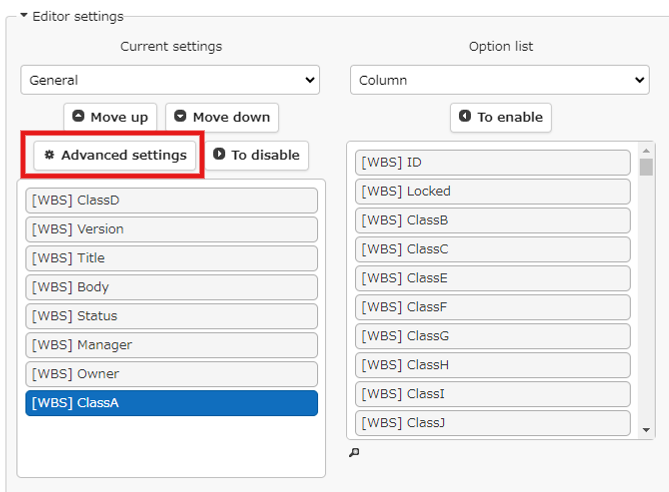
In an arbitrary table, open "Manage" → "Manage Table" → "Editor", select the column you want to insert HTML before and after, and click "Advanced Settings".
Extended HTML can be inserted before and after all columns.
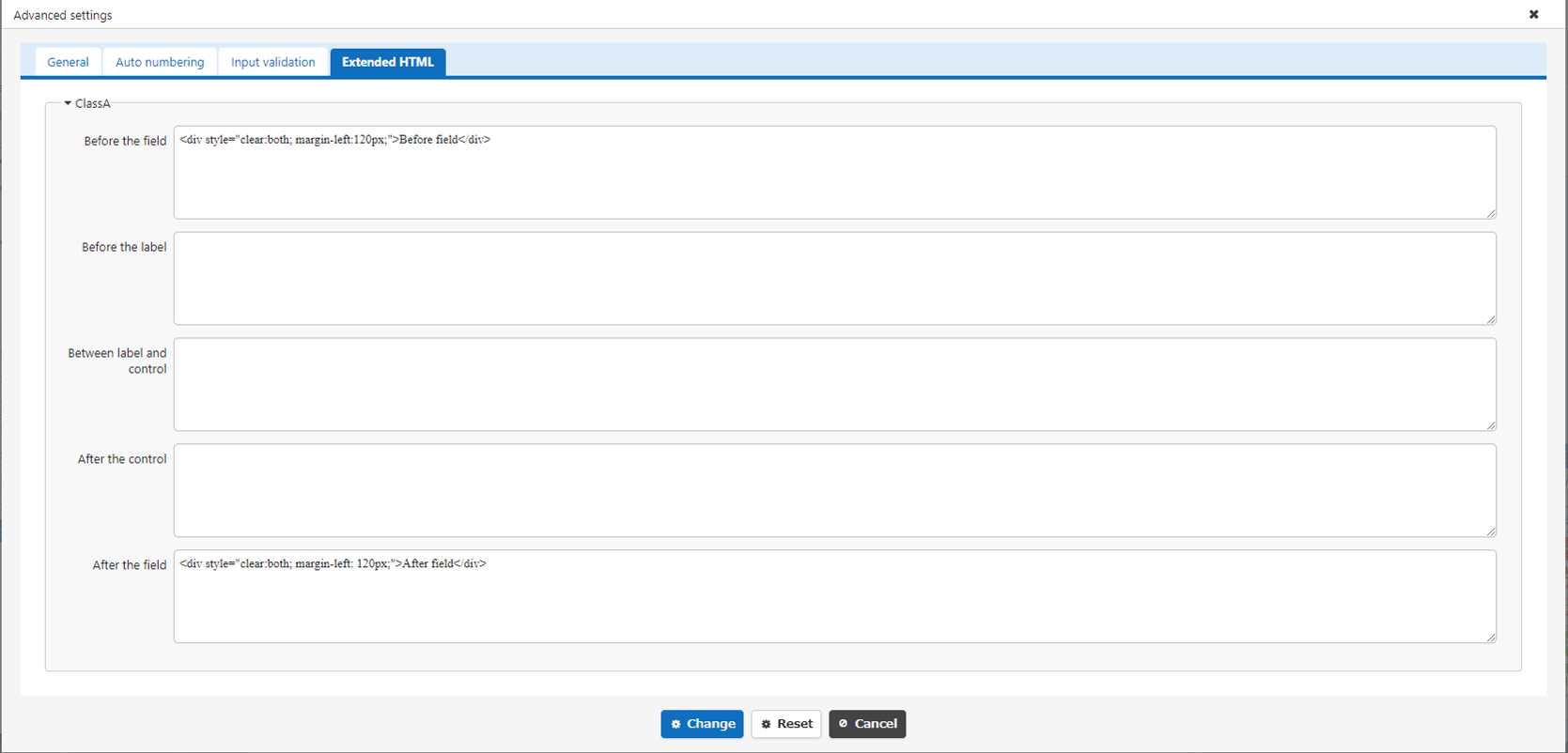
Open the "Extended HTML" tab.
| Column name | Content |
|---|---|
| Before field | The HTML you entered is output before the column |
| Before label | The HTML you entered is output before the column name |
| Between label and control | The HTML you entered is output between the column name and the input column |
| After control | The HTML you entered is output after the input column |
| After field | The HTML you entered is output after the column |
Conceptually, the fields, labels, and controls and their context are as follows:
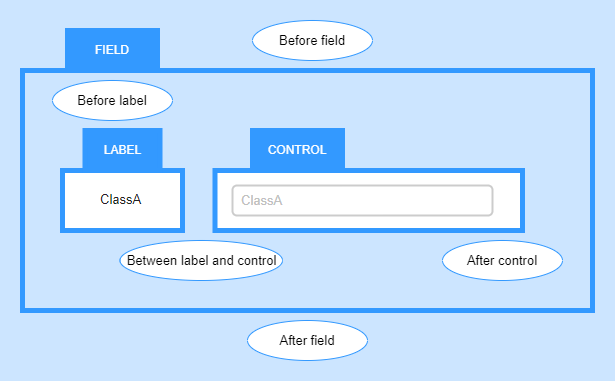
This is the structure of the HTML DOM tree, and its placement on the screen is not automatically the position of the text in the image above.
Examples of Setting Before and After Field
- Manage Table
- Editor Screen
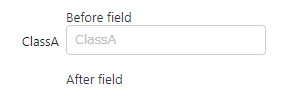
Examples of Setting Before Label, Between Label and Control, and After Control
- Manage Table
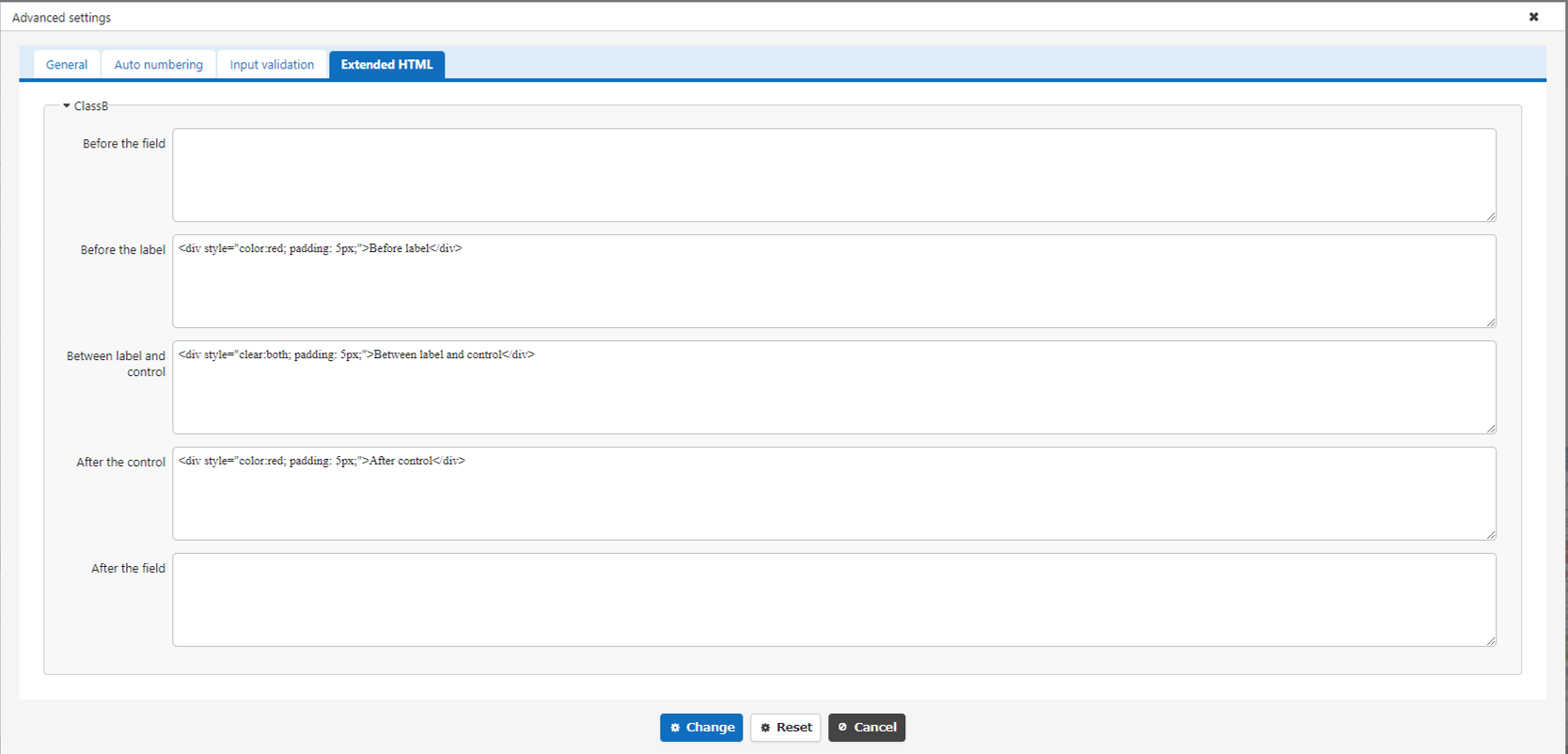
- Editor Screen
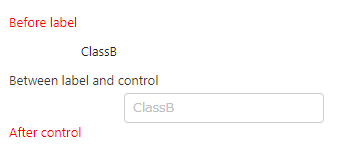
*Due to the specifications of the HTML layout, if the column itself does not have enough margins, the contents set in the extended HTML may unexpectedly overlap with other columns.
In this sample, margins are set for "ClassA" and "ClassB" using the Field CSS function.
Specific CSS adjustments should be verified in advance using a test table.