Column Advanced Settings: Option List: Filter (narrow the option list by the value of other columns)
Overview
By specifying ColumnFilterExpressions in the "Option List", you can narrow down the option list by the value of another column.
Limitations
- It cannot be used for columns other than the "Owner", "Manager", and "Class" columns.
- It cannot be used when the "Multiple Selections" feature is used.
- When ColumnFilterExpressions is specified for a column that has "Relating Column" set, the options are not narrowed down by Relating Column but only by the conditions of ColumnFilterExpressions. Do not use Relating Column and ColumnFilterExpressions together on the same column.
Required Permission

Operation Procedure
- Click "Manage" on the navigation menu.
- Click "Manage Table".
- Click the "Editor" tab.
- In "Editor Settings", select one of the following columns and open "Advanced Settings".
- In "Option List", describe how to display the options in JSON format.
How to Specify ColumnFilterExpressions
| Type of expression | Example | Description |
|---|---|---|
| Filter by name displayed | [ClassA] | When the option list of the specified column is set with values and names displayed, the column is filtered by its "Name Displayed". The value is converted into a JSON array before filtering. |
| Filter by value | [@ClassA] | When the option list of the specified column is set with values and names displayed, the column is filtered by its "value". The value is converted into a JSON array before filtering. |
| Filter by value without conversion | =[@ClassA] | The column is filtered by its value without conversion into a JSON array. Use this when you want an exact match on the value of the column specified for the filter. |
Tip
When the "Option List" is not set (free input) or the "Option List" has values only, the column is filtered by its "value" regardless of the type of expression.
Setting Example 1: Filter by Name Displayed
Searches ClassX of the linked table by the "Name Displayed" of ClassA on the screen. If you set auto post back on ClassA on the screen, the list is updated immediately after ClassA is changed.
| Search ClassX of the linked table by the name displayed of ClassA on the screen | |
|---|---|
When "Test" is entered in ClassA on the screen, the internal behavior is as follows.
The value is passed to ColumnFilterHash as it is.
Setting Example 2: Filter by Value
Searches ClassX of the linked table by the value of ClassA on the screen. When ClassA has values and names displayed and you want to take out the value, add @.
| Search ClassX of the linked table by the value of ClassA on the screen | |
|---|---|
Setting Example 3: Filter by Value Without Conversion
You can pass the value of ClassA on the screen directly without converting it into a JSON string. When ClassA is a multiple selection column, [@ClassA] already contains a string in JSON format. When the left side has an option list, the value is automatically converted into a JSON array, so write = to prevent the conversion when the value is already JSON.
When you use a numerical value column on the right side, the search is performed with a string that has symbols and units unless you add @.
Operation Image of ColumnFilterExpressions
When the following JSON is set in the option list of ClassB, which is the target of the filter, the records are filtered so that ClassC of the table with site ID 12345 matches the name displayed of ClassA in the table being set.
Turn on "Auto post back" for ClassA.
Example 1: Filtering by Name Displayed
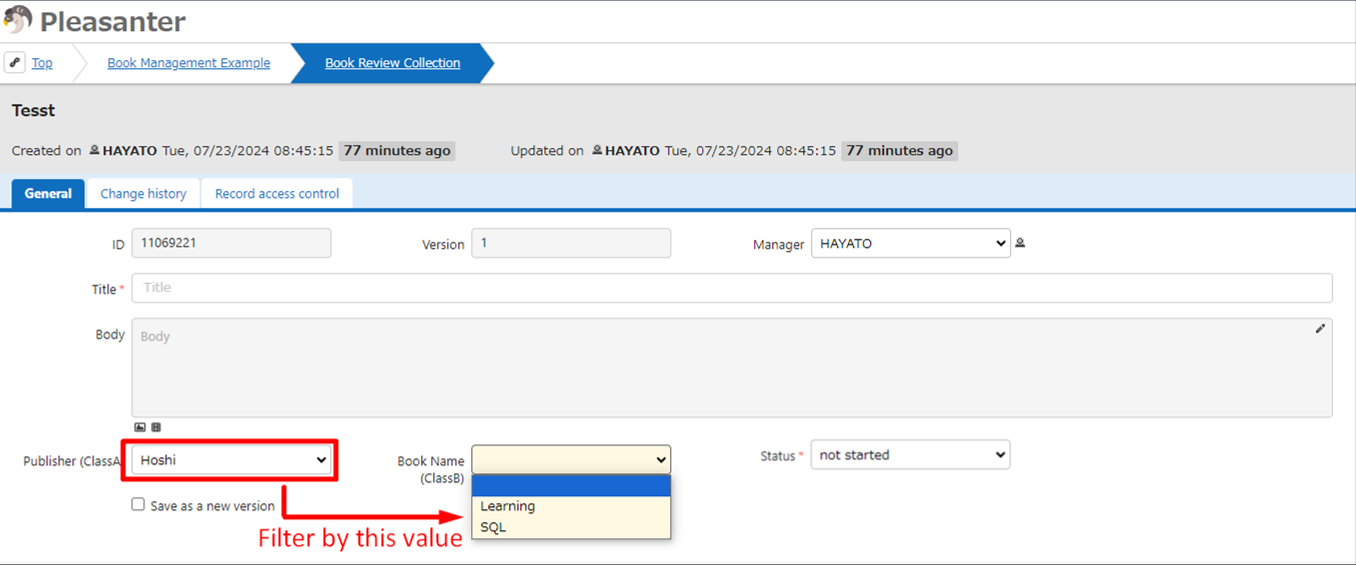
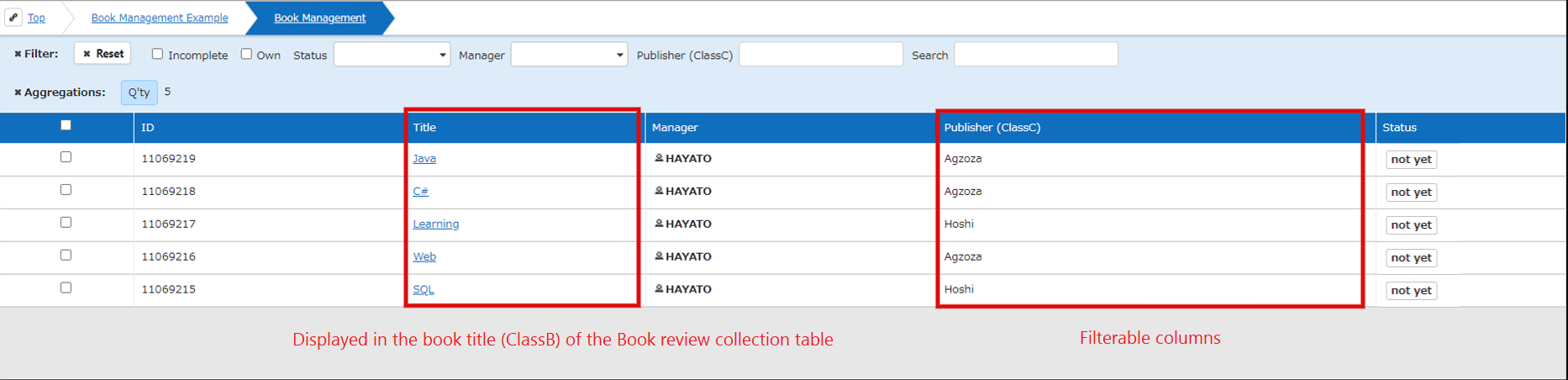
In the example below, the above JSON is written in the "Option List" of "Book Title (ClassB)" in the "Book Review Collection" table to narrow down the options. When "Publisher (ClassA)" is selected on the editor screen, the auto post back process filters the options of "Book Title (ClassB)" by the name displayed of "Publisher (ClassA)". In "Book Title (ClassB)", only the titles of books whose "Publisher (ClassC)" registered in the "Book Management" table (site ID: 12345) matches the name displayed of the selected "Publisher (ClassA)" are displayed.
-
Editor screen of the "Book Review Collection" table
-
Index screen of the "Book Management" table (site ID: 12345)
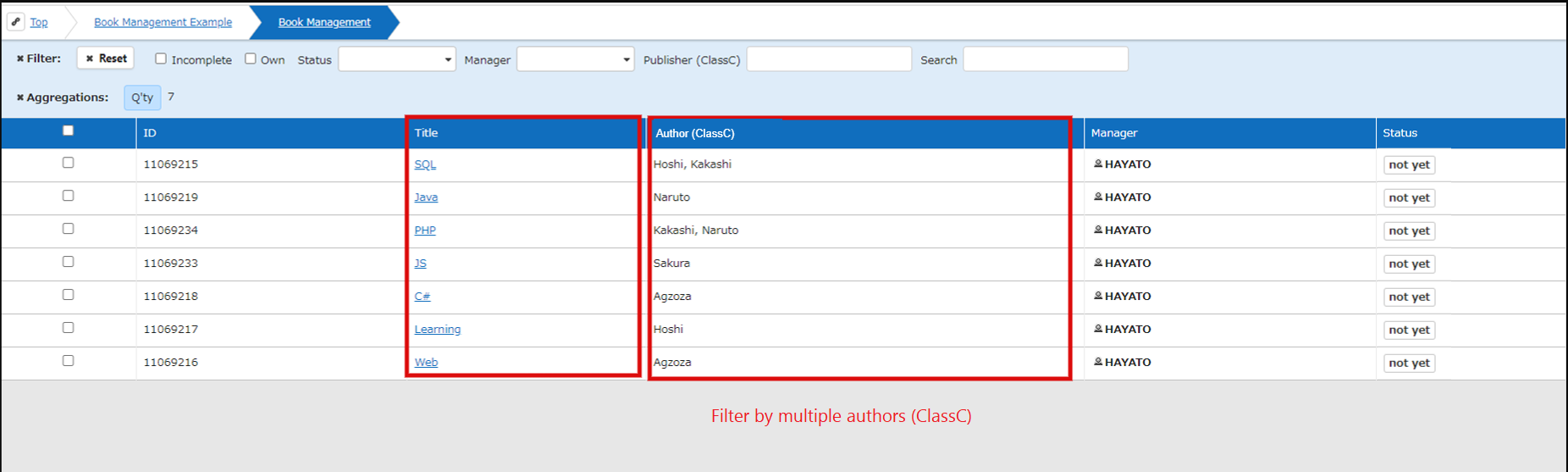
Example 2: When the Class Column to Filter Is Multiple Selection
-
Index screen of the "Book Management" table (site ID: 12345)
-
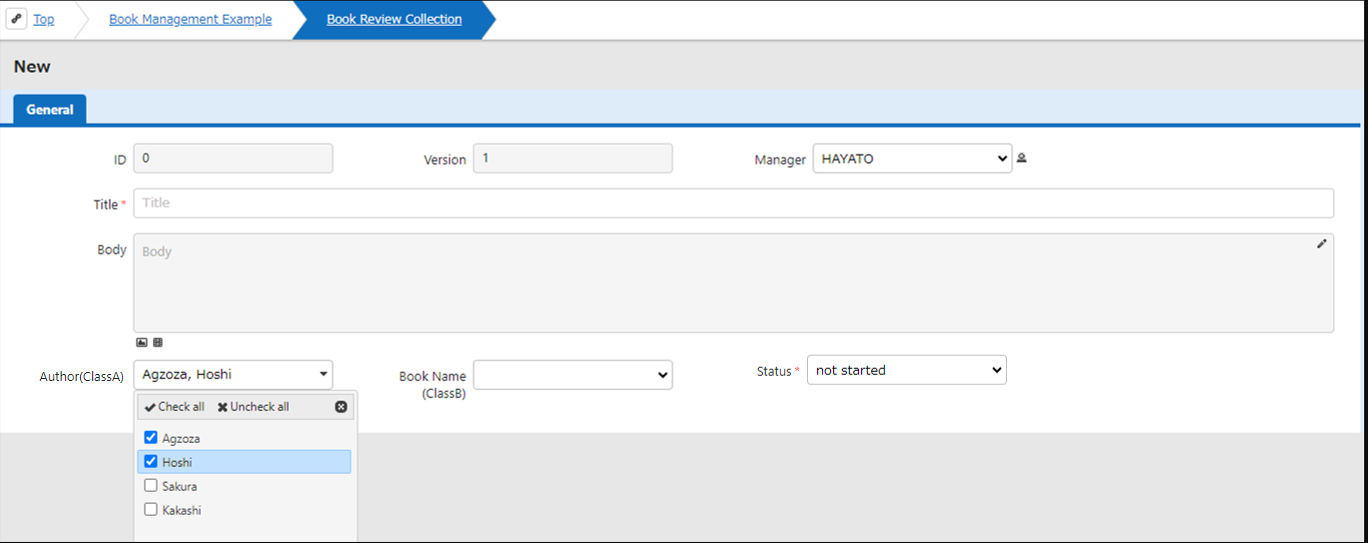
When the "Option List" of "Book Title (ClassB)" is written in the "Filter by value" format
ClassC of site ID 12345 does not match the value of ClassA in the table being set as a string in JSON format, so no options are displayed in ClassB.
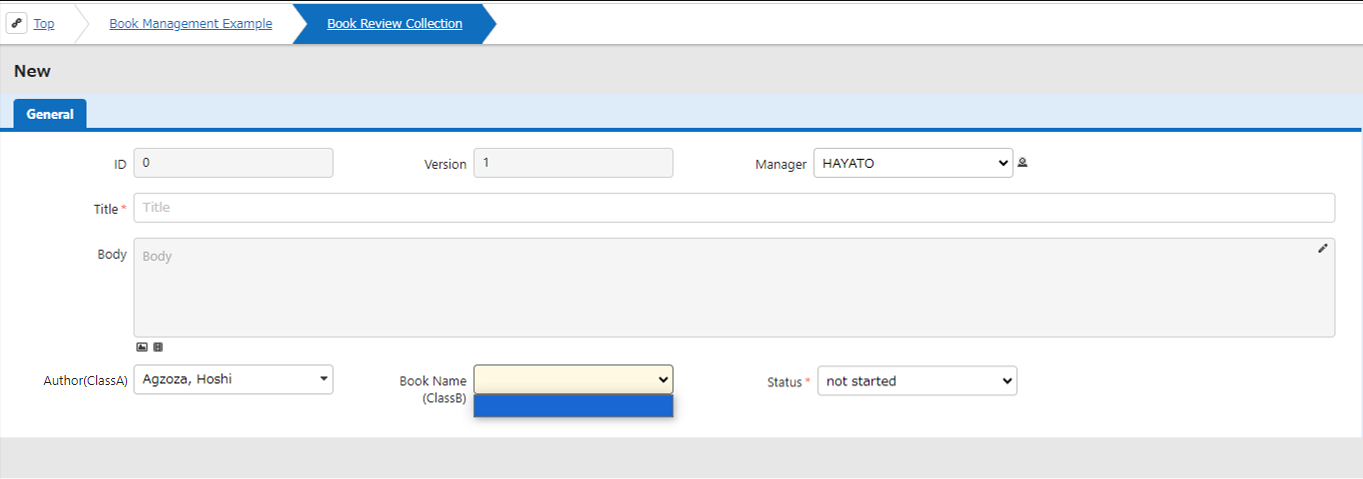
-
When the "Option List" of "Book Title (ClassB)" is written in the "Filter by value without conversion" format
ClassC of site ID 12345 matches the value of ClassA in the table being set as a string in JSON format, so the filtered options are displayed in ClassB.
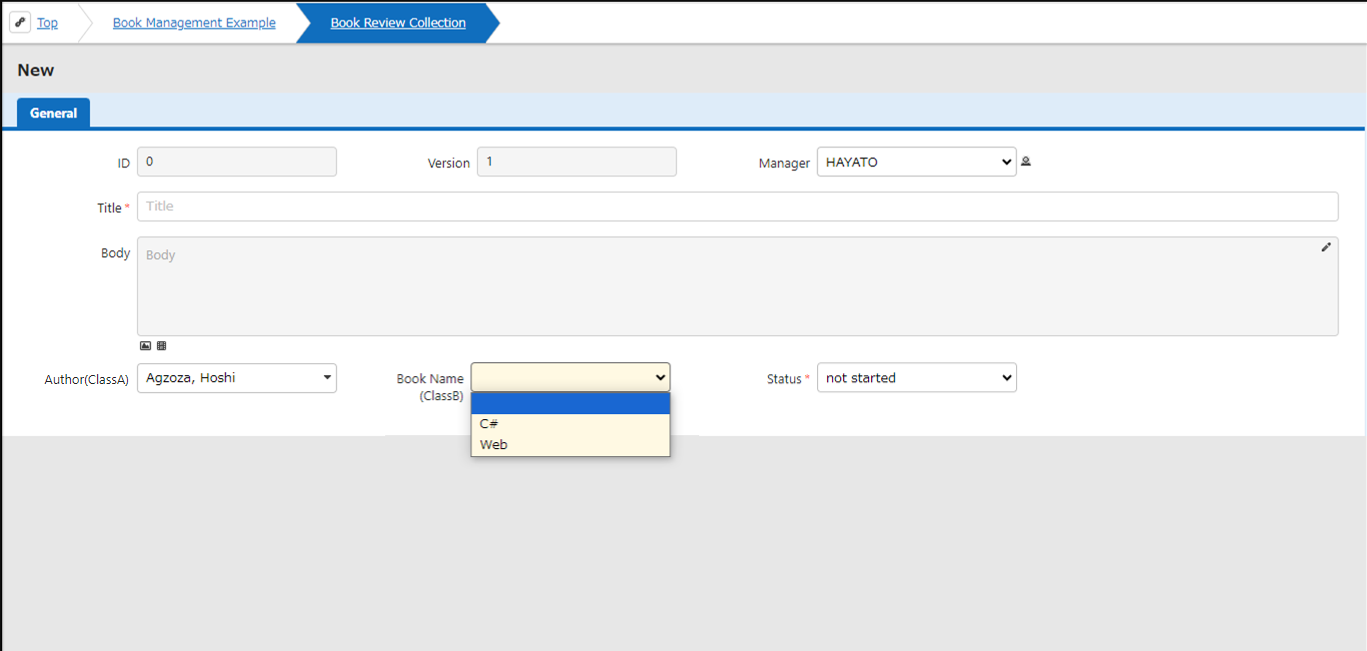
How to Display the Groups a User Belongs To in the Option List
Displays the groups to which the user set in the owner column belongs, in the option list of any class column.
- Open any table.
- Click "Manage" on the navigation menu.
- Click "Manage Table".
- Click the "Editor" tab.
- Enable "ClassA" in "Editor Settings".
- Select "ClassA" and open "Advanced Settings".
-
Describe the following JSON in "Option List".
The groups that match either of the following conditions are displayed in the option list.
- Groups to which the user belongs
- Groups to which the department the user belongs to belongs
Therefore, the groups the user belongs to directly, or the groups the user belongs to through a department, are the target of the narrowing down.
It is a prerequisite that "GroupMembers" is a user column.
Supported Versions
| Supported versions | Body |
|---|---|
| 1.3.16.0 and later | Added function |