Column Advanced Settings: Option List: Filter, Sort, Display Format
Overview
By describing the "Option List" in JSON format, you can use a customized option list.
Limitations
Required Permission

Operation Procedure
- Click "Manage" on the navigation menu.
- Click "Manage Table".
- Click the "Editor" tab.
- In "Editor Settings", select one of the following columns and open "Advanced Settings".
- In "Option List", describe how to display the options in JSON format.
For Depts, Groups, and Users
| Column name | Description |
|---|---|
| TableName | Specify Depts, Groups, or Users to display departments, groups, or users as the options. |
| MembersOnly | Used when Depts, Groups, or Users is specified. Displays only the departments, groups, and users that are granted access. |
| SearchFormat | Specifies the display format used when "Use Search Function" is enabled. |
| View: ColumnFilterHash | Uses "Developer's Guide: JSON Data Layout: View" to filter the options by a specific column. The value to filter by can be specified as a constant. |
| View: ColumnFilterExpressions | Uses "Developer's Guide: JSON Data Layout: View" to filter the options by a specific column. The value to filter by can be specified as a variable. |
| View: ColumnSorterHash | Uses "Developer's Guide: JSON Data Layout: View" to sort the options by a specific column. |

Setting Examples
| Display a list from the Users table in the [Name] - [Dept] format, in ascending order of department and name | |
|---|---|
| Display a list from the Users table in the [Name] - [MailAddresses] format, in ascending order of name | |
|---|---|
| Extract and display the users that belong to the specified department codes from the Users table | |
|---|---|
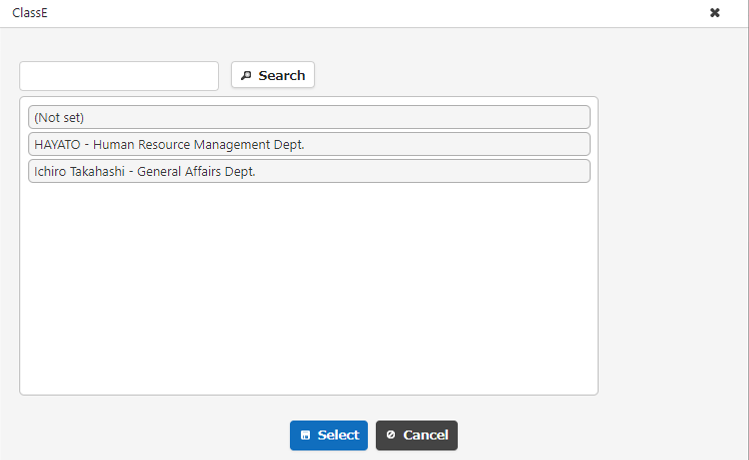
Example of display in the search dialog
The options are displayed in the format "[Name] - [Dept]" specified by SearchFormat.
| Extract and display the users that belong to the specified group IDs from the Users table | |
|---|---|
For a Link to a Table
| Column name | Description |
|---|---|
| SiteId | Specifies the site ID of the linked table. |
| Priority | Uses the "Advanced Operation: Link" feature to control the display order of the linked tables. |
| NoAddButton | Specify true to hide the button that creates a linked item. This column can be omitted. |
| NotReturnParentRecord | Specify true when you want to stay on the editor screen of the created record after a child record is created with the button that creates a linked item. This column can be omitted. |
| SearchFormat | Specifies the display format used when "Use Search Function" is enabled. This column can be omitted. |
| View: ColumnFilterHash | Uses "Developer's Guide: JSON Data Layout: View" to filter the options by a specific column. The value to filter by can be specified as a constant. This column can be omitted. |
| View: ColumnFilterExpressions | Uses "Developer's Guide: JSON Data Layout: View" to filter the options by a specific column. The value to filter by can be specified as a variable. This column can be omitted. |
| View: ColumnSorterHash | Uses "Developer's Guide: JSON Data Layout: View" to sort the options by a specific column. This column can be omitted. |
| Lookups | Uses the "Advanced Operation: Link" lookup feature to transcribe a column. This column can be omitted. |
Setting Example
In the example below, the records whose CheckA is on in the table with site ID 12345 are displayed in ascending order of title. When a value is selected, ClassA of the linked table is transcribed to ClassB, and ClassB of the linked table is transcribed to ClassC.
| Option List | |
|---|---|
When You Do Not Want to Include Yourself or Your Department in the Options
By specifying ExcludeMe in the JSON of the option list, you can exclude yourself and your department from the options.
Tip
Use this, for example, in an approval workflow with process buttons, when you do not want the logged-in user to be selectable as an approver.
Cautions
-
When
[[Self]]is specified as the default value in "Editor Settings", you and your department are set. As a rule, do not specify"ExcludeMe": true.How to use user, department, and group options in class column
-
Hide the button that sets the logged-in user and the department they belong to, for example with the "Styles" setting
display: none;.
How to Specify ColumnFilterExpressions
For how to specify ColumnFilterExpressions, which narrows down the option list by the value of another column, refer to the following manual.
Column Advanced Settings: Option List: Filter (narrow the option list by the value of other columns)
Supported Versions
| Supported versions | Body |
|---|---|
| 1.4.10.0 and later | Added NotReturnParentRecord to the settings for a link to a table |
Related Information
- Column Advanced Settings: Option List: Department
- Owner
- Manager
- Class
- Column Advanced Settings: Use Search Function
- Developer's Guide: JSON Data Layout: View
- Advanced Operation: Link
- How to use user, department, and group options in class column
- Column Advanced Settings: Option List: Login User Settings
- Column Advanced Settings: Option List: Filter (narrow the option list by the value of other columns)