Column Advanced Settings: Anchor
Overview
HTML A tags (links) can be set for "Class Column".
Limitations
- Can only be set in "Class Column".
- "Class Column" must be in free text format.
Prerequisites
- "Site Administration Permission" is required to configure settings.
Setting Content
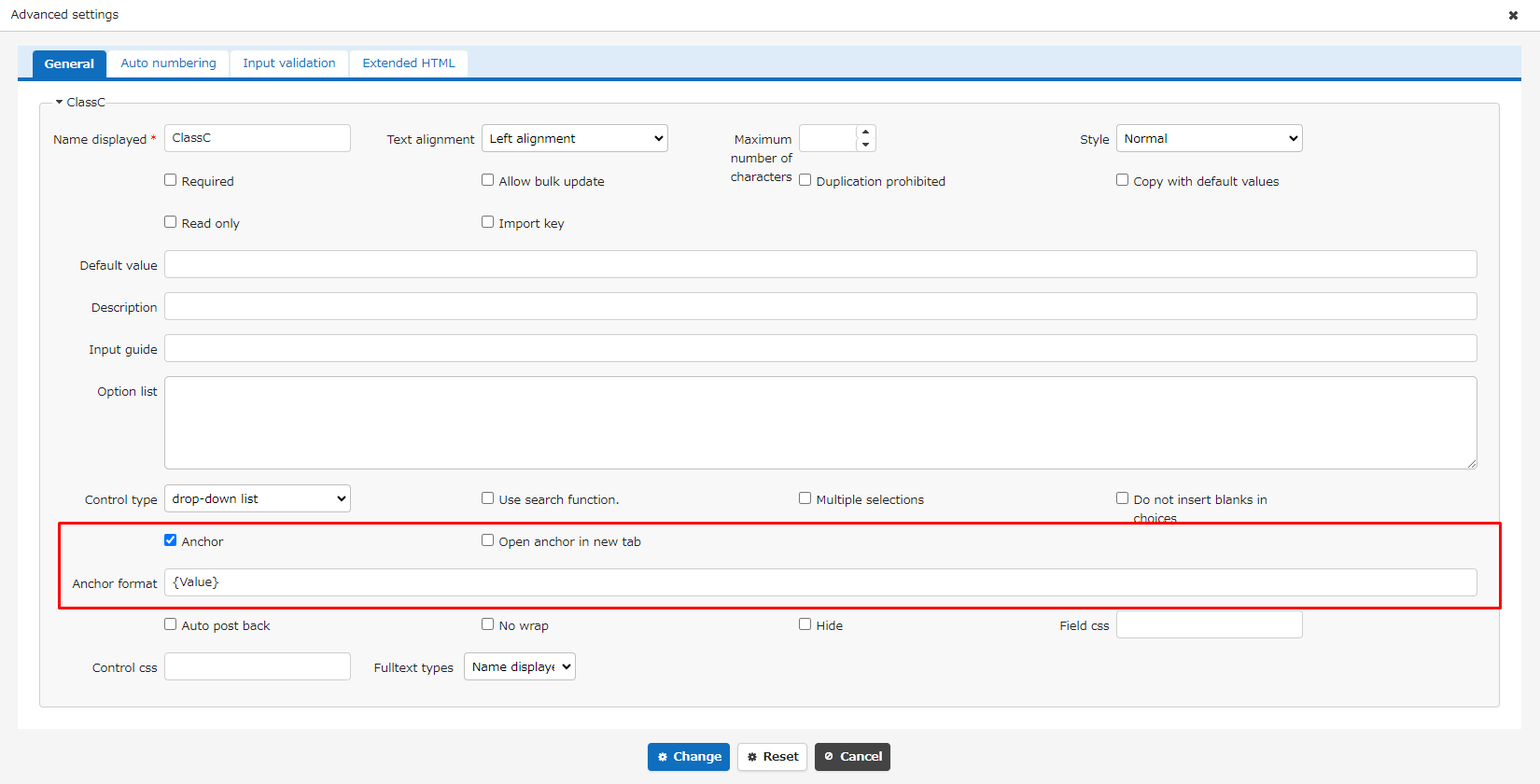
Check the "Anchor" checkbox.
In the "Anchor Format" field, enter the string to be set for the href attribute. If you enter "{Value}" as the string, it will be replaced by the value of the class column.
Check the "Open Anchor in New Tab" checkbox to open the anchor in a new tab when clicked.
Operation Image

For columns with "Anchor" checked, the text entered in that category becomes a clickable hyperlink. Clicking the pencil icon above to switch to edit mode will remove the link and return to a normal input column.
Usage Examples
Use Class Column Values as URL Parameters
You can use the anchor format below to utilize the input value of a class column as a URL parameter:
Open an Email
You can use the following anchor format to initiate an email creation screen with the email address entered in the class column as the recipient:
*Operation may differ depending on OS/browser support.
Make a phone call
You can use the following anchor format to initiate a phone call to the phone number entered in the class column:
*Operation may differ depending on OS/browser support.
In addition to these, applications that support URL schemes, such as Slack, may be launched. To check whether a specific application can be launched via URL links and the method to specify parameters, please refer to the developer of the application.