Column Advanced Settings: Viewer Switching Test
Overview
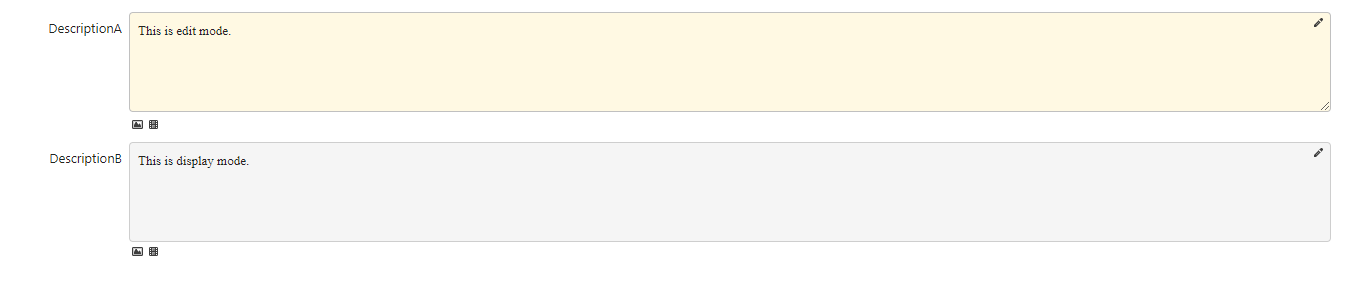
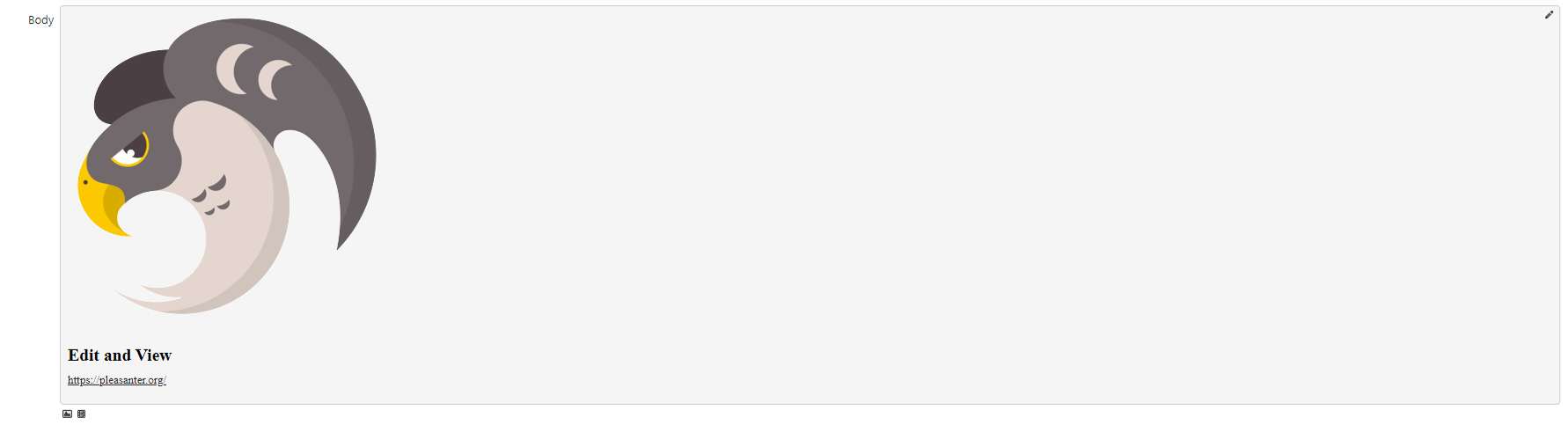
Columns that have "Markdown" selected as the style for "Body" and "Description" can be divided into two states, "Display" and "Edit", on the edit screen. Normally, you can enter "Edit" mode by double-clicking the column or clicking the pencil icon in the upper right. When the focus is removed, it will automatically switch to display mode.
Limitations
- Only available for "Description Column".
- Only available when "Markdown" is selected for "Input Column Style".
Prerequisites
- "Site Administration Permission" is required to configure settings.
Set Image
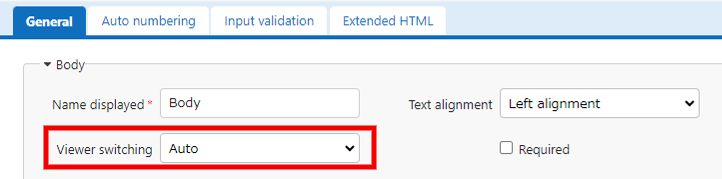
To change the viewer switching, select the target column in the "Editor" tab of "Manage Table" and click the "Advanced Settings" button.
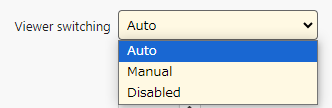
Set Type
| Setting | Description |
|---|---|
| Auto | Standard. In edit mode, switch to display mode when the column loses focus. |
| Manual | Maintain edit mode even when the focus is lost. Click the pencil in the top right to switch to display mode. |
| Disabled | Always remain in edit mode. |
Edit Mode
Images are in path state, Markdown is not rendered, and URLs are not linked.

View mode
Images are displayed, markdown is rendered, and URLs are linked.
If Disabled
If "Disabled" is selected, in the edit screen, images, markdown, etc., remain in edit mode. However, in the list view, image displays, markdown rendering, and other processing are performed as usual.