Column Advanced Settings: Do Not Insert Blanks in Choices
Overview
This setting does not insert blanks into the "Option List" of the class column.
Limitations
- Available for "Status", "Class Column", "Manager", and "Owner".
- The option "(Unselected)" displayed in the search dialog (check "Use Search Function") cannot be hidden.
Operation Procedure
Open the Editor tab from Manage Table in the Manage menu.
Select the class column for which you want to use this function from the Enabled column and click the Advanced Settings button.
Check "Do Not Insert Blanks in Option" on the Advanced Settings screen and click the Change button. Return to the editor screen and click the Update button.
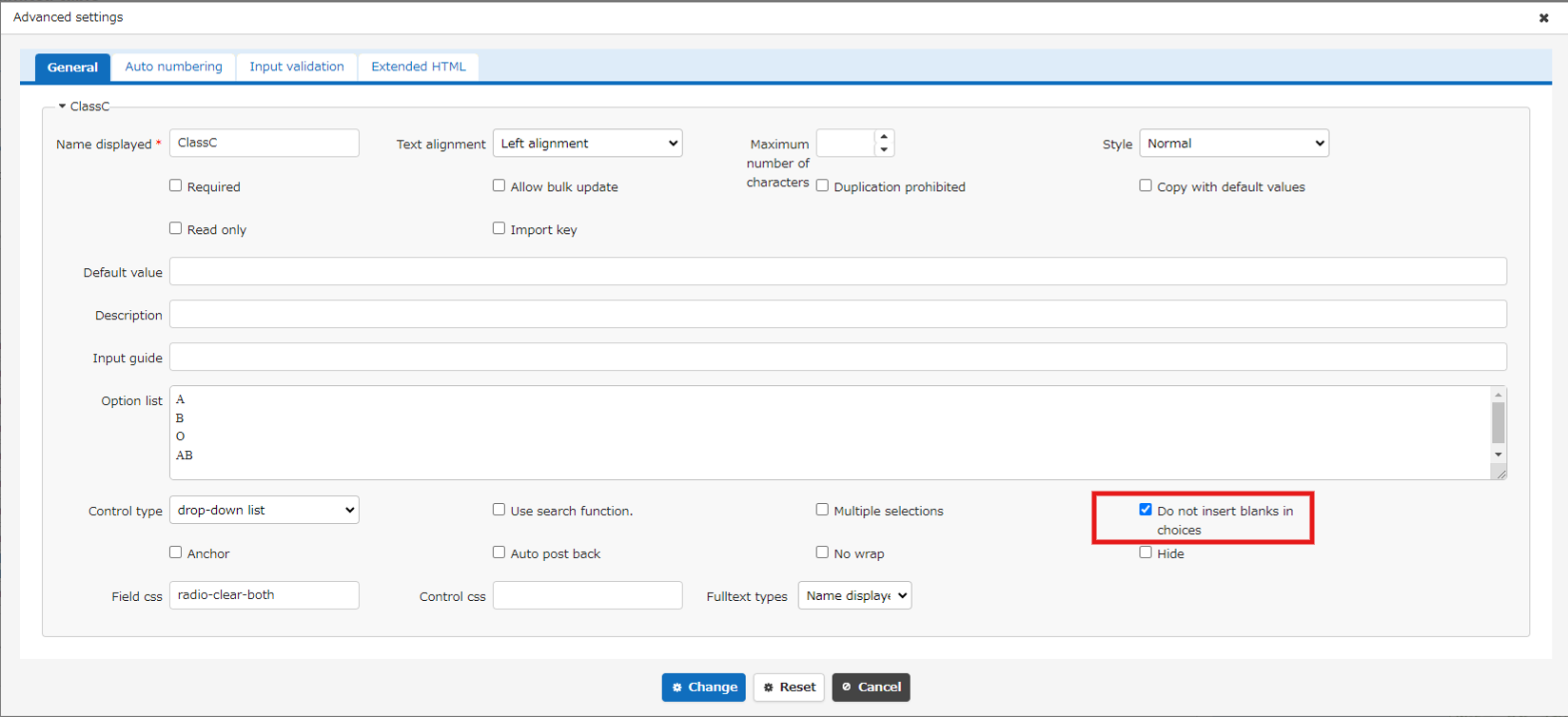
Setting Image
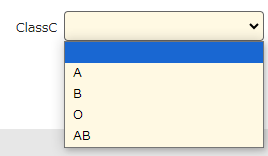
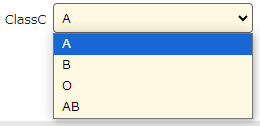
With this feature enabled, the class column will not have a blank inserted in the option list as shown below.
Supported Versions
- Pleasanter 1.3.3.0 or later