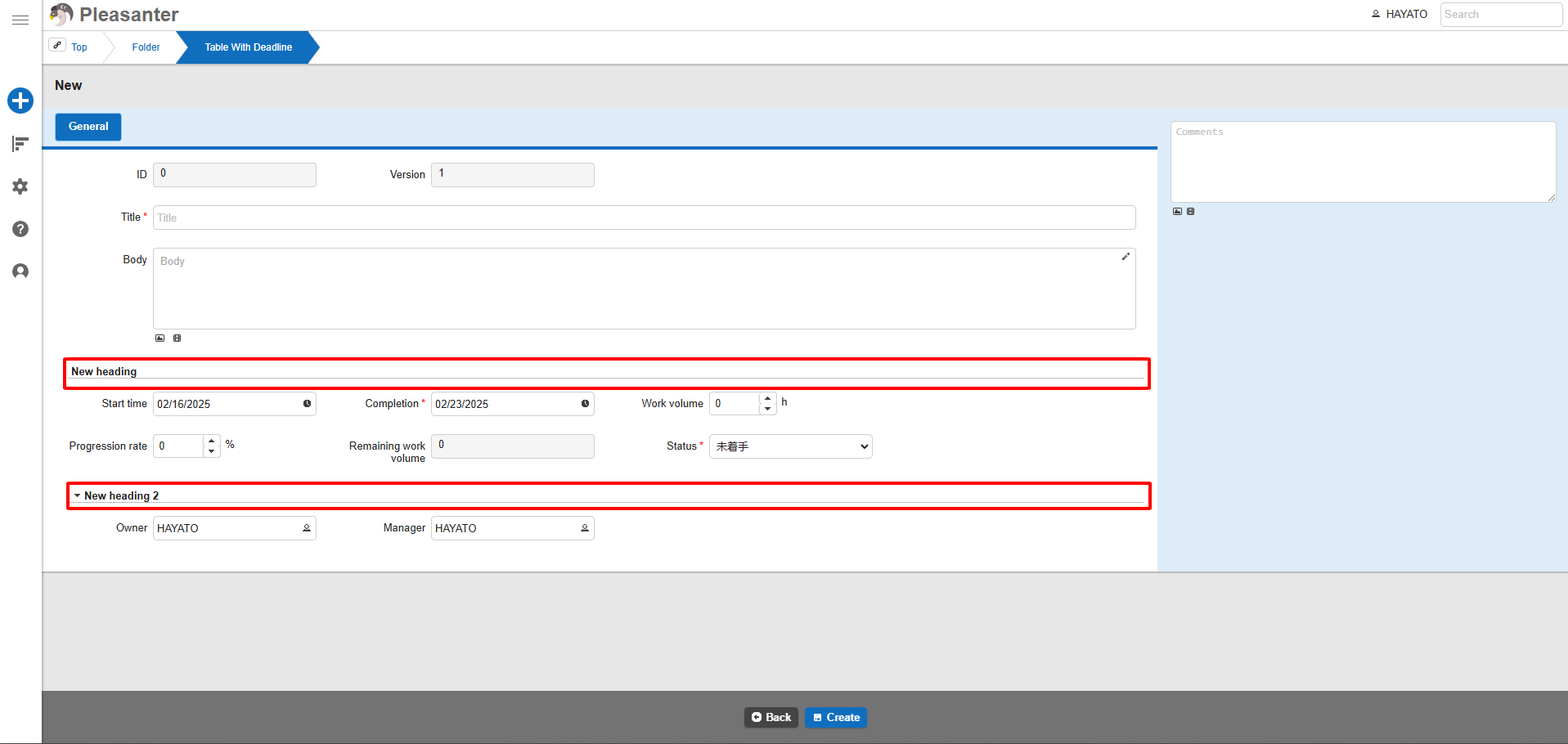
Heading (Section)
Overview
This function allows you to add "Heading" (=Section). By combining it with "Tab" and "Link Settings," you can organize the layout of the "Editor".
Prerequisites
- You need "Site Administration" Permission to configure this setting.
Operation Procedure
- Open the target table.
- Click "Manage table" from the "Manage" menu.
- Open the "Editor" tab.
- Select "Others" from the dropdown list of "Option list".
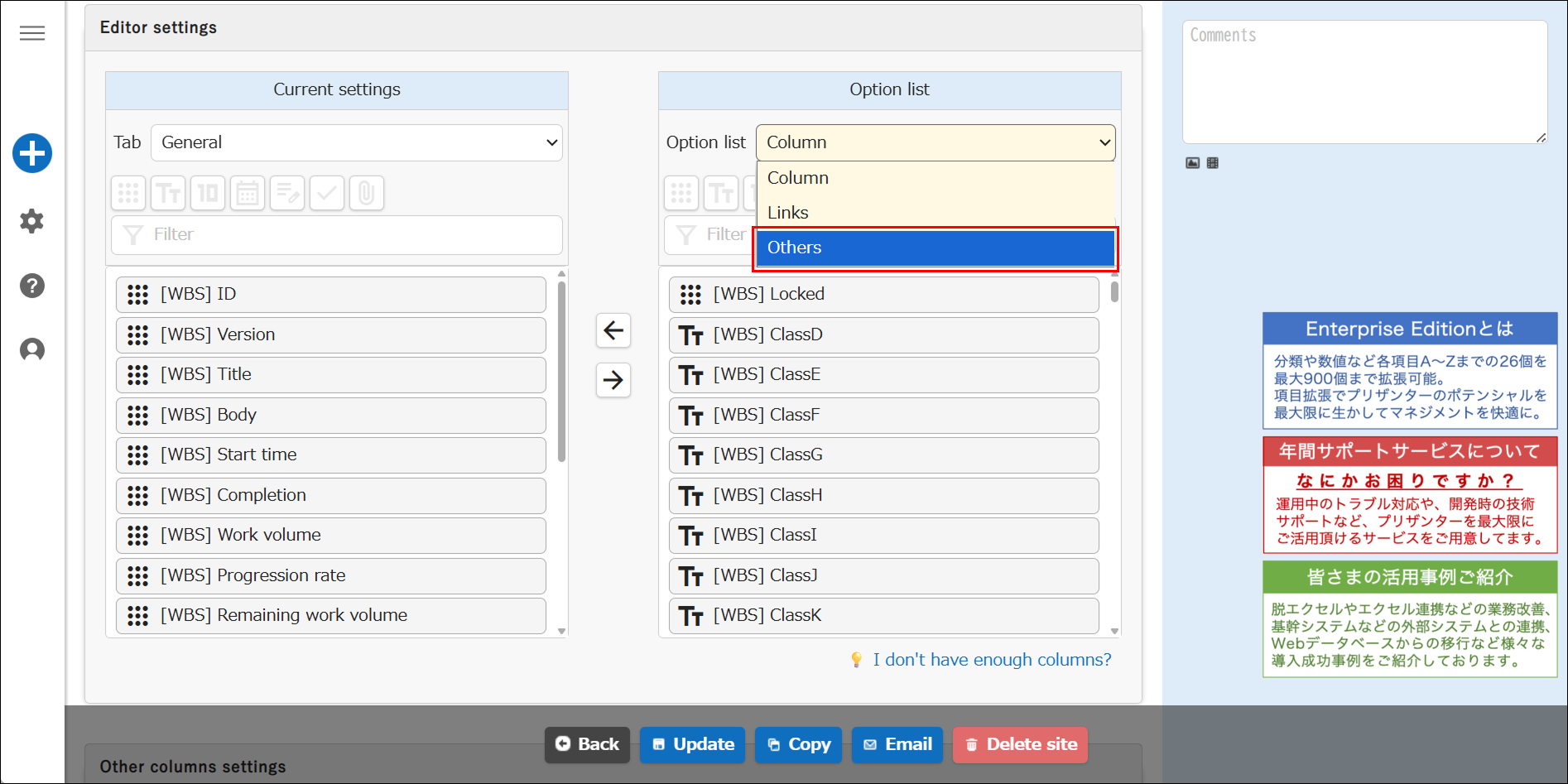
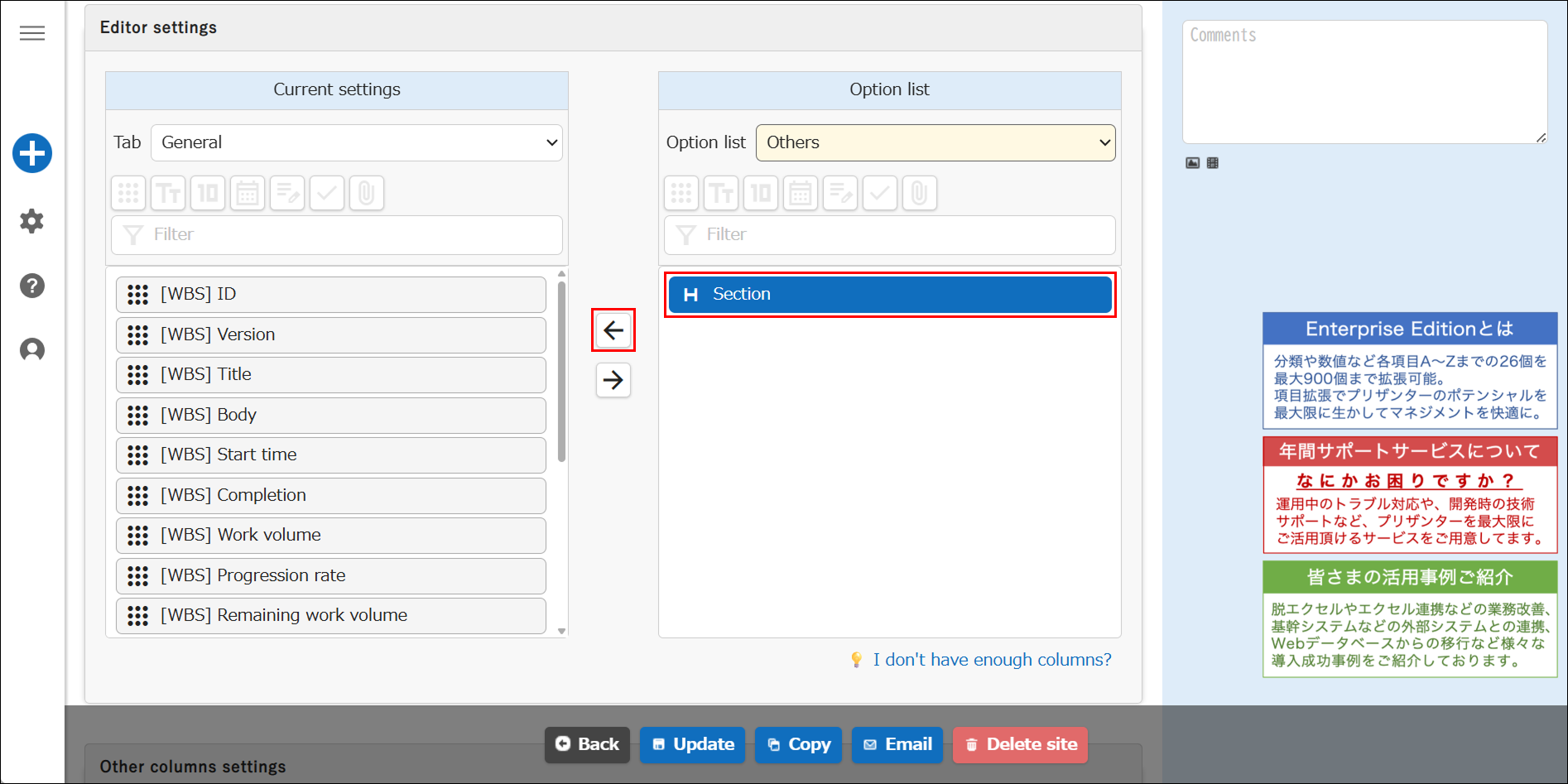
- After selecting "Section (=Heading)", click the "Activate" button.
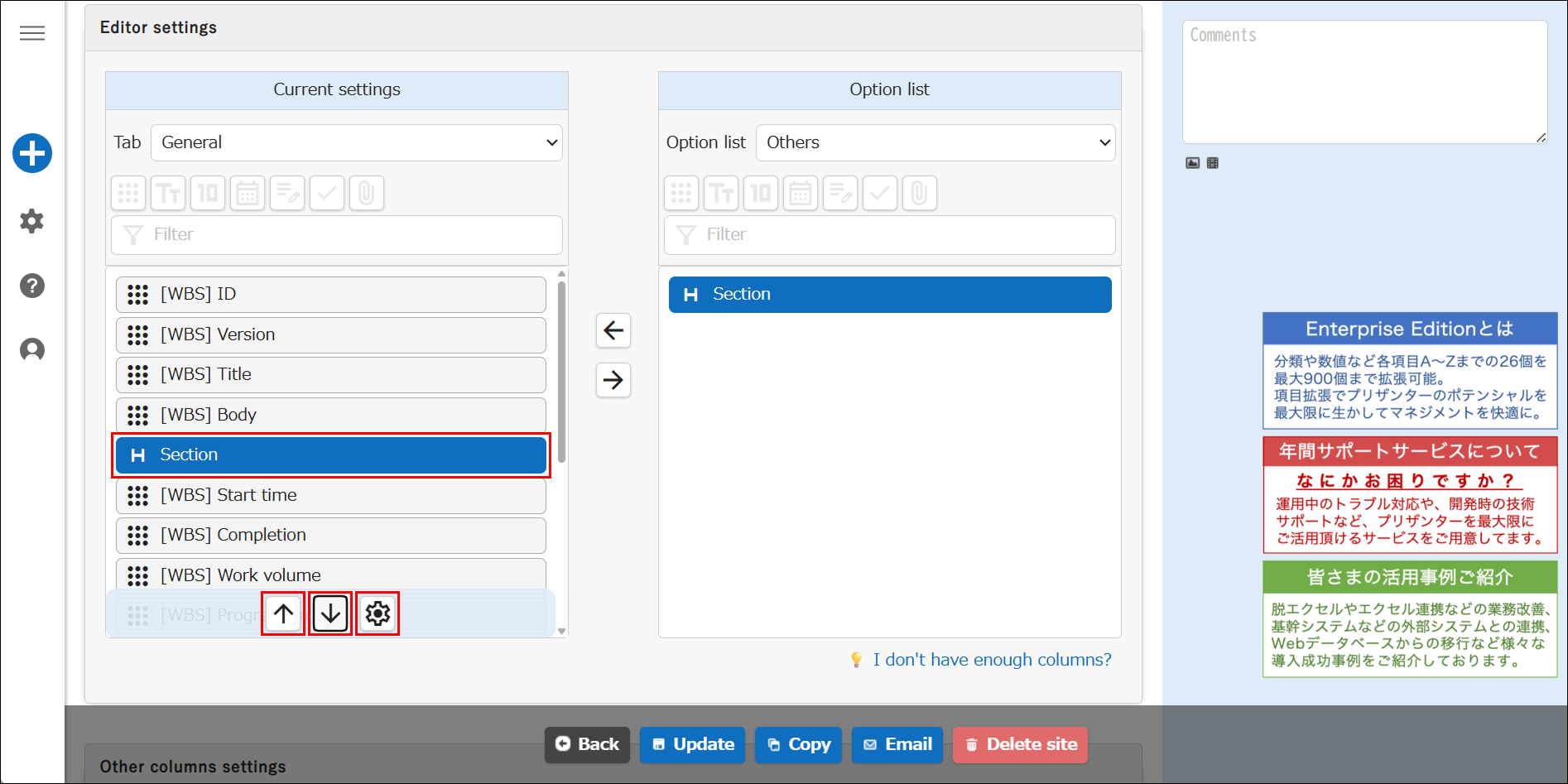
- Use the "Move up" and "Move down" buttons to set the display position, then click the "Advanced settings" button.
- Configure the "Section" settings and click the "Change" button.
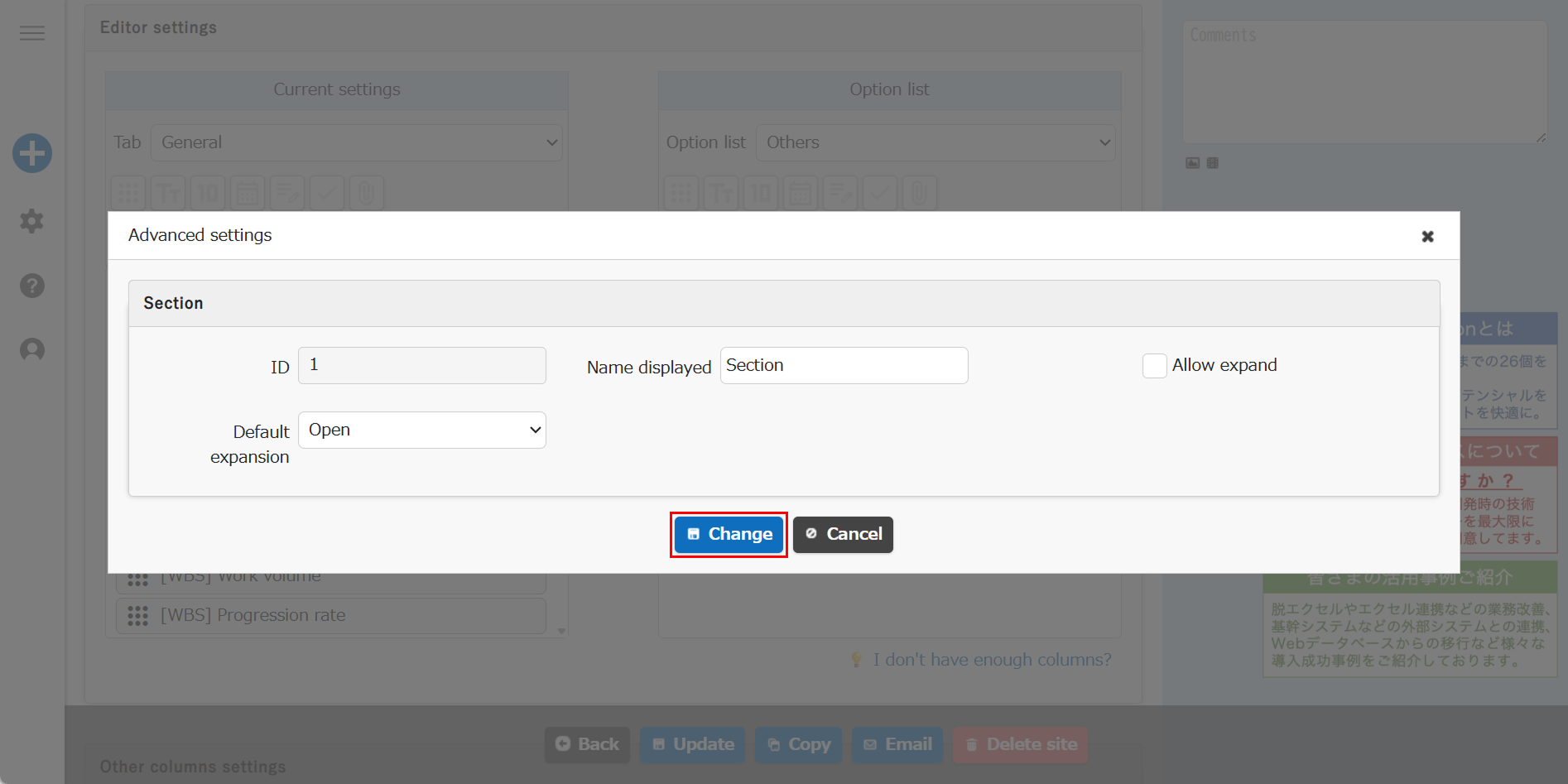
| Column | Description |
|---|---|
| Name displayed | The display name of the section. |
| Allow expand | Check this box to enable collapsing the heading. If checked, the column configured under this heading will be hidden until the next section. |
| Default expansion | Choose "Open" or "Close". If "Allow expand" is unchecked, the heading will always display in an open state even if "Close" is selected. |
- Click the "Update" button in the "Command button area".
- Open the edit screen, and the heading will be displayed in the specified location. For headings with "Allow expand" enabled, "▼" or "▶" will appear at the beginning of the heading display.