Column Advanced Settings: Input Validation
Overview
This setting is to validate the body of "Input Column" with "Regular Expression".
Prerequisites
- "Site Administration Permission" is required to configure settings.
Operation Procedure
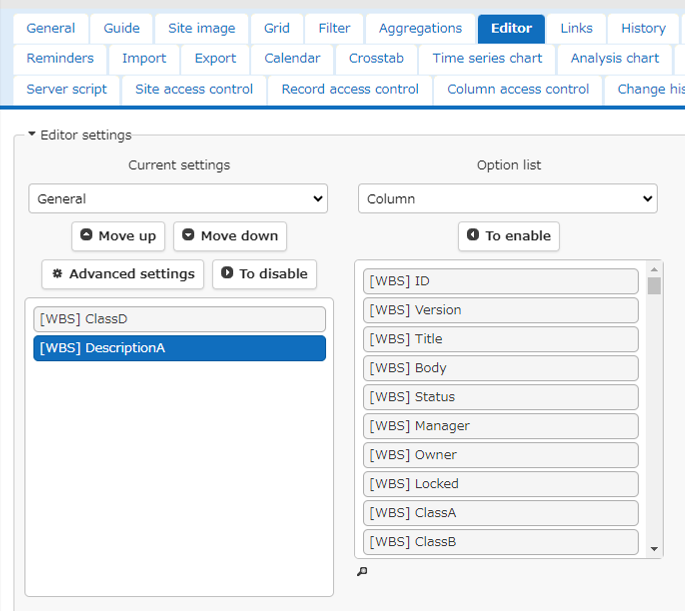
Open the table for which you want to set input validation, open "Manage" → "Table Management" → "Editor", select the column you want to set, and click "Advanced Settings".
The target columns are "Title", "Body", "Class", "Description", and "Comment".
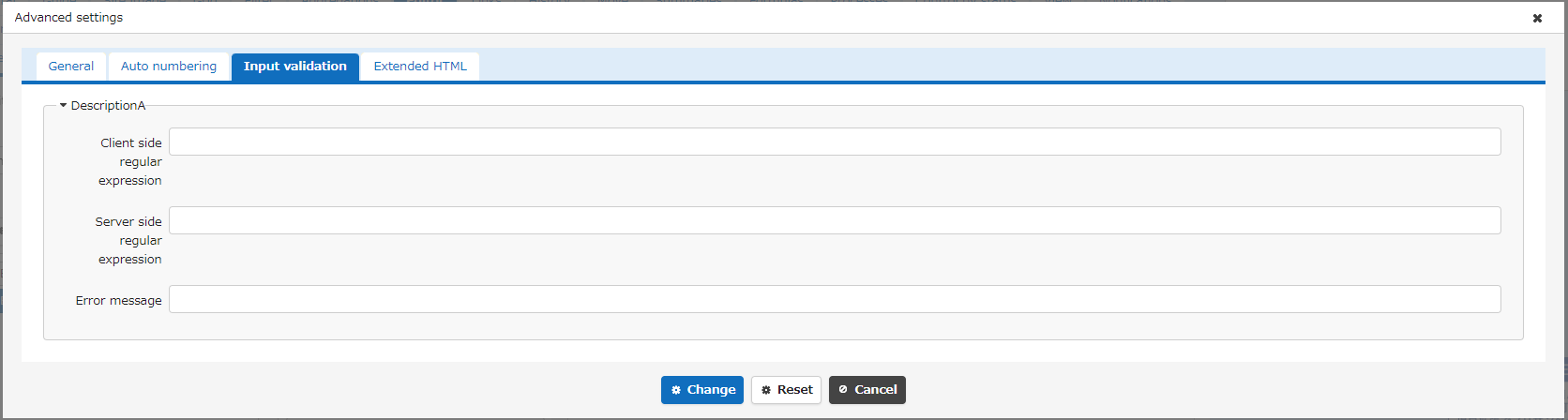
Open the "Input Validation" tab.
| Column name | Body |
|---|---|
| Client Side Regular Expression | After input, the body are validated when the focus moves from the column. Some patterns, such as look-behind, cannot be used. |
| Server Side Regular Expression | Validate the body when creating or updating a record. |
| Error Message | Specify the message to be displayed if an error occurs in the input. |
Usage Examples
The following regular expression and error message are used to validate the input of a mobile phone number. Enter 123456789 in the column.
Regular Expression
Error Message
Client Side Regular Expression
If you set the above regular expression to the client side regular expression and an error occurs on the actual input screen, a message will be displayed at the bottom of the column as shown below.

Server Side Regular Expression
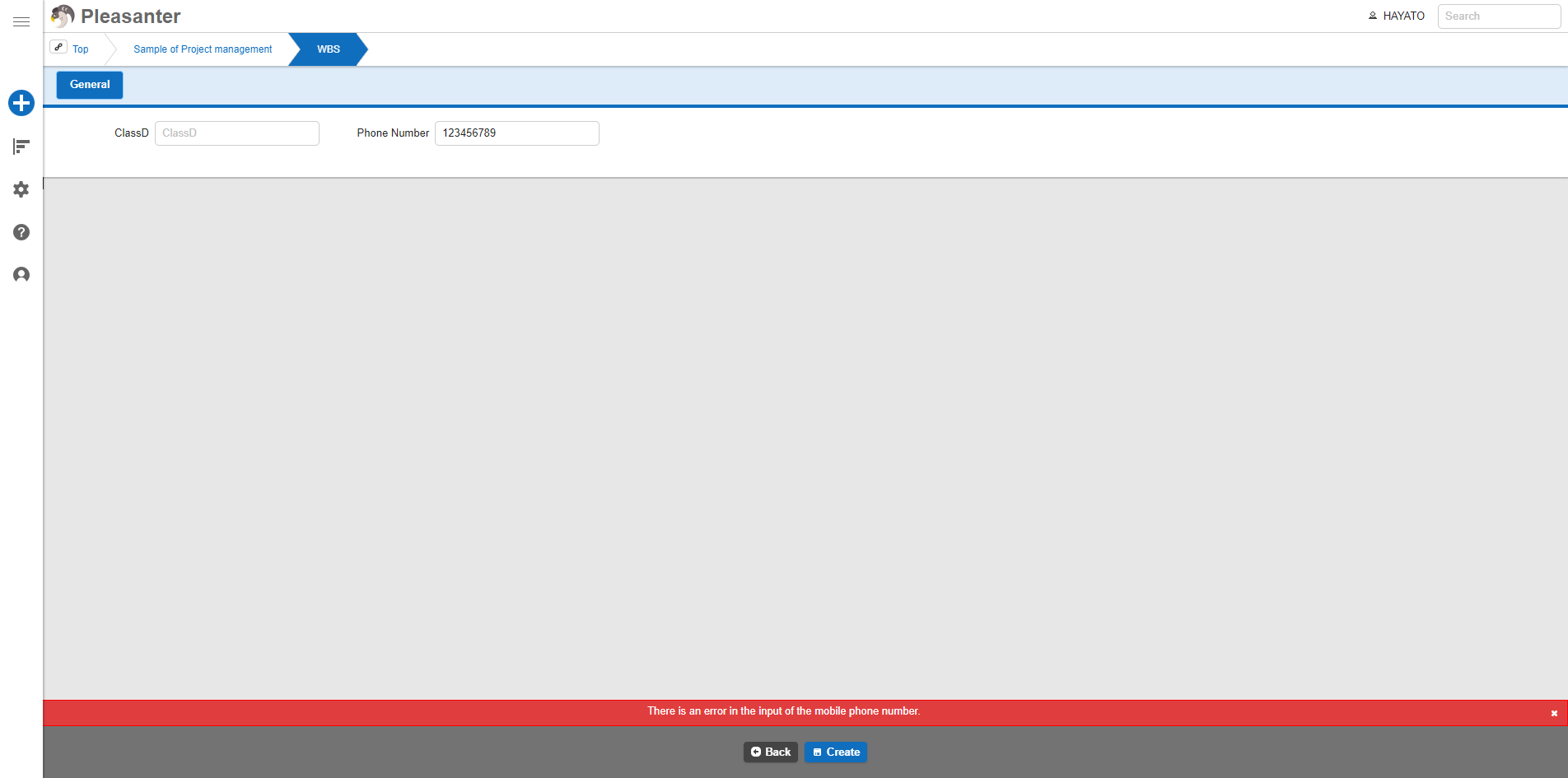
If you set the above regular expression to the server side regular expression and an error occurs on the actual input screen, a message will be displayed at the bottom of the screen as shown below.