Column Advanced Settings: Multilingual
Overview
In the item's advanced settings: Multilingual tab, you can register translation data for the following advanced setting items and enable dynamic display language switching according to the language settings in the user profile.

Prerequisites
- Languages that are not needed can be omitted from the settings.
- Parameters that are not needed can be omitted from the settings.
- The settings in the "Multilingual" tab override the settings in the "General" tab. (For example, if different "Name displayed" values are set for the same language in the "General" tab and the "Multilingual" tab, the "Name displayed" in the "Multilingual" tab will be displayed.)
- For items where "Default value" is set in the "General" tab, the "Input guide" set in the "Multilingual" tab will be ignored.
- For "Numeric Value" items, the "Input guide" set in the "Multilingual" tab will be ignored.
- If you change the "Name displayed" in the "Advanced settings" of the "Grid" screen, it will be managed independently from the "Name displayed" in the "Editor" screen.
Supported Languages
This feature supports the display of the following 7 languages, including Japanese.
| No. | Language | Language code within Pleasanter |
|---|---|---|
| 1 | English | en |
| 2 | Chinese (Simplified) | zh |
| 3 | Japanese | ja |
| 4 | German | de |
| 5 | Korean | ko |
| 6 | Spanish | es |
| 7 | Vietnamese | vn |
Users for Explanation
In the following explanation, the following two login users are used.
| Login User | Profile Language Setting |
|---|---|
| 斎藤 美樹 | Japanese |
| Wilson Daniel | English |
Multilingual Tab Settings
Create a "Class" item as shown below and compare the display when each of the above users logs in.
1. Display when Saito Miki logs in
Since the "Multilingual" tab is not configured, it displays with the settings from the "General" tab.

2. Display when Wilson Daniel logs in
Although the profile language setting is "English", since the "Multilingual" tab is not configured, it displays with the settings from the "General" tab.

3. Display when Wilson Daniel logs in
Since the profile language setting is "English" and it is configured in the "Multilingual" tab, it displays with the settings from the "Multilingual" tab. For details, refer to the Parameters below.
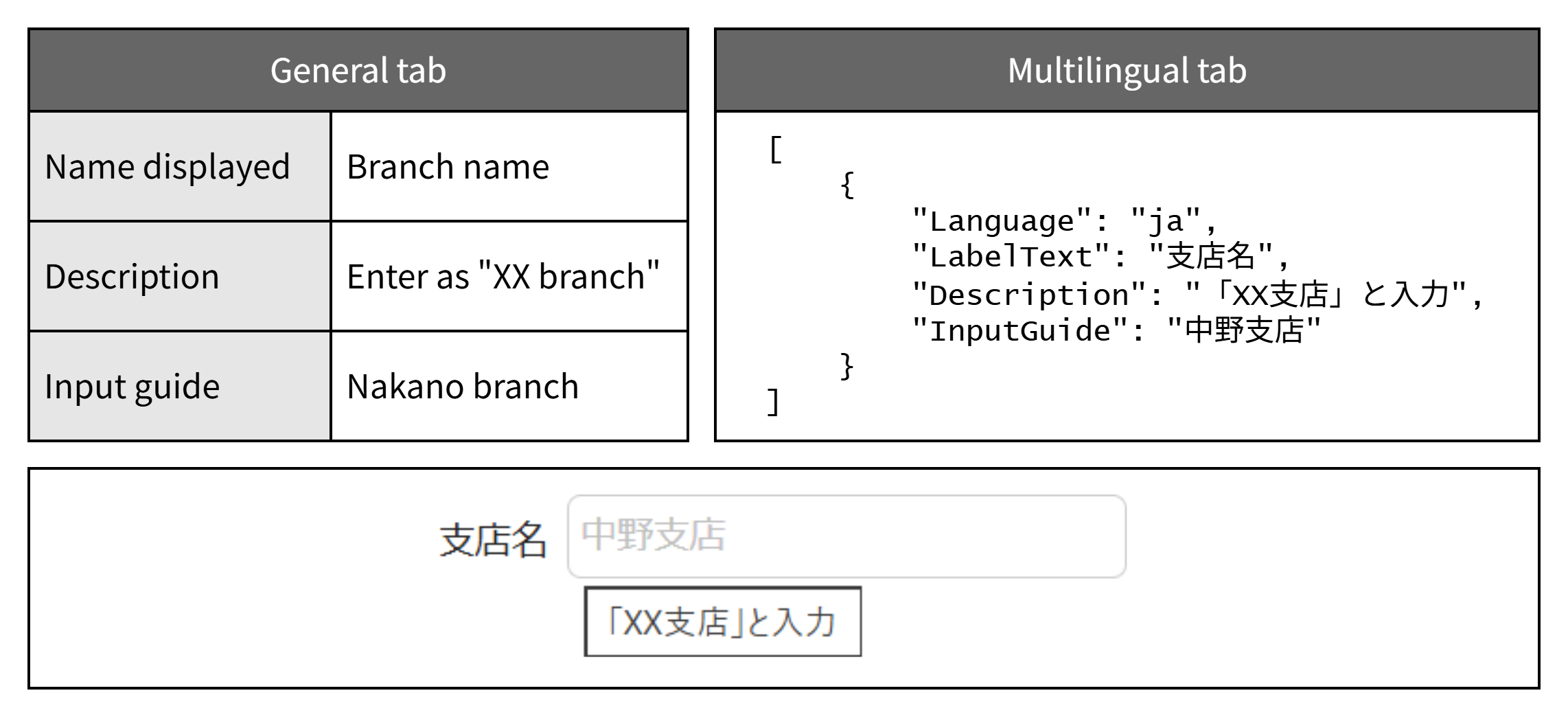
Parameters
The "Multilingual" tab settings are described in JSON format.
Parameter description example (JSON format)
[
    {
        "Language": "ja",
        "LabelText": "支店名",
        "Description": "「XX支店」と入力",
        "InputGuide": "中野支店"
    },
    {
        "Language": "de",
        "LabelText": "Filialname"
    }
]
The meaning of each parameter is as follows.
| Parameters | Meanings |
|---|---|
| Language | Specifies the language to be used for display. Please specify using the "Language code within Pleasanter" in the "Supported Languages" section above. |
| LabelText | Please specify the translated "Name displayed". |
| Description | Please specify the translated "Description". |
| InputGuide | Please specify the translated "Input guide". |
Operation Procedure
- Open the target table.
- Click "Manage" in the navigation menu.
- Click "Manage table".
- Click the "Editor" tab.
- In "Current Settings", click the target item.
- Click the "Advanced Settings" button.
- Click the "Multilingual" tab.
- In "Multilingual display", enter multi-language data in JSON format as shown above. You only need to enter the necessary languages and parameters.
- Click the "Change" button.
- Click the "Update" button in the command button area.
Supported Versions
| Supported Version | Content |
|---|---|
| 1.4.23.0 and later | Feature added |
Related Information
- Manage Table: Editor: Column Advanced Settings: Name Displayed
- Manage Table: Editor: Column Advanced Settings: Description
- Manage Table: Editor: Column Advanced Settings: Input Guide
- Manage Table: Editor: Column Advanced Settings: Default Value
- Manage Table: Items: Numeric Value
- Manage Table: Screen Index
- Manage Table: Editor