Numeric Value
Overview
In the "Editor", you can use the "Numeric value" item from "Numeric valueA" to "Numeric valueZ". The "Numerical value" item can be used as input item where you can enter numerical value as free text. If you select "Spinner" as the "Control Type", you can use it as an input item where you can change the numerical value with the up and down buttons.
Limitations
- In the "Community Edition", you cannot place more than 27 "Numeric value" item.
- In "Pleasanter.net", you cannot place more than 27 "Numeric value" item.
Prerequisites
- "Site Administration Permission" is required to configure settings.
Advanced Settings
For advanced settings, refer to "Input Column Advanced Settings".
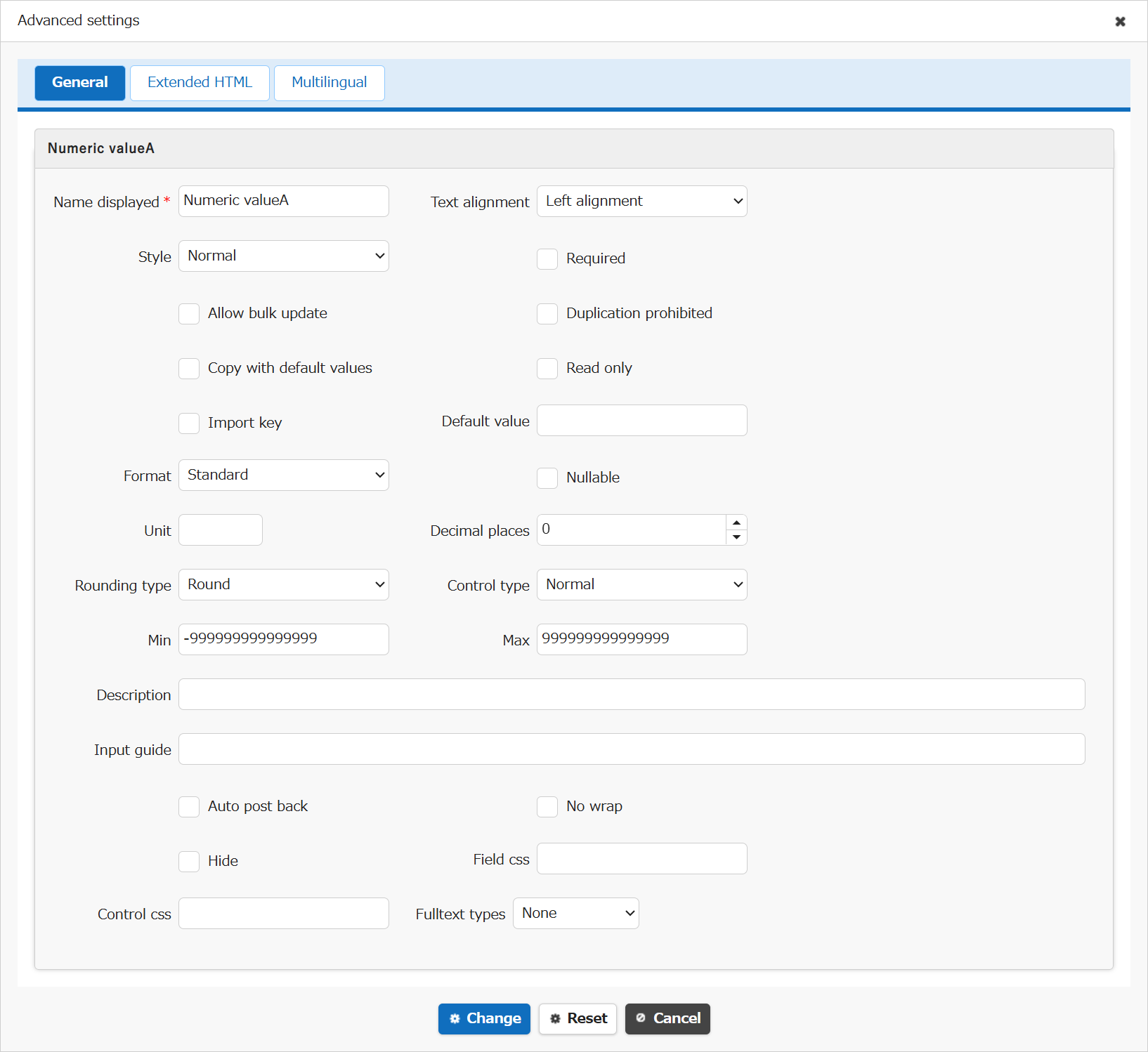
| Setting item name | Default value | Description |
|---|---|---|
| Name displayed | Numeric valueA - Numeric valueZ | "Name Displayed" is read only. It cannot be made editable. |
| Text alignment | Left alignment | Set the "Text Alignment" |
| Style | Normal | Set the "Style" |
| Required | Unchecked | Set the "Required" |
| Allow bulk update | Unchecked | Set the "Allow Bulk Update" |
| Duplication prohibited | Unchecked | Set the "Duplication Prohibited" |
| Copy with default values | Unchecked | Set the "Copy with Default Values" |
| Read only | Unchecked | Set the "Read Only" |
| Import key | Unchecked | Set the "Import Key" |
| Default value | (Blank) | Set the "Default Value" |
| Format | Standard | Set the "Format" |
| Nullable | Unchecked | Set the "Nullable" |
| Unit | (Blank) | Set the "Unit" |
| Decimal places | 0 | Set the "Decimal Places" |
| Rounding type | Round | Set the "Rounding type" |
| Control type | Normal | Set the "Control Type (Numerical Value)" |
| Min | -999999999999999 | Set the "Min" |
| Max | 999999999999999 | Set the "Max" |
| Description | (Blank) | Set the string ("Description") to display in the item's "Tooltip". |
| Input guide | (Blank) | Set the "Input guide" |
| Auto post back | Unchecked | Set the "Auto post back" |
| No wrap | Unchecked | Set the "No Wrap" |
| Hide | Unchecked | Set the "Hide" |
| Field css | (Blank) | Set the "Field CSS" |
| Control css | (Blank) | Set the "Control CSS" |
| Fulltext types | None | Set the "Fulltext Types" |
Related Information
- Manage Table: Editor
- Manage Table: Filter: Check Column Filter Control Type
- Manage Table: Editor: Column Advanced Settings
- Manage Table: Editor: Column Advanced Settings: Name Displayed
- Manage Table: Editor: Column Advanced Settings: Read-only
- Manage Table: Editor: Column Advanced Settings: Alignment
- Manage Table: Style
- Manage Table: Editor: Column Advanced Settings: Input Required
- Manage Table: Editor: Column Advanced Settings: Allow Bulk Update
- Manage Table: Editor: Column Advanced Settings: Duplication Prohibited
- Manage Table: Editor: Column Advanced Settings: Copy with Default Value
- Manage Table: Editor: Column Advanced Settings: Import Key
- Manage Table: Editor: Column Advanced Settings: Format
- Manage Table: Editor: Column Advanced Settings: Nullable
- Manage Table: Editor: Column Advanced Settings: Unit
- Manage Table: Editor: Column Advanced Settings: Decimal Places
- Manage Table: Editor: Column Advanced Settings: Rounding Type
- Manage Table: Editor: Column Advanced Settings: Control Type (Numerical Value)
- Manage Table: Editor: Column Advanced Settings: Min, Max, Step
- Manage Table: Editor: Column Advanced Settings: Description
- Common Function: Tooltip Display When Selecting User Or Group
- Manage Table: Editor: Column Advanced Settings: Input Guide
- Manage Table: Editor: Column Advanced Settings: Auto post back
- Manage Table: Editor: Column Advanced Settings: No Wraparound
- Manage Table: Editor: Column Advanced Settings: Hidden
- Manage Table: Editor: Column Advanced Settings: Field CSS
- Manage Table: Editor: Column Advanced Settings: Control CSS
- Manage Table: Editor: Column Advanced Settings: Fulltext Types
- Manage Table: Items: Class
- Manage Table: Items: Date
- Manage Table: Items: Check
- Manage Table: Items: Description
- Contact
In Case There Are Not Enough items
If 26 items from A to Z such as "Class items", "Numeric value items", "Date items", "Check items", "Description items" are not enough, the number of items can be expanded to 27 or more by using the "Enterprise Edition". For more information on the "Enterprise Edition", please refer to "Here" (Japanese text only). For information on how to obtain a trial version of the "Enterprise Edition", please contact us at "Contact" (Japanese text only).