Manage Table: Editor: Import / Export of Multilingual Label Settings
Overview
This feature allows you to import or export the settings from "Advanced settings: Multilingual tab" as a CSV file on a per-table basis. While the "Advanced settings: Multilingual tab" requires configuration for each item individually, the "Multilingual label settings" enables batch configuration at the site (table) level.
Data imported using this feature will overwrite the settings in the "Advanced settings: Multilingual" tab.
The CSV files that are imported and exported follow this format:
CSV File Example
ColumnName,Attributes,ja,en,zh,de,ko,es,vn
ClassA,LabelText,支店名,Branch name,分店名称,Filialname,지점명,Nombre de Sucursal,Tên Chi Nhánh
ClassA,Description,「XX支店」と入力,"Enter as ""XX branch""","输入""XX支店""","Geben Sie ""XX-Filiale"" ein","""XX지점""을 입력","Ingrese como ""Sucursal XX""","Nhập ""Chi nhánh XX"""
NumA,LabelText,合計金額,Total Amount,合计金额,Gesamtbetrag,총액,Importe total,Tổng số tiền
The meaning of each column in the CSV file is as follows:
| No | Column | Required | Description |
|---|---|---|---|
| 1 | ColumnName | Required | Set the "column name" such as ClassA, NumA. |
| 2 | Attributes | Required | Set one of the following: ・LabelText: Name displayed ・Description: Description ・InputGuide: Input guide |
| 3 | ja | Optional | Set display text in Japanese. |
| 4 | en | Optional | Set display text in English. |
| 5 | zh | Optional | Set display text in Chinese. |
| 6 | de | Optional | Set display text in German. |
| 7 | ko | Optional | Set display text in Korean. |
| 8 | es | Optional | Set display text in Spanish. |
| 9 | vn | Optional | Set display text in Vietnamese. |
Omitting CSV Settings
If translation data configuration is not needed, you can omit CSV file entries as follows:
- You can omit translation data settings for specific languages.
In the following example, only the English "Name displayed" is configured.
However, at least one language must be configured.
The following CSV will result in an error during import:
- You can omit translation data settings by using an empty string.
In the following example, the Japanese "Name displayed" setting is omitted.
Operation Procedure
- Open the target table.
- Click "Manage" in the navigation menu.
- Click "Manage table".
- Click the "Editor" tab.
The "Multilingual label settings" is located at the bottom of the "Editor" tab.

Note that if you attempt to "Import" or "Export" without clicking the "Update" button in the "Command button area" after editing the table, the following alert will be displayed above the "Command button area".
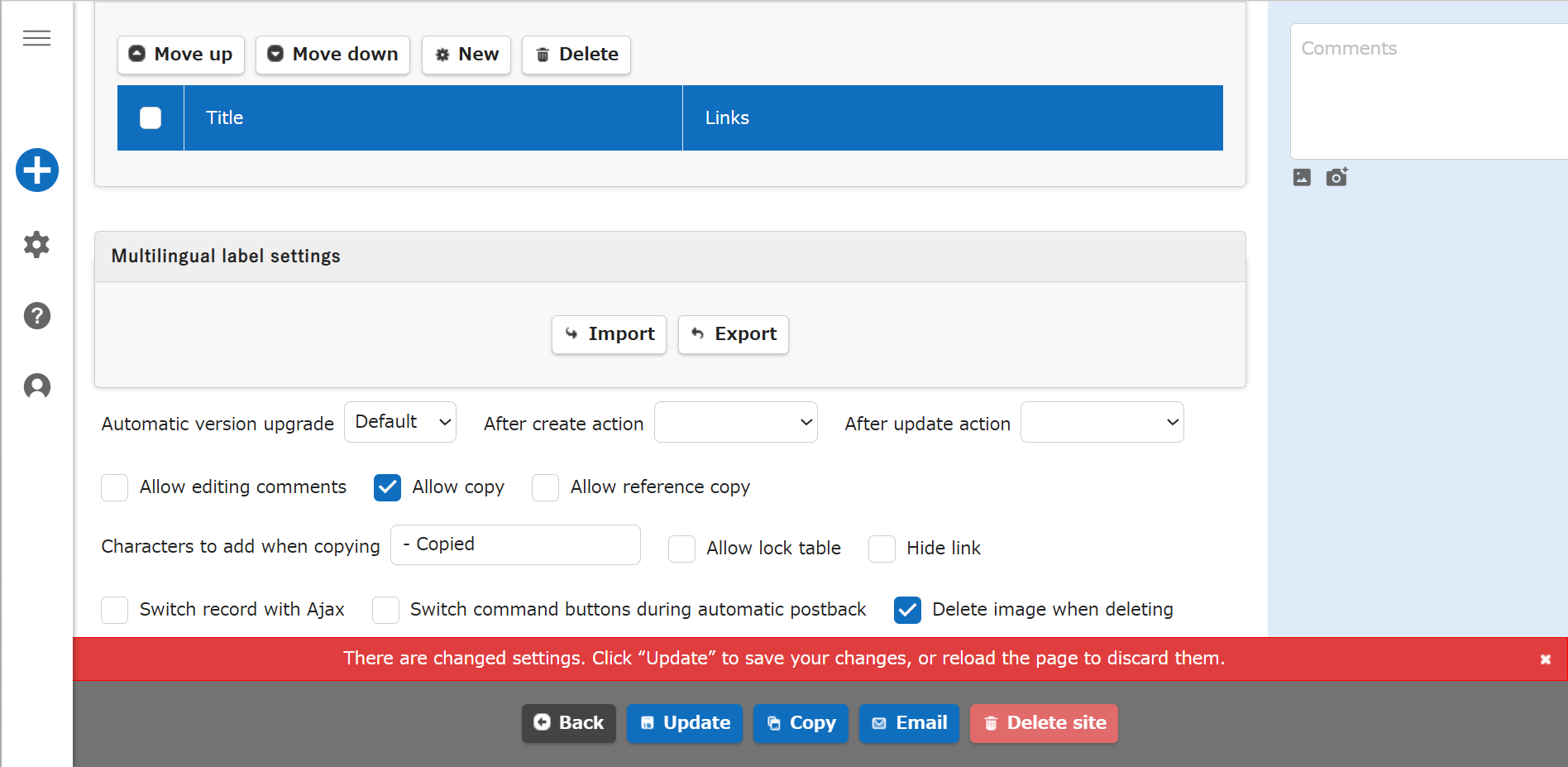
Click the "Update" button in the command button area or reload the page to cancel the edits before executing the import or export.
Export
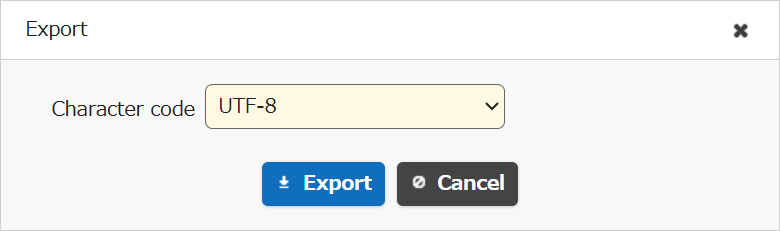
- Click the "Export" button in "Multilingual label settings".
- Select the "Character encoding". You can select "UTF-8" (default) or "Shift-JIS", but if you are configuring languages other than Japanese and English, select "UTF-8".
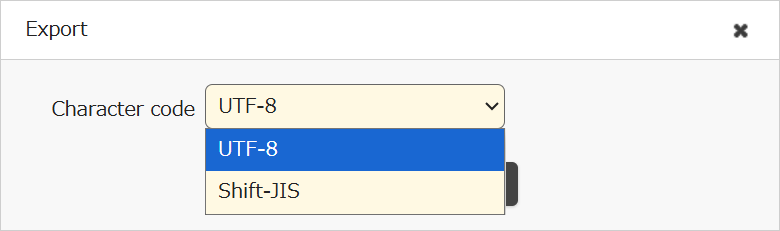
- Click the "Export" button.
Import
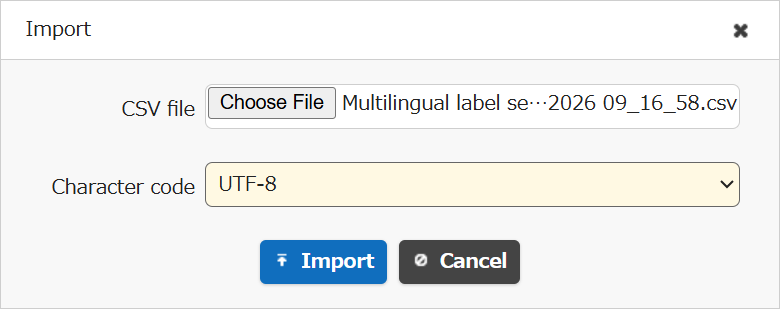
- Click the "Import" button in "Multilingual label settings".
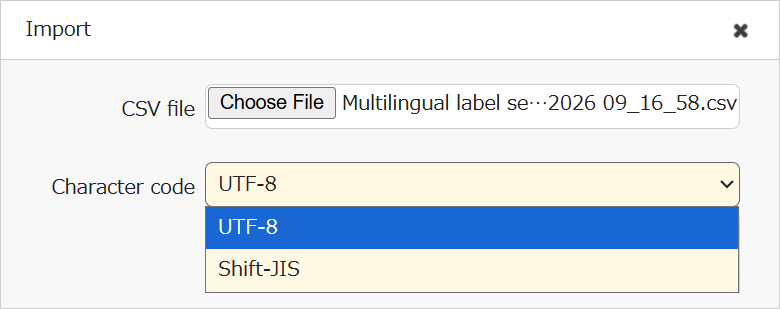
- Click "Select File" and choose the CSV file to import.
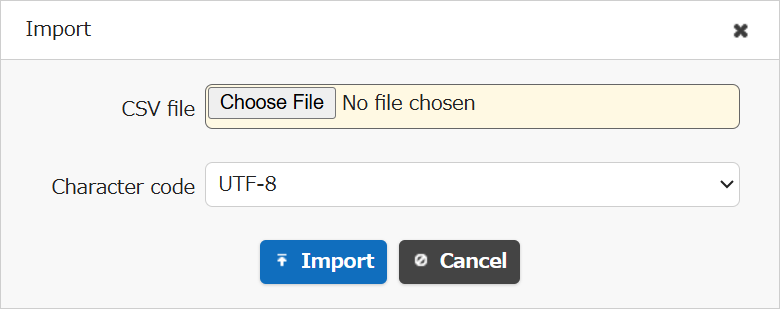
- Select the "Character encoding" of the CSV file to import. You can select "UTF-8" (default) or "Shift-JIS", but if you are configuring languages other than Japanese and English, select "UTF-8".
- Click the "Import" button.
Supported Versions
| Supported Version | Details |
|---|---|
| 1.5.1.0 and later | Feature added |