Relating Column
Overview
You can set parent-child relationships for "Class Column" in the "Editor". When a parent class column is selected, the child class column options automatically switch to those corresponding to the selected value of the parent column.
Cautions
- There is no limit to the number of columns or hierarchies that can be linked, but if you use them too much, performance may deteriorate when you open the edit screen.
Limitations
- If you perform "Import" on a "Table" that has "Relating Column" set, the parent-child relationship may not be registered correctly. If there are duplicate name displayed in import, the first data found will be linked regardless of the "Relating Column" settings. If there are duplicate name displayed in the child "Column" of "Relating Column", the value of the parent "Column" may be set to the value of the unrelated child "Column". If the value of the parent "Column" and the value of the unrelated child "Column" is set, the value of the child "Column" will be cleared and left blank when you open the "Editor".
- Does not work with Read-only Columns.
- Does not work with "List Edit".
- When ColumnFilterExpressions is specified for a column that has "Relating Column" set, the options are not narrowed down by Relating Column but only by the conditions of ColumnFilterExpressions. Do not use Relating Column and ColumnFilterExpressions together on the same column.
Prerequisites
- "Site Administration Permission" is required to configure settings.
- The columns to be linked must be in a parent-child relationship based on their order of appearance. The selection list of class column in a parent-child relationship must specify the site set by the "Link".
- Only class column displayed in the editor screen can be linked.
Operation Procedure
- Create Tables and Master Data
First, create the following three recorded tables.
The Address Book table links to the Prefecture Master and City Master tables.
The City Master table links to the Prefecture Master table.
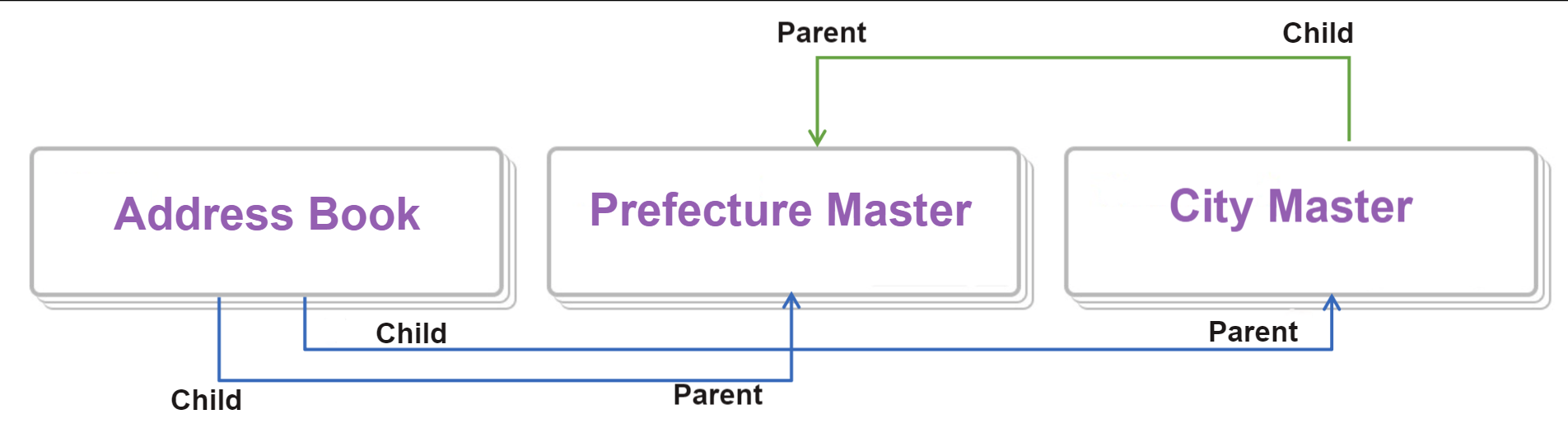
"Prefecture Master" Table
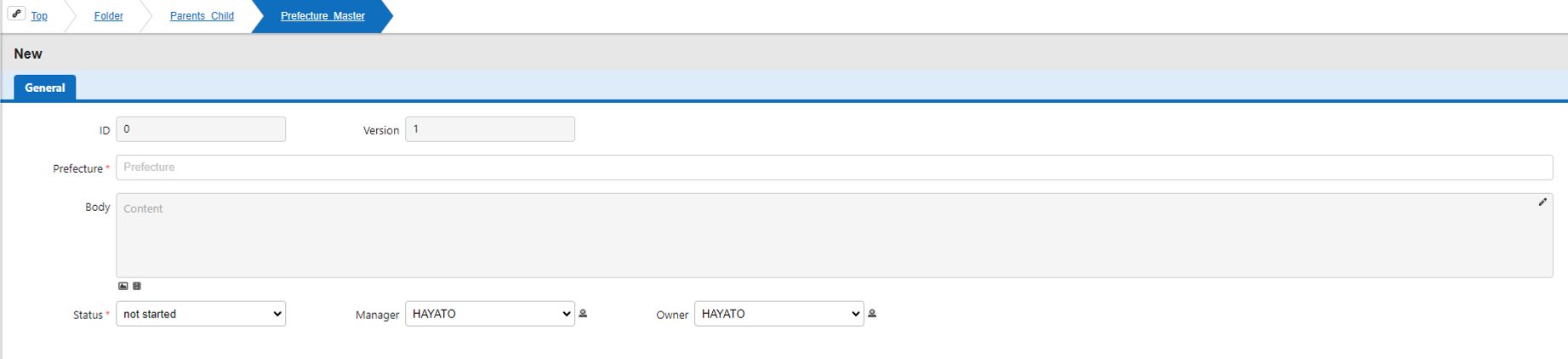
The "Prefecture" is the title column.
- Create two records with prefectures "Tokyo" and "Kanagawa".
"City Master" Table
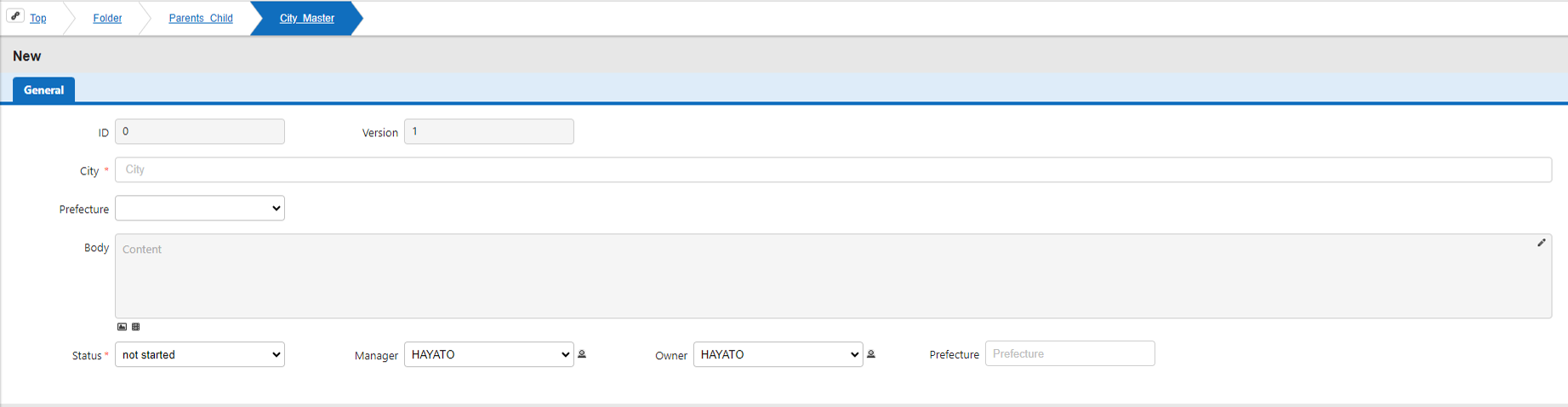
The "City" is the title field.
Create the following six records, selecting the appropriate prefecture in the "Prefecture" column.
| Prefecture | City |
|---|---|
| Tokyo | Nakano Ward |
| Tokyo | Shinjuku Ward |
| Tokyo | Shibuya Ward |
| Kanagawa | Yokohama City |
| Kanagawa | Kamakura City |
| Kanagawa | Kawasaki City |
Link the "City Master" table with the "Prefecture Master" table.
Select "Prefecture" for "Link Column".
Create new records, select either "Tokyo" or "Kanagawa" in the "Prefecture" column, and then input the corresponding city or town in the "City" column.
2. Set Up Links
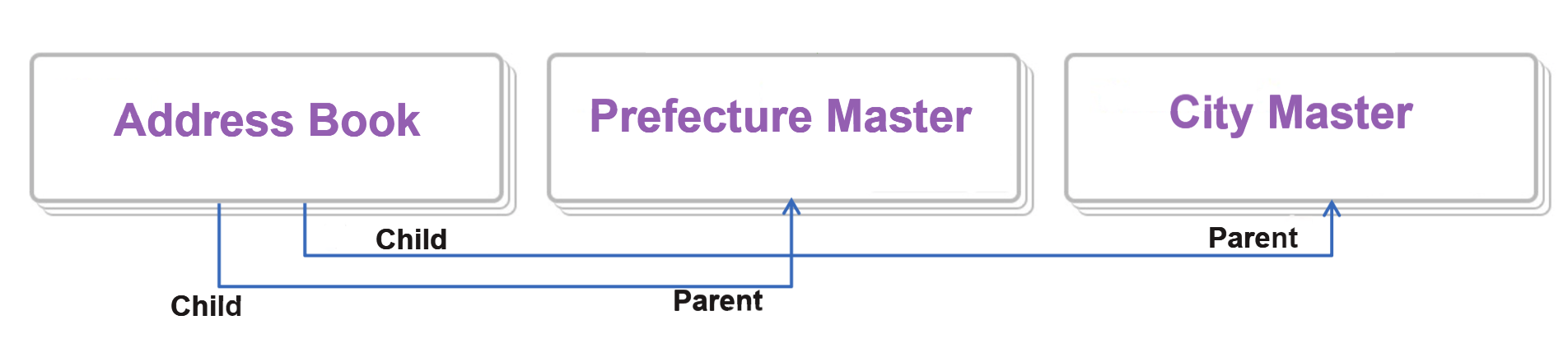
- Link the "Address Book" table with the "Prefecture Master" table.
For "Link Column", select "Prefecture".
-
Link the "Address Book" table with the "City Master" table.
For "Link Column", select "City".
3. Set Up Column Linkage
Open "Manage Table" for the "Address Book" table, and click "Create New" under "Column Linkage Settings" from the "Editor" tab.

The columns that have been linked will be displayed in the option list, so "Enable" "Prefecture" and "City".
At this time, the columns at the top will be the major classification, and will be the columns that will narrow down the child columns, so "Prefecture" must be set above "City".
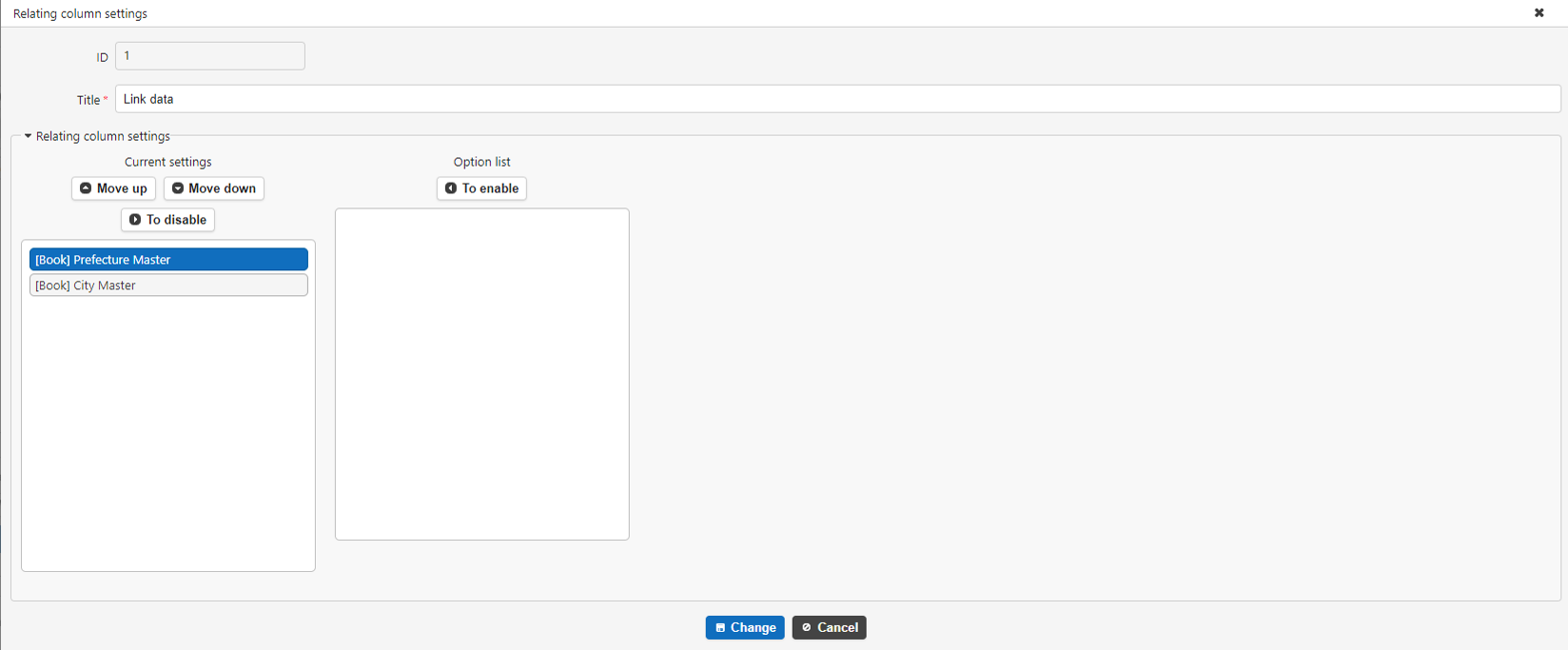
This completes the setting up of column linkage.
When you select the "Prefecture Master" column in the "Address Book" table, only the narrowed down data will be displayed in the "City Master" according to the selection.

