Export: General Tab
Overview
When you click the "Create New" button on the Export tab of the Manage Table screen, Export opens and the "General" tab is displayed. Here you can create and add the format used when exporting.
This screen also opens, and lets you edit a format you have already added, when you click that format in the list on the Export tab of the Manage Table screen.
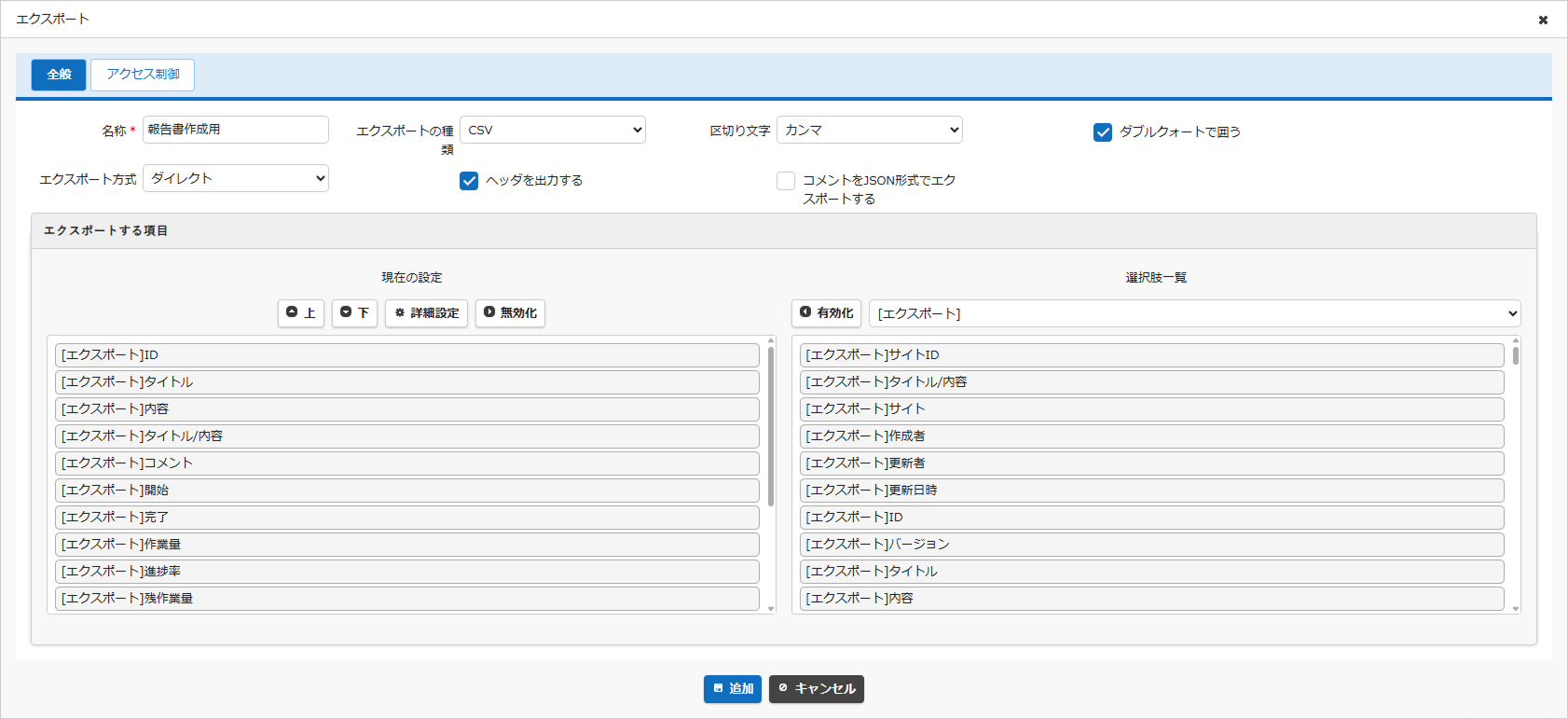
| Column Name | Description | How to Set It |
|---|---|---|
| Name | The name given to the export setting you create. | Enter any name you like. |
| Export Type | The file format used when exporting. | Select "CSV" or "JSON". The default is "CSV". |
| Delimiter | The delimiter between the exported columns. | Select "Comma" or "Tab". The default is "Comma". |
| Enclose in double quotes | Whether to enclose each exported column in double quotes. | When enabled, the columns are enclosed in double quotes. Enabled by default. |
| Export Method | Whether to download directly or to send the download link by mail. | Select "Direct" or "Mail the URL to myself". The default is "Direct". |
| Output the header | Whether to include the column names in the exported data. | When enabled, the column names are included in the exported data. Enabled by default. |
| Export comments in JSON format | Whether to export the comment column in JSON format. | When enabled, comments are exported in JSON format. Enabled by default. |
| Columns to export | See the explanation below. | See the explanation below. |
Columns to Export
The explanation starts from the list on the right of the screen.
Option list
The Option List shows the list of columns available in the table you currently have open. If there is a table linked with the table you currently have open, you can also export the columns in the linked table.
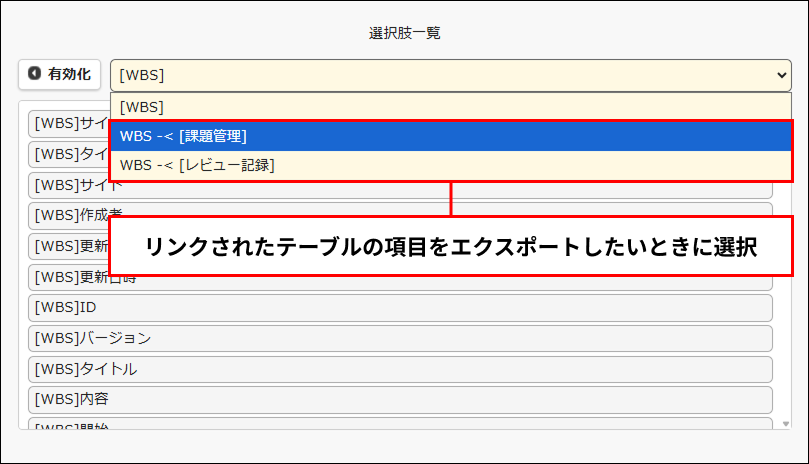
After selecting the columns you want to export, click the "Enable" button. Once enabled, the selected columns move to "Current settings".
When selecting in the option list, you can select adjacent columns together by dragging and dropping, and select several columns with Ctrl (command on macOS) + click.
Current settings
In "Current settings", you can reorder the columns you want to export into the order you intend, and apply simple data processing when exporting.
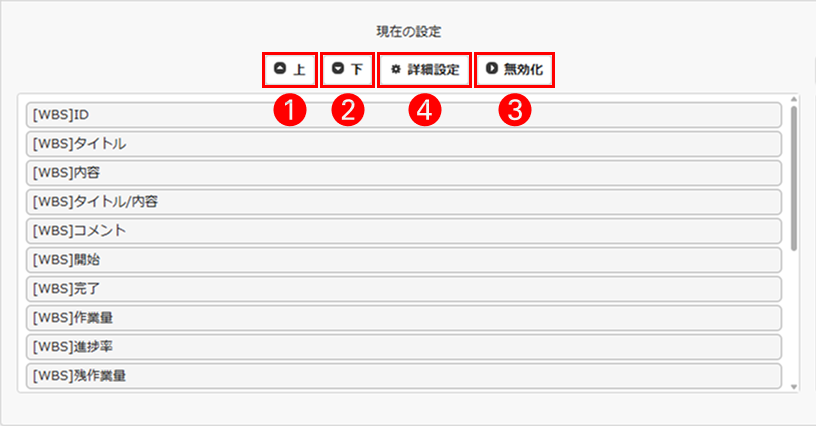
| No | Button Name | Function |
|---|---|---|
| ❶ | Up | Moves the selected column one place up. |
| ➋ | Down | Moves the selected column one place down. |
| ❸ | Disable | Moves the selected column to the option list. |
When you select a column in "Current settings" of "Columns to export" and click the ➍ "Advanced Settings" button, the following screen is displayed.
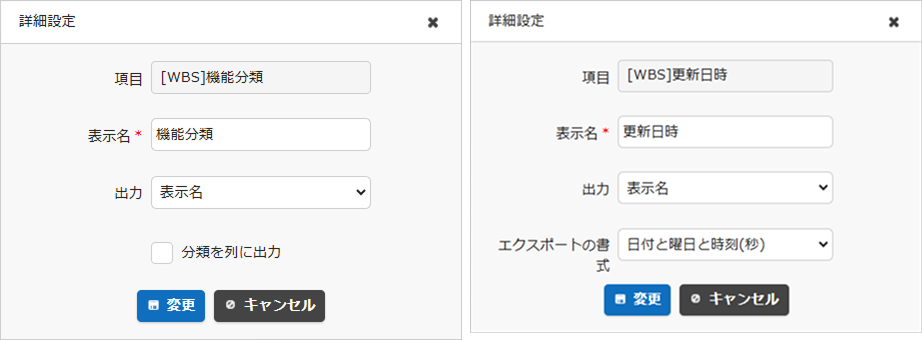
| Column Name | Description | How to Set It |
|---|---|---|
| Name displayed | You can set the column name used when exporting. | If you want to change it, enter any name you like. The default is the Name Displayed. |
| Output | You can set the content to output when exporting. | Select one of the following three. Name displayed: the content shown on the screen Short name displayed: the content shown on the index screen Value: the record ID The default is the Name Displayed. |
| Output classifications as columns | You can set the output method for multiple selection columns. | When enabled, all the options are output as columns and "1" is set for the selected ones. For details, refer to Multiple Selections. |
| Export format | You can set the date format used when exporting. | It can be set only for date columns. The default is "Date". |
Manage Table: Export: Access Control Tab
For the Access Control tab, refer to Export: Access Control Tab.