Formula (Extended)
Overview
Register calculation formulas that use dedicated functions in addition to the four arithmetic operations. You can select not only numerical value column but also other columns as the output destination.
Limitations
- If a formula specifies a column by its name displayed, and that name displayed begins or ends with a symbol, changing the column's name displayed does not replace the name displayed in the formula with the new one (e.g., "Amount (tax incl.)", "Sales①", "=Total"). After changing the name displayed, correct the name displayed in the formula manually.
- A symbol here means any character other than letters (kanji, hiragana, katakana, and alphabetic letters), digits, and underscores (_), whether full-width or half-width. Circled numbers (such as ①) are also symbols.
- Formulas with "Don't use display name" enabled are saved with column names, so they are not subject to this limitation.
Prerequisites
- "Site Administration Permission" is required to configure settings.
Operation Procedure
- Open the [formula] tab and click the "Create New" button.
- Select "Extended" in "Calculation Method".
- Select the output column from "Target".
- Set the calculation formula. For details, refer to "How to Write Calculation Formulas".
- Click the "Add" button.
- Click "Update" at the bottom of the screen. When the message ""(Title)" has been updated." is displayed at the bottom of the screen, the update is complete.
How to Write Calculation Formulas
Calculation formulas can be set using the following description method.
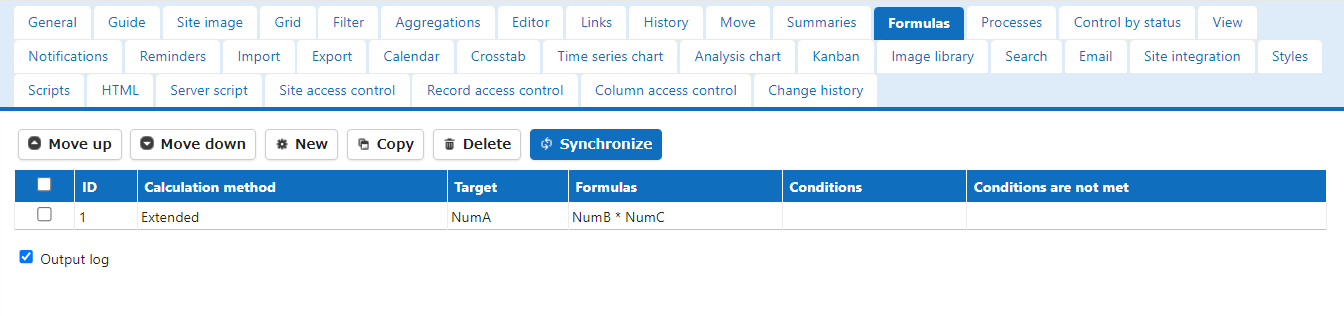
1. You can register calculations of the four arithmetic operations using the name displayed of the column.

1. Dedicated functions can be used. Please refer to the Formula (Extended) Function List for available functions.

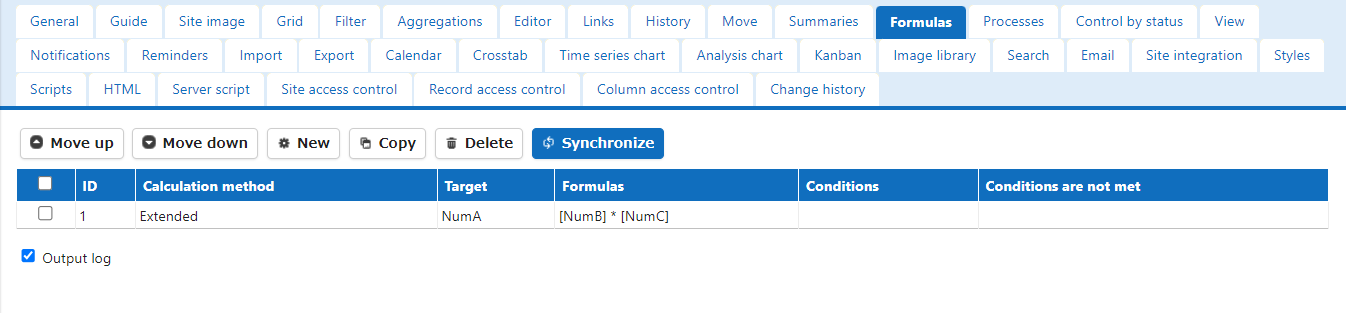
1. It is possible to write the column name enclosed in square brackets ([]) instead of the name displayed. If you write the column name enclosed in square brackets ([]), it will be automatically converted to the name displayed when added.
Before Adding

After Adding
Do Not Use Name Displayed
If you check "Don't use name displayed", column names in formulas enclosed in square brackets ([]) can be registered without being converted to name displayed.
Before Adding

After Adding
Display Error
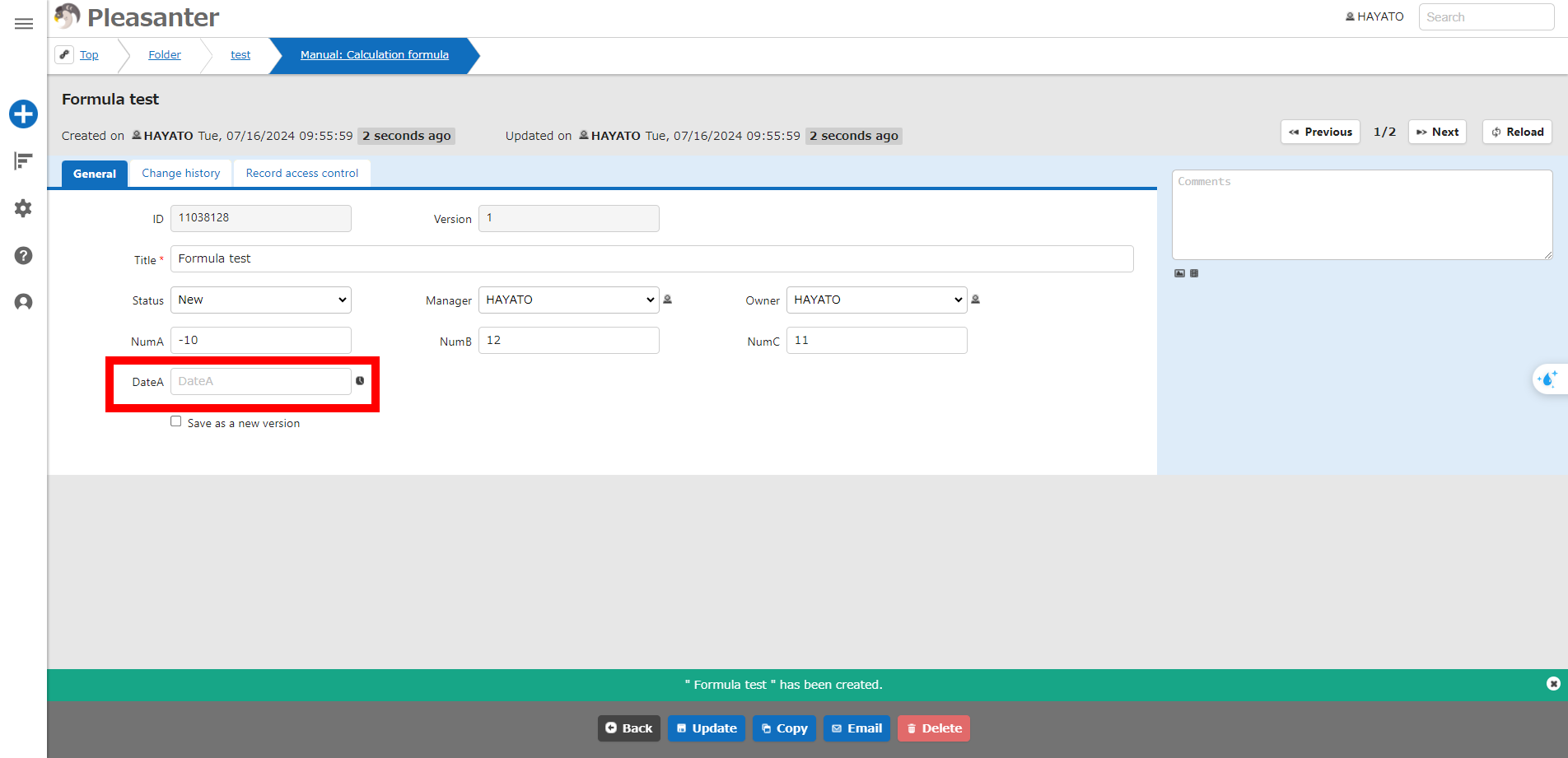
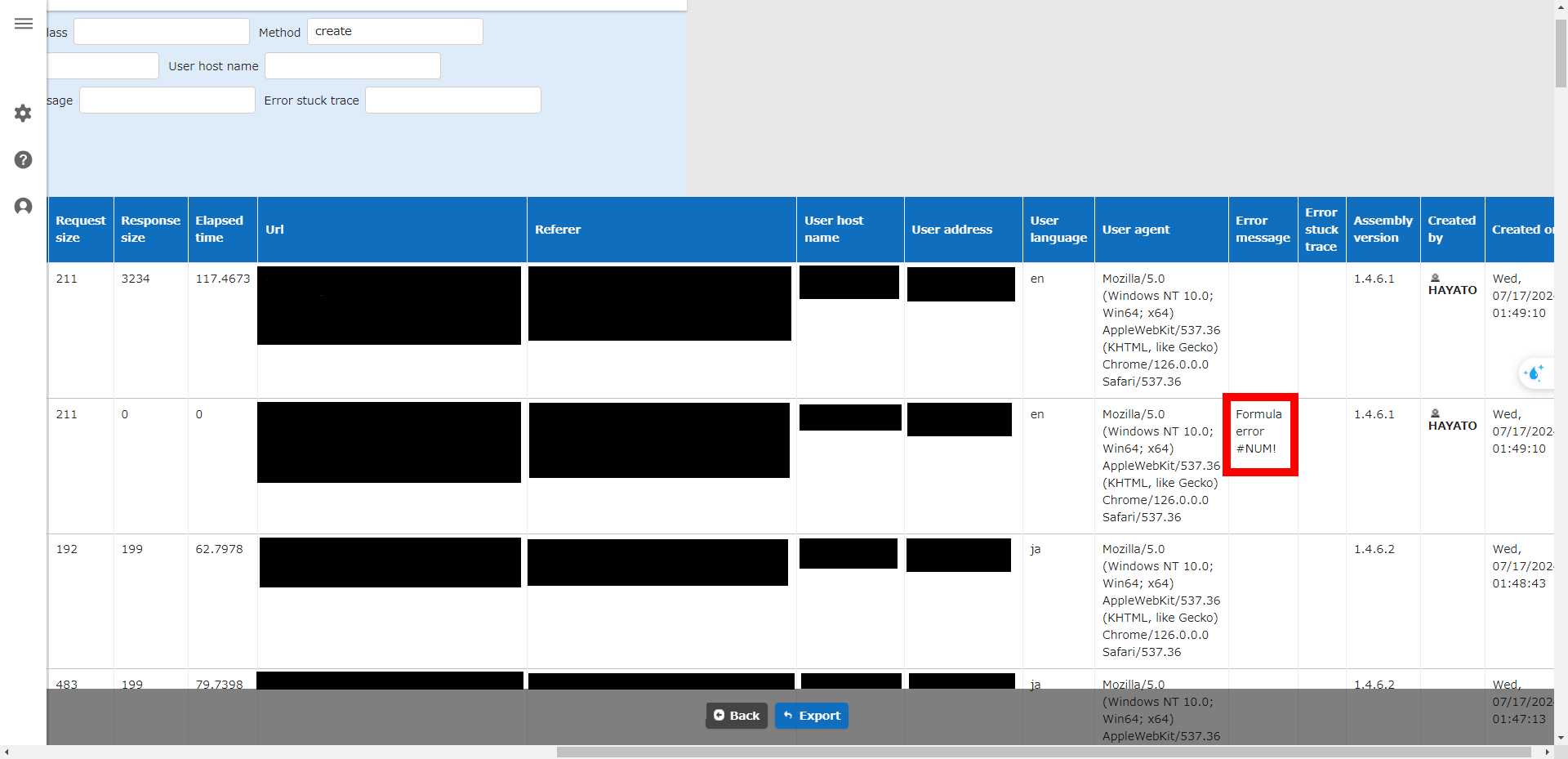
If an error occurs in the formula, the error will be recorded in the system log.
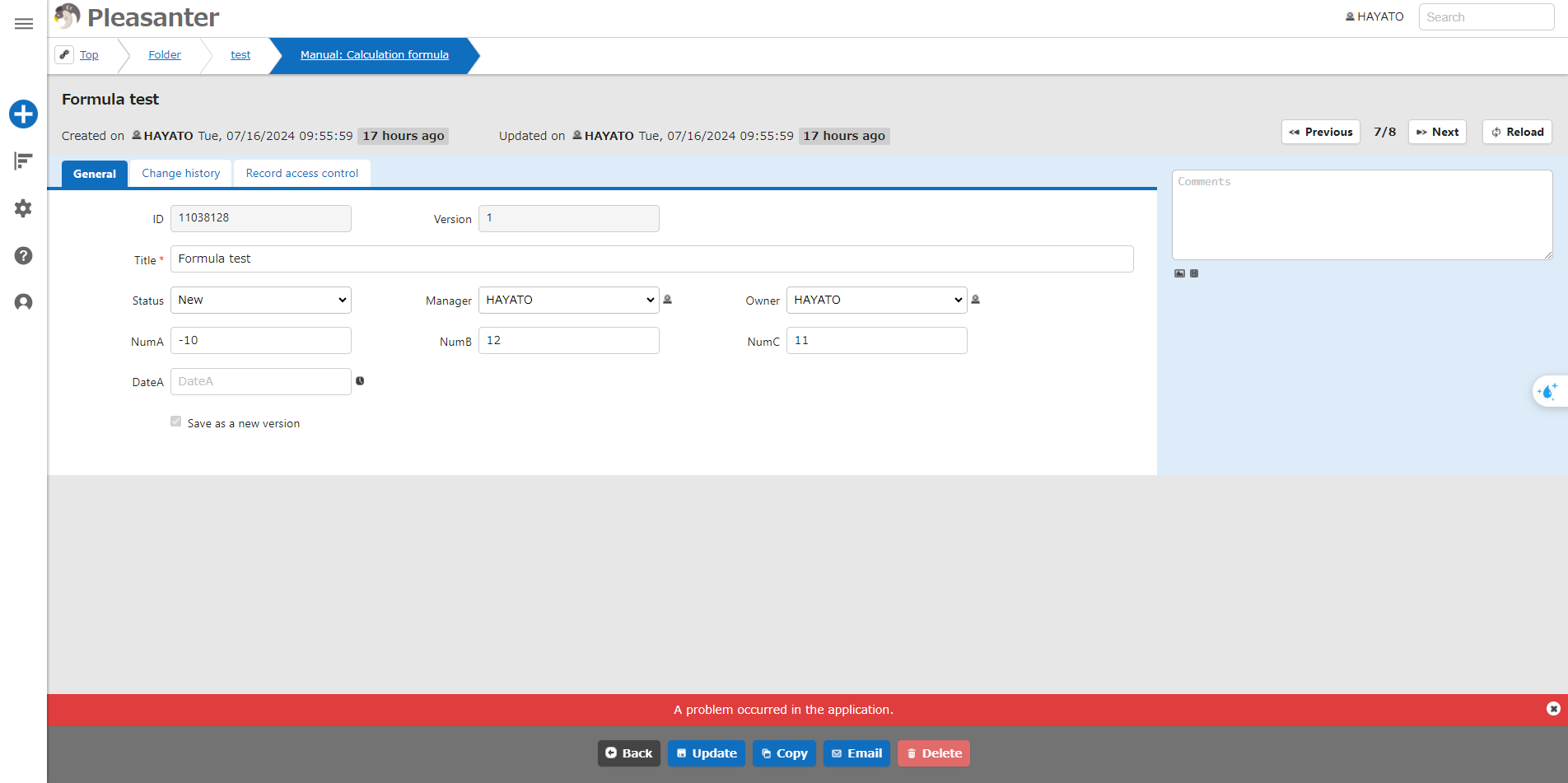
Example: Set the formula as follows, enter NumA: -10, NumB: 12, NumC: 11, and click the Create button

An error occurs in the formula, so the result is not displayed. (The registration process will end normally)
You can check the error log from "Manage" > "System Log Management".
If you check "Display Error", the error will be recorded in the system log and the message "A problem occurred in the application" will be displayed at the bottom of the screen.

Log Output of Formula
- Open the [formula] tab and check "Output Log".
- Click "Update" at the bottom of the screen.
- Use the F12 key etc. to check that the following log is output after creation or updating in the browser's developer tools console.
Example:
【Formula】
Target: Date A (DateA)
Formula: $DATE (NumA, NumB, NumC)
【Column Value】
NumA: 2023
NumB: 12
NumC: 11
【Log】
formulaSet: {"CalculationMethod":"Script","Target":"DateA","NotUseDisplayName":false,"IsDisplayError":false,"FormulaScript":"$DATE(model.NumA,model.NumB,model.NumC)","FormulaMapping":"{\"NumA\":\"NumA\",\"NumB\":\"Number B\",\"NumC\":\"Number C\"}","Id":1}
formulaSource: {"IssueId":51366,~Omitted~,"NumHash":{"NumA":{"Value":2023.0000},"NumB":{"Value":12.0000},"NumC":{"Value":11.0000}},~Omitted~}
formulaResult: {"DateA":2023/12/11}
About Log Content
The contents output in the log are as follows.
- formulaSet: Calculation Formula Setting
- formulaSource: Value of the columns used in the calculation
- formulaResult: Calculation Result
The contents output in "formulaSet" are as follows.
- Target: Target Column
- FormulaScript: Calculation Formula
- FormulaMapping:Column
- Id: Calculation Formula ID
Operation Image
Add date columns labeled "Date of Birth" and "Age Calculation Reference Date", and a numerical value column labeled "Full Age."
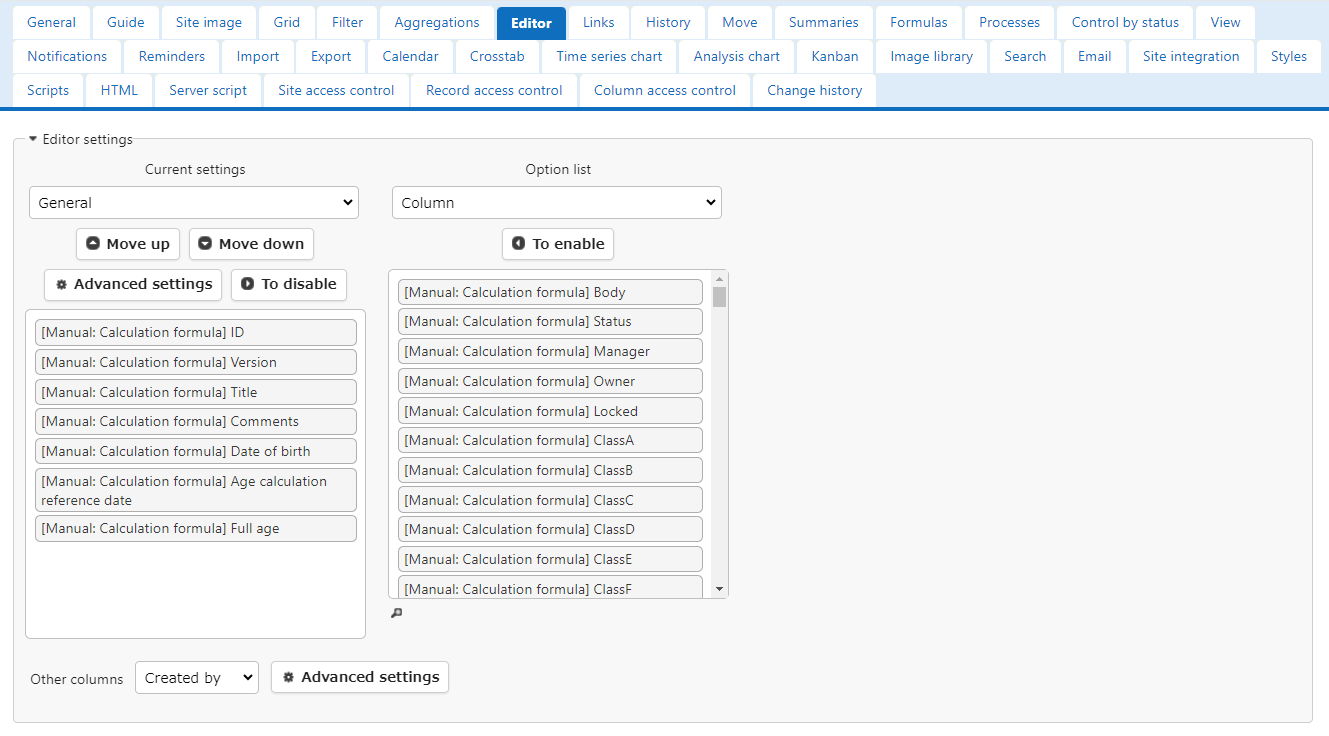
Select "Full Age" for "Target" and enter "$DATEDIF(Date of Birth, Age Calculation Reference Date, 'Y')" for "Formula".

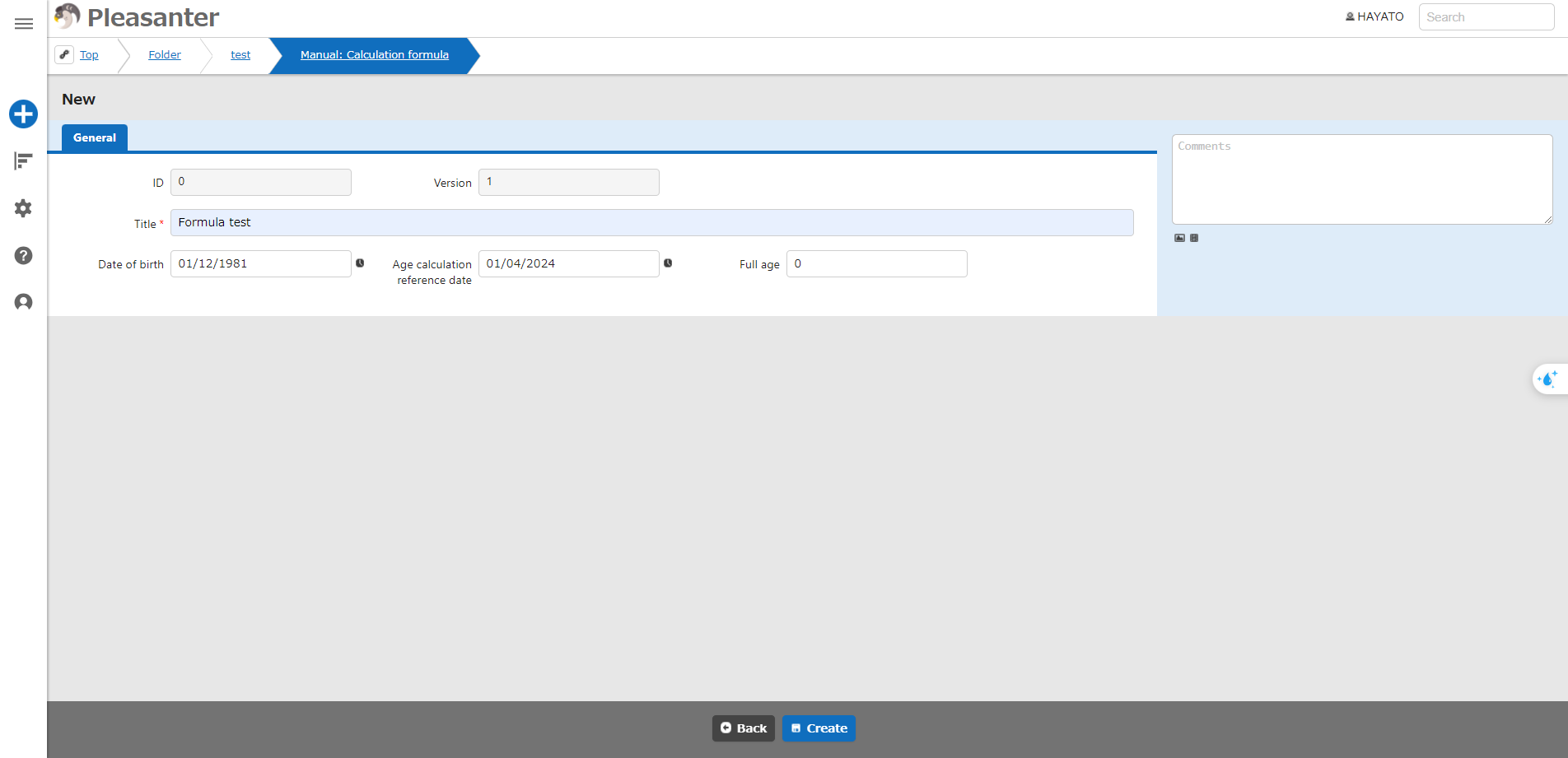
The calculation will be automatically performed and saved when you press the "Create" or "Update" button.
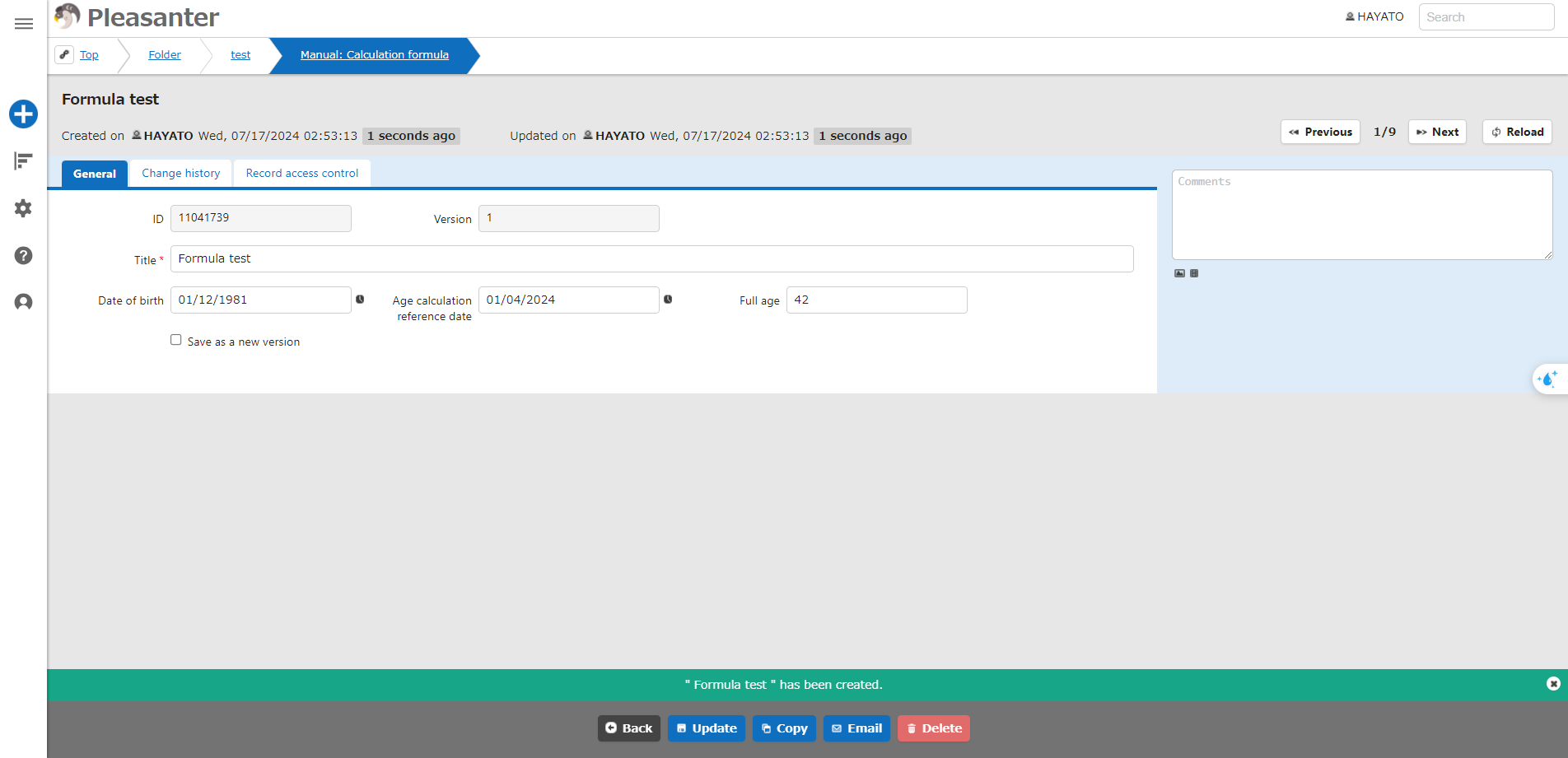
If you perform calculations on records that have already been saved or change the formula, press the "Sync" button to recalculate.