Screen Index: Bulk Update of Multiple Columns
Overview
This function allows you to update multiple columns on the Screen Index at once.
Limitations
- You cannot register or edit the "Attachment Column".
Prerequisites
- "Site Administration Permission" is required to configure settings.
Operation Procedure
- Open the target "Table".
- Click "Manage table" from the "Manage" menu.
- Open the "Grid" tab.
- Click the "New" button in the "Bulk update column settings" section at the bottom of the screen.
- In the dialog that appears, set up the bulk update and click "Add".
- Click the "Update" button at the bottom of the screen.
Setting Image
Click "New" in the "Bulk update column settings" section.

Enable the columns you want to bulk update in the dialog that appears
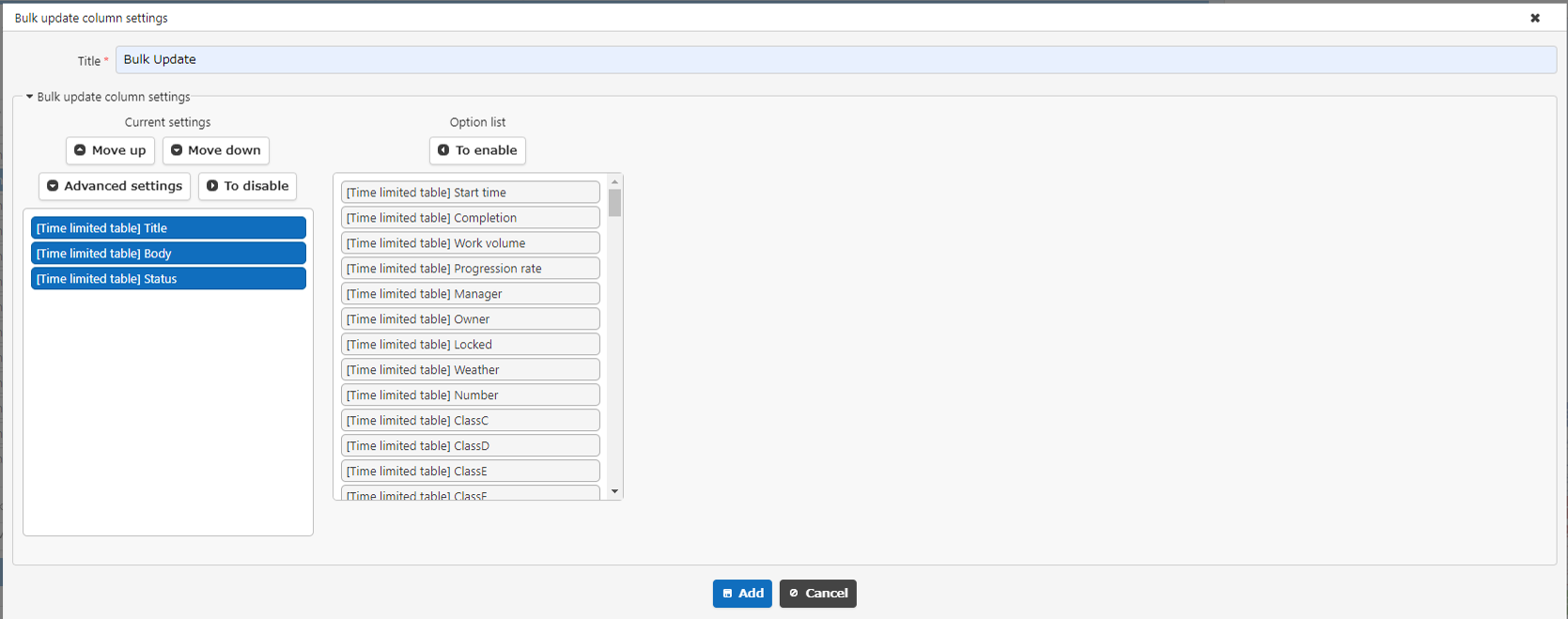
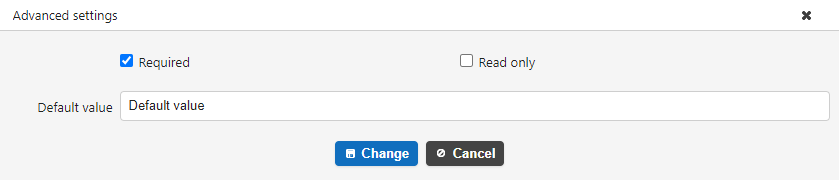
You can set advanced settings for bulk updates for each column from "Advanced settings".
Operation Image
Select the data you want to bulk update and click "Bulk update".

The displayed dialog box will display the columns enabled in the bulk update settings, so enter values for the target columns and click "Bulk update".
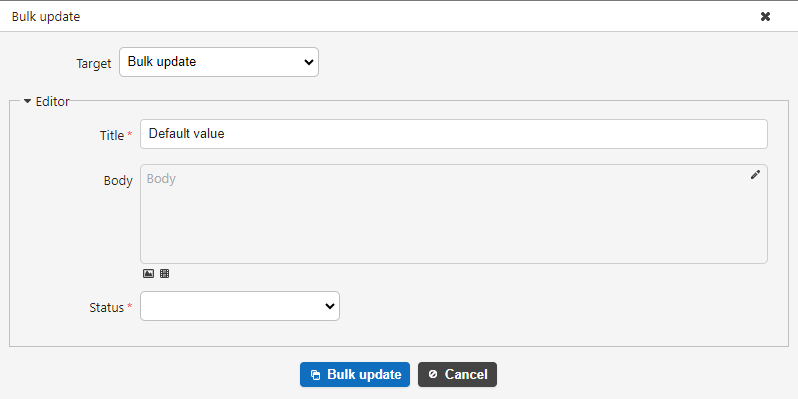
The entered value will be updated for all records selected in the index.