Editor: Link
Overview
This function allows you to display "Link Column" at any position. By combining it with "Tab" and "Headings", you can organize the layout of the "Editor".
Limitations
- One "Link Column" cannot be displayed on multiple tabs.
- When displayed with "Link", the button and the list of link destinations will be displayed as one group.
- When linked to multiple tables and displayed with "Link", unspecified "Link Column" will not be displayed on the screen.
Prerequisites
- "Site Administration Permission" is required to set up.
Operation Procedure
- Open the target table.
- Click Manage Table from the "Manage" menu.
- Open the Editor tab.
- Select "Link" from the drop-down list of "Option List".
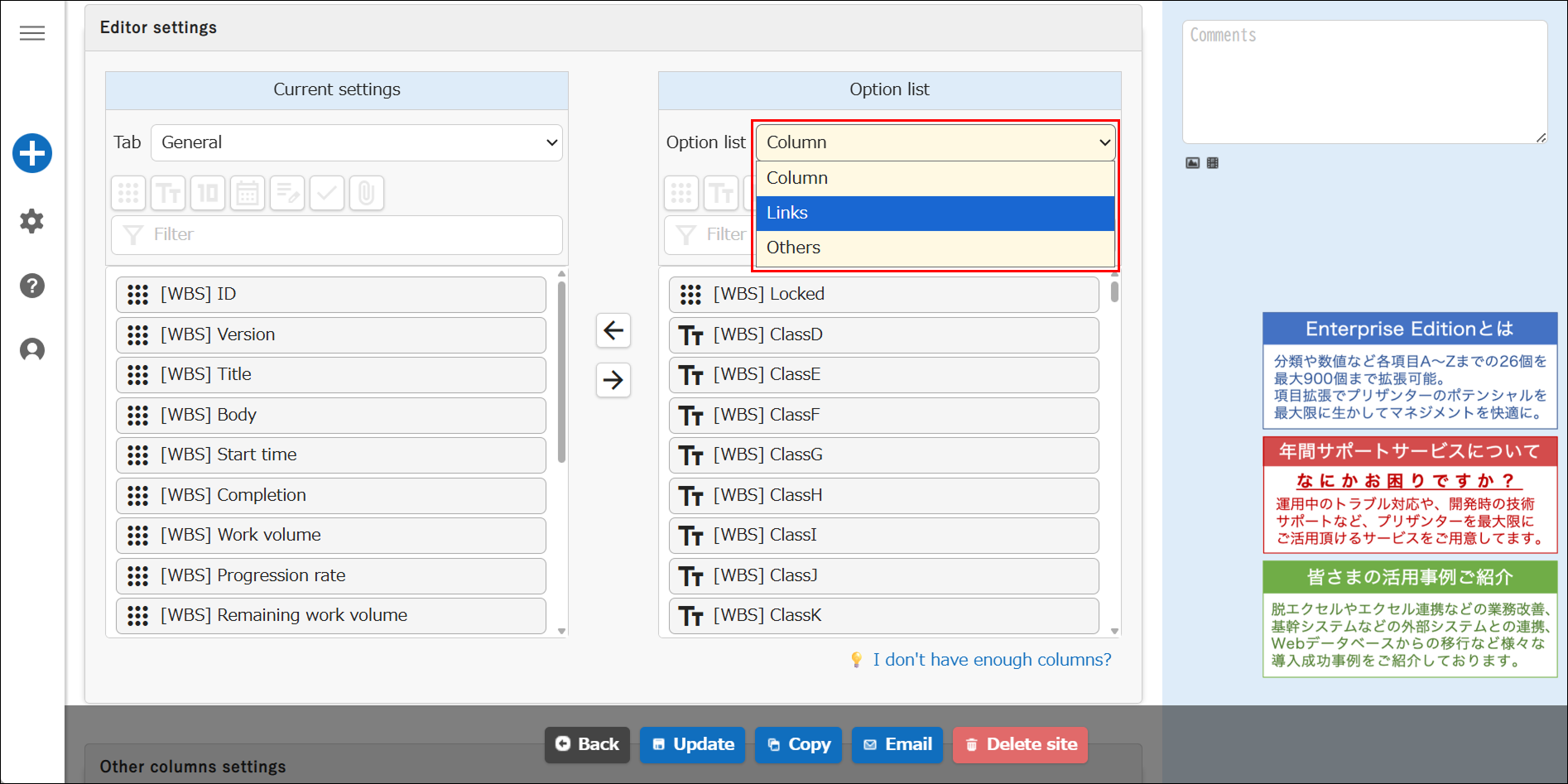
- After selecting the link item you want to display, click the "Enable" button.
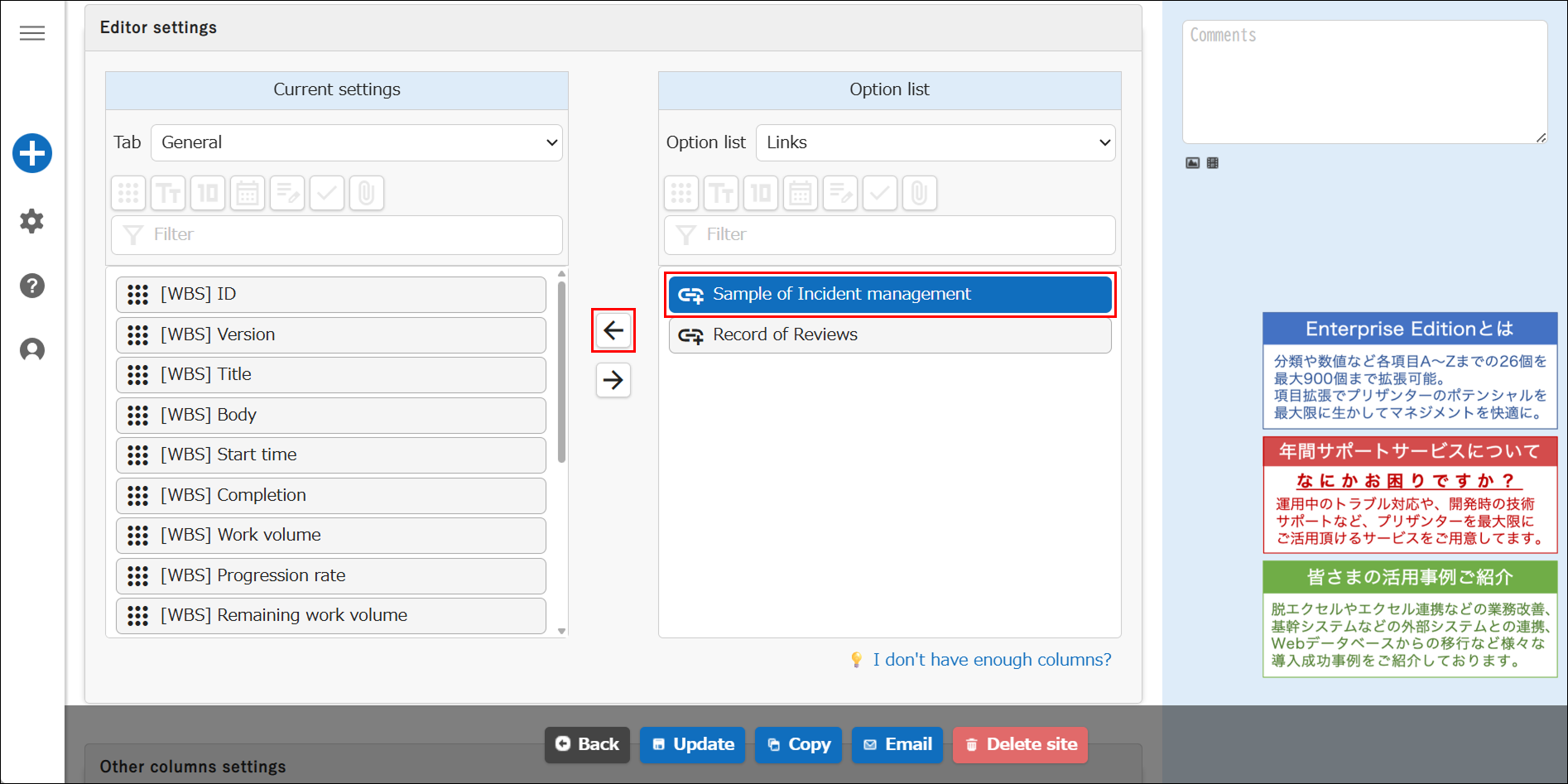
- Set the display location with the "Up" and "Down" buttons.
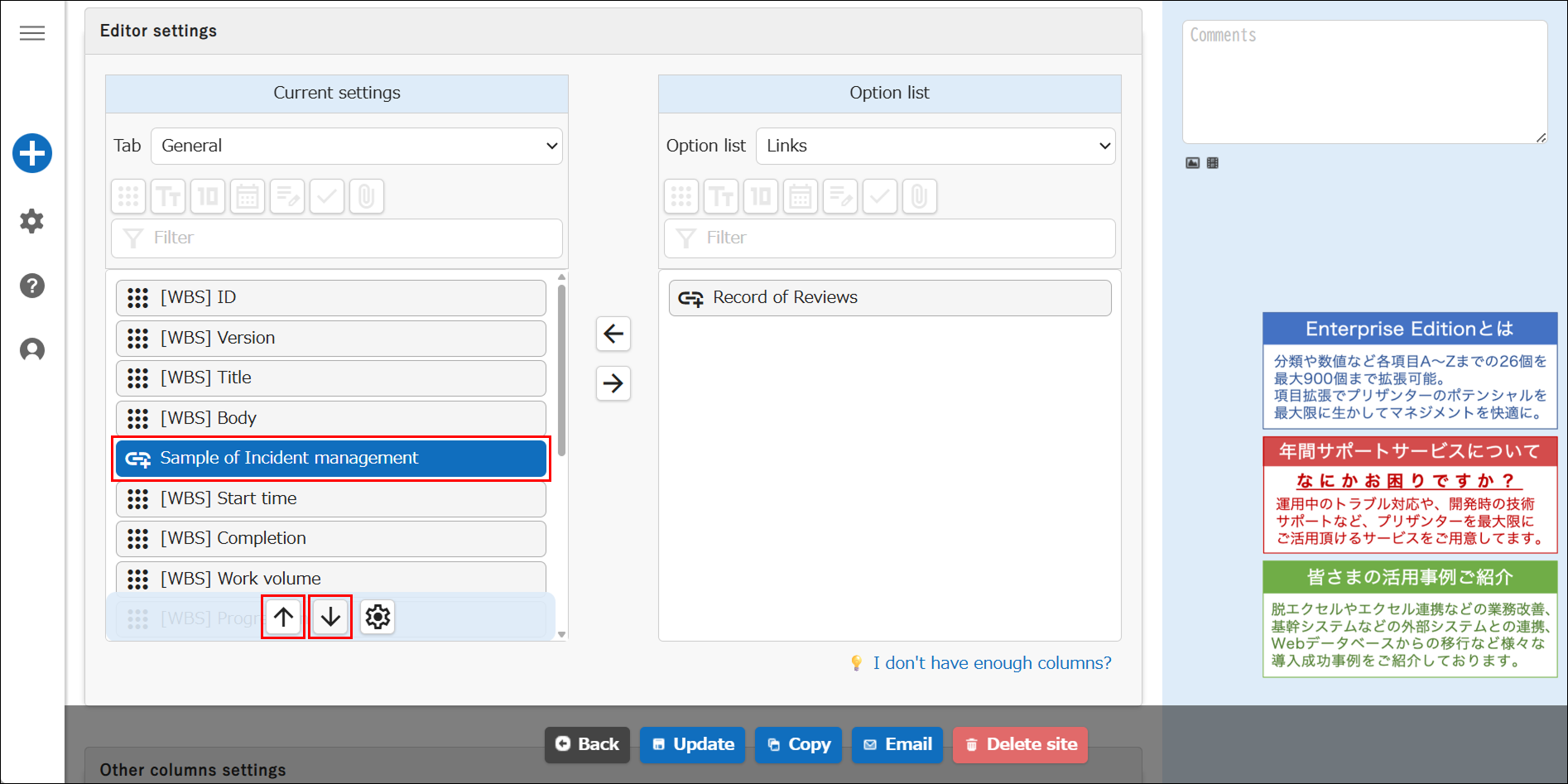
- Click the "Update" button in the command button area.
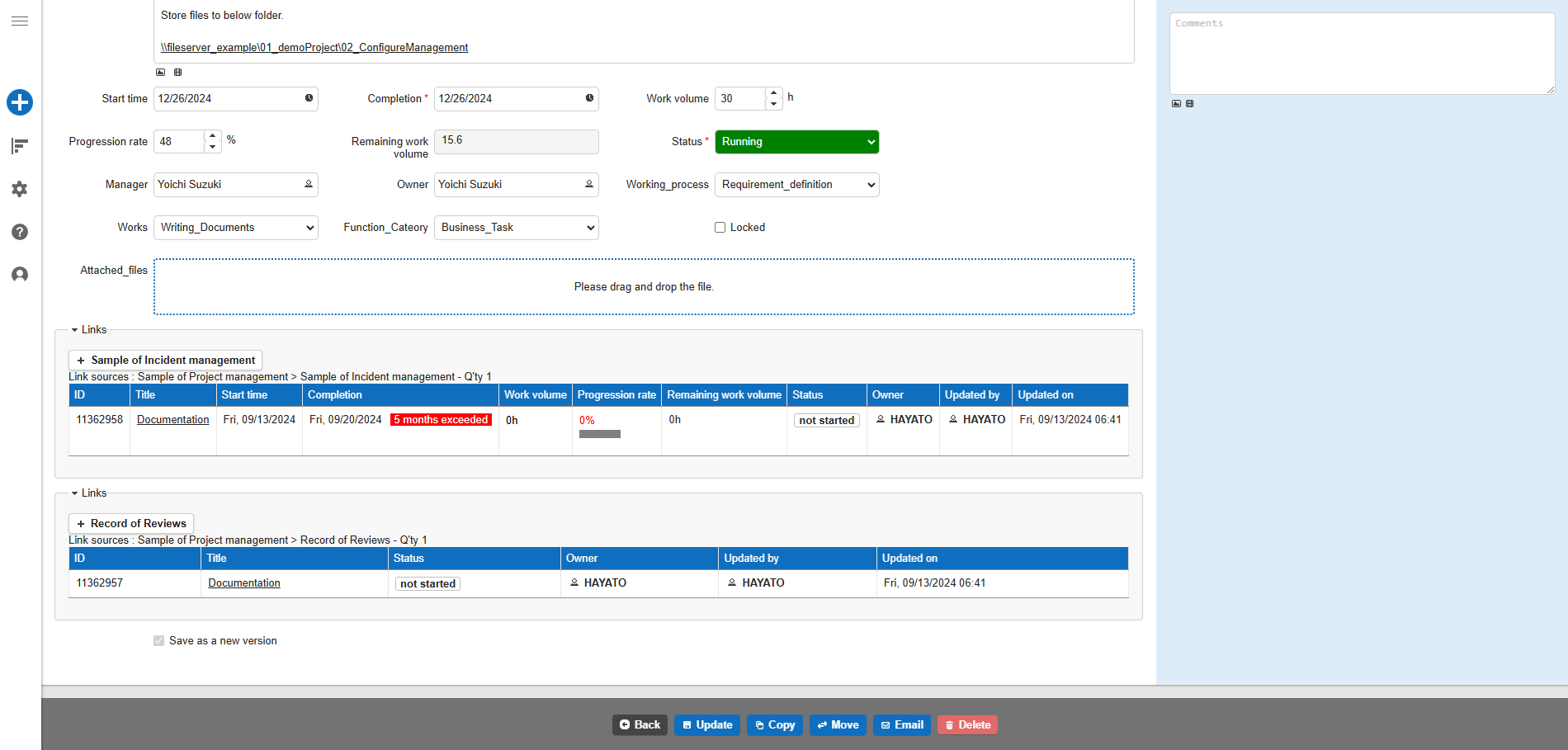
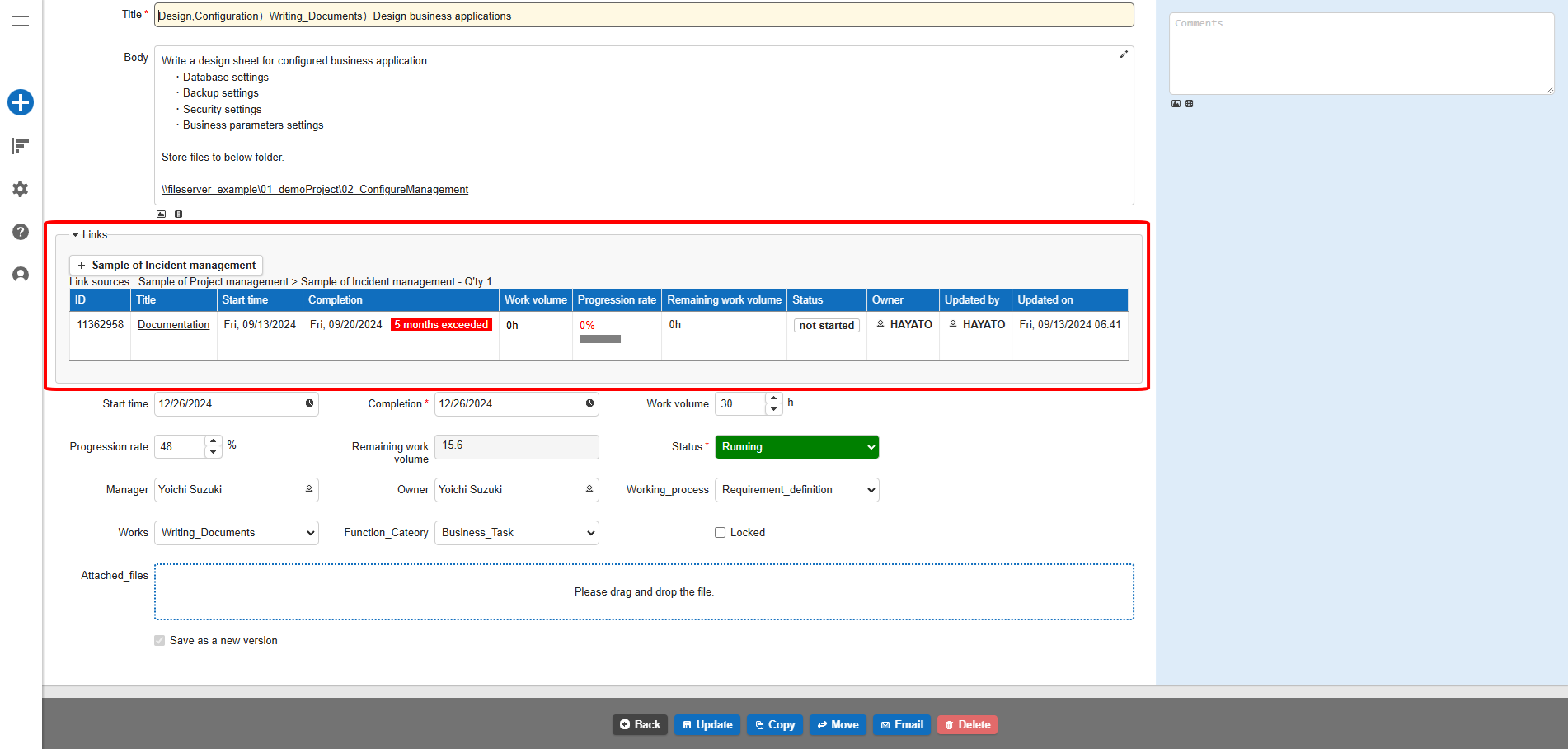
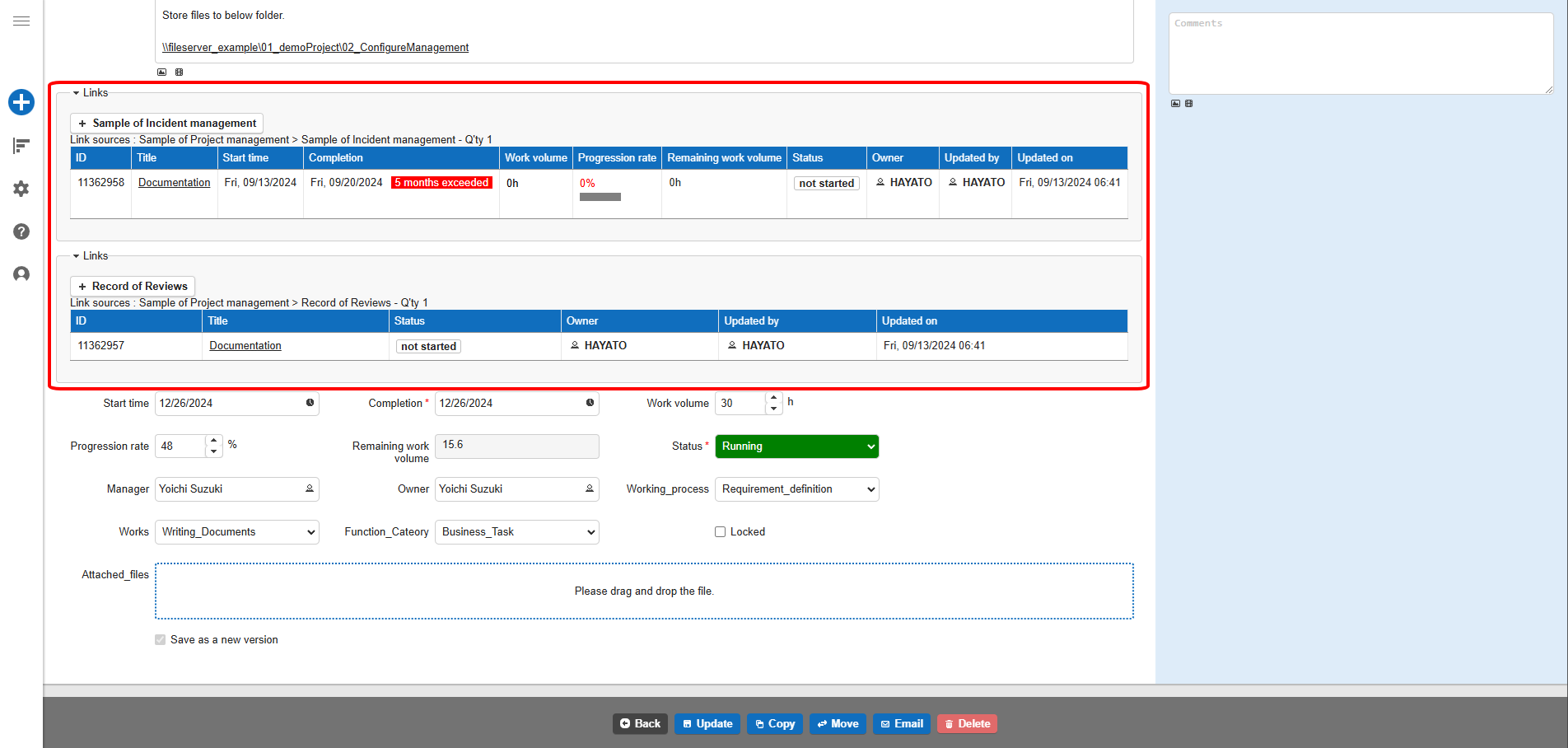
- When you open the editing screen, the link column will be displayed in the specified location. Only the specified links will be displayed.
- When only "Issue Management" is specified
- When "Issue Management" and "Review Record" are specified
- When only "Issue Management" is specified
Difference from the default display
In the default display, the Add New button and the list of links are displayed separately, but when displayed with "Link", the Add New button and the list of links are displayed as a set.
Default display
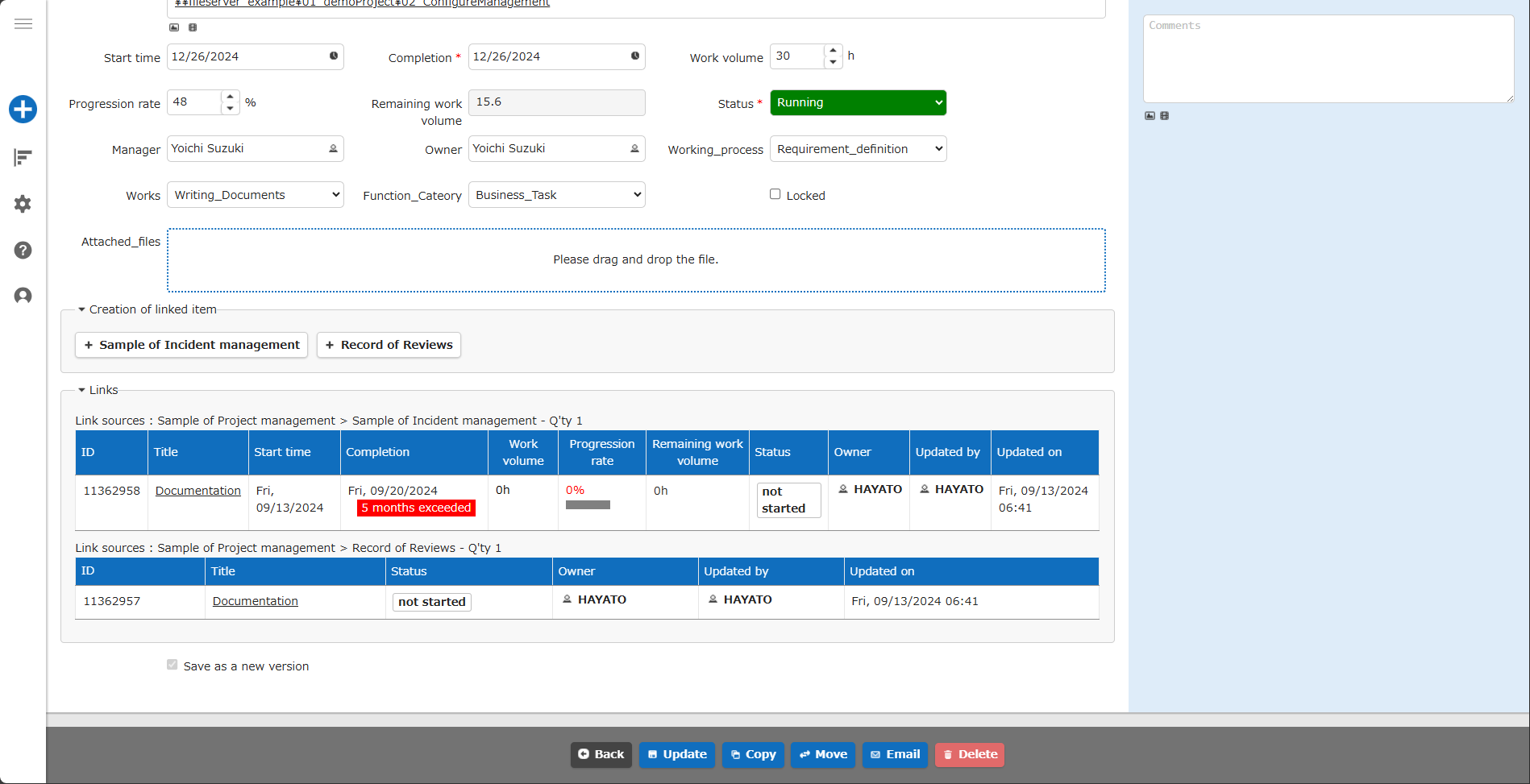
Display with "Link"