Link
Overview
You can set the display "Column" when displaying a list of linked "Record" on the "Editor" using the "Link" function.
Limitations
- Columns of other tables that are "Linked" cannot be set.
- If there are no "Enabled" columns, they will not be displayed on the editing screen of the linked table.
Prerequisites
- "Site Administration Permission" is required to configure settings.
Operation Procedure
- Open the "Table" to be "Linked".
- Click "Manage Table" from the "Manage" menu.
- Open the "Link" tab.
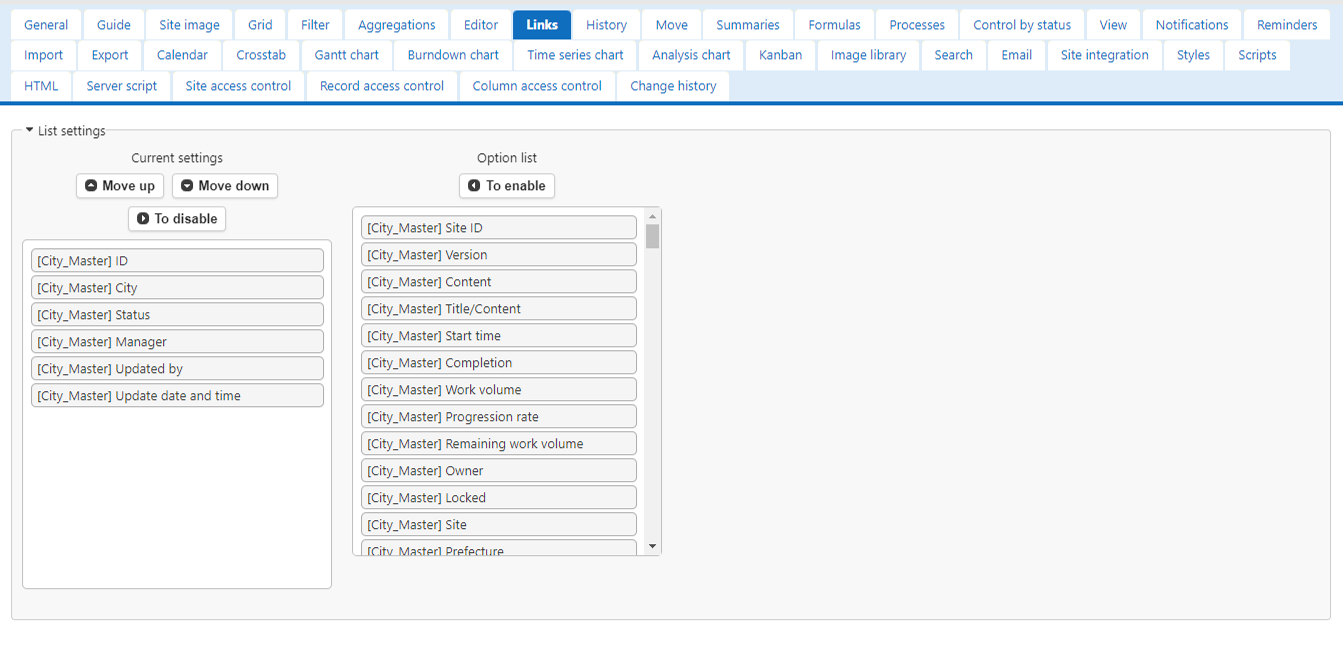
- Select the target "Column" from the "Option List".
- Click the "Enable" button.
- The "Enabled Column" will be added to the bottom of the "Current Settings", so use the "Up" and "Down" buttons to adjust the display position. Clicking the "Up" and "Down" buttons while holding down the Ctrl key will move the "Column" to the top or bottom.
- Select the "Column" you do not need from "Current Settings" and click the "Disable" button.
- Click the "Update" button at the bottom of the screen.
Configurable Range of "Number of displays"
By default, the configurable range of "Number of displays" is "0 to 100". This range can be changed with "LinkPageSizeMin" and "LinkPageSizeMax" in "General.json".
Operation Image
Set the column to display in the linked record.
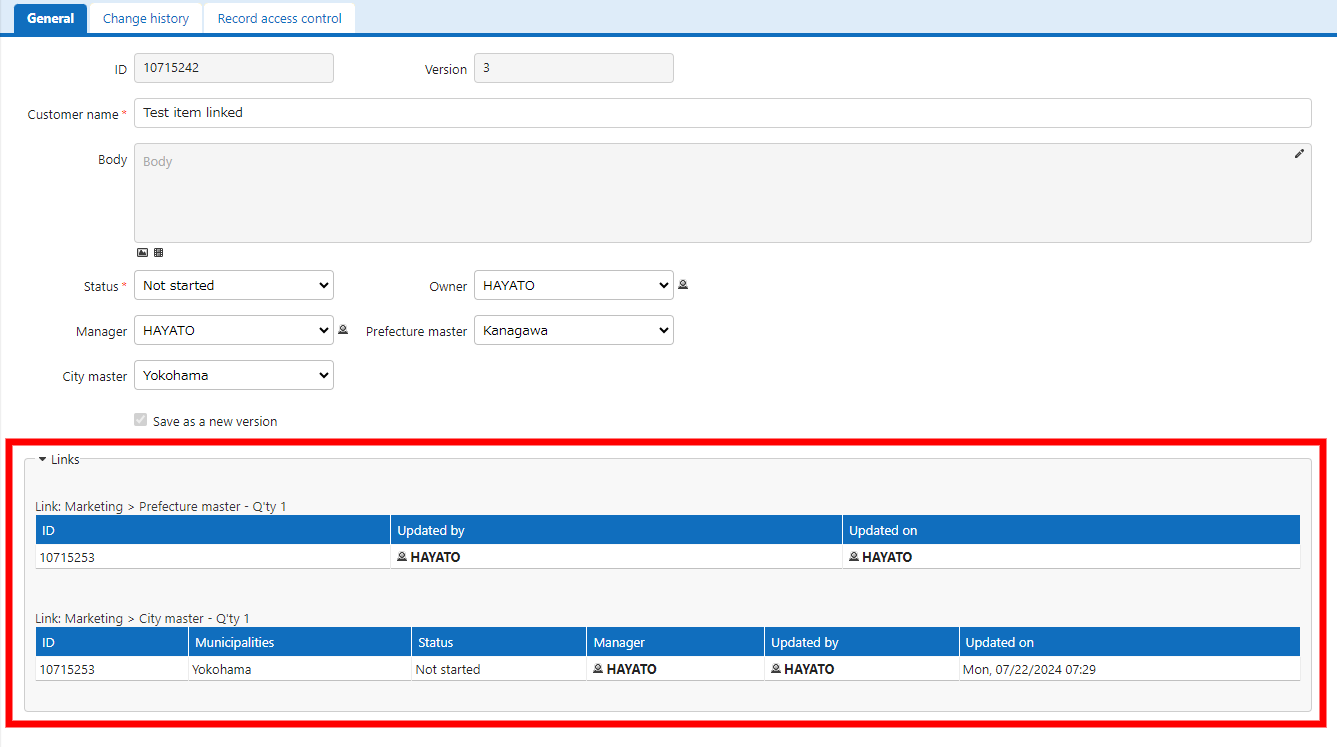
The following image will be displayed on the editing screen of the linked table.
Assigning a View to the Link Table
By setting a view created in advance as the "Default view", you can sort and filter the records displayed in the link table.
Settings of the view applied to the link table
| Tab | Setting Item | Description |
|---|---|---|
| Grid | List settings | Columns are displayed according to the settings. When a "Default view" is selected, the view settings take precedence over the "List settings" of the "Links" tab. |
| Filter | Filter condition | Records are filtered according to the settings. |
| Sorters | Sort condition | Records are sorted according to the specified settings. |