Notification
Overview
This function automatically notifies you by email or communication tools such as Teams, Slack, and Chatwork when you perform operations such as creating, updating, or deleting records in time-limited tables. By combining it with View, you can specify the notification conditions.
Limitations
- When sending notifications by bulk update, only fixed email addresses can be notified. "RelatedUsers" and "Owner" cannot be used.
- Subject settings are only valid for creating, updating, deleting, and copying.
Settings Screen
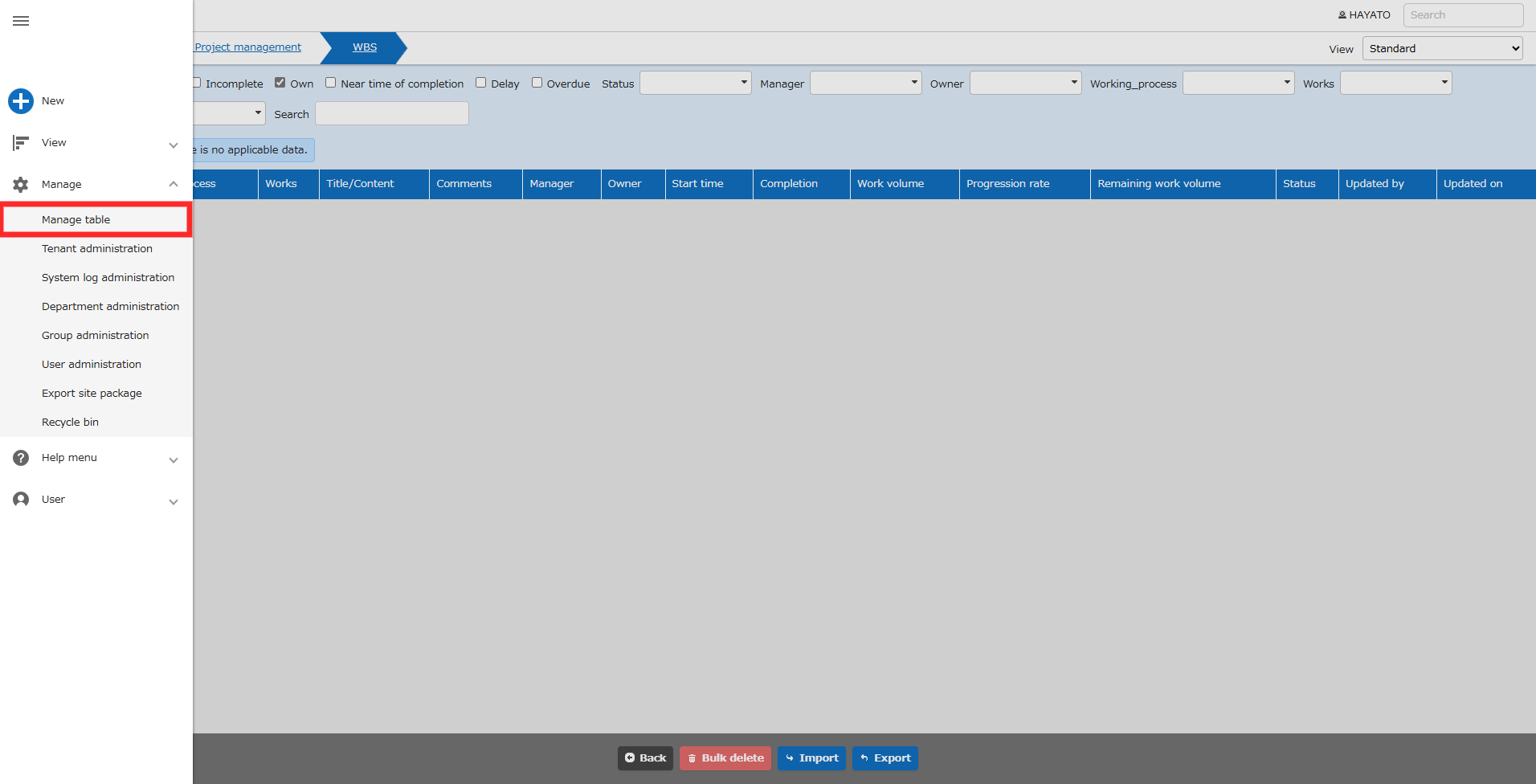
With the relevant table open, click "Manage" - "Manage Table" from the navigation menu.
*Not displayed for users who do not have Site Administration Permission.
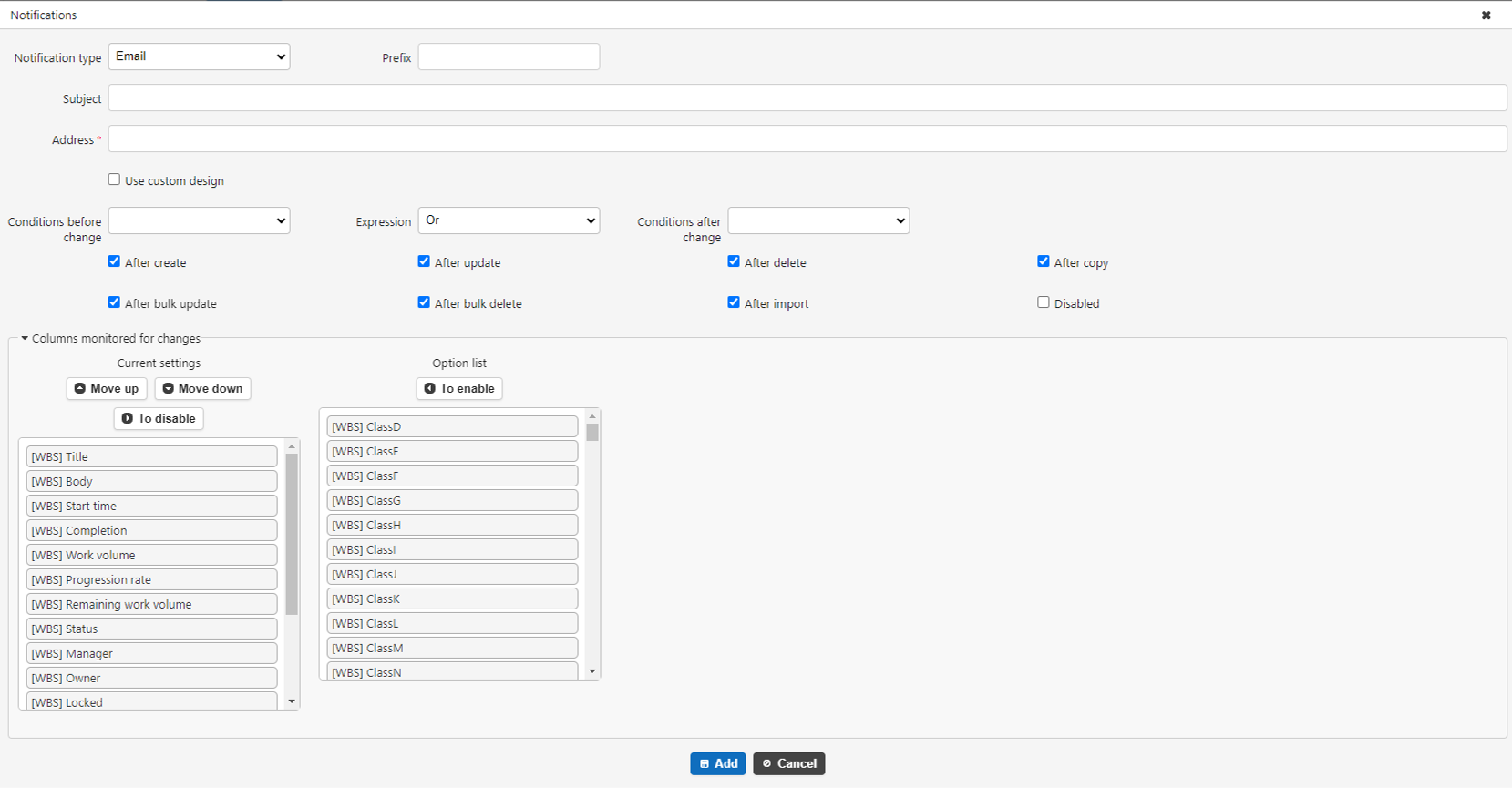
Detailed Columns
| Column name | Description | Setting method |
|---|---|---|
| ID | Notification management ID | Cannot be edited |
| Notification type | Specify the notification type | Select from email, Slack, Chatwork, LINE, LINE group, Teams, Rocket.Chat, InCircle, HTTP client |
| Prefix | Text to be added to the beginning of the notification title | Enter any text |
| Subject | Text to be included in the notification title | Enter any text. If not entered, the system will use the fixed text*1 |
| Address | Specify notification destination | Enter any email address, WebHook, roomID URL, or LINE UserID or GroupID. |
| Cc | Specify the address to be set in the Cc field of the notification email | Enter any email address. Can only be specified if the notification type is email. |
| Bcc | Specify the address to be set in the Bcc field of the notification email | Enter any email address. Can only be specified if the notification type is email. |
| Token*2 | Specify Chatwork token or LINE bot account access token | Enter the acquired Chatwork token or LINE bot account access token. |
| Use custom design | Specify use of custom design | Check ON if you want to use custom design. |
| Format*3 | Format to be output in the notification body | See later in this manual. |
| Condition before change*3 | Specify the view to specify as the condition before the change | Specify any view. |
| Logical expression*4 | Specify the conditions before and after the change | Select from And or Or. |
| Condition after change*4 | Specify the view to specify as the condition after the change | Specify any view. |
| Notification timing | Specify the notification timing. | Notice later in this manual. |
| Columns to monitor for changes*5 | Specify the columns to monitor for changes when a record is updated. | Enable/disable any column. |
*1. Enter the string "[Column name]" in the subject to display the column value, "[NotificationTrigger]". By entering the string, you can insert the string of the operation performed by the user (create/update/delete).
(Example) If you set "[NotificationTrigger]Notification - [[Status]] [Title]" in the subject
-
When creating a record
"Create notification - [Not started] Record title"
-
When deleting a record
"Delete notification - [Not started] Record title"
If not set, the same wording as the success message when creating, updating, or deleting. ("XX has been created.", etc.)
2. Displayed when Chatwork, LINE, LINE group or InCircle is specified.
3. Displayed when "Use custom design" is checked ON.
4. Displayed when a view is set.
5. Used only when the notification timing is "After update".
Specify The Notification Type
Specify the notification type. You can select from the following notification types that you have enabled in "Notification.json".
| Notification type | Description |
|---|---|
| Set up to send email from Pleasanter | |
| Slack | Set up to send notifications to Slack |
| Chatwork | Set up to send notifications to Chatwork |
| LINE | Set up to send notifications to LINE (to send notifications to individual users) |
| LINE group | Set up to send notifications to LINE (to send notifications to LINE groups) |
| Teams | Microsoft Set up to notify Teams |
| Rocket.Chat | Set up to notify Rocket.Chat |
| InCircle | Set up to notify InCircle |
| HTTP Client | Send a request to any URL with HttpClient |
*If you want to be notified by email, you need to set up email sending.
Specify The Timing Of Notification
Specify the timing of notification. Notifications will be sent when the checkboxes on the settings screen are checked.
| Notification timing | Description | Example of notification subject |
|---|---|---|
| After creation | Notification will be sent after creating a new record on the edit screen. | " [Title] " has been created. |
| After update | Notification will be sent after updating a record on the edit screen. | " [Title] " has been updated. |
| After deletion | Notification will be sent after deleting a record on the edit screen. | " [Title] " has been deleted. |
| After copy | Notification will be sent after copying a record on the edit screen. | " [Title] " has been created. |
| After Bulk Update | Notification will be sent after bulk updating records on the list screen. | [Table Name]: ○ records have been bulk updated. |
| After Bulk Delete | Notification will be sent after bulk deleting records on the list screen. | [Table Name]: ○ records have been bulk deleted. |
| After Import | Notification will be sent after importing records on the list screen. | [Table Name]: ○ records have been added and ○ records have been updated. |
| Disabled | Notification settings for the target are disabled and no notification will be sent. | - |
Dynamically Set Email Notification Destination
Email notifications can be sent to not only specific email addresses, but also to the Owner, Manager, and other email addresses specified in any field.
This setting can be used in the "Address", "Cc", and "Bcc" fields.
Targets that can be specified as recipients
| Target | Behavior |
|---|---|
| Fixed email address (example@example.com) | All target records will be sent to the specified fixed address. If multiple fixed addresses are specified, all fixed addresses will be sent as TO |
| Owner, Manager | Sends to the email addresses of the user specified as the Owner or Manager of the target record |
| Title, Content, Classification, Description | Sends to all email addresses listed in the title, content, classification, and description of the target record. Email addresses can be specified with a comma or line break separator |
Setting to Send Email Notifications to Related Parties of A Record
Select Email as the notification type and enter [RelatedUsers] as the address. When you set this, notifications will be sent to the email addresses of users who are the record creator, updater, manager, or owner. The target person check also includes the record update history. No notification will be sent if the target person does not have an email address set.
Example Of Settings And Sending Results
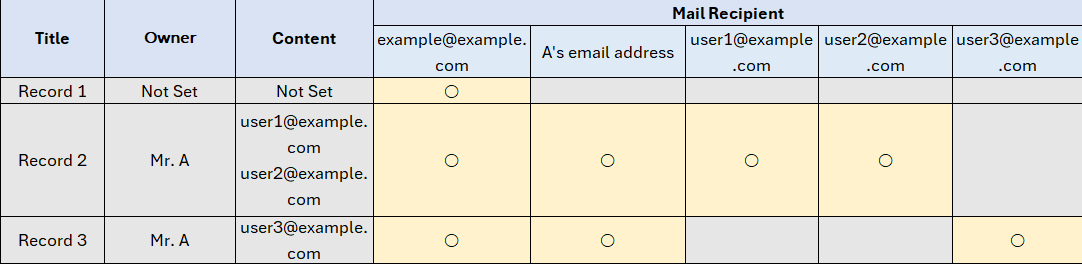
If you set the notification destination as shown below, an email will be dynamically sent to the destination according to the record contents shown in the table below.
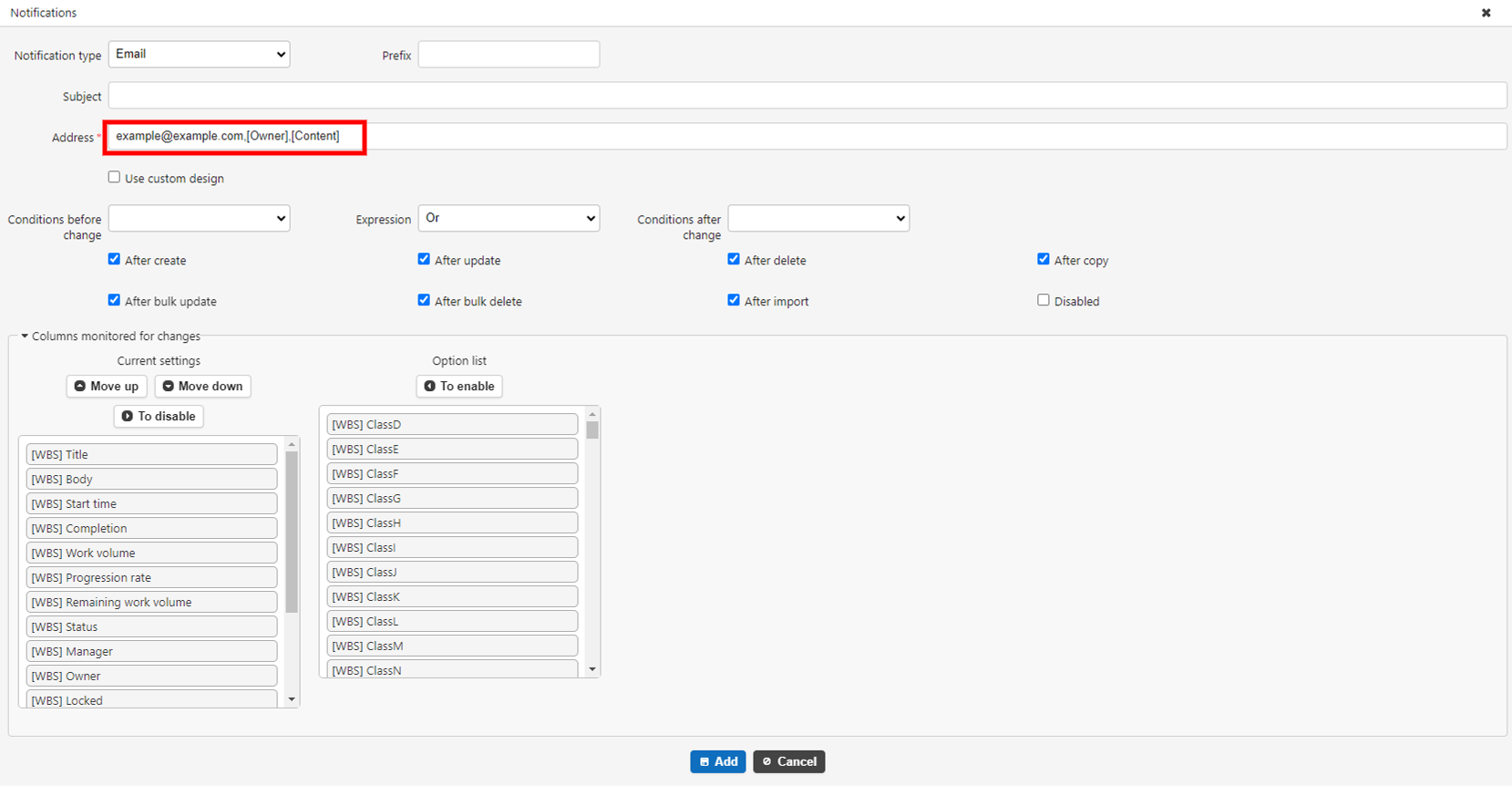
Setting Example
If you set it as follows, a fixed notification will be sent to example@example.com, and if the Owner registered for each record and the content contains an email address, a notification email will also be sent to that address.
Dynamic Destination Specification By User/Department/Group
If the notification type is "email", you can dynamically specify the destination. However, users/depts/groups that are disabled will not be notified.
Specifying An ID Directly In The Address
You can directly specify a user ID/depts ID/group ID in the address. The name of the user/depts/group will not be displayed, so be careful not to make any mistakes in the ID you specify.
Setting Example:
| No | Specify address | Description |
|---|---|---|
| 1 | [User1] | Notify the user with user ID:1. |
| 2 | [Dept1] | Notify the users who belong to depts ID:1. |
| 3 | [Group1] | Notify the users/depts who belong to group ID:1. |
Specify Class Column For Address
You can specify class column with "Users Option List", "Department Option List", and "Group Option List" set for the address. Use this when you want to dynamically change the destination for users/depts/groups set on a record-by-record basis. If the class column is set to "Multiple Selection", all multiple selections will be notified.
Example of settings:
| No | Name displayed of category A | Category A option list | Specify address | Description |
|---|---|---|---|---|
| 1 | User | [[Users]] | [User] | Notify the users set in category A of the target record. |
| 2 | Department | [[Depts]] | [Department] | Users who belong to the department set in the target record's ClassA will be notified. |
| 3 | Group | [[Groups]] | [Group] | Users/Depts who belong to the group ID set in the target record's ClassA will be notified. |
Notification Message
Format Elements That Make Up The Notification
The notification body is made up of the following elements.
- Fixed string
- Placeholder
- Format string
Click here to see the details of each element
Fixed String
You can write any string as a fixed string.
Note that, as described later, it must be on a separate line from the "format string".
Placeholders
The following placeholders are available, and each one will be replaced with a replacement string.
Fixed strings and placeholders can be mixed on the same line.
The placeholders must strictly match the descriptions in this manual for curly brackets and alphabetic characters.
| Placeholder | Replacement string |
|---|---|
| {Url} | Replaced with the URL of the record |
| {LoginId} | Replaced with the login ID of the user who operated |
| {UserName} | Replaced with the name of the user who operated |
| {MailAddress} | Replaced with the email address of the user who operated |
Format String
You can expand data columns into the body by writing a JSON object consisting of the following attributes as a single line of string.
The format string is processed line by line, so write it without including line breaks. Also, do not place multiple format strings on the same line, and do not mix placeholders and fixed strings.
Name is required. Other columns are set to default values, and if omitted, the default value will be specified. Attribute names are case-sensitive, so capitalization must be used correctly.
| Attribute Name | Behavior |
|---|---|
| Name | Write the display name of the column you want to output as [Display Name]. |
| Prefix | You can add a prefix to the beginning of the column to be output. The default is an empty string. |
| Delimiter | The delimiter to be displayed after the display name of the column. The default is ":". |
| Always | Set to true if you want to output even if there are no changes. The default is false. |
| ValueOnly | Do not display the item name and Delimiter, but only display the item value. The default is false. |
| ConsiderMultiline | In MarkDown format columns, insert a line break immediately after the column name Delimiter and before and after Allow. The default is true. |
| DiffTypes | Specify the display method for the differences before and after updates. ・Standard: Display the old and new values separately. ・DiffMatchPatch: Express the difference in values (added and deleted parts). Default is Standard. |
| DisplayTypes | When DiffTypes is Standard, select whether to display both the old and new values when updating (BeforeAndAfterChange), only the old value (BeforeChange), or only the new value (AfterChange). Default is "BeforeAndAfterChange". |
| Allow | When DiffTypes is Standard, this is the delimiter to display between the old and new values when updating. The default is "=>". |
| StartBracket | If DiffTypes is DiffMatchPatch, specify the string that indicates the start of the difference notation. The default value is "(". |
| EndBracket | If DiffTypes is DiffMatchPatch, specify the string that indicates the end of the difference notation. The default value is ")". |
| DeletePrefixSymbol | If DiffTypes is DiffMatchPatch, specify the string that indicates the start of the deleted part. The default value is "-". |
| DeleteSuffixSymbol | If DiffTypes is DiffMatchPatch, specify the string that indicates the end of the deleted part. The default value is "" (empty string). |
| AddPrefixSymbol | If DiffTypes is DiffMatchPatch, specify the string that indicates the start of the added part. The default value is "+". |
| AddSuffixSymbol | If DiffTypes is DiffMatchPatch, specify the string that indicates the end of the added part. The default value is "" (empty string). |
As an example, it is expressed as follows.
The output in this format is as follows.
| Output result when there is a change | Output result when there is no change |
|---|---|
| ■Work process: Design => Development | ■Work process: Design |
Example of output differences due to DiffTypes
-
When DiffTypes is Standard
Settings
Output results
-
When DiffTypes is DiffMatchPatch
Settings
Output result
-
When the format of DiffMatchPatch is customized
Settings
{"Name":"[Title]", "DiffTypes":"DiffMatchPatch", "StartBracket":"[", "EndBracket":"]", "DeletePrefixSymbol":"del:", "DeleteSuffixSymbol":"/del", "AddPrefixSymbol":"add:", "AddSuffixSymbol":"/add"}
Output result
Message Body
Default Message
The following format is used as the default message text.
Note that column name N in the following is a repeating column that includes all the columns in the table.
Using Custom Design
You can customize the notification text using the format elements mentioned above.
<summary>Click here to see the configuration example</summary>
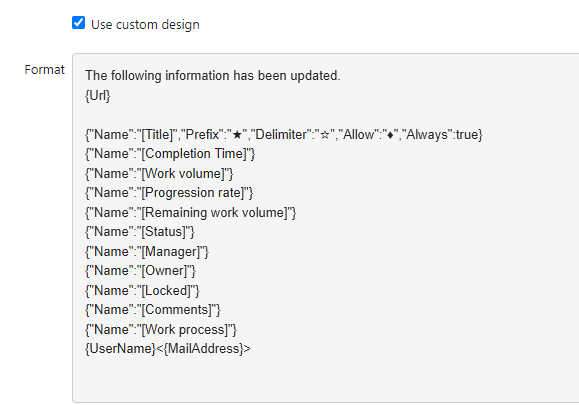
If you set the format as above, the notification will be displayed as follows.
The following information has been updated.
http://servername/items/999/edit
★Title ☆ Check network requirements ◆ Check network requirements and equipment
Comment: The requirements specification document has been created. The deliverables have been stored in the specified folder.
Yamaguchi Taro < taro@yamaguchi123.co.jp >
Supported Versions
| Supported versions | Body |
|---|---|
| 1.2.26.0 and later | Added notification timing after creation/update/deletion |
| 1.3.2.0 and later | Added notification timing after copying/bulk updating/bulk deleting |
| 1.3.3.0 and later | Added notification timing after import |
| 1.3.9.0 and later | Added function to specify classification items in addresses as dynamic destination specification for users/organizations/groups |
| 1.3.10.0 and later | Added function to directly specify ID in addresses as dynamic destination specification for users/organizations/groups |
| 1.3.17.0 and later | Added notification function using HTTP client |
| 1.4.8.0 and later | Added function to display value differences in DiffMatchPatch format |
| 1.4.10.0 and later | Added Cc, Bcc to email destinations |