Process
Overview
The Process feature lets you implement approval workflows, such as those used for ringi (approval request) applications. You can configure buttons for process management, input validation, conditions per status, access control for button visibility, auto numbering, and notifications sent when a button is clicked.
For specific usage instructions, see the following:
- FAQ: Implementing a Workflow (Approval Process) Such as a Ringi Application with the Process Feature
- Advanced: Control by Process and Status
- Table Management: Control by Status
Prerequisites
- The user performing this operation must have site administrator privileges.
Operation Procedure
Open the Process Settings Screen
- Open the table on which you want to configure a process.
-
In the navigation menu, click "Manage" - Table Management.
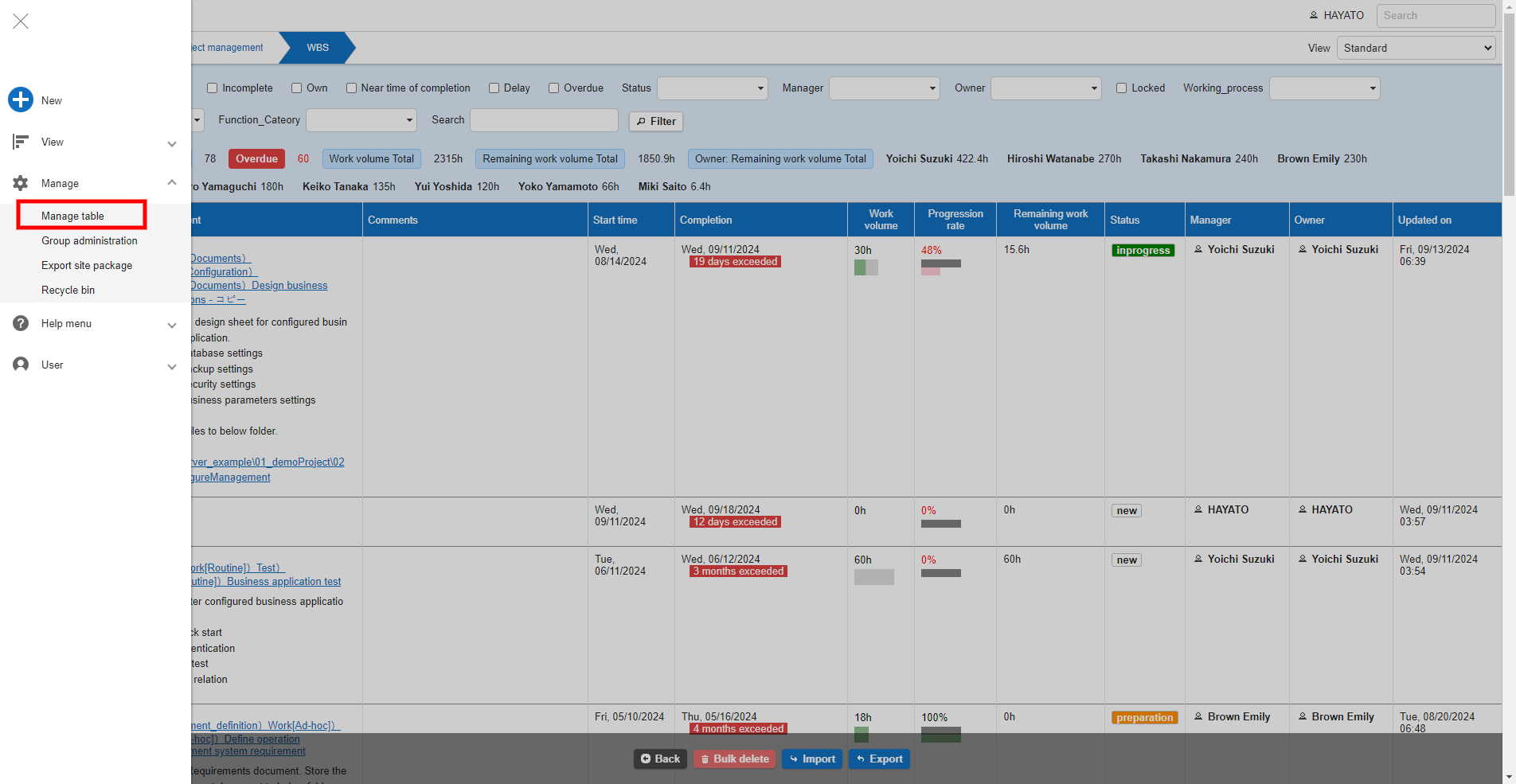
-
Click the Process tab.
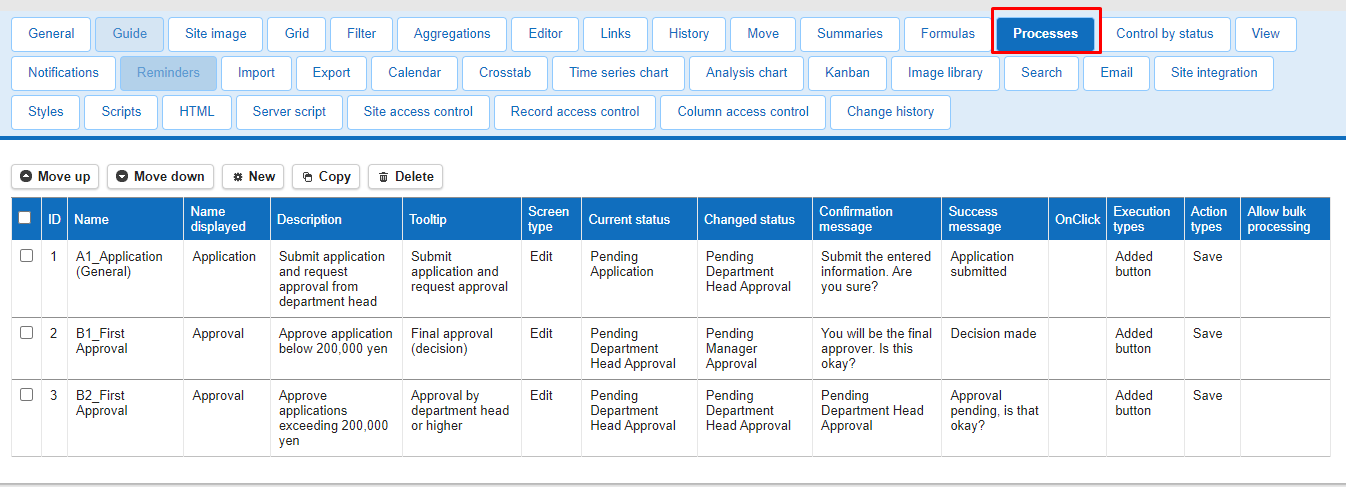
Configure a Process
Process management provides a variety of features. See below for details.
- Table Management: Process Management: General Tab
- Table Management: Process Management: Input Validation Tab
- Table Management: Process Management: Conditions Tab
- Table Management: Process Management: Access Controls Tab
- Table Management: Process Management: Data Changes Tab
- Table Management: Process Management: Auto Numbering Tab
- Table Management: Process Management: Notifications Tab
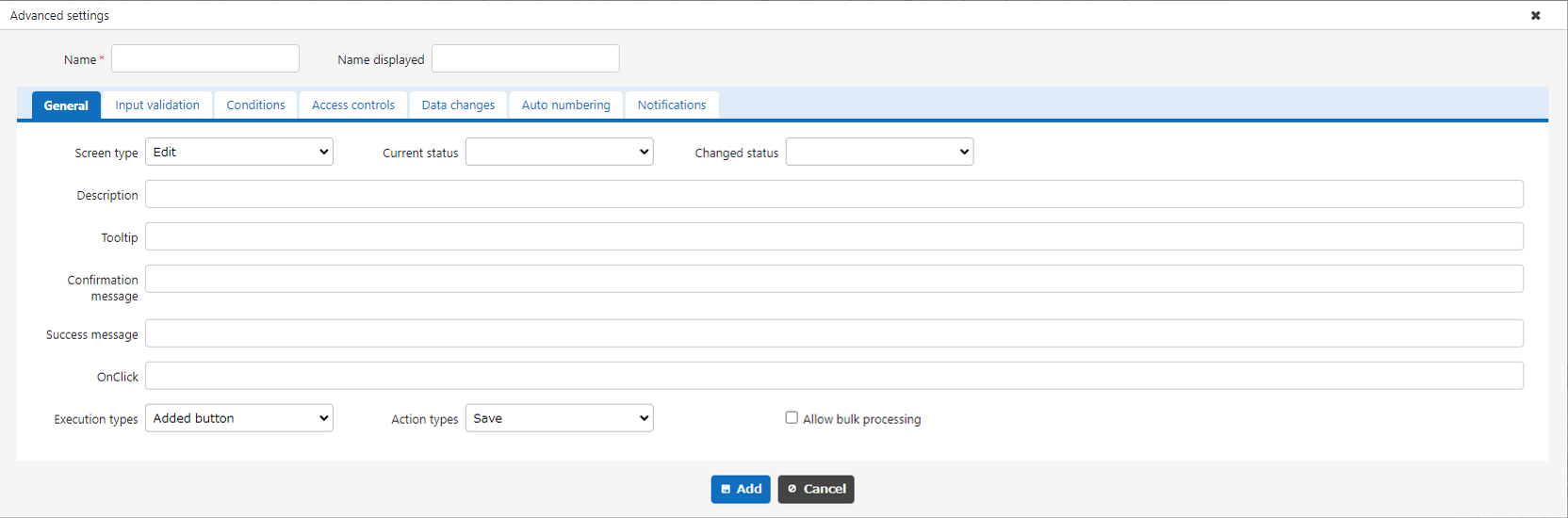
Operations While a Process Is Running
Configuring a process adds a button to the record's footer.

Clicking the button processes the record according to the process settings.
Limitations
- Even if "Allow Bulk Processing" is checked, bulk processing is not available if input validation other than Required Input is specified.
- If the execution type is set to "Added Button / Create or Update," input validation does not function.
- If a script is set for OnClick, the "Save" and "Postback" action types do not function.
- If using filters in the list header menu is enabled, hovering over the header on the bulk processing screen for Process displays filter items, but they do not function as a filter.
Supported Versions
| Supported Version | Details |
|---|---|
| 1.4.10.0 and later | Added "Value Function Operation" to change types Added Cc and Bcc to email notification recipients |
| 1.4.11.0 and later | Added "Added Button / Create or Update" to execution types Added an icon setting to the General tab of common settings |
Related Information
- Advanced: Control by Process and Status
- FAQ: Implementing a Workflow (Approval Process) Such as a Ringi Application with the Process Feature
- Table Management: Control by Status
- Table Management
- Table Management: Process Management: General Tab
- Table Management: Process Management: Input Validation Tab
- Table Management: Process Management: Conditions Tab
- Table Management: Process Management: Access Controls Tab
- Table Management: Process Management: Data Changes Tab
- Table Management: Process Management: Auto Numbering Tab
- Table Management: Process Management: Notifications Tab
- Table Management: Editor: Advanced Field Settings: Required Input
- Table Management: Editor: Advanced Field Settings: Input Validation
- Table Management: Filter: Using Filters in the List Header Menu
- Advanced: Link