Data Changes
Overview
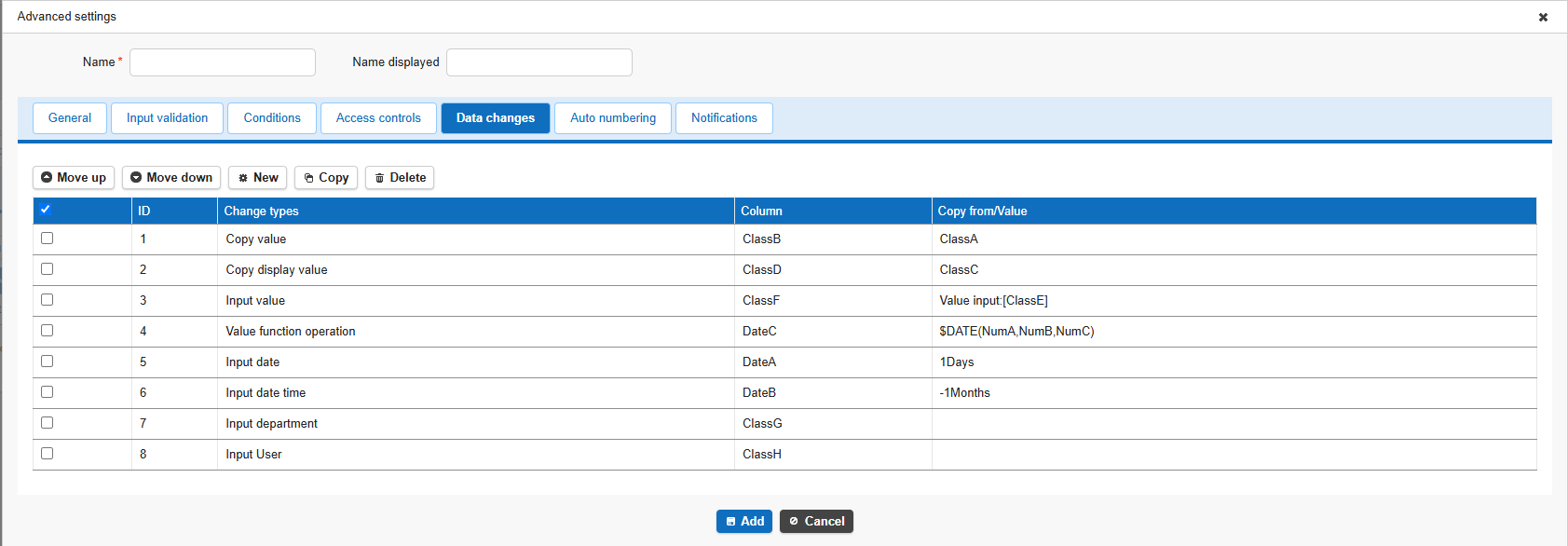
Configure the data changes that occur when the process button is clicked. You can enter arbitrary values, copy values, and more.
Operation Procedure
- Click the Data Changes tab.
- Click the "Create New" button.
- Select the change type.
- Configure the fields required for the selected change type.
- Click the "Change" button.
- Click the "Update" button in Process Management.
Change Types
| No | Choice | Description |
|---|---|---|
| 1 | Copy Value | The value of the specified "Copy From" field is copied to the specified field. |
| 2 | Copy Display Name | The display name of the specified "Copy From" field is copied to the specified field. |
| 3 | Enter Value | The specified "Value" is copied to the specified field. You can also specify a field's display name as the "Value." 1 |
| 4 | Value Function Operation | The result of the specified formula (extended) is copied to the specified field. 2 |
| 5 | Enter Date | The date obtained by adding "Value" (in units of "Period") to "Reference Date/Time" is set in the specified field. For example, entering "1" for Value and selecting "Day" for Period sets the date one day later. |
| 6 | Enter Date/Time | The date/time obtained by adding "Value" (in units of "Period") to "Reference Date/Time" is set in the specified field. For example, entering "1" for Value and selecting "Day" for Period sets the date/time one day later. |
| 7 | Enter Department | The department that the logged-in user belongs to is set. |
| 8 | Enter User | The logged-in user is set. |
Configuration Examples
Change Type: Copy Value
Copy the value of Class A to Class B

Change Type: Copy Display Name
Copy the display name of Class C to Class D

Change Type: Enter Value
Copy a value (a fixed string plus the value of Class E) to Class F

Change Type: Value Function Operation
Copy the result of the formula (extended) $DATE([NumA],[NumB],[NumC]) to Date A

- For details on "How to Write Formulas," "Do Not Use Display Name," and "Display Error," see Formula (Extended).
- For details on "Output Log," located below the process list screen, see Formula (Extended).
Change Type: Enter Date
Set Date A to the date one day after the process runs

Change Type: Enter Date/Time
Set Date B to the date/time one month before the moment the process runs

Change Type: Enter Department
Set Class G to the department that the logged-in user belongs to

Change Type: Enter User
-
Set Class H to the name of the logged-in user

-
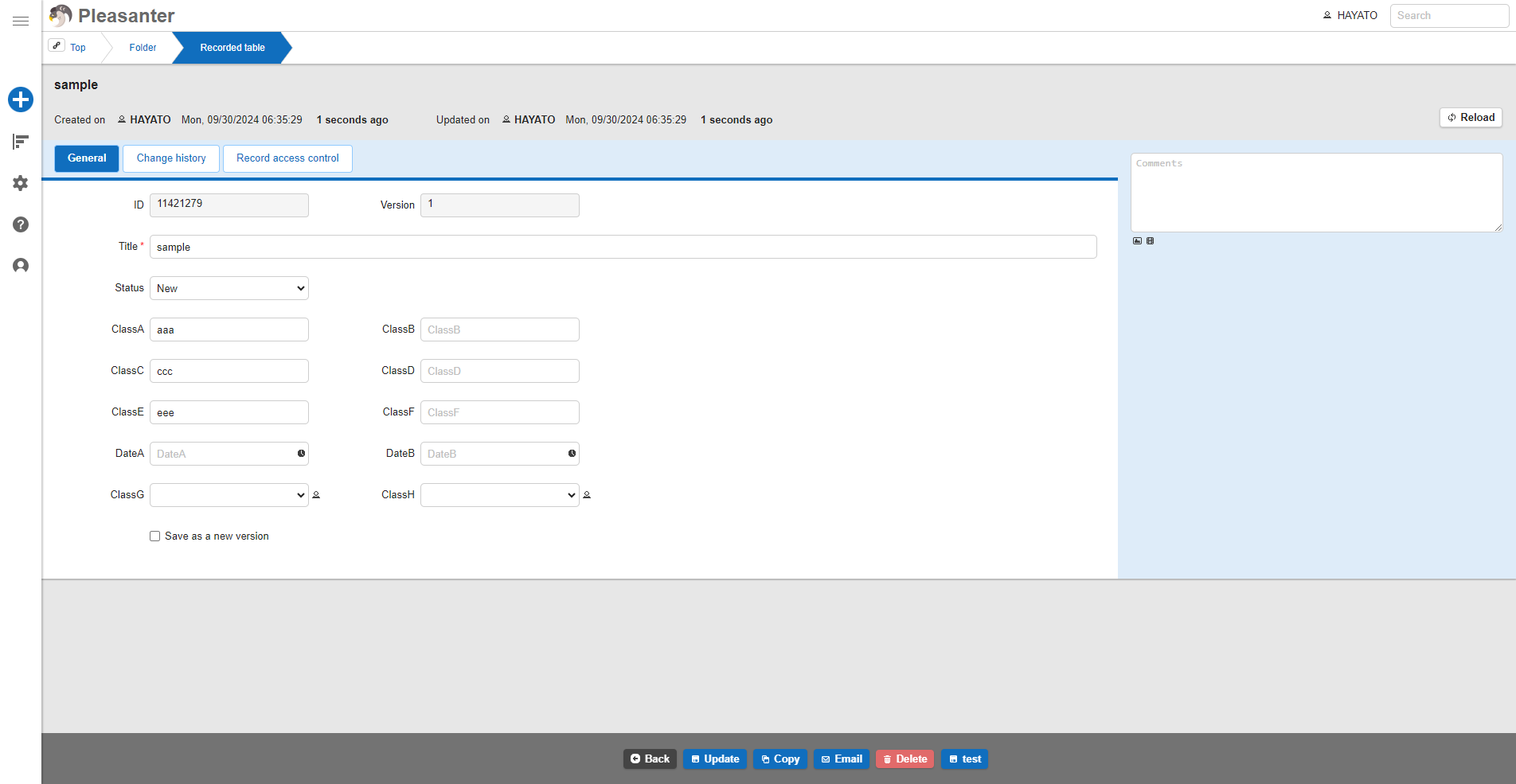
Before the data change
-
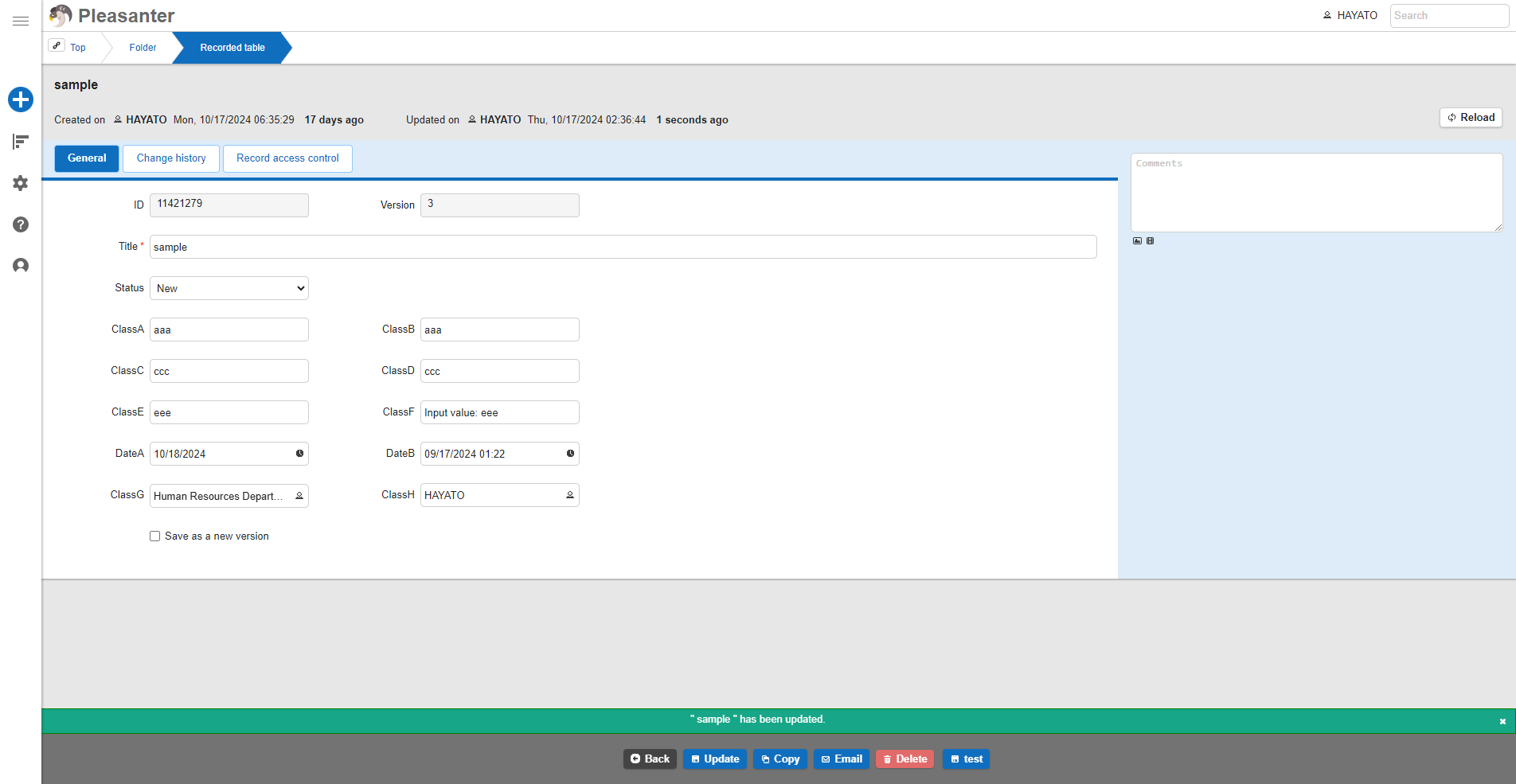
After the data change
Copying Data Between Fields of Different Types
Even when field types differ, you can copy values in the following cases.
Example: Copying a value from a string field such as Title or Class to a field such as Date or Check
| Change Type | Copy From | Input String in Copy Source | > | Copy To | Copy Result |
|---|---|---|---|---|---|
| Copy Value | Title | 2022/07/03 | > | Date A | 2022/07/03 |
| Copy Value | Title | Reiwa 4, July 3 | > | Date A | 2022/07/03 |
| Copy Value | Title | abc | > | Date A | (Not copied) |
| Copy Value | Title | 1 | > | Check A | Check ON |
| Copy Value | Title | 0 | > | Check A | Check OFF |
| Copy Value | Title | true | > | Check A | Check ON |
| Copy Value | Title | false | > | Check A | Check OFF |
| Copy Value | Title | abc | > | Check A | (Not copied) |
* This applies to cases that can be converted using the C# ToString function.
Execution When Multiple Change Types Are Configured
- When multiple change types are configured, they are processed in order from top to bottom.
- If a lookup is set on a field, processing occurs after each change type is executed.
Executing Consecutive Data Changes in a Single Process
You can perform consecutive data changes in a single process. In the example below, performing operation No. 1 causes the processes in No. 2 through No. 4 to run consecutively.
| No | Operation/Process | Supplementary Notes |
|---|---|---|
| 1 | Operation: Click the process button | Configured using the Process feature. |
| 2 | Process: Copy Class A to Class B | Configured with change type "Copy Value" on the Data Changes tab of the Process feature. |
| 3 | Process: Transfer Class B to Class C | Configured with a lookup in the option list of the Editor feature. |
| 4 | Process: Copy Class C to Class D | Configured with change type "Copy Value" on the Data Changes tab of the Process feature. |
Supported Versions
| Supported Version | Details |
|---|---|
| 1.4.10.0 and later | Added "Value Function Operation" to change types Added Cc and Bcc to email notification recipients |
| 1.4.11.0 and later | Added "Added Button / Create or Update" to execution types Added an icon setting to the General tab of common settings |
Related Information
- Table Management: Fields
- Table Management: Editor: Advanced Field Settings: Option List: Users
- Department Administration
- Table Management: Formula (Extended)
- Table Management: Fields: Title
- Table Management: Fields: Class
- Table Management: Fields: Date
- Table Management: Fields: Check
- Advanced: Link
- Advanced: Control by Process and Status
- Table Feature: Record Editor Screen
-
Specifying a field name enclosed in square brackets (
↩[ ]) lets you set a value dynamically. -
You can use a formula (extended). ↩