Notifications
Overview
Configure the content to notify when a process runs. Notifications are sent in the following cases:
- The execution type is "Create or Update"
- The execution type is "Added Button" and the action type is "Save"
Limitations
- You cannot send email in HTML format.
Preparations
- Enable the notification types you want to use in "Parameter Settings: Notification.json" beforehand.
Operation Procedure
- Click the Notifications tab.
- Click the "Create New" button.
- Select the notification type (Email, Slack, etc.).
- Configure the necessary fields.
- Click the "Change" button.
- Click the "Update" button in Process Management.
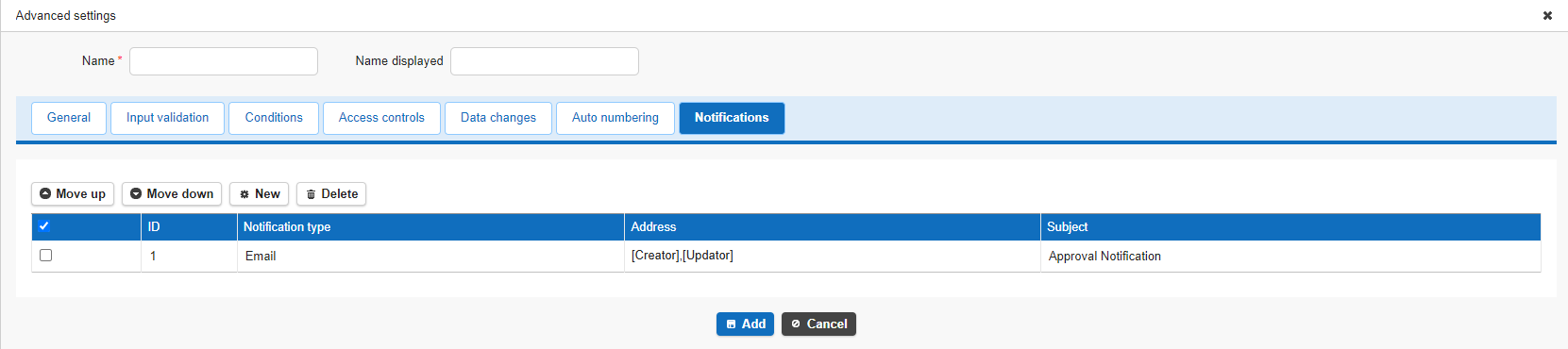
Configuration Items
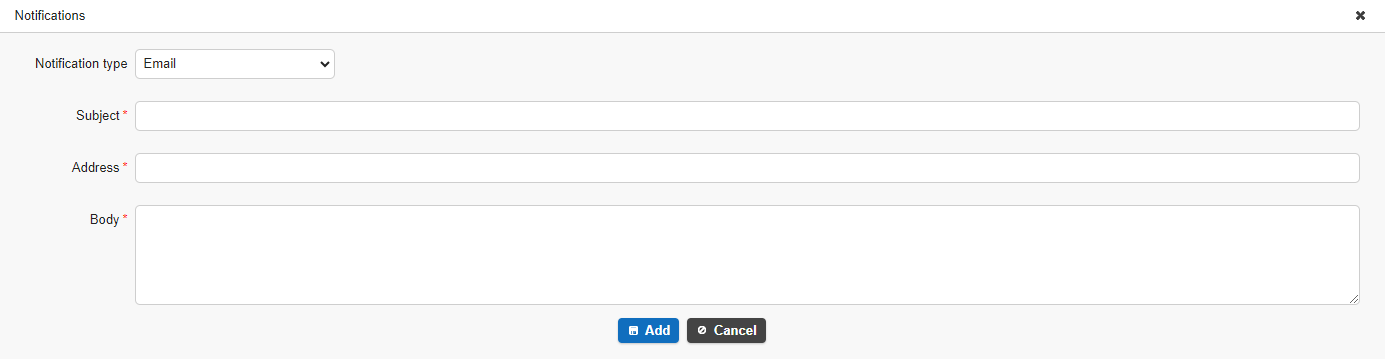
| Field Name | Description | Configuration Method |
|---|---|---|
| ID | Notification management ID | Not editable |
| Notification Type | Specify the notification type | Select from Email, Slack, ChatWork, LINE, LINE Group, LINE WORKS, Teams, Rocket.Chat, or InCircle |
| Subject | Specify the subject of the notification email (*Required) | Enter any subject 2 |
| Address | Specify the notification destination (*Required) | Enter an email address, webhook, room ID URL, LINE User ID, Group ID, or LINE WORKS webhook URL. |
| Cc | Specify the address to set as Cc on the notification email | Enter any email address. Can only be specified when the notification type is Email. |
| Bcc | Specify the address to set as Bcc on the notification email | Enter any email address. Can only be specified when the notification type is Email. |
| Token | Specify the ChatWork token or the LINE bot account access token | Enter the obtained ChatWork token or LINE bot account access token 1 |
| Content | The format output in the body of the notification (*Required) | Enter any content 2 |
Specifying the Notification Type
| Notification Type | Description |
|---|---|
| Configure Pleasanter to send email | |
| Slack | Configure notifications to Slack |
| ChatWork | Configure notifications to ChatWork |
| LINE | Configure notifications to LINE (when notifying individual users) |
| LINE Group | Configure notifications to LINE (when notifying a LINE group) |
| LINE WORKS | Configure notifications to LINE WORKS |
| Teams | Configure notifications to Microsoft Teams |
| Rocket.Chat | Configure notifications to Rocket.Chat |
| InCircle | Configure notifications to InCircle |
- Only notification types enabled in "Parameter Settings: Notification.json" can be selected.
- To notify by email, email sending must be configured.
Targets That Can Be Specified as Email Notification Recipients
| Target | Behavior |
|---|---|
| Fixed email address (example@example.com) | Sent to the specified fixed address for all target records. If multiple fixed addresses are specified, the email is sent to all of them as To recipients. |
| Person in Charge, Manager | Sent to the email address of the user specified as the person in charge or manager of the target record. |
| Title, Body, Class, Description | Sent to all email addresses listed in the Title, Body, Class, and Description of the target record. Email addresses can be separated by commas or line breaks. |
Supported Versions
| Supported Version | Details |
|---|---|
| 1.4.10.0 and later | Added "Value Function Operation" to change types Added Cc and Bcc to email notification recipients |
| 1.4.11.0 and later | Added "Added Button / Create or Update" to execution types Added an icon setting to the General tab of common settings |
| 1.5.1.0 and later | Added LINE WORKS to the notification types on the Notifications tab |