Script
Overview
On the "Scripts" tab of the "Table Management" screen, you can add scripts to a table.
What you can do on the Scripts tab
- Create, edit, and register scripts using the code editor
- Configure the "Output to" setting for scripts
- Enable or disable scripts
- Use the Code Editor, which helps users edit scripts (available when using the second-generation UI theme)
- Use the draft feature to test how a script behaves
Pleasanter Code Assist
Installing Pleasanter Code Assist lets you create, edit, and add scripts using the advanced editing features of Visual Studio Code.
Prerequisites
- You need "Manage site" permission to configure this setting.
Operation Procedure
Displaying the Scripts tab
- Click "Admin" in the navigation menu.
- Click "Manage table".
- Click the "Scripts" tab.
Script list
The "Scripts" tab of the "Table Management" screen displays a list of scripts.
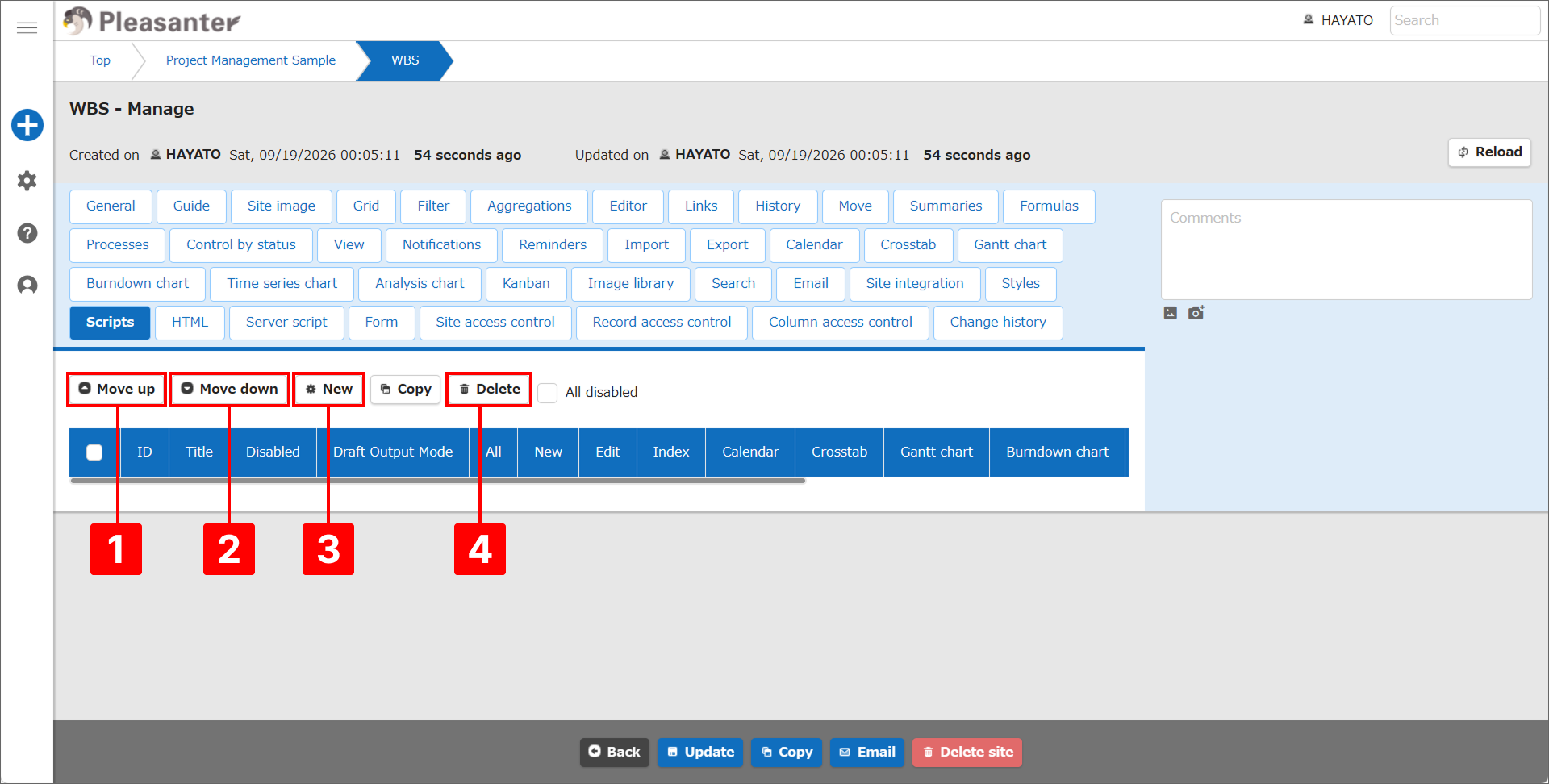
Selecting a script using the checkbox on the left of the list lets you perform the following operations.
| No | Button | Function |
|---|---|---|
| 1 | Move up | Moves the selected script up one position. |
| 2 | Move down | Moves the selected script down one position. |
| 3 | Copy | Duplicates the selected script. The duplicated script is added to the bottom of the script list. |
| 4 | Delete | Removes the selected script from the list. Clicking "Delete" displays a dialog. Clicking "OK" removes it from the list. |
Creating, editing, and adding a script
- Click "New", or click a script that has already been added to the script list.
- The script edit screen is displayed.
-
Configure each of the following items.
Item Description How to set it Title Enter a title for the script. Enter any title. Script Enter the script. Enter any script. Disabled Toggles whether the script is enabled or disabled. Turn this on to disable the script, or off to enable it. Draft Output Mode See Draft Feature. See Draft Feature. Draft Key See Draft Feature. See Draft Feature. Output to Select the screen(s) to output to. See "Setting up Output to" below. What is the Code Editor?
When you are using the second-generation UI theme, you can use the Code Editor, which helps users edit scripts.
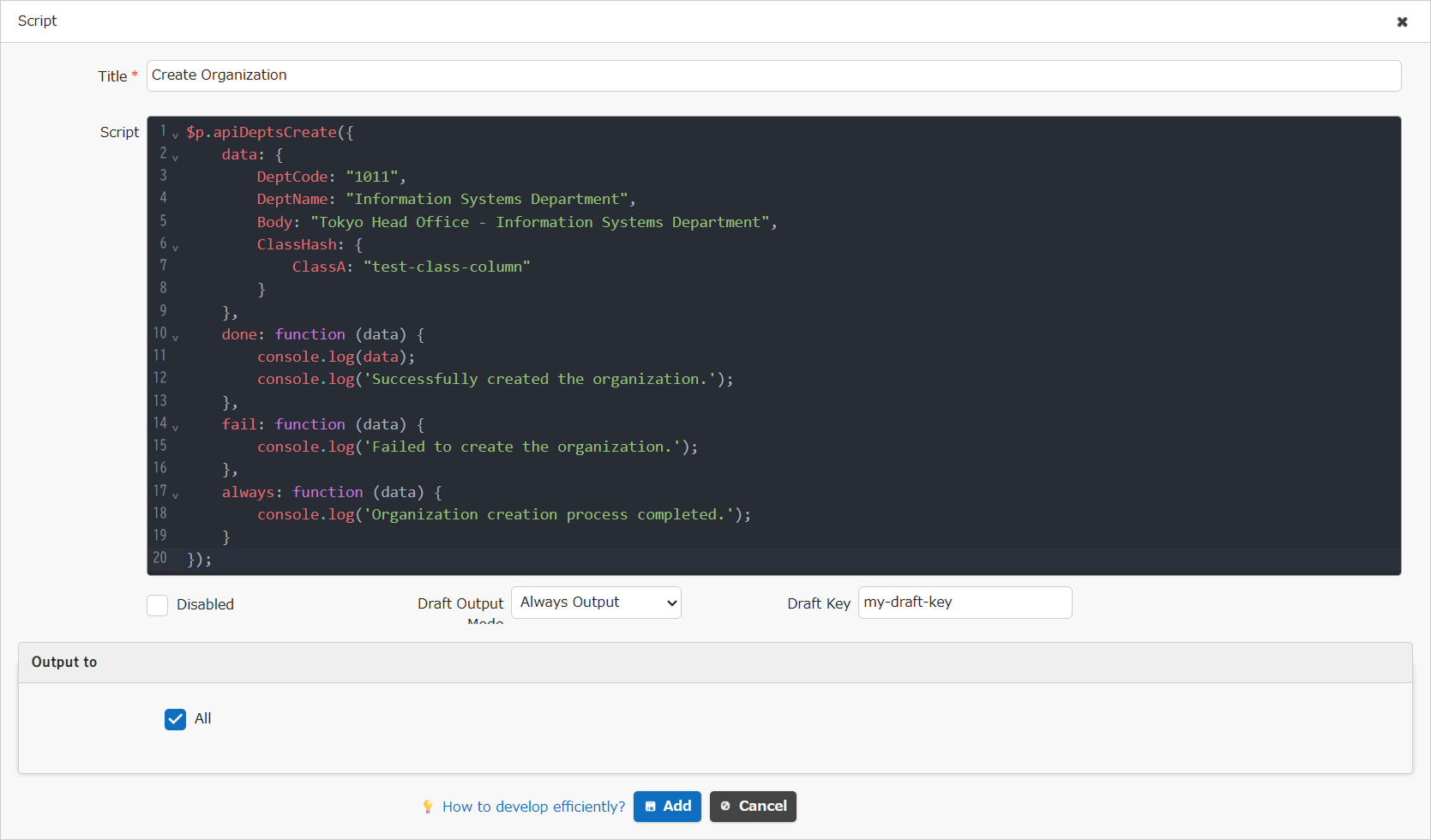
The main editing features provided by the Code Editor are as follows.
- Syntax highlighting
- Displaying code hints
- Indenting with the Tab key, and more
To use the Code Editor, set the
EnableCodeEditorparameter inGeneral.jsontotrue.Setting up Output to
By default, the "All" checkbox is turned on in "Output to".

Turning off the "All" checkbox displays the other destinations in "Output to". Select any destination you want.
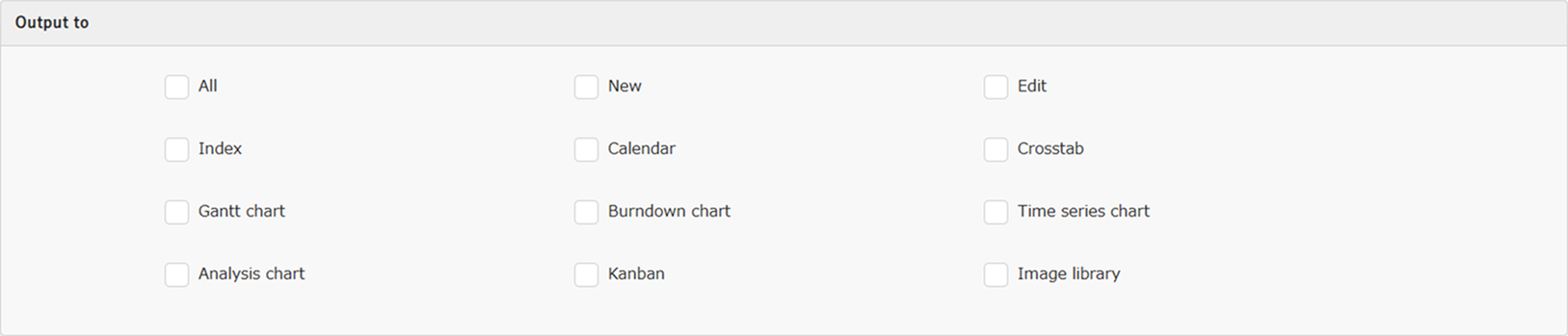
-
Click "Add" if you created a new script, or "Update" if you edited an existing script.
-
Click "Update" in the command button area.
Disable all
Turning on All disabled at the top of the script list disables all existing scripts.
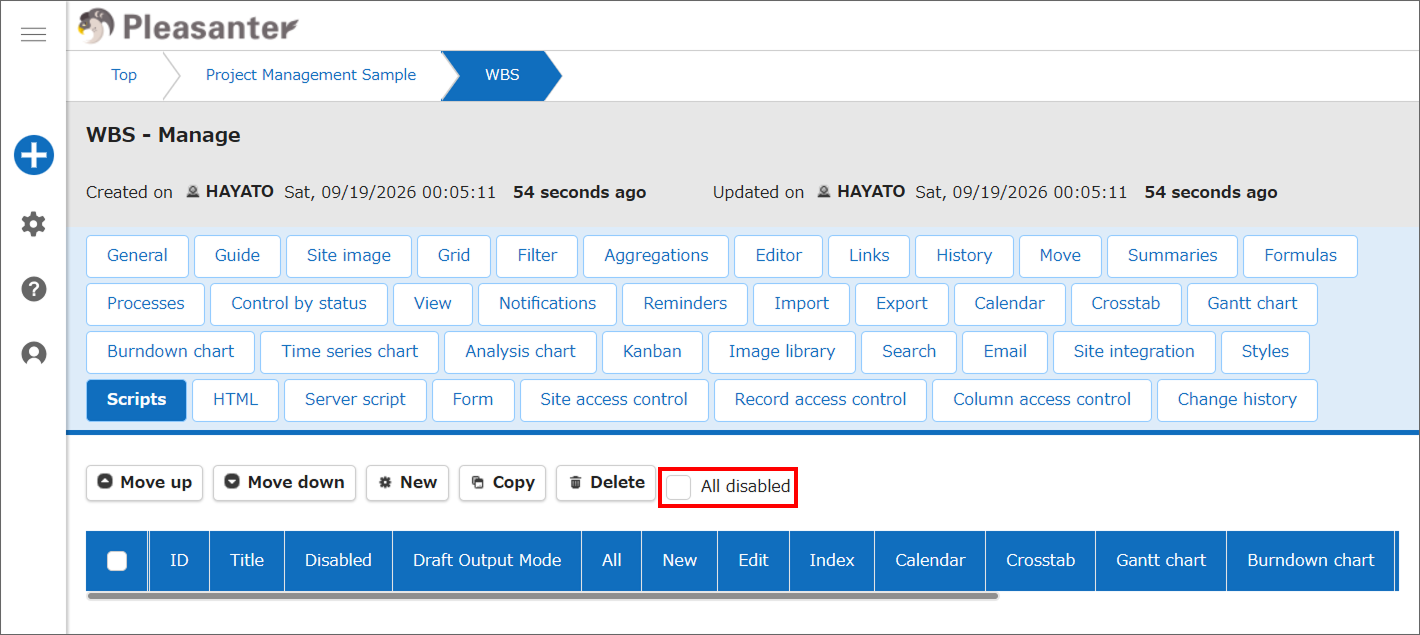
Warning
Turning on "All disabled" does not change the state of each script's individual "Disabled" checkbox.
Supported Versions
| Supported Version | Details |
|---|---|
| 1.4.14.0 and later | Added the "All disabled" feature |
| 1.5.7.0 and later | Added the "Draft output" feature |