Summary
Overview
The number of records in the "Child Table" to which a "Link" has been set, as well as the sum, average, maximum, and minimum of the "Numerical Value", are stored in the "Numerical Value" of the records to which the link has been set in the "Parent Table". The "Summary" function works when a linked child record is added, updated, or deleted.
Limitations
- If the link column is set to multiple selections, it cannot be aggregated correctly.
- If child records exist before the summary settings are made, the sync function must be used to reflect the aggregation results.
- The summary function only works one level from the "Child Table" to the "Parent Table". Even if a summary is set for the "Parent Table" to its "Parent Table", multi-level summarization will not be performed.
Prerequisites
- "Site Administration Permission" is required to configure settings.
- To use the summary function, set a "Link" to the child table as a preliminary step.
Operation Procedure
- Open the "Child Table" where a "Link" is set.
- Click "Manage Table" from the "Manage" menu.
- Open the "Summary" tab.
- Click the "Create New" button.
- In "Site" on the left side of the dialog, set the "Parent Table" where the summary results will be saved.
- In "Column" on the left side of the dialog, set the "Column" of the "Parent Table" where the summary results will be saved.
- If "View" is set for "Parent Table", you can specify "View" for "Condition" on the left side of the dialog, "Summary" will not be performed for "Parent Record" that do not match the "Filter" specified for "View".
- If "Condition" is selected on the left side of the dialog, you can specify "Set to zero if the condition is not met". Check this box to store zero when the "View" condition is not met. If this box is unchecked, the numerical value will not change.
- In "Link Column" on the right side of the dialog, set the "Column" that is associated with the "Parent Table".
- In "Summary Type" on the right side of the dialog, set either count, total, average, maximum, or minimum.
- Set the "Numerical Value" that contains the numerical value to be aggregated in the "Summary Column" on the right side of the dialog. If "Summary Type" is set to "Count", this column will not be displayed.
- If View is set in the "Child Table", you can specify "View" in "Condition" on the right side of the dialog. "Child Record" that do not match the "Filter" specified in "View" will not be aggregated in the summary.
- Click the "Add" button.
- Click the "Update" button at the bottom of the screen.
- If there are already records to be aggregated, check the target "Summary" and click the "Sync" button to execute the summary of the existing records.
Operation Image
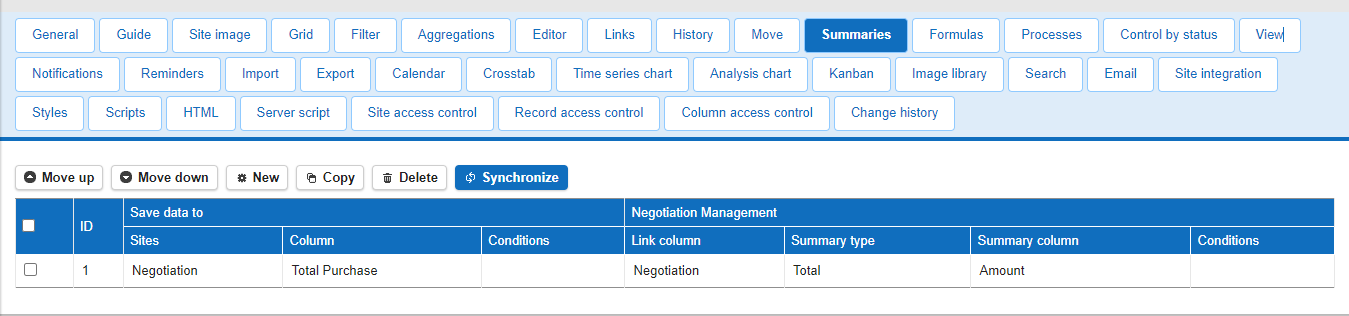
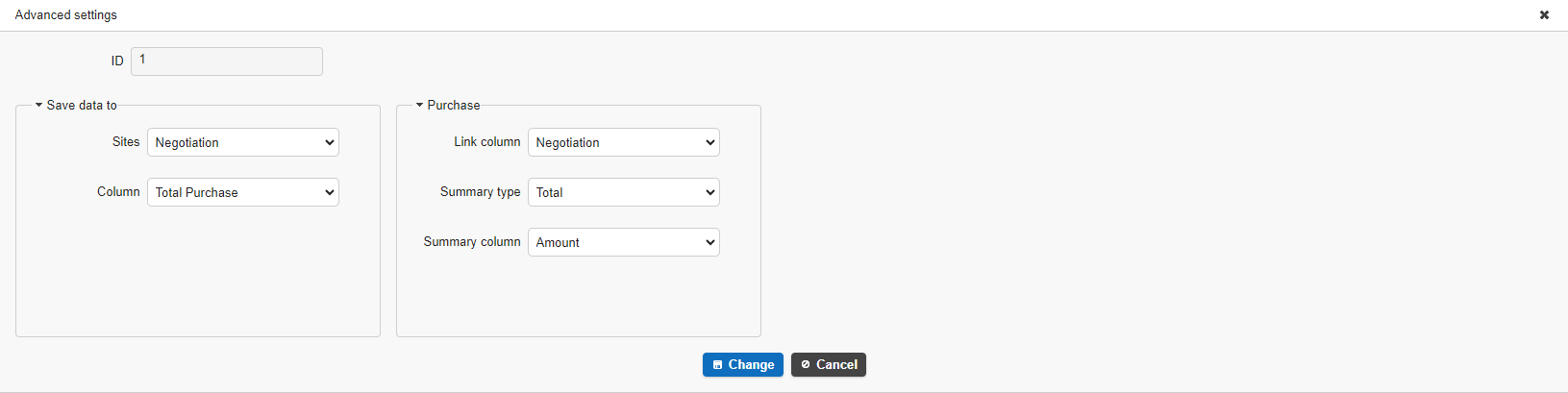
You can select the summary type from "Count", "Total", "Average", "Minimum", and "Maximum". In this case, insert the "Total (Set by Summary Type)" of the "Amount" column of the child table for which the summary is set into the "Purchase Total" column of the parent table "Business Negotiation" table. Data registered before the summary setting registration will not be aggregated, so click the "Sync" button after setting. To synchronize, check the box to the left of the row of the summary you want to synchronize from the list and click the "Sync" button.
Usage Examples
As an example, create an application to manage inventory.
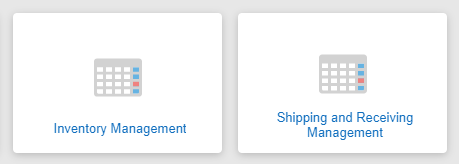
Create two recorded tables: Inventory Management and Shipping and Receiving Management.
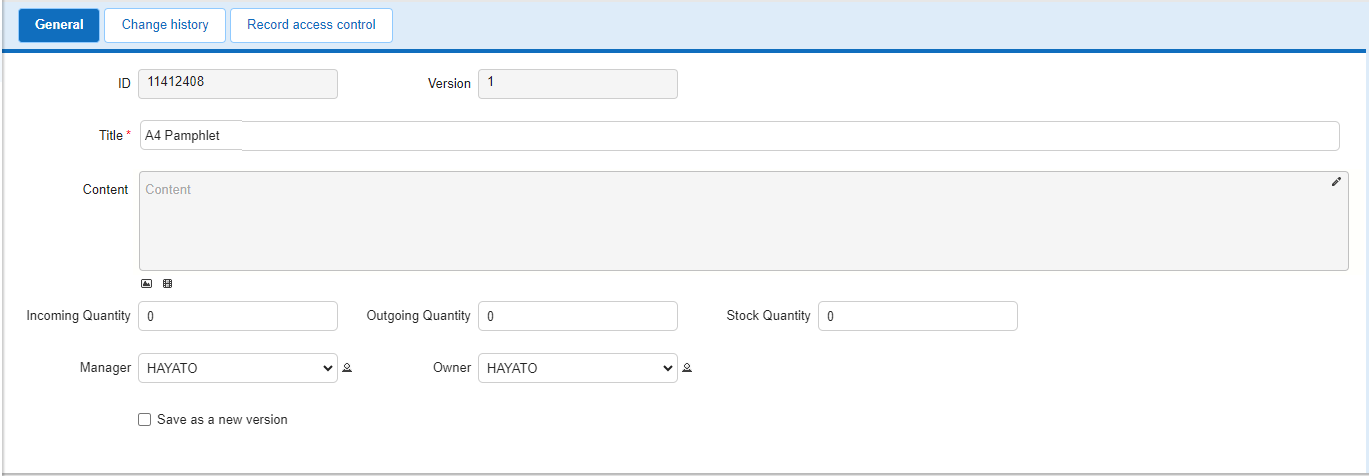
Inventory Management Table
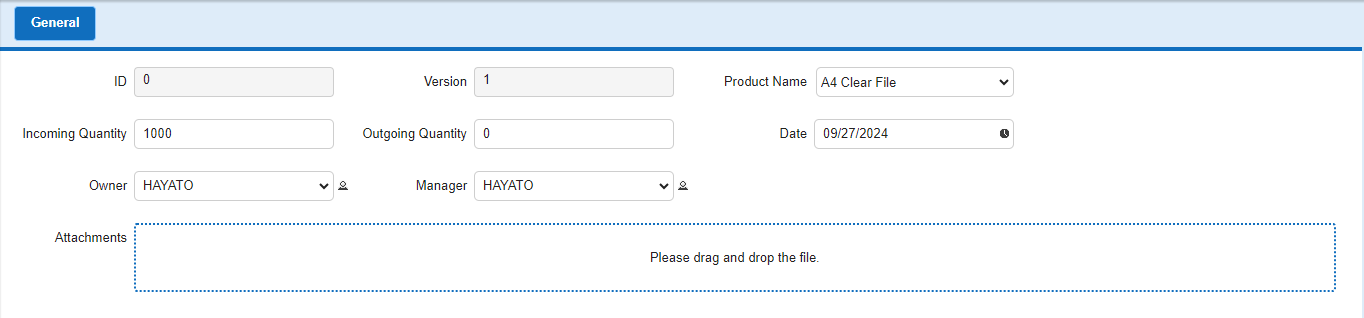
Shipping and Receiving Management Table
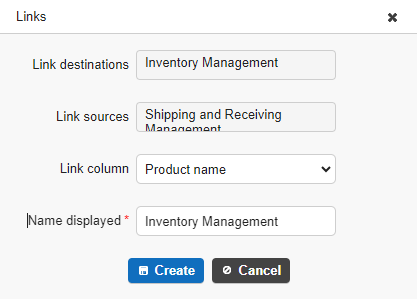
Link the Inventory Management Table as the parent and the Shipping and Receiving Management Table as the child.
Since the Inventory Management Table will be the master for products, register the product names.
Leave the Incoming Quantity, Outgoing Quantity, and Stock Quantity as zero since they will be calculated automatically.

Set up the calculation formula to automatically calculate the inventory quantity.

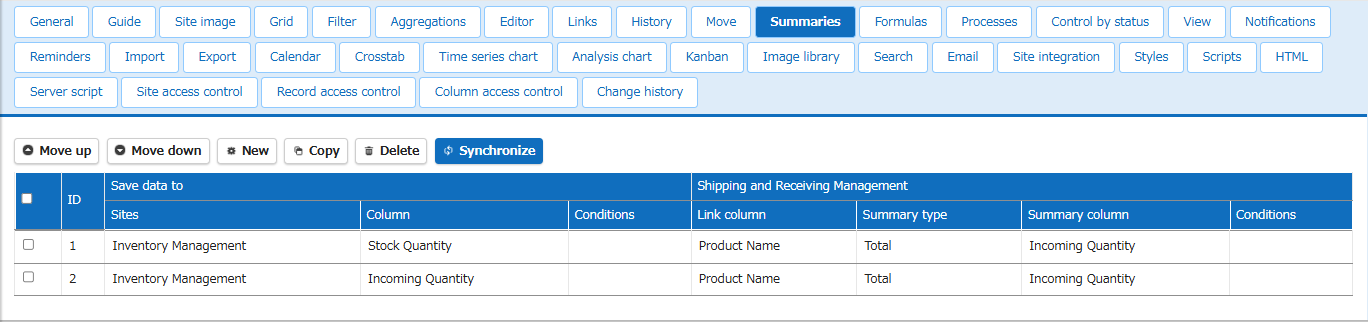
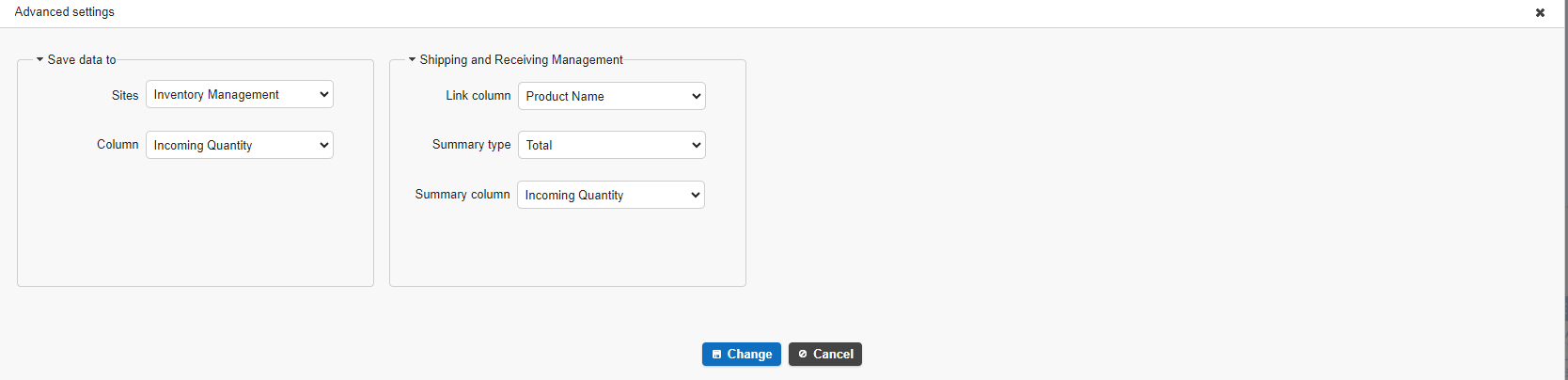
Set up the summary in the Shipping and Receiving Management Table as follows to automatically calculate the incoming and outgoing quantities.
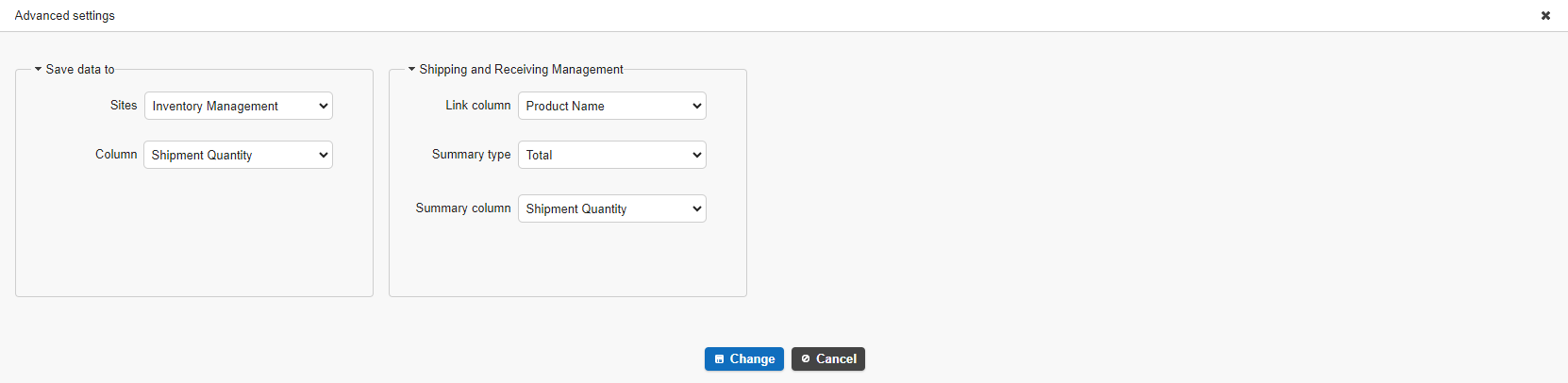
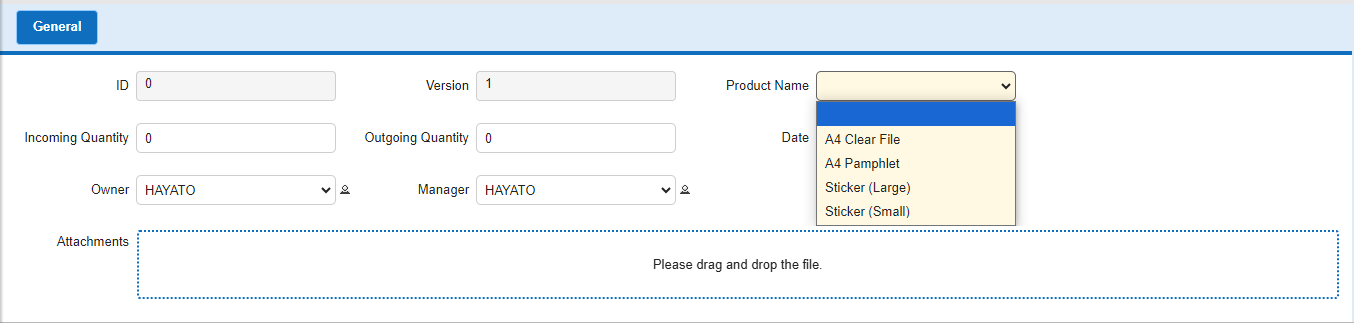
Create a new record in the Shipping and Receiving Management Table.
The product name linked to the Inventory Management Table will be displayed in the product name linked to the Inventory Management Table.
Enter the outgoing quantity and register.
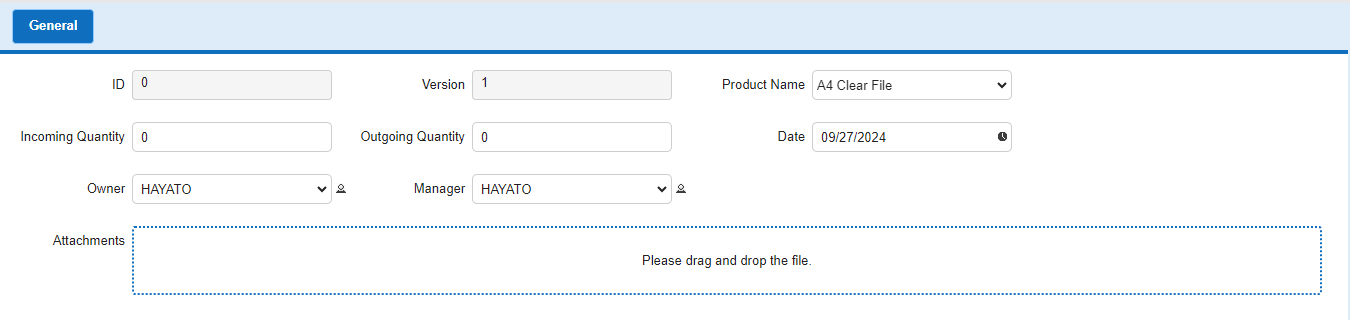
The body registered in the Shipping and Receiving Management Table is automatically reflected in the Inventory Management Table.
