View
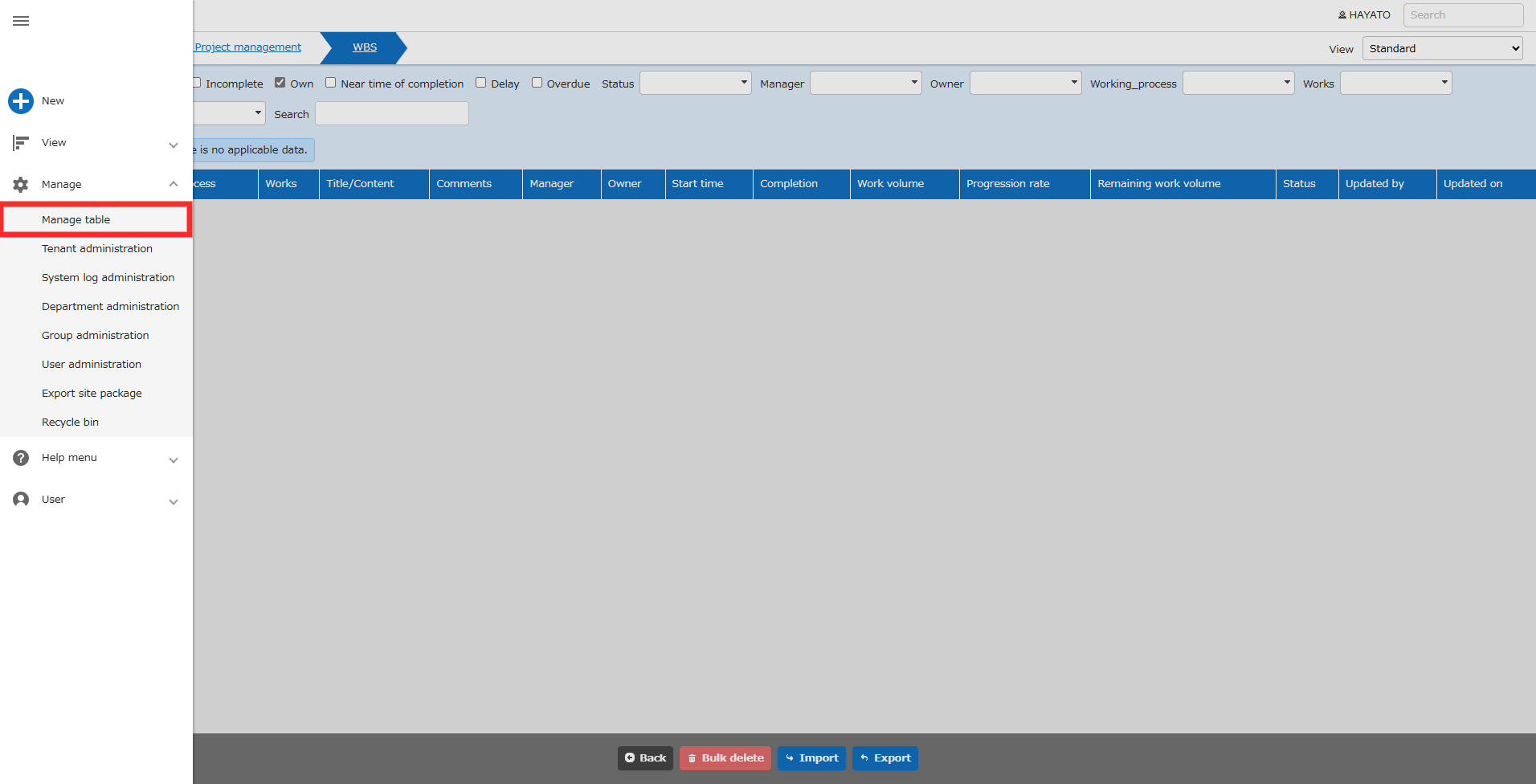
With the table open, click "Manage" - "Manage Table" from the navigation menu.
*This will not be displayed to users who do not have site administration permissions.
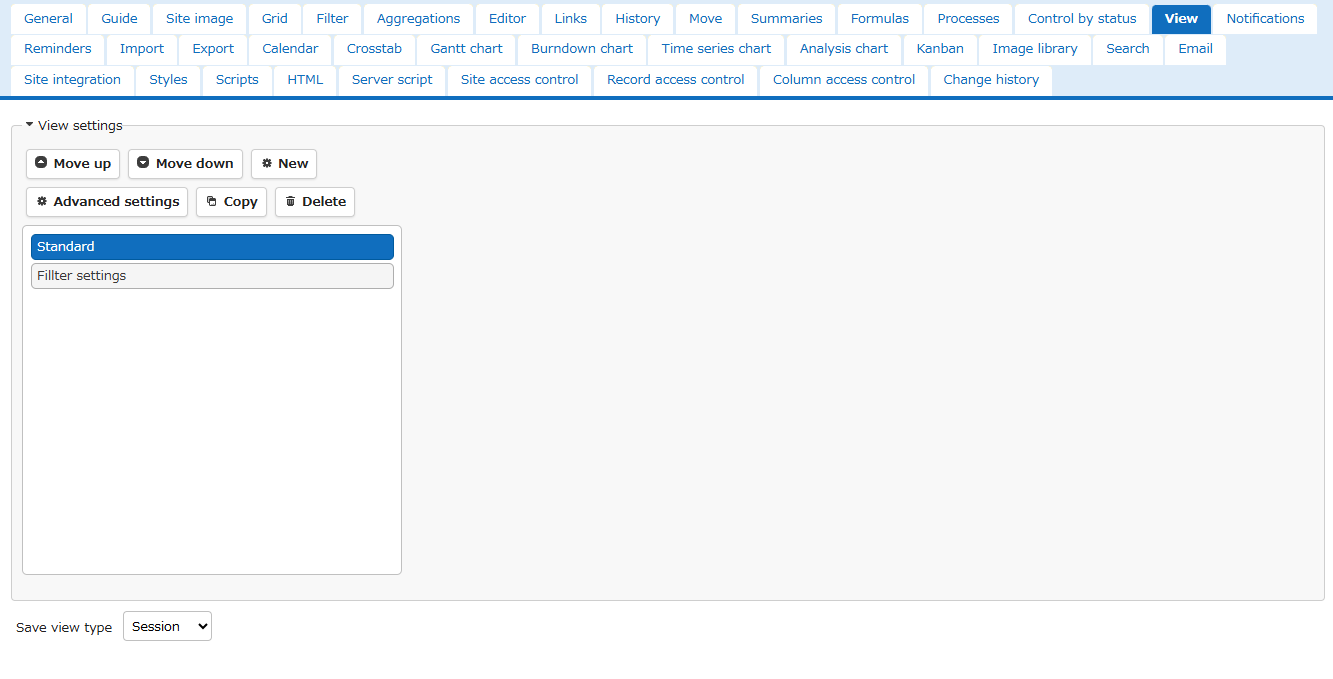
You can set the save type for the "View".
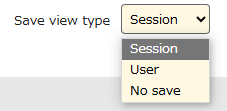
| Save type | Description |
|---|---|
| Session | Retained under the following conditions. (1)Until you log out of Pleasanter (2)Within the RetentionPeriod value of Session.json (3)Until all browsers are closed |
| User | Save to database and apply next time |
| Do not save | Always display in initial state |
Create New View/Advanced Settings
To create a new view, click the Create New button. To change the settings of an existing view, click the Advanced Settings button.
The tabs in the table below are displayed on the new view and advanced settings screen.
| Tab name | Description |
|---|---|
| Index | Select the display columns, Filter And Aggregation Settings, and Command Button Settings. |
| Filter | Settings for searching (filtering) records displayed in the view |
| Sorter | Settings for sorting (sorting) records displayed in the view. |
| Editor | Settings for buttons displayed on the record editor screen. |
| Calendar | Settings when the view is displayed as a calendar. |
| Crosstab | Settings when the view is displayed as a crosstab. |
| Gantt chart | Settings when the view is displayed as a Gantt chart. |
| Time series chart | Settings when the view is displayed as a time series chart. |
| Kanban | Settings when the view is displayed as a Kanban. |
| Access control | Access control settings for views |
Example Of View Settings
-
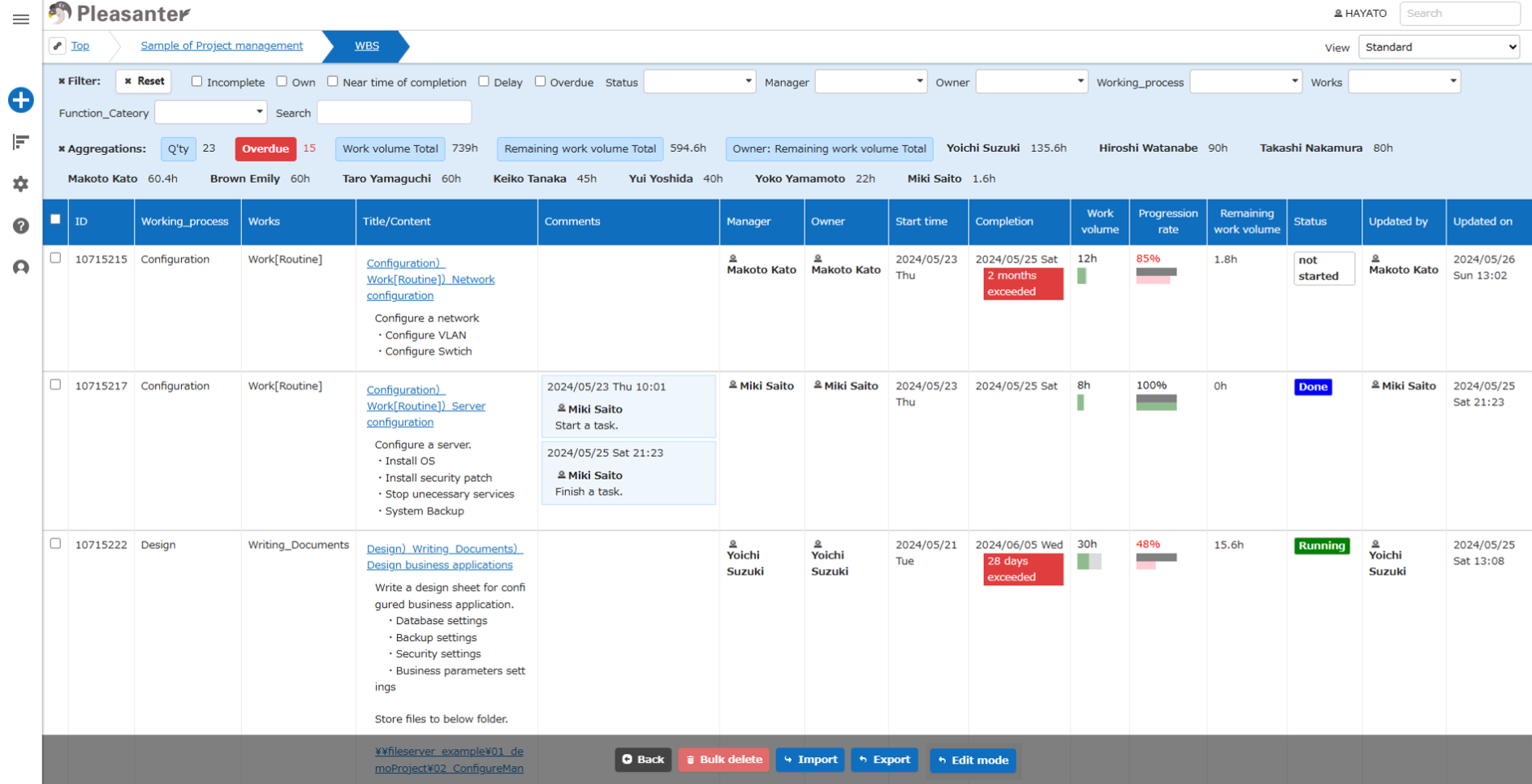
If you increase the number of setting columns in the index, the amount of information per line will increase, so the number of lines that can be displayed on one screen will decrease.
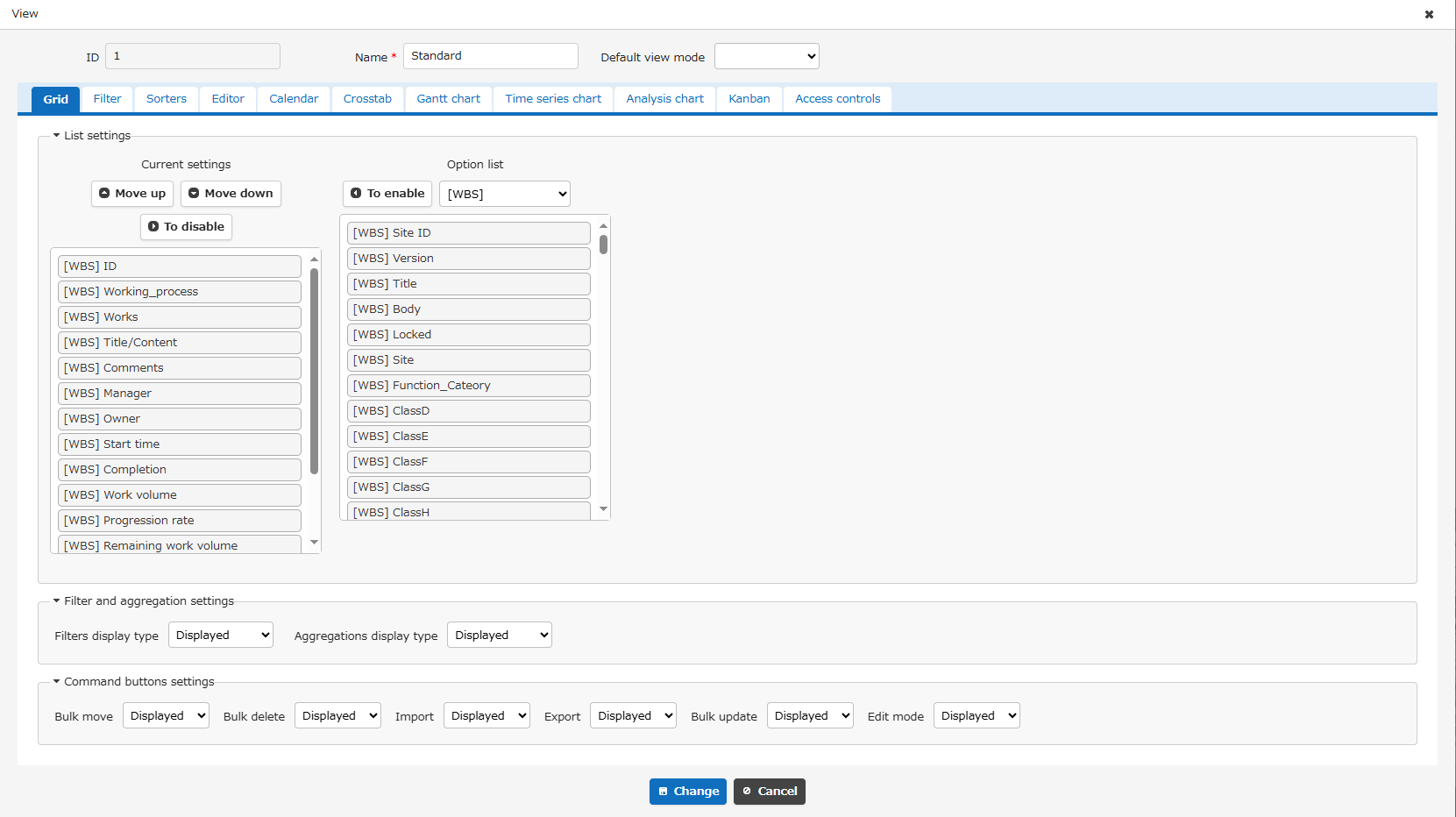
Screen Index display example:
-
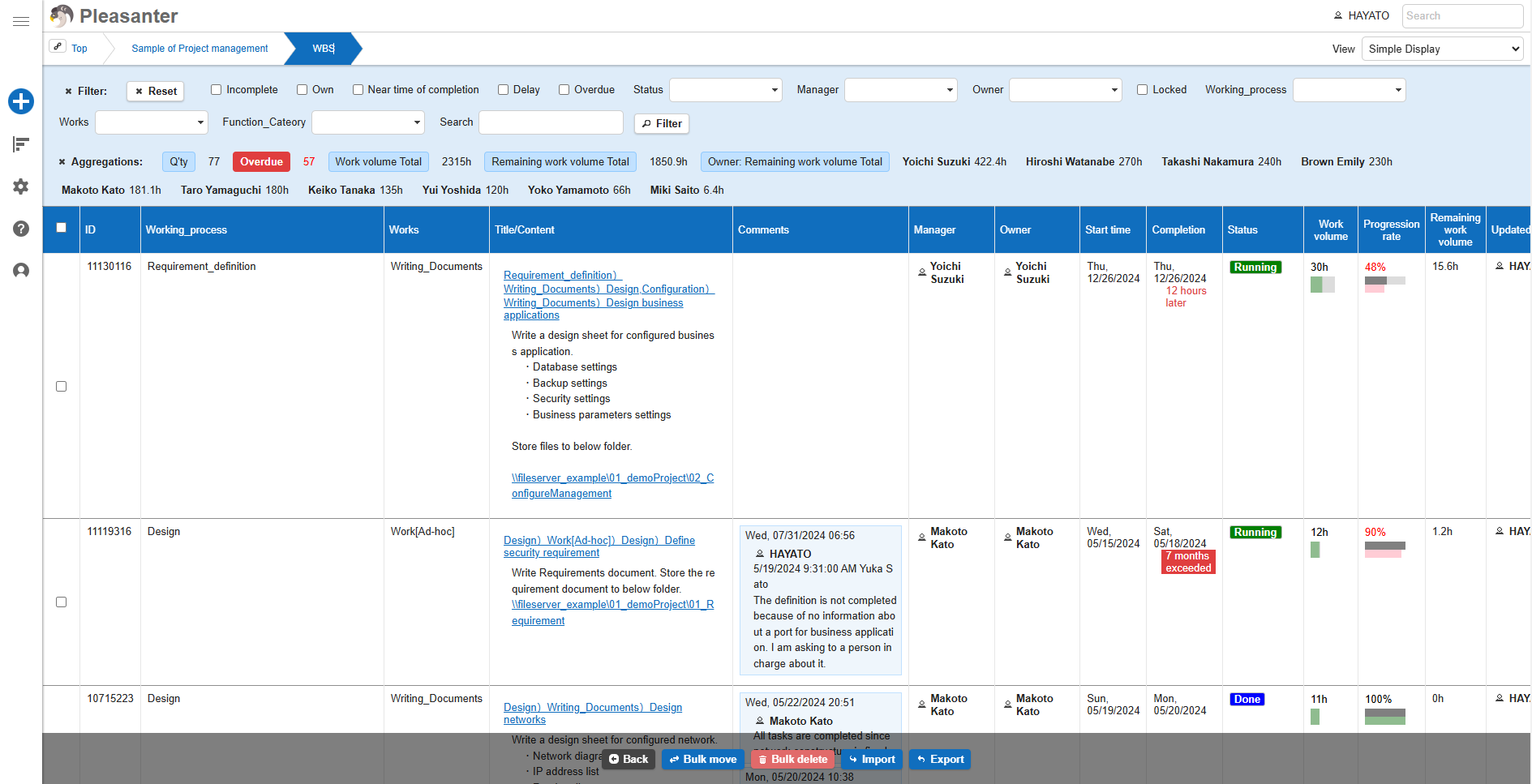
If you limit the index of setting columns to only the necessary information, you can increase the number of lines that can be displayed on one screen.
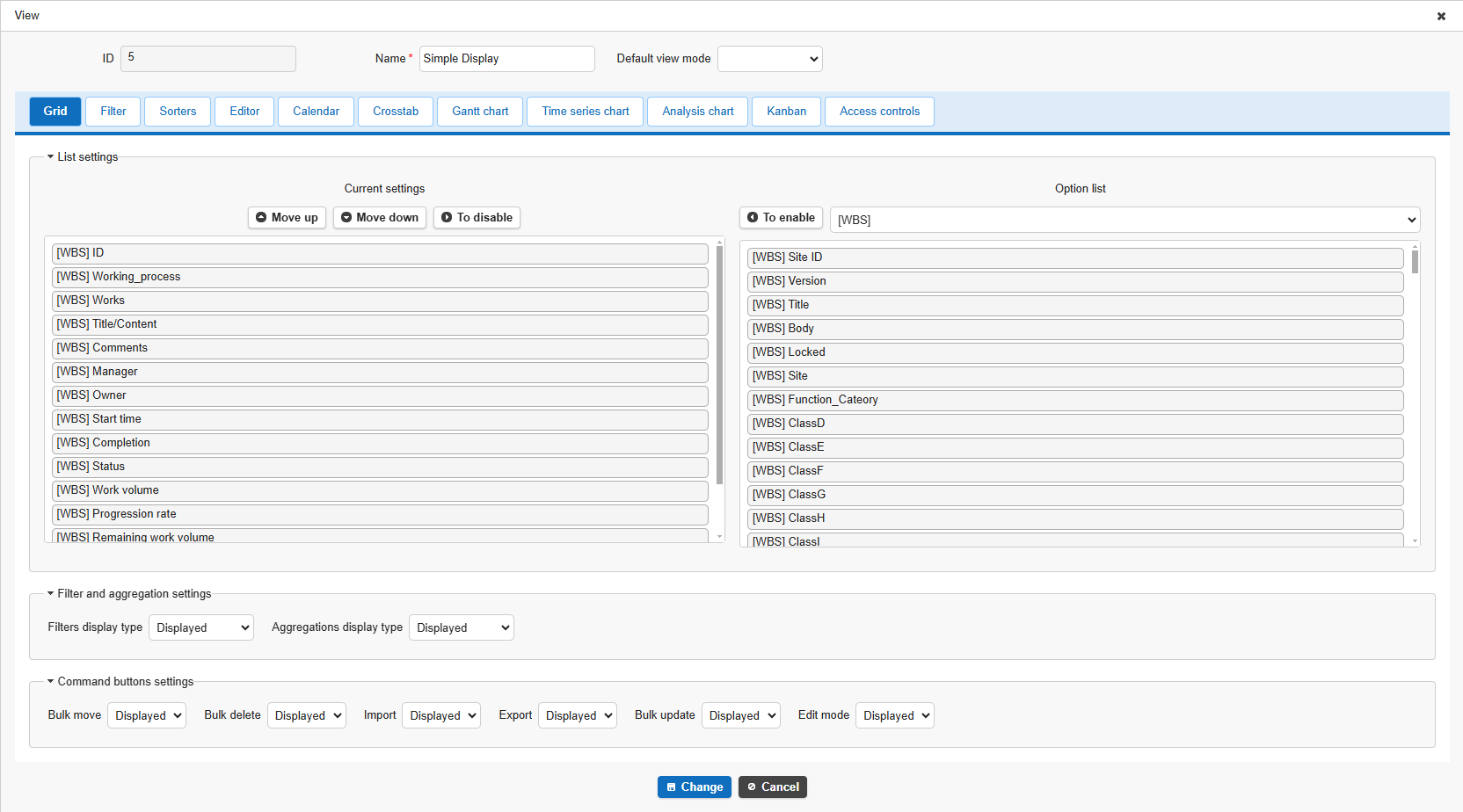
Screen Index display example:
Related Information
- Manage Table
- Manage Table: View: Create New
- Manage Table: View: Advanced Settings: Index Tab: Index Settings
- Manage Table: View: Advanced Settings: List tab: Filter And Aggregation Settings
- Manage Table: View: Advanced Settings: List Tab: Command Button Settings
- Manage Table: View: Advanced Settings: Access Control Tab