MCP Log Administration
Overview
You can view MCP logs output to the database in Pleasanter.
Prerequisites
- To enable log output, you need to set the EnableLoggingToDatabase parameter in the configuration file "McpServer.json" to true.
Limitations
- Only privileged users can use this feature.
- Records cannot be updated.
- The displayed columns cannot be changed.
- Logs are displayed in descending order by creation date and time; custom sorting is not available.
- You must specify at least one "Filter" condition. If no condition is specified, clicking the "Filter" button will not display any logs.
- The export format cannot be changed.
- Export outputs logs matching the specified conditions among the records displayed after clicking the "Filter" button.
Viewing MCP Logs
When a privileged user opens the following URL, the MCP log list screen is displayed.

- {Path} may be omitted depending on the environment.
- The {ServerName} and {Path} may differ depending on the setup.
- Check the URL you are actually using and modify it accordingly.
- The following are example URLs for each environment.
| Environment | ServerName | Path | Example URL |
|---|---|---|---|
| Community Edition Enterprise Edition | localhost | None | http://localhost/mcplogs |
| Pleasanter.net | pleasanter.net | fs | https://pleasanter.net/fs/mcplogs |
Configuring Filters
When you configure filters at the top of the MCP log list screen, logs matching the conditions are displayed as records. After setting the conditions, click the Filter button.

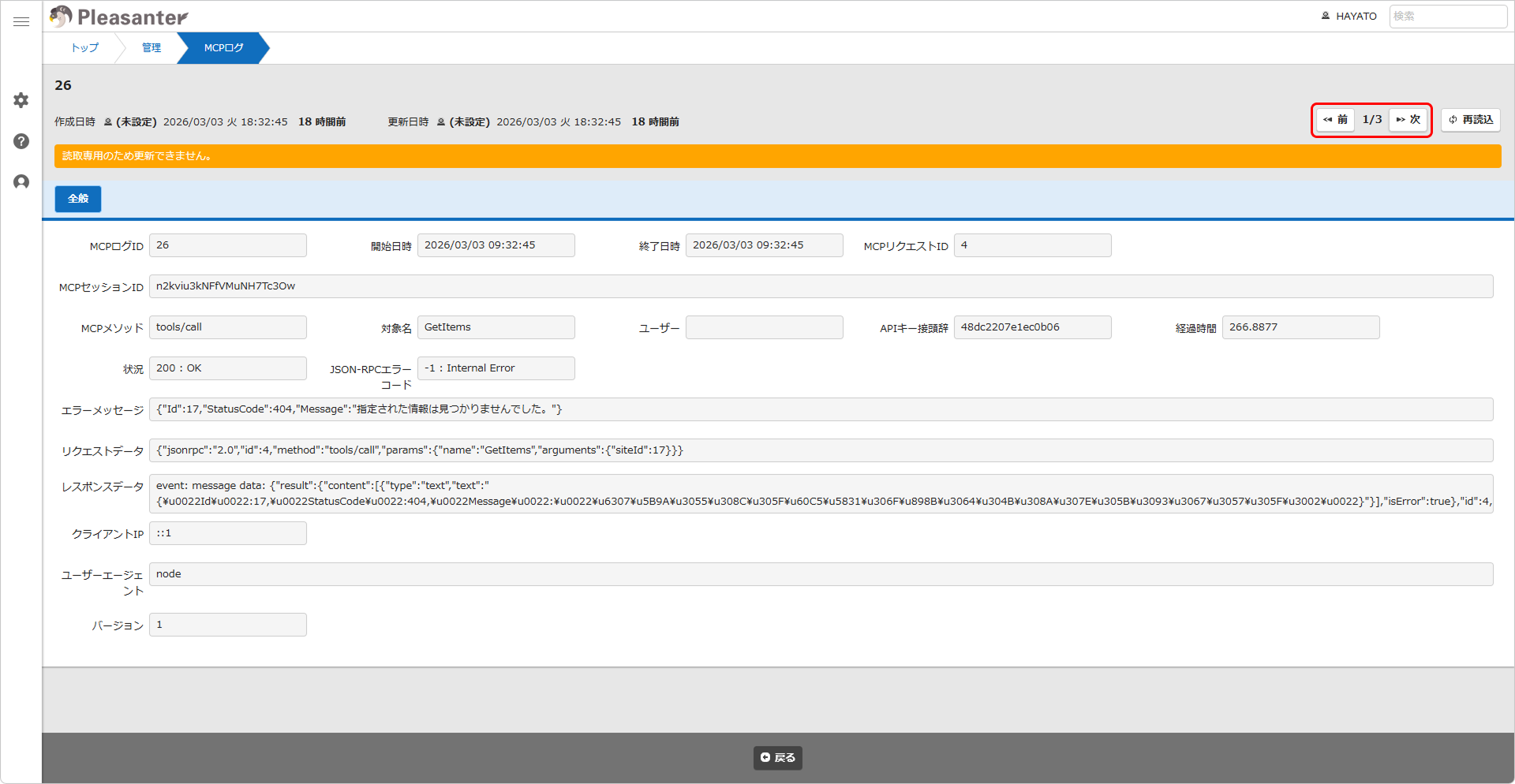
Clicking a log record row displays the details in a single-record view. Note that records are read-only and cannot be updated, deleted. Clicking the Previous/Next buttons allows you to navigate between adjacent logs.
Information Output to MCP Logs
The following information is output to MCP logs:
| DB Column Name | MCP Log Screen Field Name | Description |
|---|---|---|
| McpLogId | MCP Log ID | Management number for the MCP log (assigned automatically) |
| StartTime | Start Date/Time | Timestamp when the following started: ・A specific event ・A tool call ・An exchange with the server |
| EndTime | End Date/Time | Timestamp when the following ended: ・A specific event ・A tool call ・An exchange with the server |
| McpRequestId | MCP Request ID | Management number for the MCP request (assigned automatically) |
| McpSessionId | MCP Session ID | Management number for the MCP session (assigned automatically) |
| McpMethod | MCP Method | Method used in the request |
| TargetName | Target Name | Tool name or prompt name used in the request |
| UserId | User | Pleasanter user ID associated with the API key |
| ApiKeyPrefix | API Key Prefix | First 16 characters of the API key |
| Elapsed | Elapsed Time | Difference between Start Date/Time and End Date/Time |
| Status | Status | HTTP status code |
| JsonRpcErrorCode | JSON-RPC Error Code | JSON-RPC error code (negative value indicates an error) |
| ErrMessage | Error Message | Error message body in JSON format |
| RequestData | Request Data | Request body in JSON-RPC format |
| ResponseData | Response Data | Response body in JSON-RPC format |
| UserHostAddress | Client IP | IP address of the client |
| UserAgent | User Agent | User agent name |
| Ver | Version | Version |
Maximum Number of Records Displayed
The maximum number of records displayed on the MCP log list screen can be configured using the LogExportLimit parameter in the configuration file "McpServer.json". LogExportLimit sets the maximum number of records displayed after filters are applied. It is not a parameter that sets an upper limit on the number of records in the database.
Exporting MCP Logs
- Display the MCP logs you want to export by following the steps in "Viewing MCP Logs" above.
- Click the "Export" button in the command button area.
- In the dialog that appears, select the character encoding and click the "Export" button.
Deleting MCP Logs
MCP log deletion is performed by a background service. For details, refer to the configuration file "BackgroundService.json".