System Log Management Function
System Log Management
You can view the system log by the following operations.
Limitations
- Only Privileged User can use this.
- Records cannot be updated.
- The columns displayed cannot be changed.
- The logs are displayed in descending order of creation date and cannot be sorted arbitrarily.
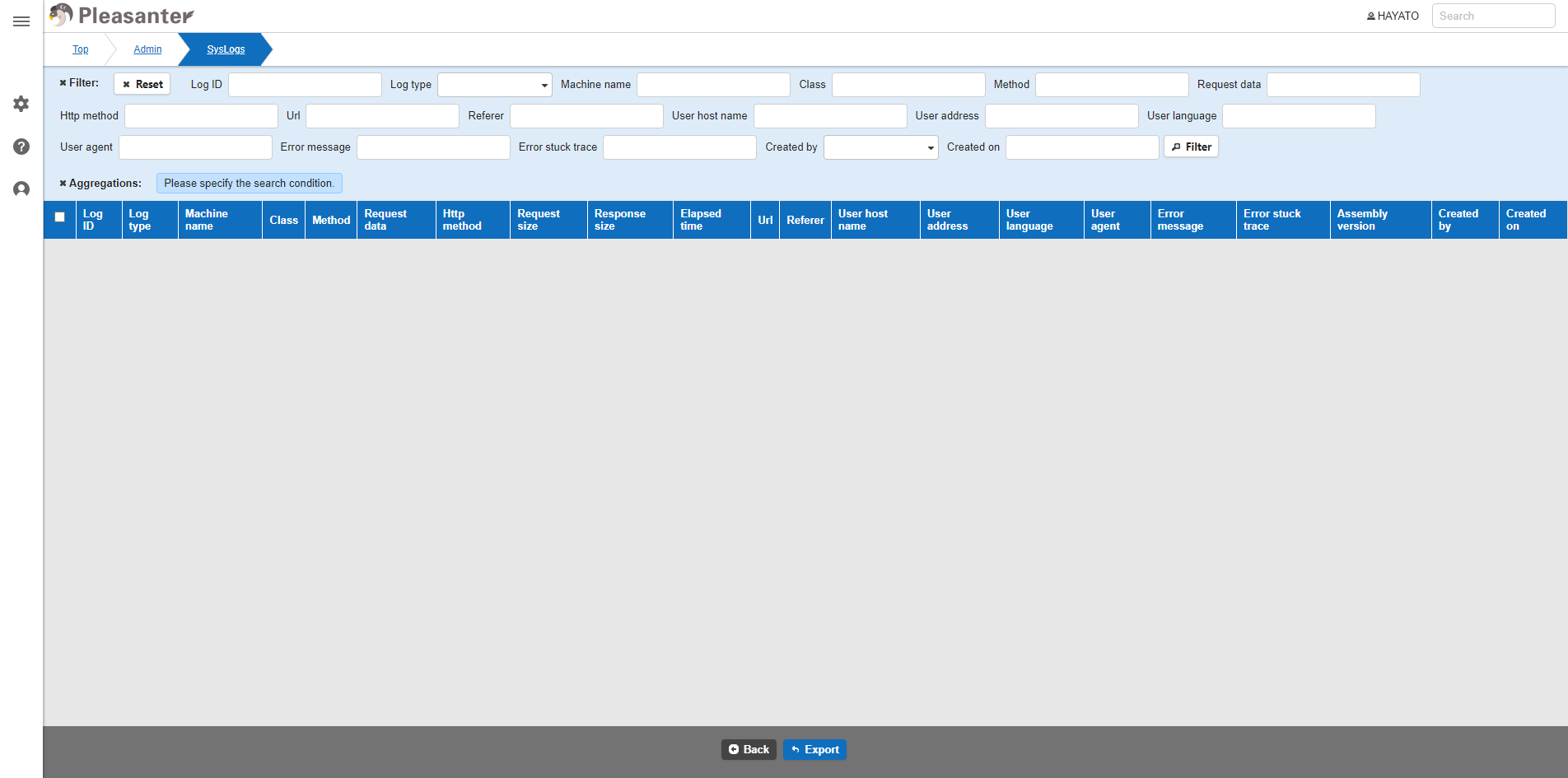
- Be sure to specify at least one "Filter" condition. If no conditions are specified, the system log will not be displayed even if you click the "Filter" button.
- The format at the time of export cannot be changed.
- The logs that match the conditions specified in the records displayed after clicking the "Filter" button will be exported.
Display System Log
-
Open the "Manage" menu and click "System Log Management".
-
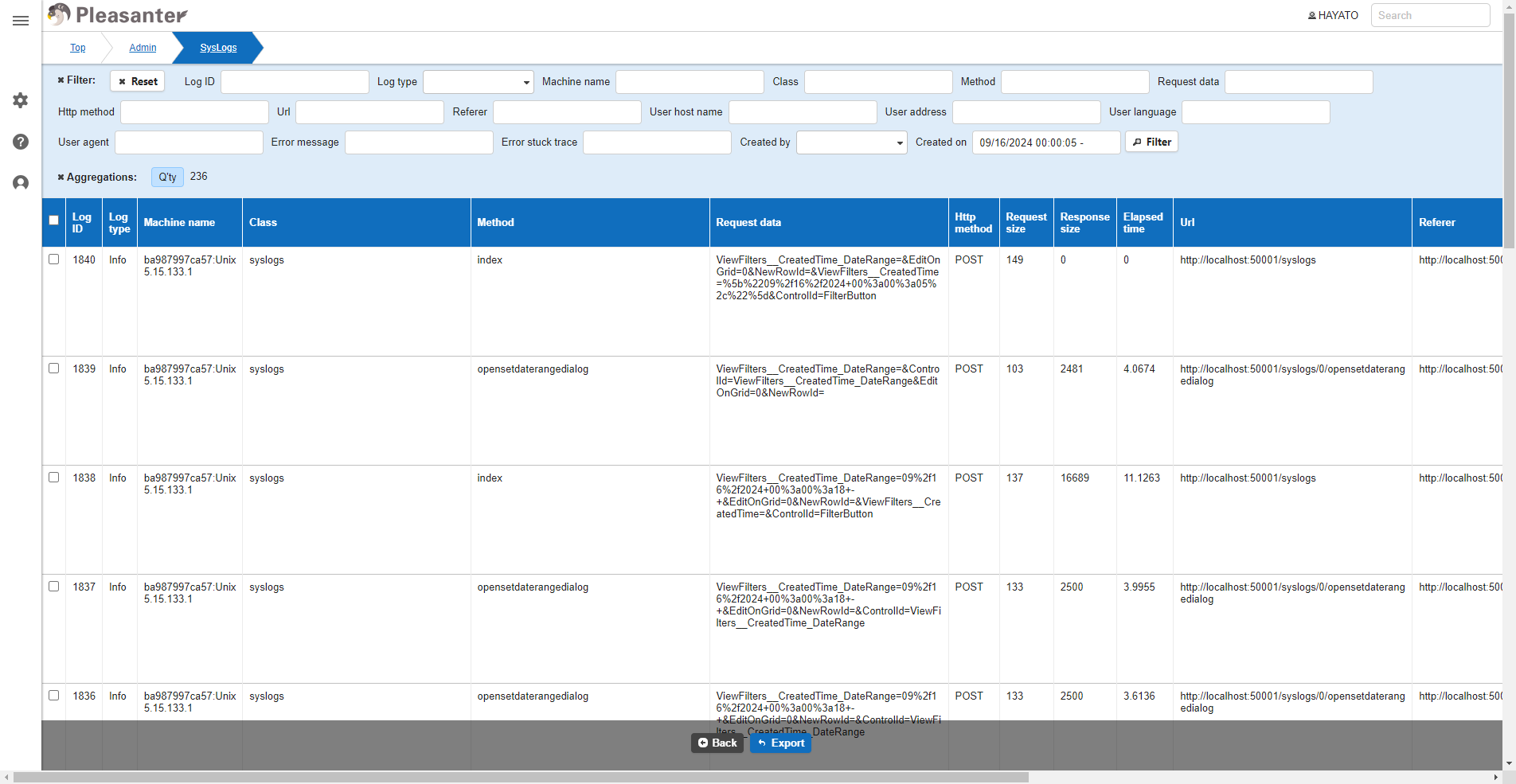
Enter the reference conditions and click the "Filter" button.
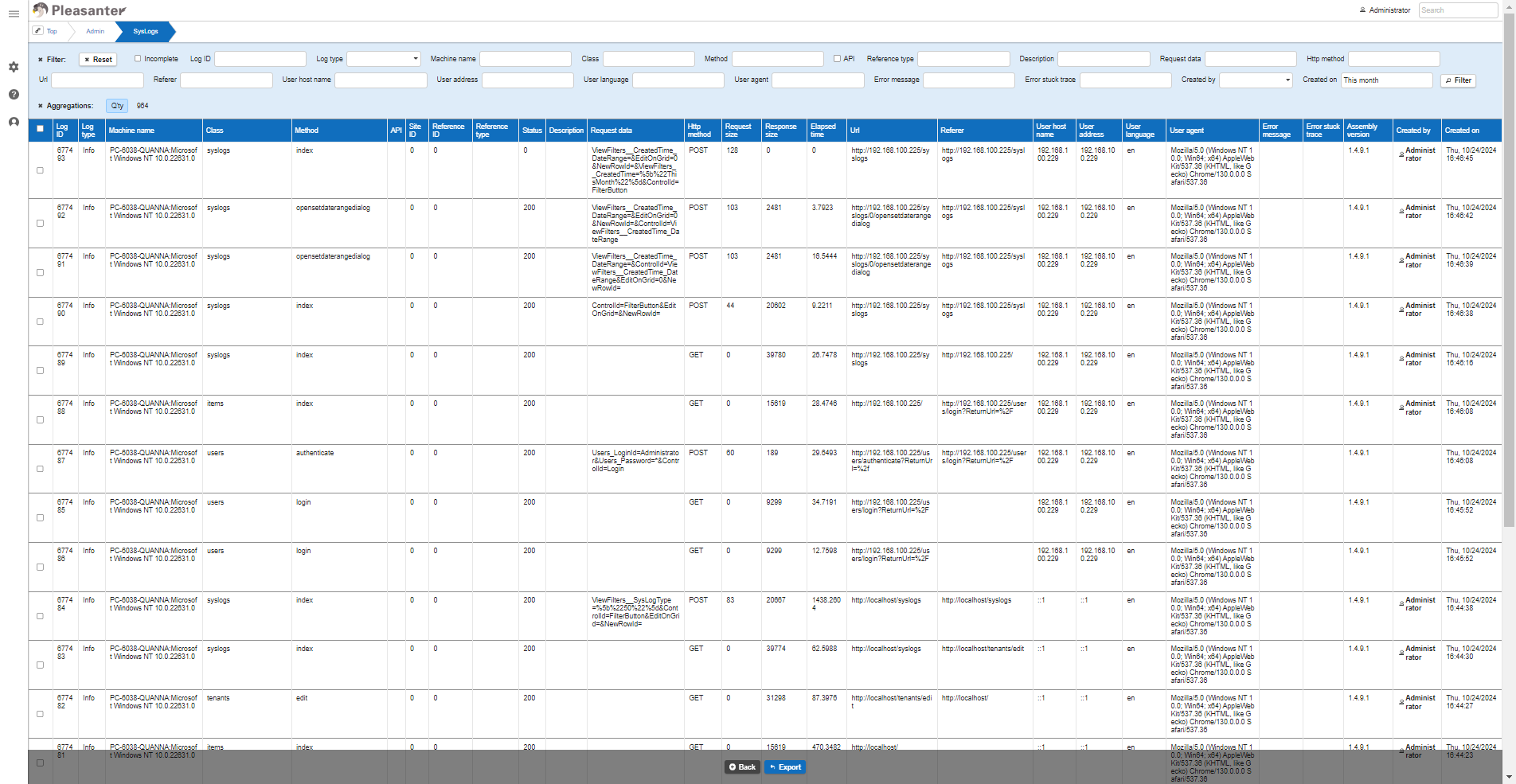
If you use the "System Log Extended Function", additional column information will also be displayed. (API, Site ID, Reference ID, Reference Type, Status, Description)
Export
- Display the system log you want to export using the steps in "Display System Log" above.
- Click "Export".
- Select the character code in the displayed dialog.