Tenant Management Function
What is a Tenant?
It is a container that contains all sites, departments, groups, users etc.
Tenant Management
You can change the tenant settings by performing the following operations. "Tenant Manager Privileges" are required to configure settings.
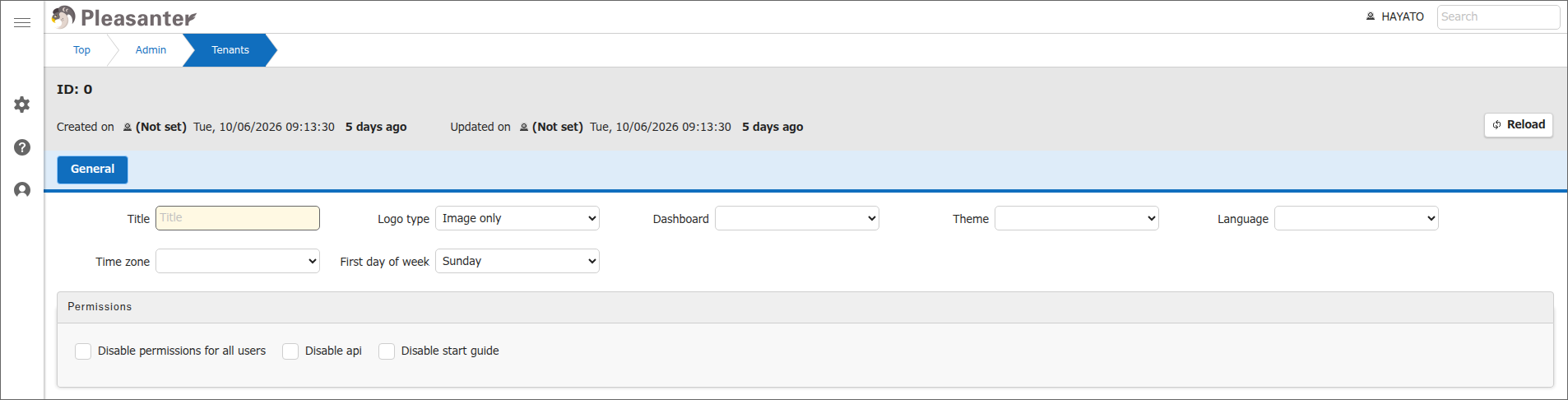
- Open the "Manage" menu and click "Tenant Management".
-
Enter the required information in the table below.
Column name Description Setting method Title Tenant title displayed in the upper left of the screen Enter optional title Logo Type Tenant logo displayed in the upper left of the screen Specify display format as image only/image and text Dashboard Dashboard to set as top screen Select from created dashboards Theme Theme to apply to the tenant Select "User Interface Themes" Language Language to apply to the tenant Select a language from the dropdown Timezone Timezone to apply to the tenant Select a timezone from the dropdown First day of week First day of the week to apply to the tenant. For details, see "Common Function: Specify the "First Day of Week" for Calendars". Select the first day of the week from the dropdown Do not use all user permissions Prohibit the use of all user permissions Check if you do not want to use "All User Permissions" in cases where you are sharing with multiple business partners Disable API API function Checking will disable API functions for the relevant tenant Do not use the start guide Display "Display start guide" in the user menu Check to not display in the user menu Logo Image (file) Image file to display as the tenant logo Upload optional image file HTML Title (top) HTML title when the site top is displayed Enter optional title HTML Title (site) HTML title when the site top is displayed Enter optional title HTML Title (record) HTML title when the site top is displayed Enter optional title [ProductName] Display product name (Pleasanter) [TenantTitle] Display the tenant title [SiteTitle] Display the site title [RecordTitle] Display the record title [Action] Display the action name when the screen is displayed (e.g., List, Create New, Edit, Gantt Chart, etc.) Top Style Style when the site top is displayed Enter optional CSS Top Script optional script to run when the site top is displayed Enter optional script LDAP sync Perform LDAP sync by pressing this button The button will be displayed if SyncByLdap is set to true in "BackgroundService.json". -
Click the "Update" button.
Start Guide
This is the start guide displayed on the top screen.
You can close it by clicking the x in the upper right.
Check "Don't show start guide next time" to prevent it from being displayed next time onwards.
If you close it with the x in the upper right without checking it, it will be displayed when you display the top screen again.

Dashboard
Set the created "Dashboard" as the top screen.
How to Display the Original Top Screen
After setting the "Dashboard" as the top screen, if you want to display the original top screen, please display it using the following method.
1. Add a "Quick Access" part with the site ID set to 0.
1. Specify the URL directly.http://{server name}/items/0/index (1)
(1) Please edit the {server name} part as appropriate to suit your environment.
For Pleasanter.net, the format is as follows:
https://pleasanter.net/fs/items/0/index (Japanese text only)
Simultaneous Setting with Locations.json
If you set the "Dashboard" as the top screen, the settings in Locations.json will be ignored.
Supported Versions
| Supported versions | Body |
|---|---|
| 1.3.19.0 and later | Added LDAP synchronization function |
| 1.5.9.0 and later | Added First day of week |