Tenant Management Function: Background Server Script
Overview
This function executes "Server Script" in the background at the specified timing.
Cautions
- Please note that depending on the processing of the background server script to be executed, it may cause a load on the entire tenant.
Limitations
- This function can only be set by "Privileged User".
- When the shared check box is checked, the Run Now button is disabled and the background server script will not be executed.
Prerequisites
- This function requires the BackgroundServerScript parameter in Script.json to be enabled.
Server Script Tab
Only "Privileged User" will have the Server Script tab displayed next to the General tab on the Tenant Management screen as shown below. You can set the background server script here.

Setting Procedure
Set up the background server script with the following procedure.
- Click Create New.
-
In the displayed dialog, set the advanced settings for the background server script.
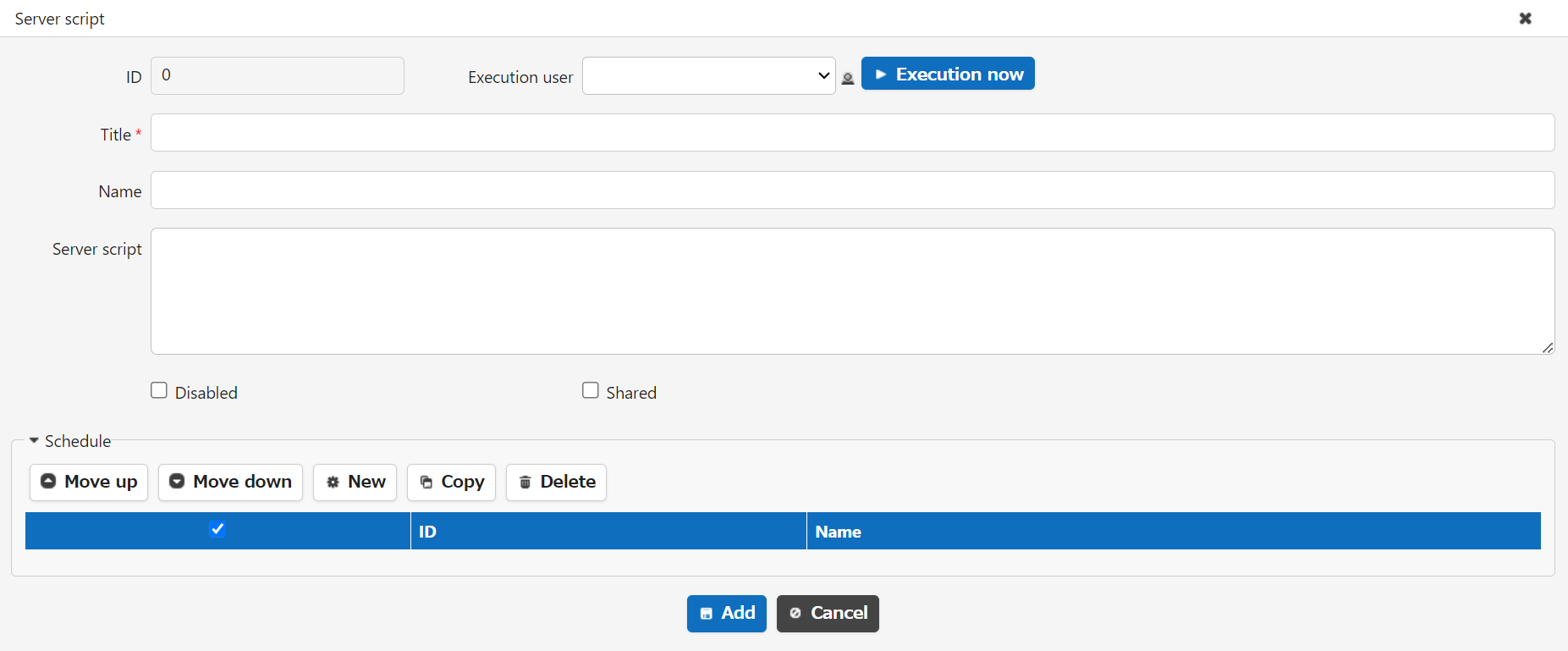
Column name Description ID This is the ID of the background server script. The ID is automatically generated. Execution User Click the column and set the user who executes the script from the displayed dialog. Run now This button executes the background server script immediately. Title Set the title of the background server script. Name Sets the name of the background server script. Server Script Set the content of the background server script. Disable Checking the checkbox disables the background server script. Share Checking the checkbox loads the code set at the beginning of other background server scripts. Schedule Set the timing for executing the background server script. For details, see Schedule Settings below. -
Click Add.
- Click Update at the bottom of the screen.
Schedule Settings
Specify the execution timing of the target background server script. Set the schedule by the following procedure.
-
Click Create New Schedule.
-
In the displayed dialog, set the schedule advanced settings.
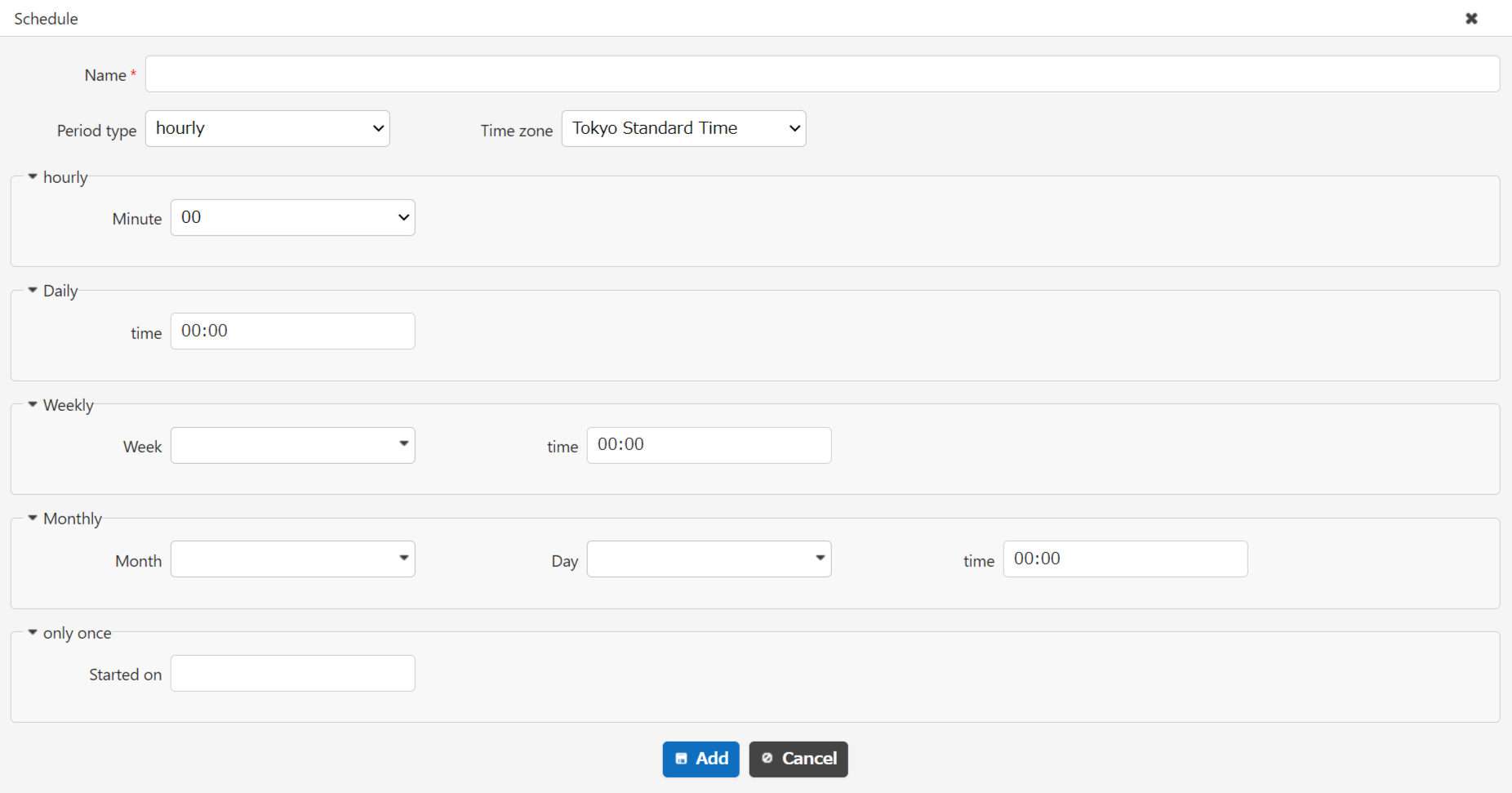
Column name Description Name Set the name of the schedule. Period Type Set one of Hourly / Daily / Weekly / Monthly / Once only. Time Zone Set the time zone that will be the basis for the schedule. Hourly Set the minute to execute. Can be set in 5-minute intervals. Daily Set the time to execute. Weekly Set the week and time to execute. Monthly Set the month, day and time to execute. Once only Set the start date and time to execute only once. -
Click Add.
Using the Code Editor
With the 2nd generation User Interface Theme, you can use a convenient code editor feature that supports syntax highlighting, code hints, indenting with the Tab key, and more. It becomes available when you enable EnableCodeEditor in General.json.
| Supported Version | Details |
|---|---|
| 1.4.13.0 and later | Code editor feature added |