User Management Function: View Change History
Overview
On the "Change history" tab of the "User administration" screen, you can view the change history of a user. You can check the change history of items on the "General" tab, such as "Login ID", "Name", and "Body".
Limitations
- Change history cannot be edited. When you display a version in the change history, the "Update" button and other buttons are hidden.
- You cannot restore a user from the change history or delete its change history. The "Change history" tab has no "Restore" or "Delete change history" button.
Prerequisites
- The user performing this operation must have "Tenant manager" privileges enabled.
Operation Procedure
- Click "Manage" in the navigation menu.
- Click "User administration".
- Click the target user in the list.
- Click the "Change history" tab.
-
The change history of the user is displayed, starting with the newest version.
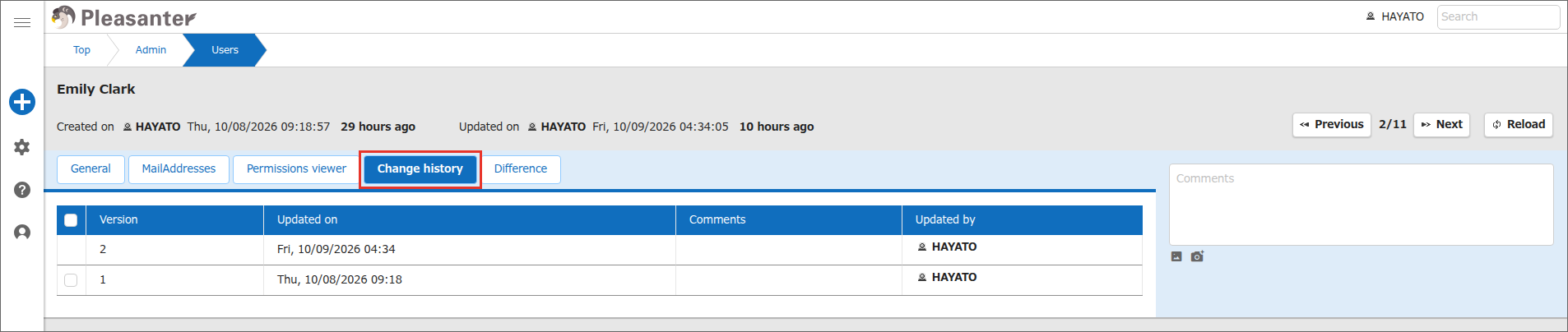
-
To check the contents of a specific version, click the target row in the list.
- The contents of the version you clicked are displayed, and the screen switches to the "Difference" tab. The "Difference" tab shows the comparison between the version you clicked and the version just before it. For details, see "User Management Function: View User Differences".
Supported Versions
| Supported Version | Description |
|---|---|
| 1.5.9.0 and later | Clicking a row in the change history now switches to the "Difference" tab |