User Management Function: Creation and Update
Overview
Register and update users who use Pleasanter.
Limitations
- If you have set up "LDAP Authentication" or "SAML Authentication" to obtain user information such as name and department, even if you update it on this screen, it will be overwritten with information obtained from the authentication server.
- To change the password of a registered user, perform "Password Reset".
Preparations
- Tenant administrator privileges are required for this operation.
When creating
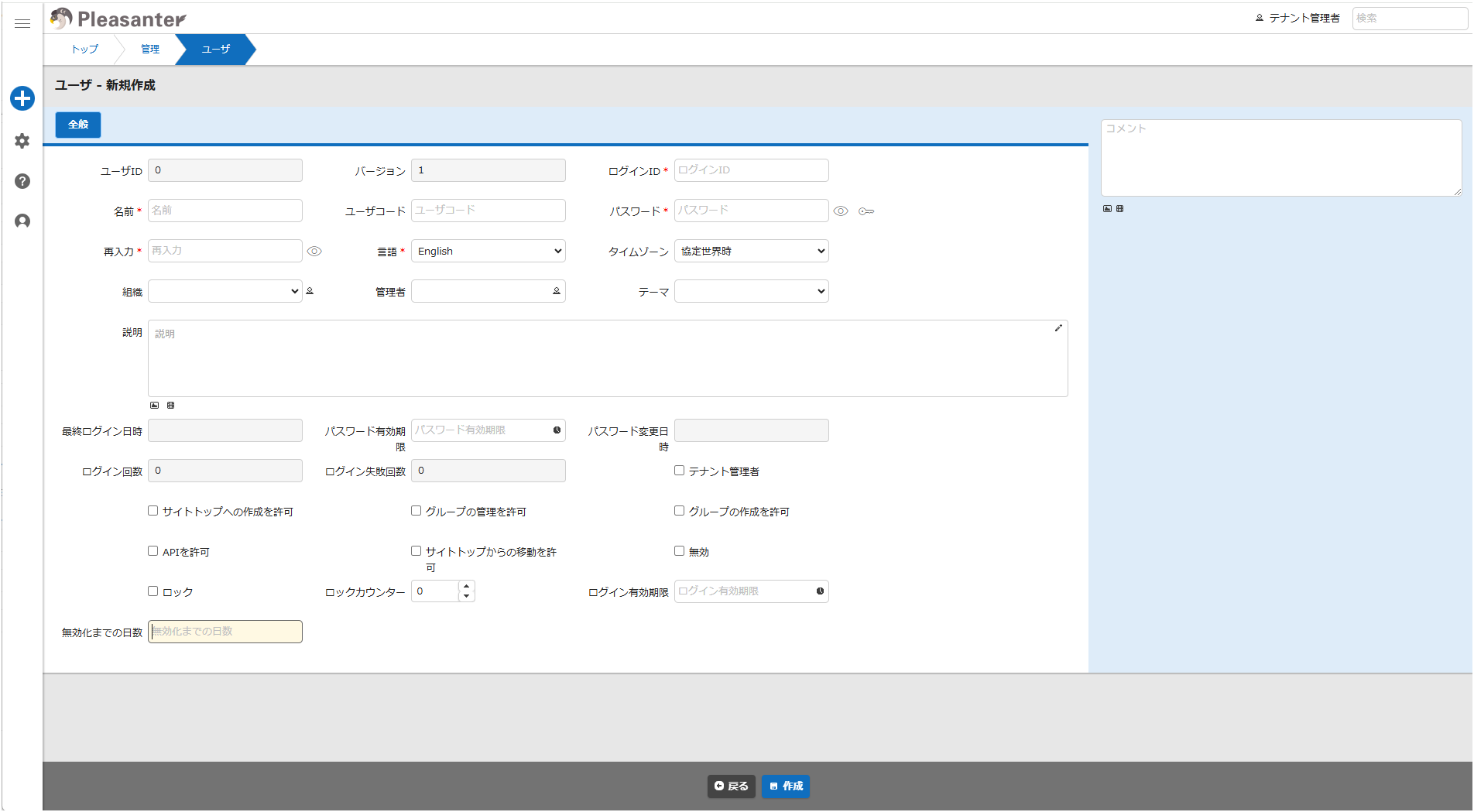
When updating
Operation
You can create and update users by performing the following operations.
When creating
- Open the "Manage" menu and click "Manage Users".
- Click the "Create New" button.
- Enter the required information in the table below and click the Create button.
When updating
- Open the "Manage" menu and click "Manage Users".
- Search appropriately on the list screen and click the user you want to update.
- Enter the required information in the table below and click the Update button.
Set Column
| Column name | Description | Settings |
|---|---|---|
| User ID | ID of the target user | Unique number is automatically assigned |
| Version | Change history number | Counts up automatically when updated |
| Login ID | ID for logging into the system | Set any ID |
| Name | Name of the user | Set any user name |
| User code | User code of the target user | Set any user code |
| Password | Password for logging into the system | Displayed only when registering for the first time. Any string. (Conditions such as the number of characters and required character types follow the PasswordPolicies settings in "Security.json") |
| Confirm password | Password confirmation | Displayed only when registering for the first time. Re-enter the string set as the password |
| Language | Language used by logged-in user | Set any language |
| Time Zone | Time zone used to calculate system time | Set any time zone |
| Department ID | Department to which the user belongs | Set any department |
| Manager | Users related to the target user, such as superiors and approvers | Set any user. Multiple selections not allowed |
| Theme | Screen user interface | Set any theme |
| Body | Description for the target user | Enter any content |
| Last login on | Date and time the target user last logged in | Cannot be edited |
| Password will expire on | Expiration date and time of the login password of the target user | Set any date and time |
| Password changed on | Date and time the login password of the target user was changed | Cannot be edited |
| No. of logins | Number of times the target user logged in | Cannot be edited |
| No. of failed logins | Number of times the target user failed to log in | Cannot be edited |
| Tenant manager | System manager authority | Tenant manager if checked |
| Allow creation on-site top | Permission to create on-site top | Displayed if DisableTopSiteCreation in "User.json" is true. If checked, only that user is allowed to create on-site top |
| Allow moving from the site top | Permission to allow moving from the site top | Displayed if DisableMovingFromTopSite in "User.json" is true. If checked, only that user will be allowed to move folders, tables, etc. at the site top |
| Allow group management | Permission to group management | Displayed if DisableGroupAdmin in "User.json" is true. If checked, only that user is allowed to manage groups |
| Allow group creation | Permission to create groups | Displayed when DisableGroupCreation in "User.json" is true, and if checked, allows only that user to create groups |
| Allow API | Permission to API | Displayed when DisableApi in "User.json" is true, and if checked, allows only that user to API |
| Enable 2-step authentication | Settings for enabling 2-step authentication | Displayed when SecondaryAuthentication/Mode in "Security.json" is DefaultDisable, and if checked, 2-step authentication is enabled for that user. |
| Disable 2-step authentication | Settings for disabling 2-step authentication | This is displayed when SecondaryAuthentication/Mode in "Security.json" is set to DefaultEnable. If checked, 2-step authentication will be disabled for that user. |
| Private key enabled | Settings for whether to link with TOTP authentication | Displayed when SecondaryAuthentication/NotificationType in "Security.json" is Totp, and automatically checked when linking with an authentication app. You can disable linking with an authentication app by unchecking it. |
| Disable | Enable/disable user login | Login disabled when checked |
| Lock | Enable/disable user login | Automatically disabled when the lock counter exceeds the number of times specified in LockoutCount in "Security.json" |
| Lockout counter | Number of failed login attempts for the target user | Automatically counts up when login fails |
| Login expiration date | Expiration date when the target user can log in | Set any date |
| Number of days to invalidation | Login NG if no login is made for the set number of days from the last login date | Set any number of days. Not invalidated if left blank or 0 |
Password Input Field Icons
Confirm password
Click the "eye" icon to the right of the "Password" and "Confirm password" fields to confirm the password you are entering. Click again to return to the masked state.
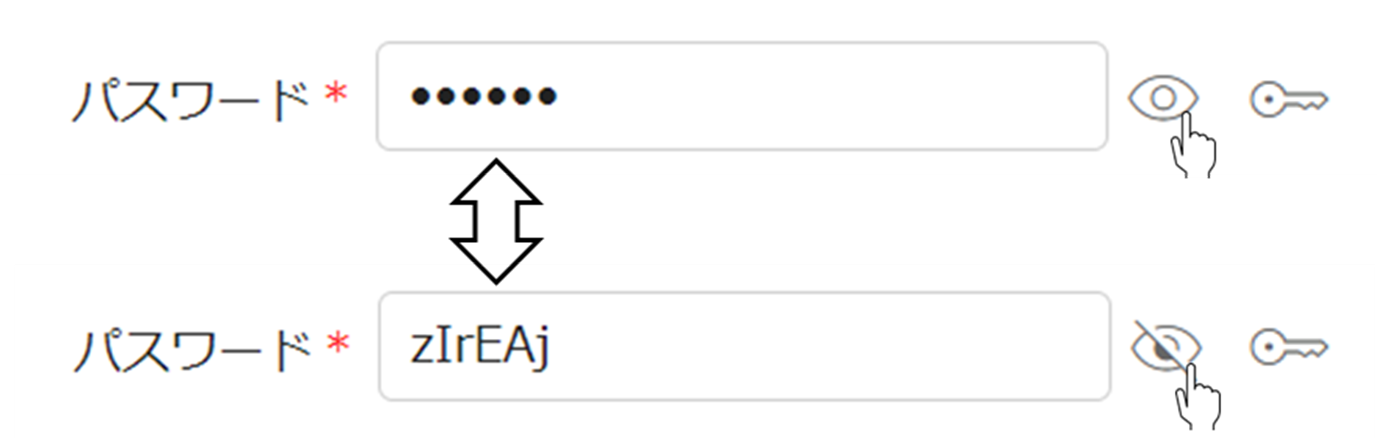
Automatic password generation
Click the "lock" icon to the right of the "Password" field to enter a randomly generated password in the "Password" and "Confirm password" fields. A new password is generated each time you click. Passwords are generated according to the policy specified in "PasswordPolicies" in "Security.json". The "lock" icon is displayed when "PasswordGenerator" in "Security.json" is true.

Supported Versions
| Supported versions | Body |
|---|---|
| 1.4.13.0 and later | Added administrator item Added login expiration date item Added number of days until invalidation item |