User Management Function: Customizing the Management Screen
Overview
You can customize the columns shown on the user management screens (list screen and edit screen) with the Column.json settings file. You can change whether columns are shown, their order and labels, the filter, who can see them, whether they can be edited, and the width and display format of input fields.
For where to create Column.json and its file name, see Extended Column. Specify each column with the key "Users_
Choosing the Columns Shown on the List and Edit Screens
Use GridEnabled for the columns shown on the list screen and EditorEnabled for the columns shown on the edit screen. Each screen is switched separately. Specify "0" to hide a column and "1" to show it. The following example hides "Body" on the list screen.


Changing the Column Order
Columns are arranged in ascending order of GridColumn on the list screen and EditorColumn on the edit screen. Changing the number changes the order. The following example moves "Body" to the front on the list screen.


Changing a Column Label
Specify the display name in LabelText. Specify the display name for each language with LabelText_en and so on. The English screen shows the value of LabelText_en. The following example changes the English display name "Body" to "Remarks".


Choosing the Columns Shown in the List Filter
Use FilterEnabled to switch the columns shown in the filter on the list screen. Specify "0" to hide a column and "1" to show it. The following example hides "Body" from the filter.


Restricting Who Can See and Enter a Column
You can restrict, for each column, which users can see it and which users can enter or change it. The following three settings are evaluated separately.
| Setting | Operation it restricts |
|---|---|
ReadAccessControl | Showing the column on the list screen and the edit screen |
CreateAccessControl | Entering a value when creating a new user |
UpdateAccessControl | Changing an existing user (the condition of ReadAccessControl must also be met) |
The values you can specify are as follows.
| Value | Behavior |
|---|---|
| ManageTenant | Allows tenant managers. |
| ManageService | Allows no one (including tenant managers and privileged users). |
Settings you do not specify keep their default values
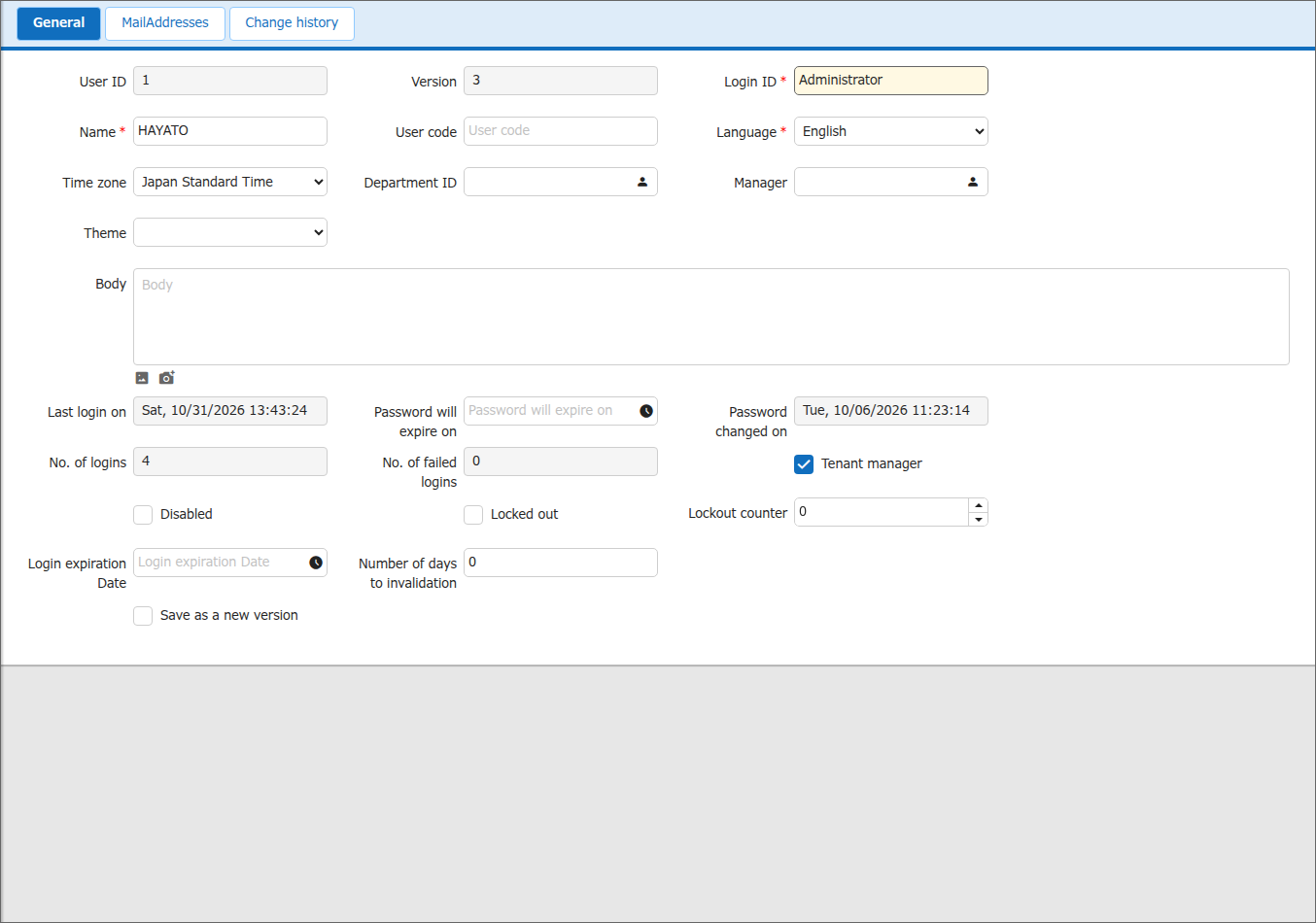
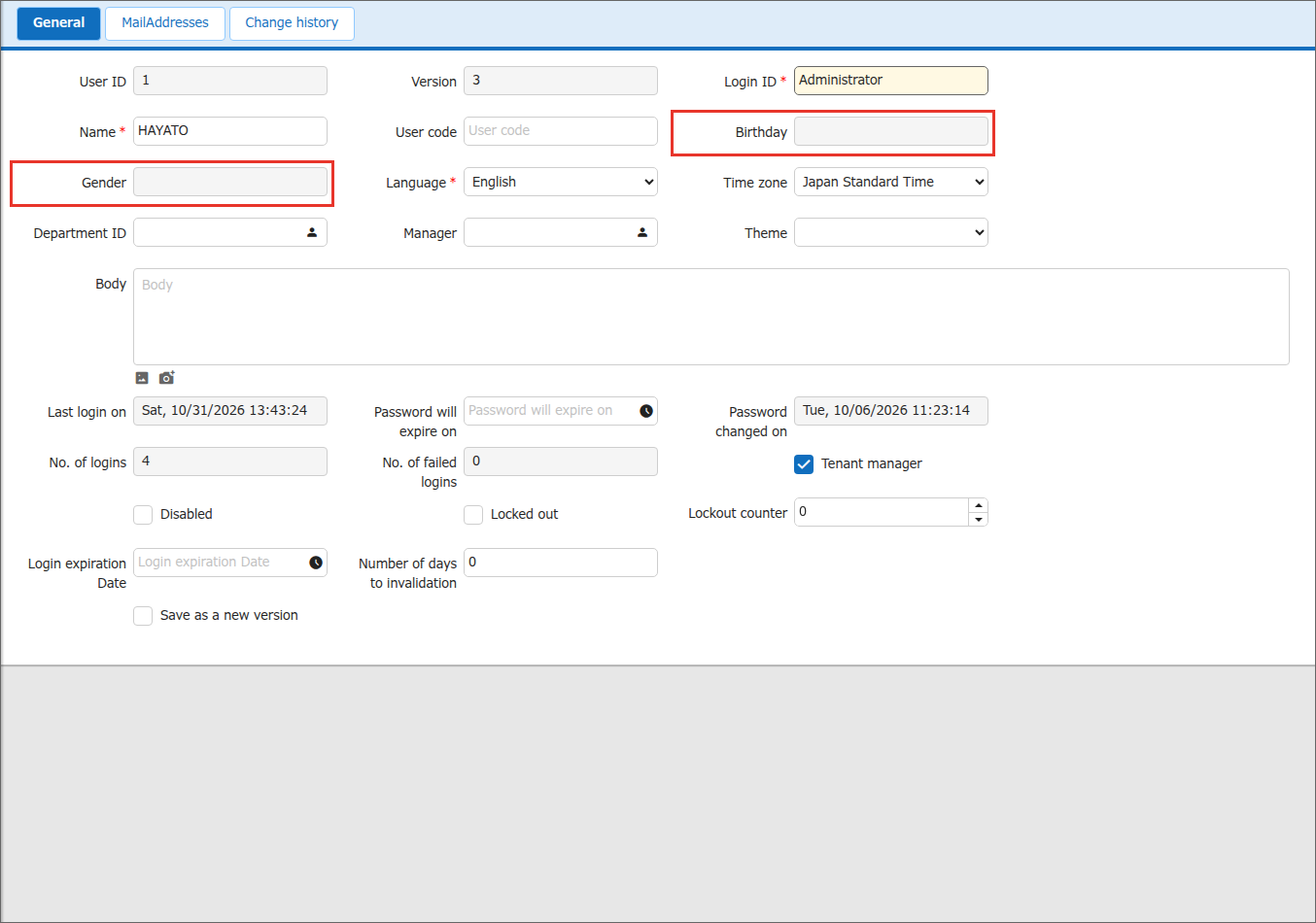
The product's default values apply to the settings you do not write in Column.json. For Birthday and Gender, the default value of all three settings is ManageService. Therefore, if you change only ReadAccessControl, the columns are shown but cannot be entered.
Showing Birthday and Gender to Tenant Managers
Specifying ManageTenant for ReadAccessControl shows the columns to tenant managers. They cannot be entered or changed.
{
    "Users_Birthday": {
        "ReadAccessControl": "ManageTenant"
    },
    "Users_Gender": {
        "ReadAccessControl": "ManageTenant"
    }
}
Letting Tenant Managers Enter Birthday and Gender
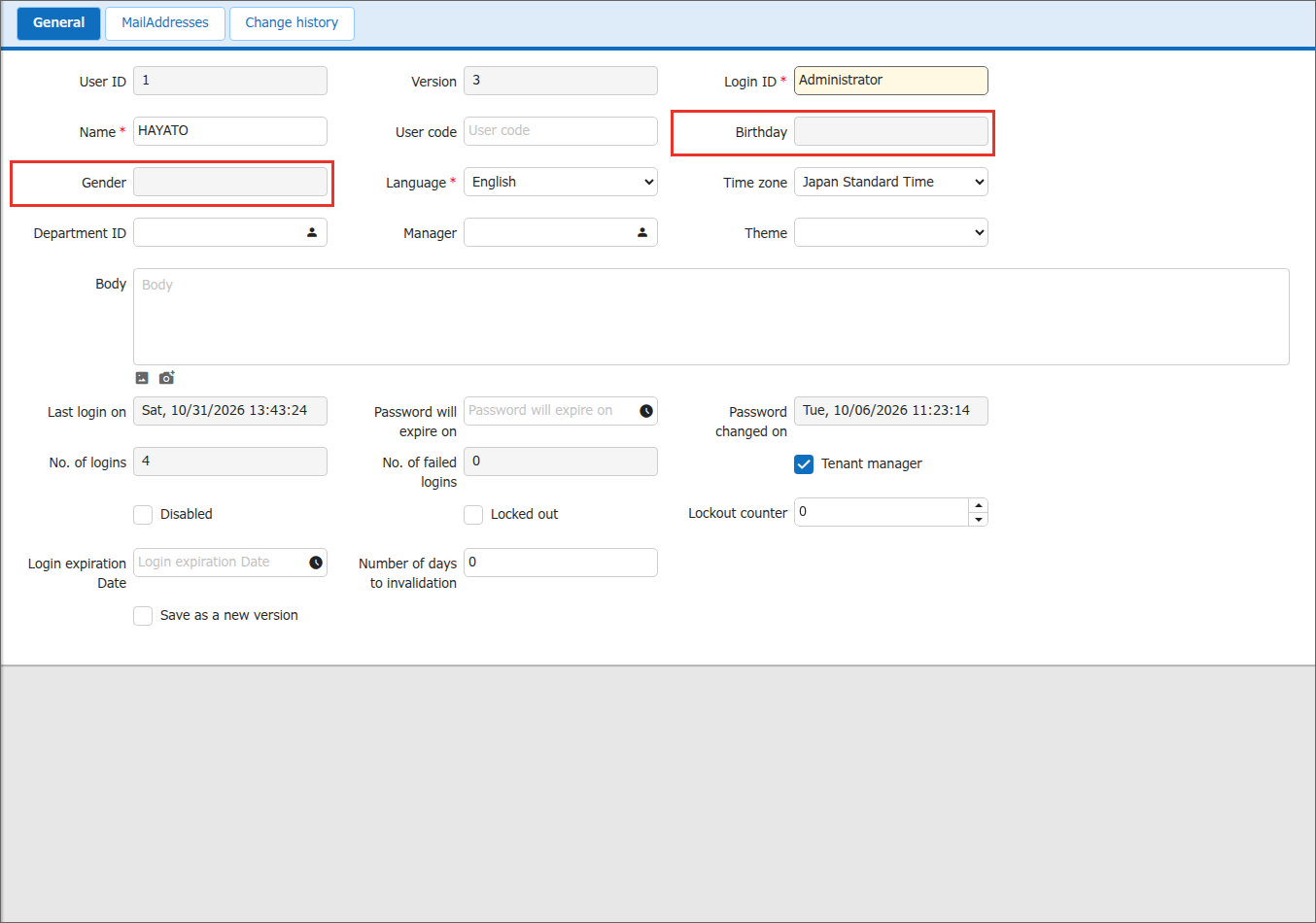
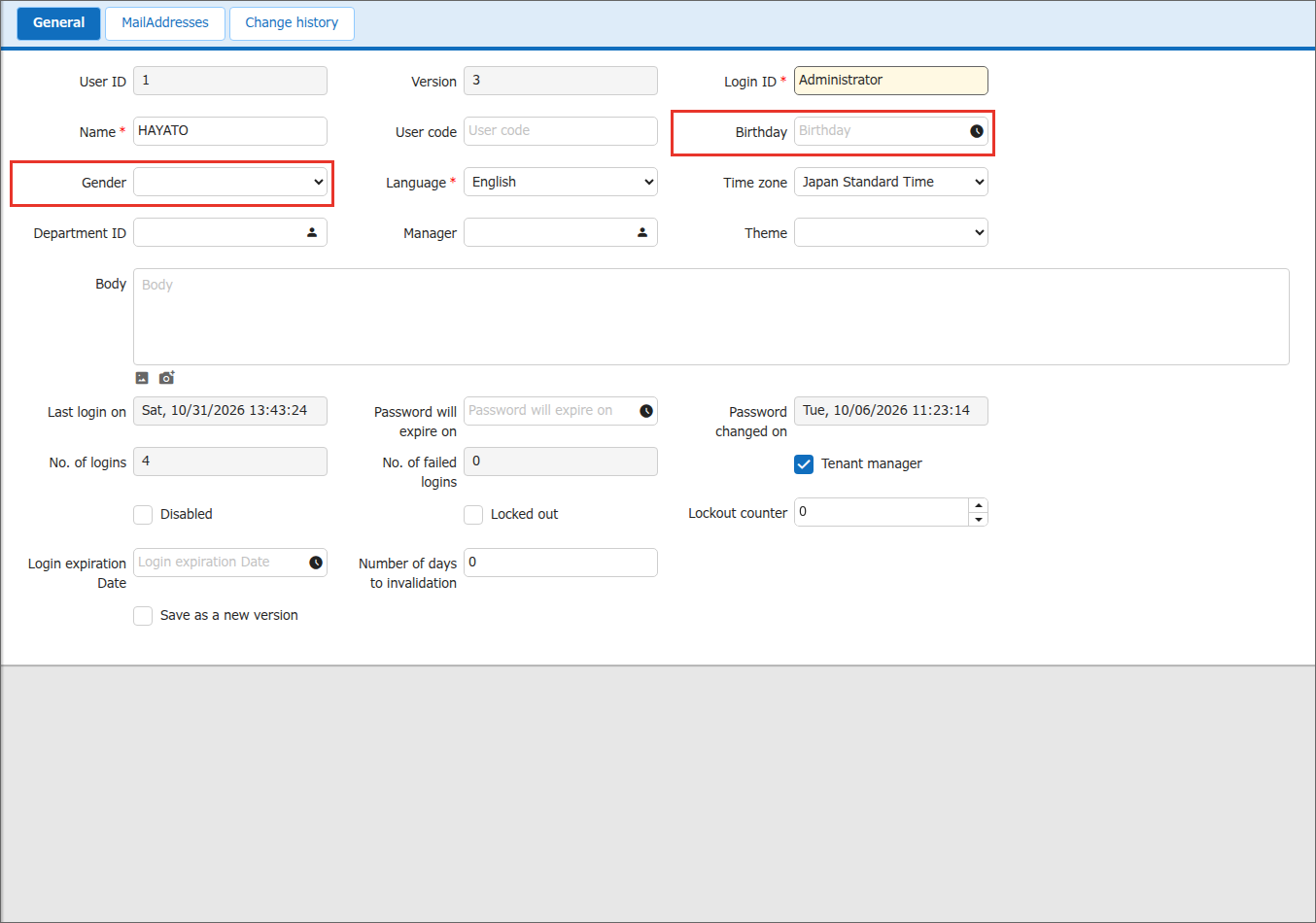
Specifying ManageTenant for CreateAccessControl and UpdateAccessControl as well lets tenant managers enter and change the columns.
{
    "Users_Birthday": {
        "ReadAccessControl": "ManageTenant",
        "CreateAccessControl": "ManageTenant",
        "UpdateAccessControl": "ManageTenant"
    },
    "Users_Gender": {
        "ReadAccessControl": "ManageTenant",
        "CreateAccessControl": "ManageTenant",
        "UpdateAccessControl": "ManageTenant"
    }
}
Changing the Width of an Input Field
Use FieldCss to change the width of an input field. Specify field-normal (normal) or field-wide (wide). This setting is for columns other than the description field ("Body"). If you specify it for the description field, the field changes to a single-line input field. The following example makes the User code input field wide.
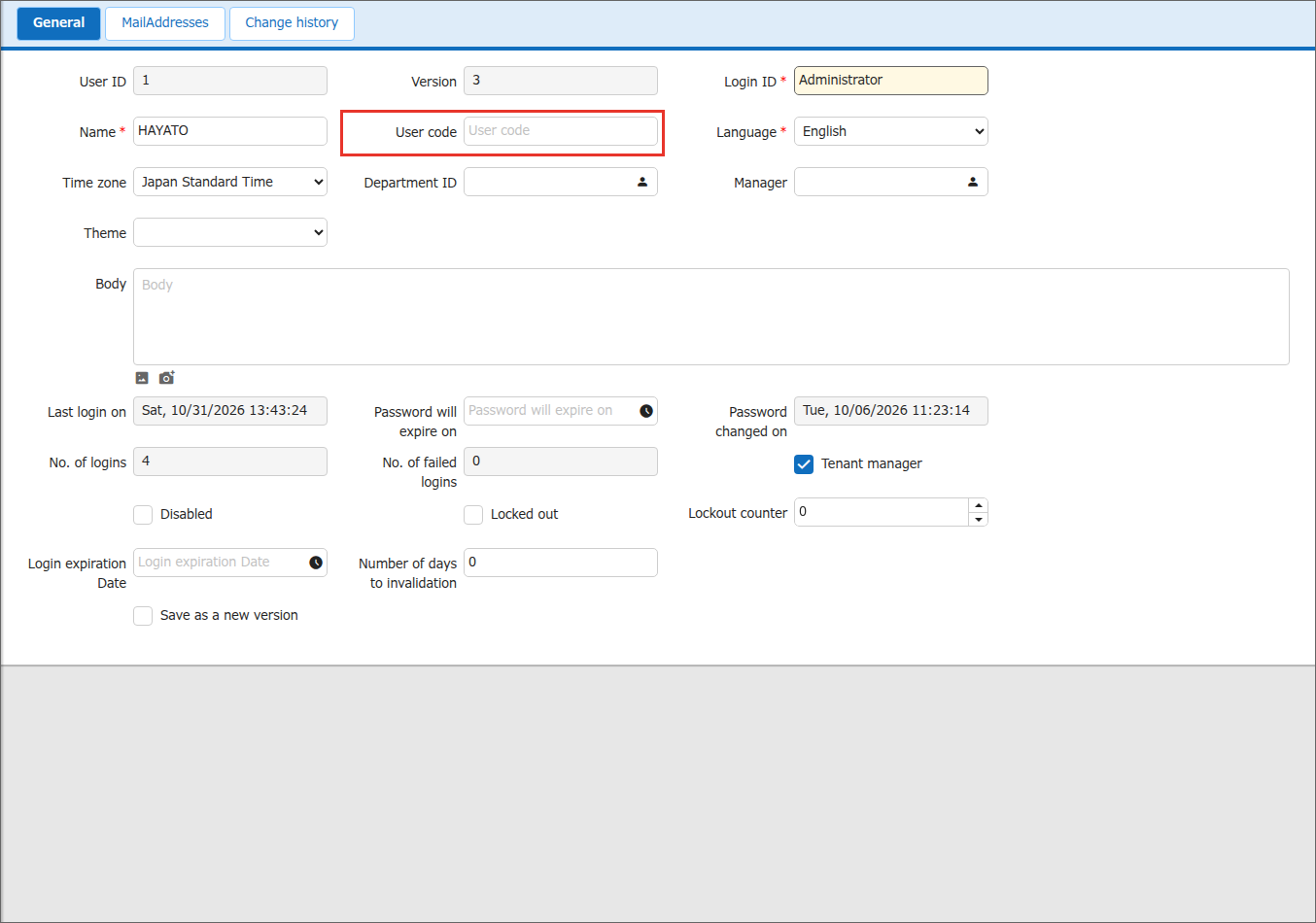
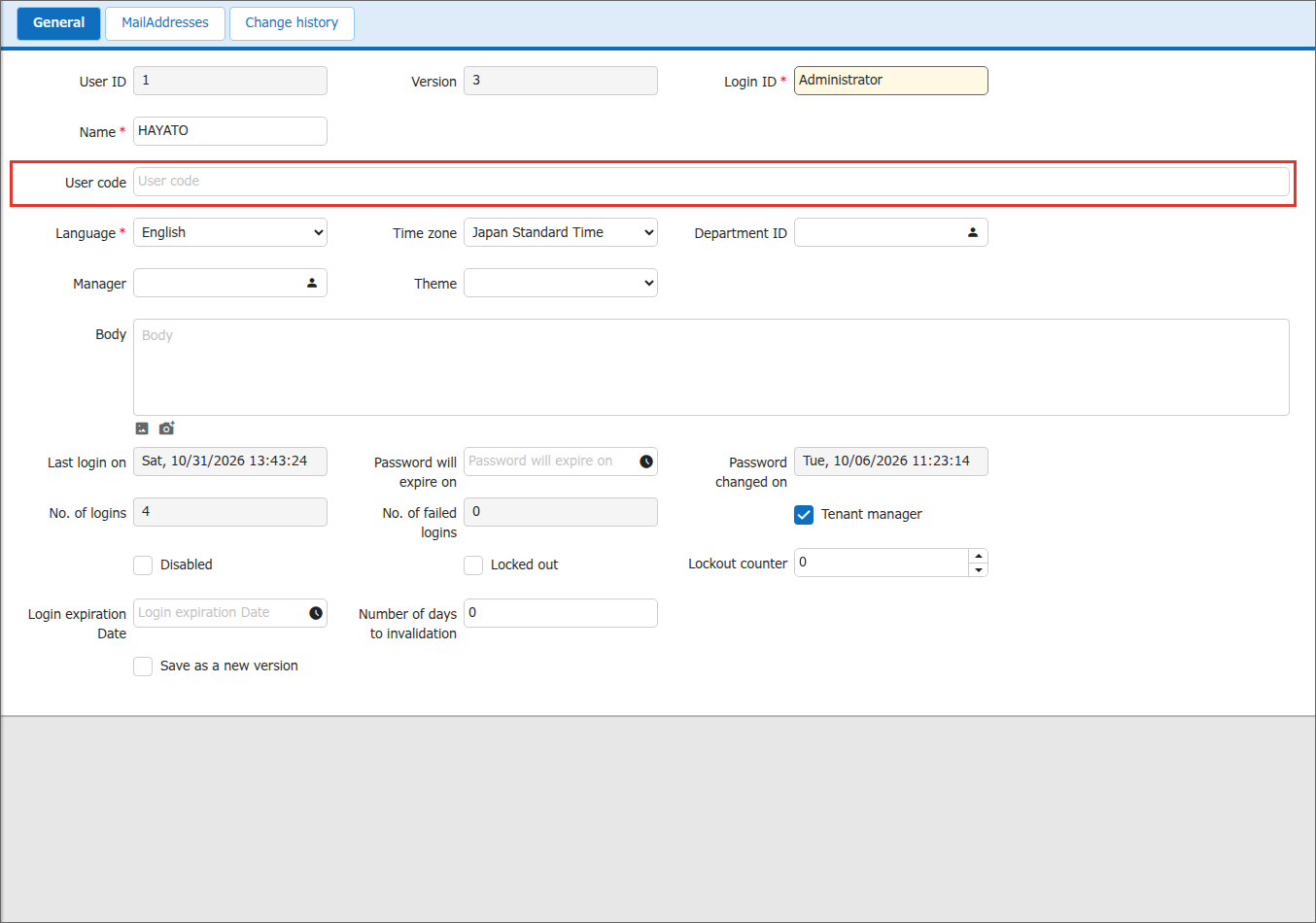
Changing the Display Format of the Description Field
For the description field ("Body"), you can choose the display format with FieldCss. field-markdown is Markdown, and field-rte is the rich text editor. Markdown and rich text are settings for the description field. Do not specify them for other columns. The following example changes the description field to the rich text editor.
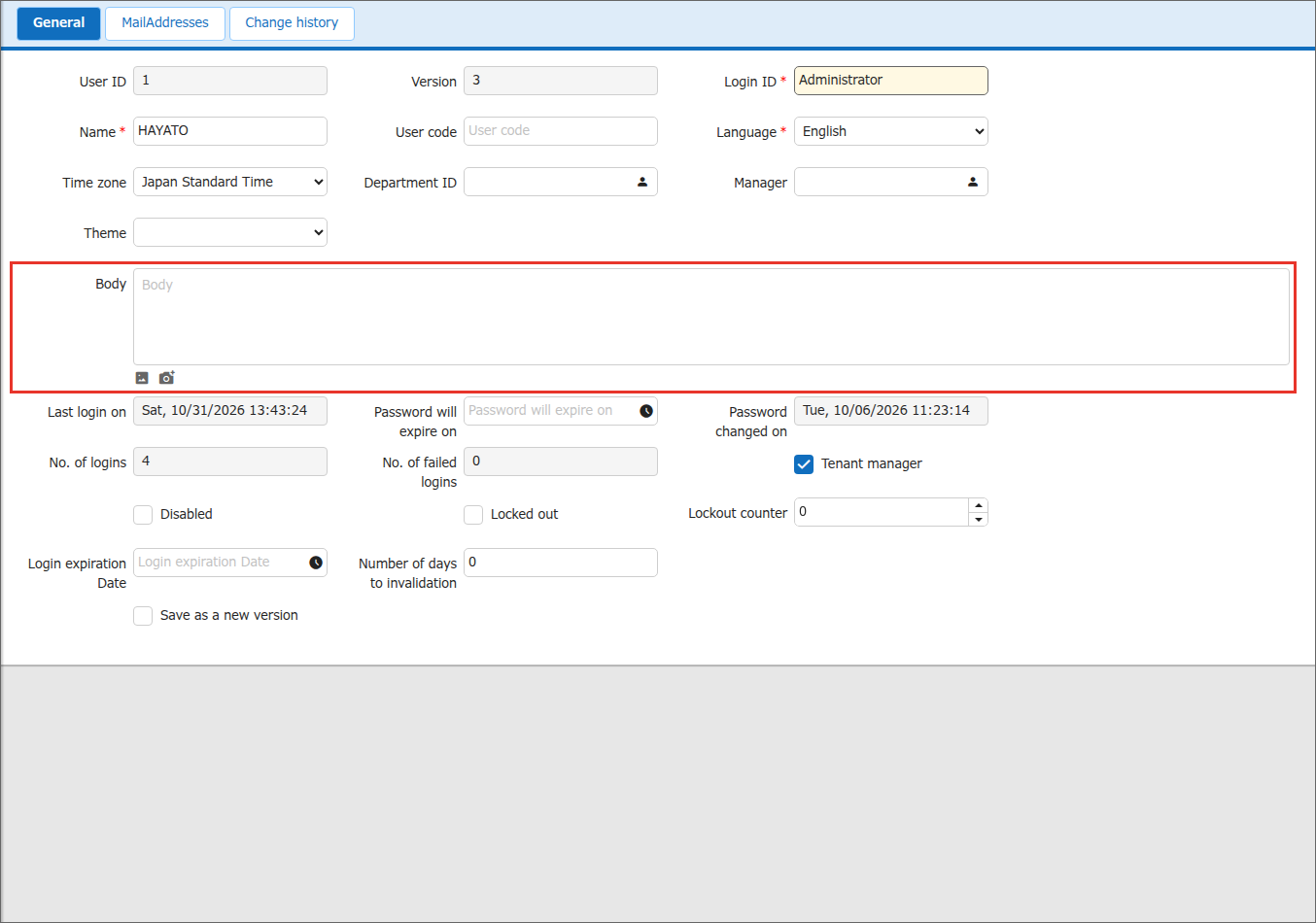
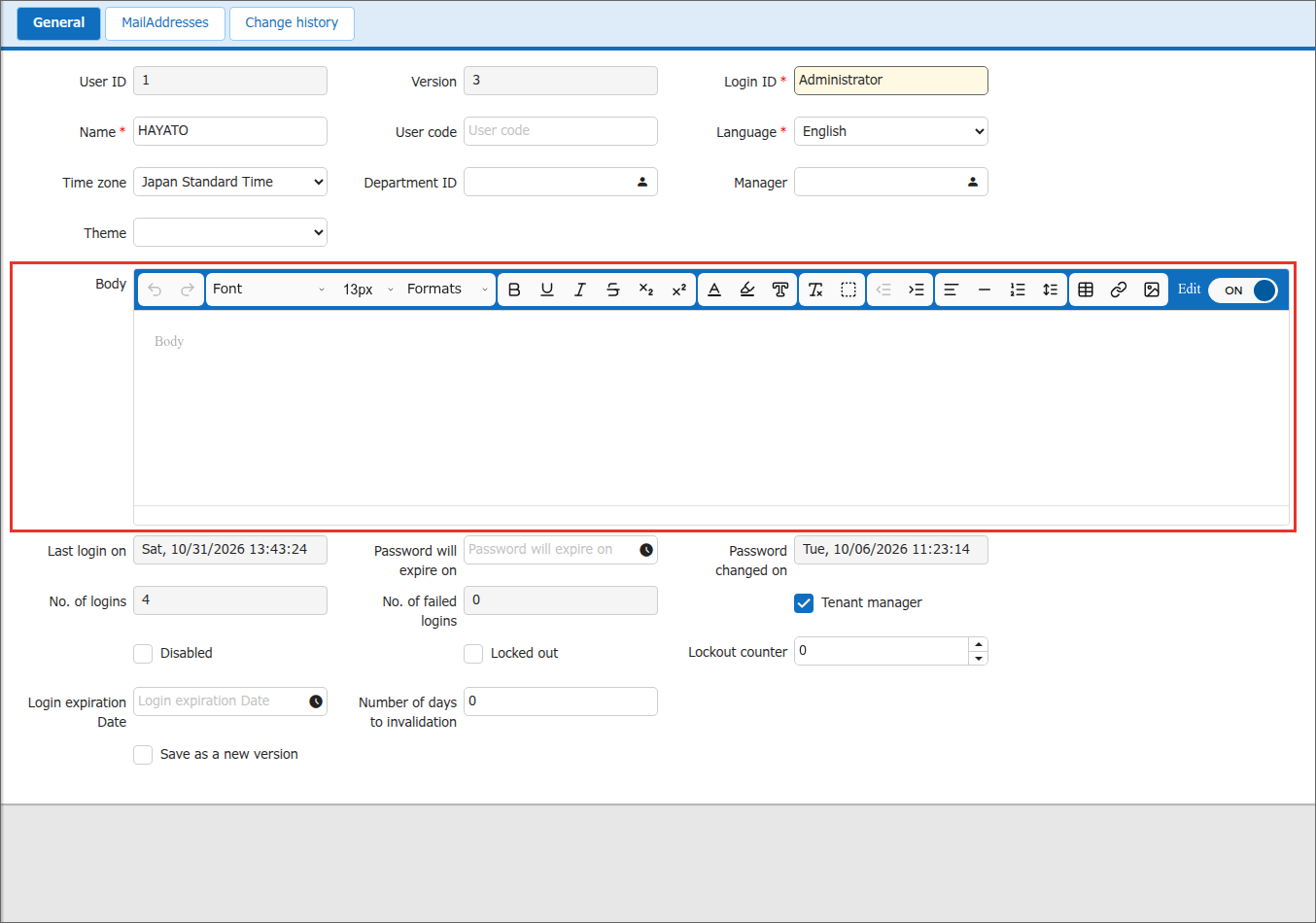
Columns and Their Keys
The columns shown on the user management screens and the keys to specify in Column.json are as follows, in the order of the edit screen. "Shown to" is the default value of ReadAccessControl.
| Column on the screen | Key | List screen | Edit screen | Shown to |
|---|---|---|---|---|
| User ID | Users_UserId | Shown | Shown (read-only) | Not restricted |
| Login ID | Users_LoginId | Shown | Shown | Not restricted |
| Name | Users_Name | Shown | Shown | Not restricted |
| User code | Users_UserCode | Shown | Shown | Not restricted |
| Password | Users_Password | Hidden | Shown only when creating | — |
| Confirm password | Users_PasswordValidate | Hidden | Shown only when creating | — |
| Birthday | Users_Birthday | Hidden | Hidden | Not shown |
| Gender | Users_Gender | Hidden | Hidden | Not shown |
| Language | Users_Language | Shown | Shown | Not restricted |
| List screen: Time zone info Edit screen: Time zone | List screen: Users_TimeZoneInfoEdit screen: Users_TimeZone | Shown | Shown | Not restricted |
| Department code | Users_DeptCode | Shown | Hidden | Not restricted |
| List screen: Department Edit screen: Department ID | List screen: Users_DeptEdit screen: Users_DeptId | Shown | Shown (only tenant managers can change it) | Not restricted |
| Manager | Users_Manager | Shown | Shown | Not restricted |
| Theme | Users_Theme | Shown | Shown | Not restricted |
| Body | Users_Body | Shown | Shown | Not restricted |
| Last login on | Users_LastLoginTime | Shown | Shown (read-only) | Tenant managers |
| Password will expire on | Users_PasswordExpirationTime | Shown | Shown | Tenant managers |
| Password changed on | Users_PasswordChangeTime | Shown | Shown (read-only) | Tenant managers |
| No. of logins | Users_NumberOfLogins | Shown | Shown (read-only) | Tenant managers |
| No. of failed logins | Users_NumberOfDenial | Shown | Shown (read-only) | Tenant managers |
| Tenant manager | Users_TenantManager | Shown | Shown | Tenant managers |
| Disabled | Users_Disabled | Shown | Shown | Tenant managers |
| Locked out | Users_Lockout | Shown | Shown | Tenant managers |
| Lockout counter | Users_LockoutCounter | Shown | Shown | Tenant managers |
| Login expiration Date | Users_LoginExpirationLimit | Shown | Shown | Tenant managers |
| Number of days to invalidation | Users_LoginExpirationPeriod | Shown | Shown | Tenant managers |
Columns with different keys on the list and edit screens
Time zone and department use different keys (and labels) on the list screen and the edit screen. To change both screens, specify both keys.
Columns Shown by Parameter Settings
The following columns are not shown by default. They are shown on the list screen and the edit screen only when a parameter is set. For the conditions, see "User Management Function: Creation and Update".
| Column on the screen | Key |
|---|---|
| Allow creation at the top of the site | Users_AllowCreationAtTopSite |
| Allow moving from the top of the site | Users_AllowMovingFromTopSite |
| Allow group administration | Users_AllowGroupAdministration |
| Allow group creation | Users_AllowGroupCreation |
| Allow API | Users_AllowApi |
| Enable Secondary Authentication | Users_EnableSecondaryAuthentication |
| Disable Secondary Authentication | Users_DisableSecondaryAuthentication |
| Enable Secret key | Users_EnableSecretKey |
Cannot be shown with Column.json
These columns are shown or hidden by parameter settings. Even if you specify ReadAccessControl or other settings in Column.json, they are not shown unless the parameter conditions are met. Once a column is shown by the parameter settings, you can change its label or hide it with Column.json.