How to upgrade Pleasanter Enterprise Edition (using installer)
Overview
This section explains the procedure for upgrading Pleasanter in an environment using the Enterprise Edition. Please be sure to follow these instructions, especially if you have expanded columns.
Cautions
- Be sure to back up your database before upgrading.
Pleasanter User Manual - FAQ: Backup, Restore - Be sure to use the license file currently in use. If you have expanded fields, running CodeDefiner with an expired license file will delete the expanded columns and prevent you from accessing the entered data.
Prerequisites
- This procedure assumes that you have upgraded Pleasanter to the Enterprise Edition.
Operation Procedure
- Complete the upgrade procedure up to "Run the Installer".
- Confirm the upgrade.
Operation Procedure
For this procedure, please refer to the "Upgrade (Installer)" section of our online manual.
Pleasanter User Manual - Upgrade (Installer)
1. Complete the upgrade procedure up to "Run the Installer".
Follow our online manual to complete the upgrade procedure up to step 4, "Run the Installer".
1. Windows Environment
"Upgrade Procedure Using the Installer (Windows)"
1. Linux Environment
"Upgrade Procedure Using the Installer (Linux)"
1. Azure App Service Environment
"Upgrade Procedure Using the Installer (Azure App Service)"
If a reduction in the number of columns used occurs during step 4, "Run the Installer", the error message "<ERROR> Configurator.CheckColumnsShrinkage: The columns will be shrinked." will be displayed, the process will terminate, and CodeDefiner will not run. If an error occurs, the columns to be reduced will be displayed as shown below. Please double-check that the parameter file and license have been applied correctly.
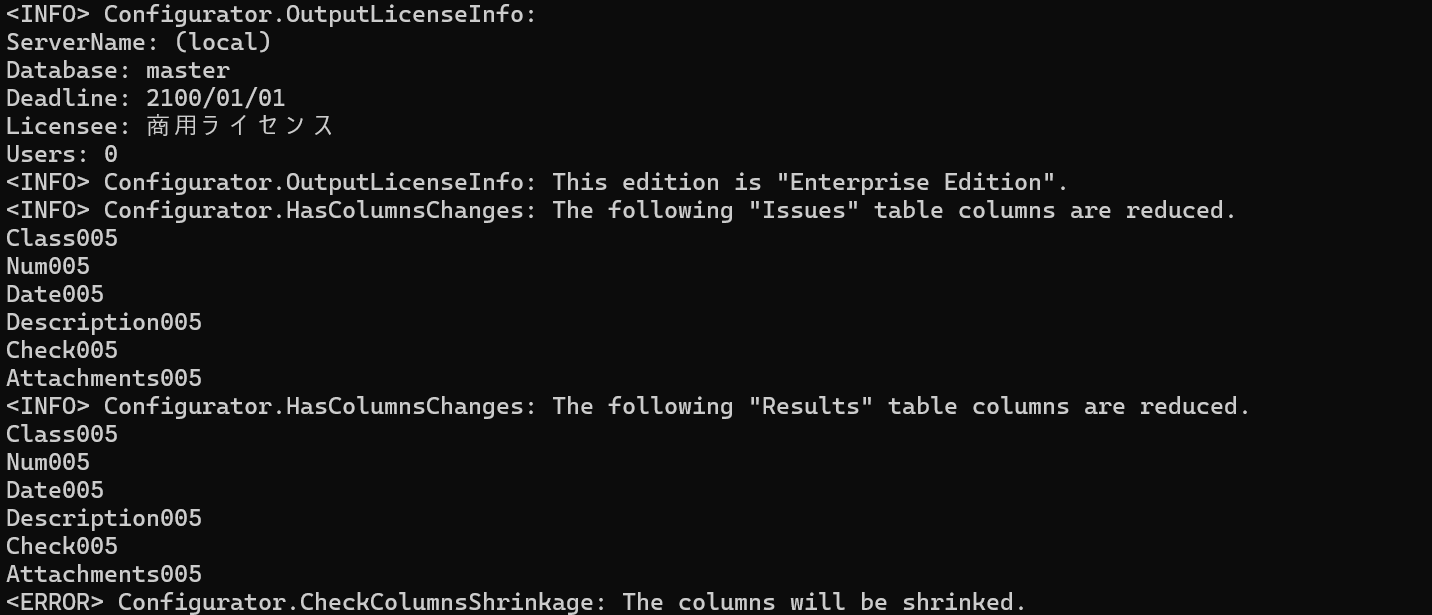
If you want to allow the columns to be reduced, execute the command in Step 4, "Run the Installer", with the argument "--force".
2. Check for the version upgrade
- Log in to Pleasanter and check the following from the "Help" - "Version" navigation menu.
- The license is set to "Commercial License".
- The license expiration date is correct (for a license valid until the end of February, it will be displayed as 3/1).
- The user is correct.
- The version is correct.
- If the columns have been expanded, check the following.
- Open any table, click [Manage] - [Manage Table] in the navigation menu, and in the "Editor" tab, make sure the extended columns (Class001, Num001, etc.) appear in the option list.
- Open the editing screen for the table in which you've set the extended columns, and make sure all columns are displayed.